M20_Ope_E.pdf - 第418页
Chapter 14 Intelligent Feeder 14-18 ■ Backing up the ID Database Action: ① From the taskbar, select File > Backup ID Database. ② The following dialog box will appear, so enter the name of the file to be saved and the …
Chapter 14 Intelligent Feeder
14-17
14-3-3 ID Database
The ID database shows the link information between feeder ID barcodes and component
barcodes.
This section explains the functions of the ID database.
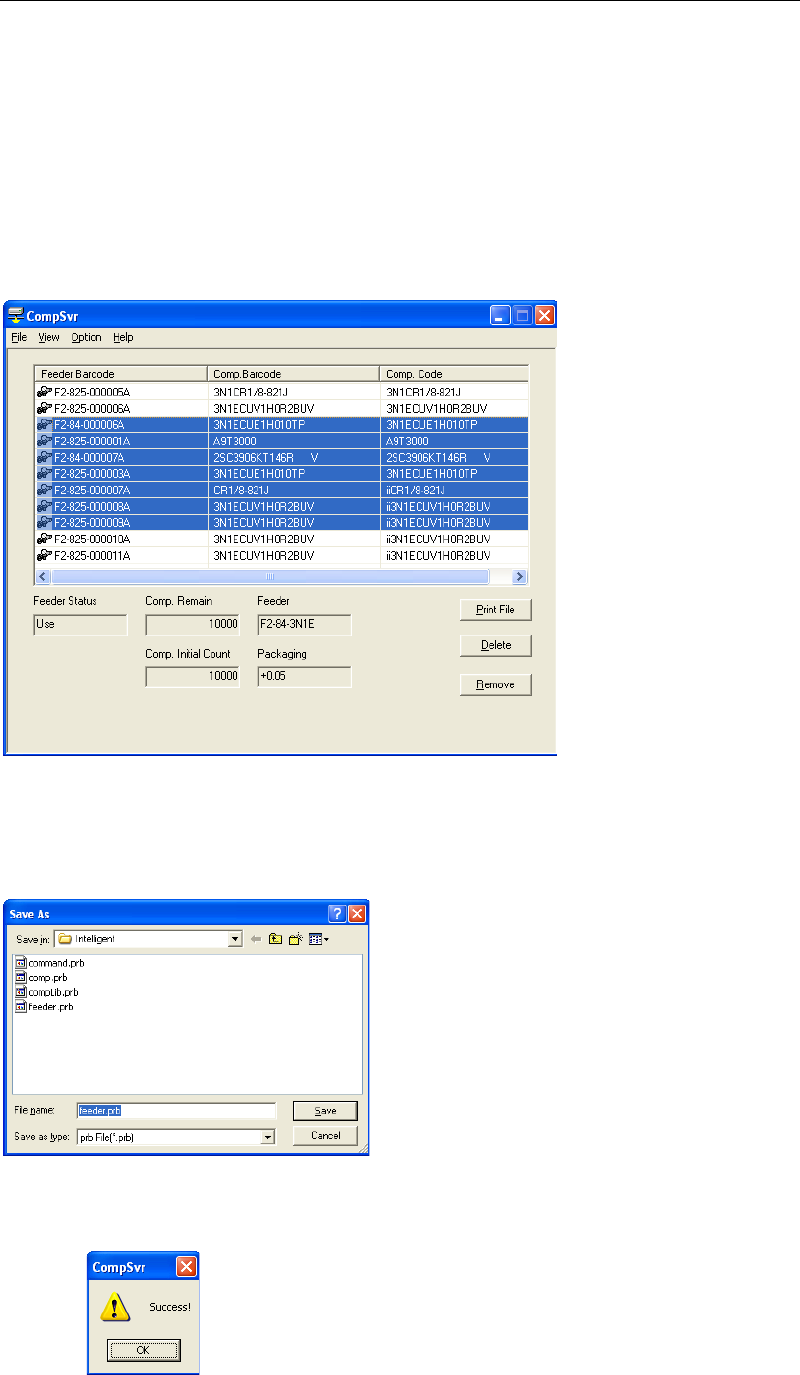
■Creating a Feeder Barcode Print File
Action:
① Select the feeder(s) whose barcode is to be printed. To select two or more feeders
collectively, drag the mouse while holding down the left button of the mouse.
② After a feeder record(s) is selected, click <Print File> button. The following dialog box will
appear, so enter the name of the file to be saved and the directory in which the file is to be
saved, and then click <Save>.
→The default file name is “feeder.prb”.
③ When the file is saved successfully, a message informing you will appear, so click <OK>
button.
REFERENCE: For feeder barcode printing, refer to “Printing Barcodes”.
Chapter 14 Intelligent Feeder
14-18
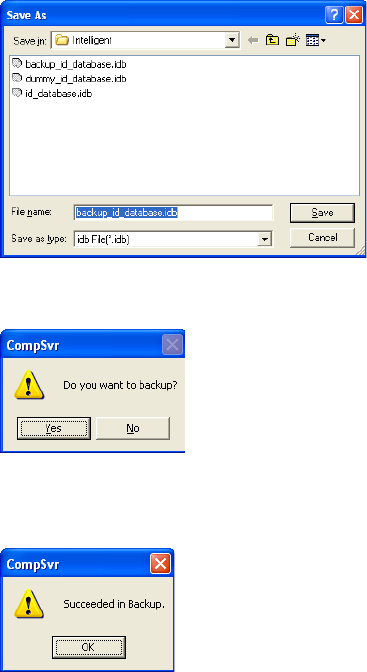
■Backing up the ID Database
Action:
① From the taskbar, select File > Backup ID Database.
② The following dialog box will appear, so enter the name of the file to be saved and the
directory in which the file is to be saved, and then click <Save>.
→The default backup file name is “backup_id_database.idb”.
③ A message “Do you want to backup?” appears, so click <Yes>.
④ When the file is backed up successfully, a message informing you will appear, so click
<OK> button.
Note: It is recommended that the ID database be backed up frequently.
When backing up the ID database, the component table must also be backed up at the same
time to ensure consistency.
■Restoring the ID Database
Action:
① From the taskbar, select File > Restore ID Database.
② A dialog box appears, so select the file that was backed up (see “Backing up the ID
Database”), and click <Open>.
③ A message “Do you want to restore?” will appear, so click <Yes>.
④ When the file is restored successfully, a message informing you will appear, so click
<OK> button.
Note: When restoring the ID database, the component table must also be restored at the same time to
ensure consistency.
Chapter 14 Intelligent Feeder
14-19
■Backing up a Component Table
Action:
① From the taskbar, select File > Backup Comp. Table.
② The following dialog box will appear, so enter the name of the file to be saved and the
directory in which the file is to be saved, and then click <Save>.
→The default backup file name is “backup_comp_table.tb”.
③ A message “Do you want to backup?” appears, so click <Yes>.
④ When the file is backed up successfully, a message informing you will appear, so click
<OK> button.
Note: It is recommended that the component tables be backed up frequently.
When backing up component tables, the ID database must also be backed up at the same time
to ensure consistency.
■Restoring a Component Table
Action:
① From the taskbar, select File > Restore Comp. Table.
② A dialog box appears, so select the file that was backed up (see “Backing up a Component
Table”), and click <Open>.
③ A message “Do you want to restore?” will appear, so click <Yes>.
④ When the file is restored successfully, a message informing you will appear, so click
<OK> button.
Note: When restoring a component table, the ID database must also be restored at the same time to
ensure consistency.