3_AVS-V2_MCT-UM-internal_EN_07-2019.pdf - 第139页
ASM AVS - U SER M ANUAL P AGE 139 OF 182 Now the re giste r mar k h as to be des crib ed (t eac hed) . • T he c amer a is abo ve t he re gis ter m ark! • C lick the but ton »Reg iste r Ma rk« i n t he a rea » Ed it Mo de…
ASM AVS - USER MANUAL
PAGE 138 OF 182
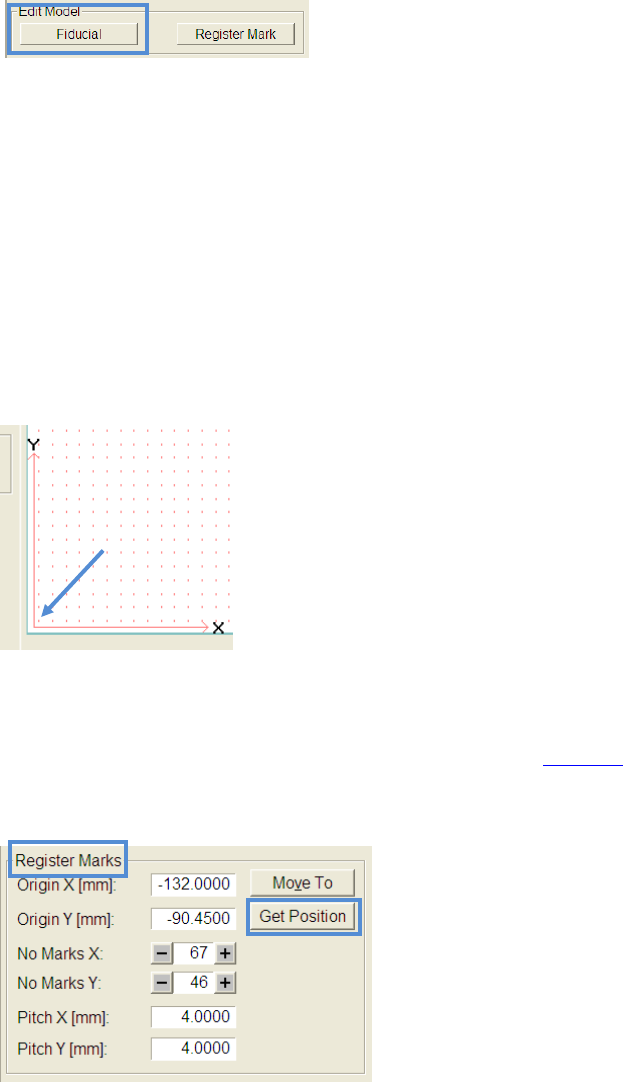
Now the global fiducial of the glass board has to be described (teached).
• The camera is above the fiducial!
• Click the button »fiducial« in the area »Edit Model«.
• The Siplace Vision Software for fiducials will be opened
• Now you can teach (e.g. using the »wizard«) the fiducial like known in the station software
of SIPLACE machines.
• You will be asked whether you want to use the fiducial in your recipe when
you leave the SIPLACE Vison Software
5.3.5.1.2 Local fiducials (register marks)
• Ensure that the function »Move Stage« is active.
• Click on the »local fiducial« in the lower left corner, as shown in the picture
• Switch the partial view to »Live Image« and ensure that the lower left fiducial
is centered.
• For fine centering you can use the joystick like described in 4.3.5.1.1.
• If the yellow cross is in the middle of the fiducial, you can apply this position with the but-
ton »Get Position« inside the area »Register Marks«.
• Type in the correct numbers of local fiducials (register marks) in X and Y
direction.
• Type in the correct pitch in X and Y direction.
ASM AVS - USER MANUAL
PAGE 139 OF 182
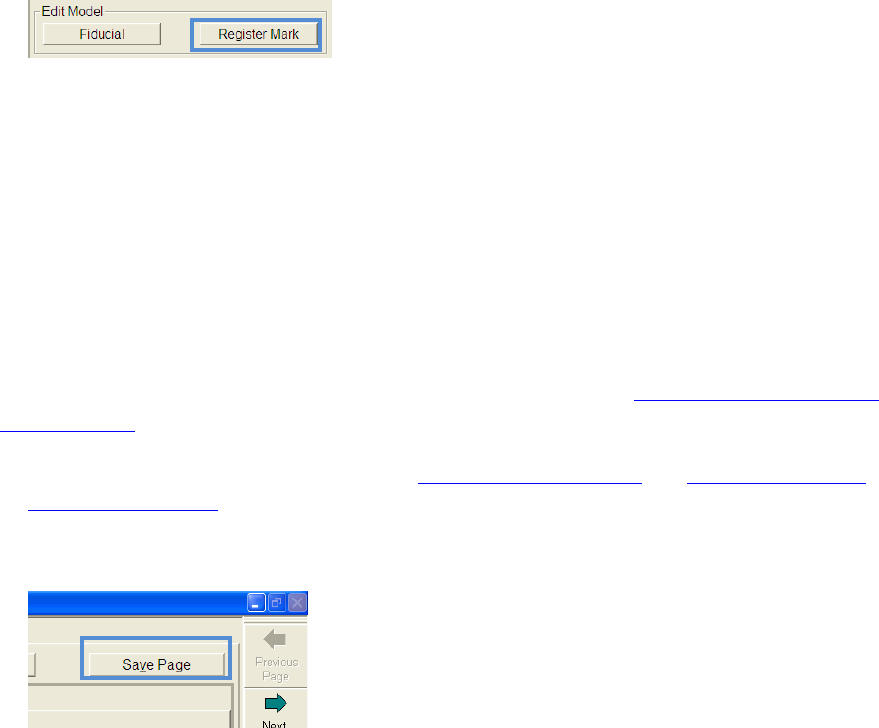
Now the register mark has to be described (teached).
• The camera is above the register mark!
• Click the button »Register Mark« in the area »Edit Model«.
• The Siplace Vision Software for fiducials will be opened
• Now you can teach (e.g. using the »wizard«) the fiducial like known in the SIPLACE Vision
software.
• You will be asked whether you want to use the fiducial in your recipe when
you leave the SIPLACE Vison Software
5.3.5.1.3 Save a board as a template.
You can save a board, which you have created or edited, as a template.
So you are able to load this board into another recipe as described in 4.3.5.1 Change glass board
/ describe new
• You have made all settings as described in 4.3.5.1.1 Global fiducials and 4.3.5.1.2 Local fidu-
cials (register marks)!
• Click now on »Save Page« to save the board in the preselected directory, via windows »save
as« dialog.
ASM AVS - USER MANUAL
PAGE 140 OF 182
5.3.5.2 Components (Items)
After the glass board for the recipe was chosen like described in 4.3.5.1, in the next step com-
ponents (Items) can be selected.
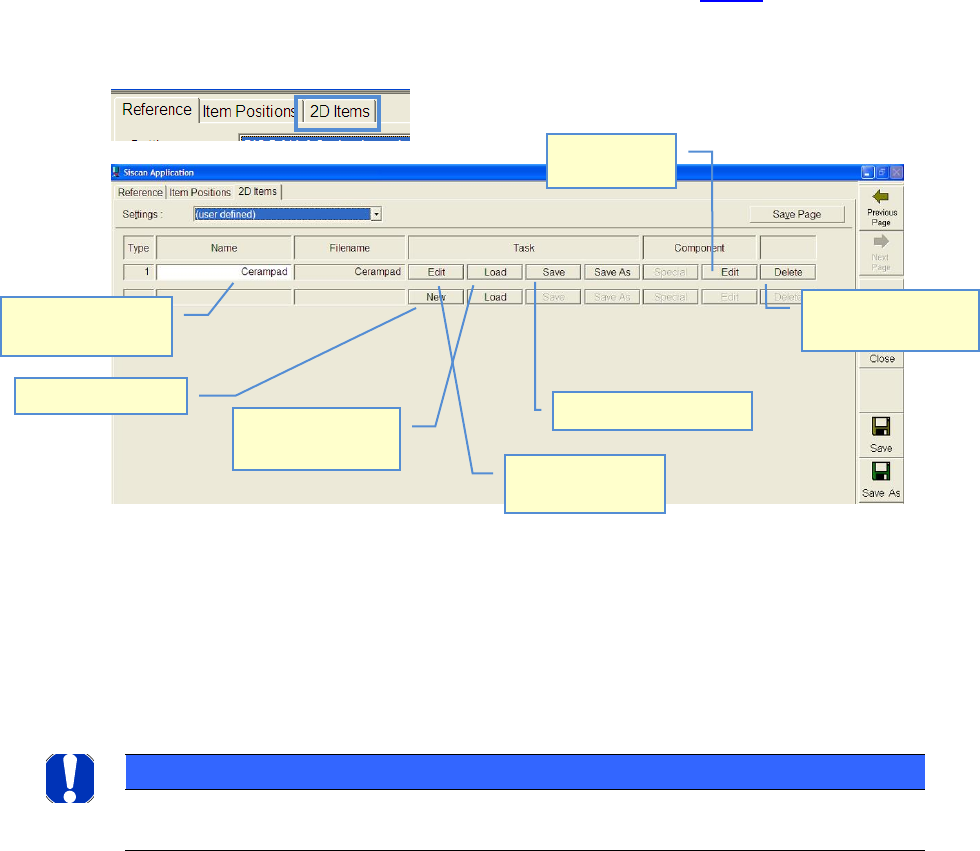
Therefor switch to partial view »2D Items«.
The list shows all components (Items) added to the recipe.
At the description of items, in principle, you distinguish between »Component« and »task«
Under »Component« you understand the component itself.
The component together with the surrounding register marks is named »Task«
NOTICE
Generally speaking:
»Item« always means the »Task«, as a description of the measuring process.
In case you want to add a component, either you can create a new one or you can load an exist-
ing component into the recipe.
Name of item can be
changed
Create new item
Load available item
into recipe.
Edit task
(Measuring Step)
Save of loaded task
Edit the com-
ponent
Delete component
from the list