3_AVS-V2_MCT-UM-internal_EN_07-2019.pdf - 第88页
ASM AVS - U SER M ANUAL P AGE 88 OF 182 (3) Sel ect Gla sspl ate: Yo u hav e to choo se a g lass boar d th at y ou wa nt to use i n the pro ject . Thi s is , to clo se the l oop rega rdi ng ca lib ratio n dat a. Eac h gl…
ASM AVS - USER MANUAL
PAGE 87 OF 182
5.2.24.1.3 New Project - Recipe
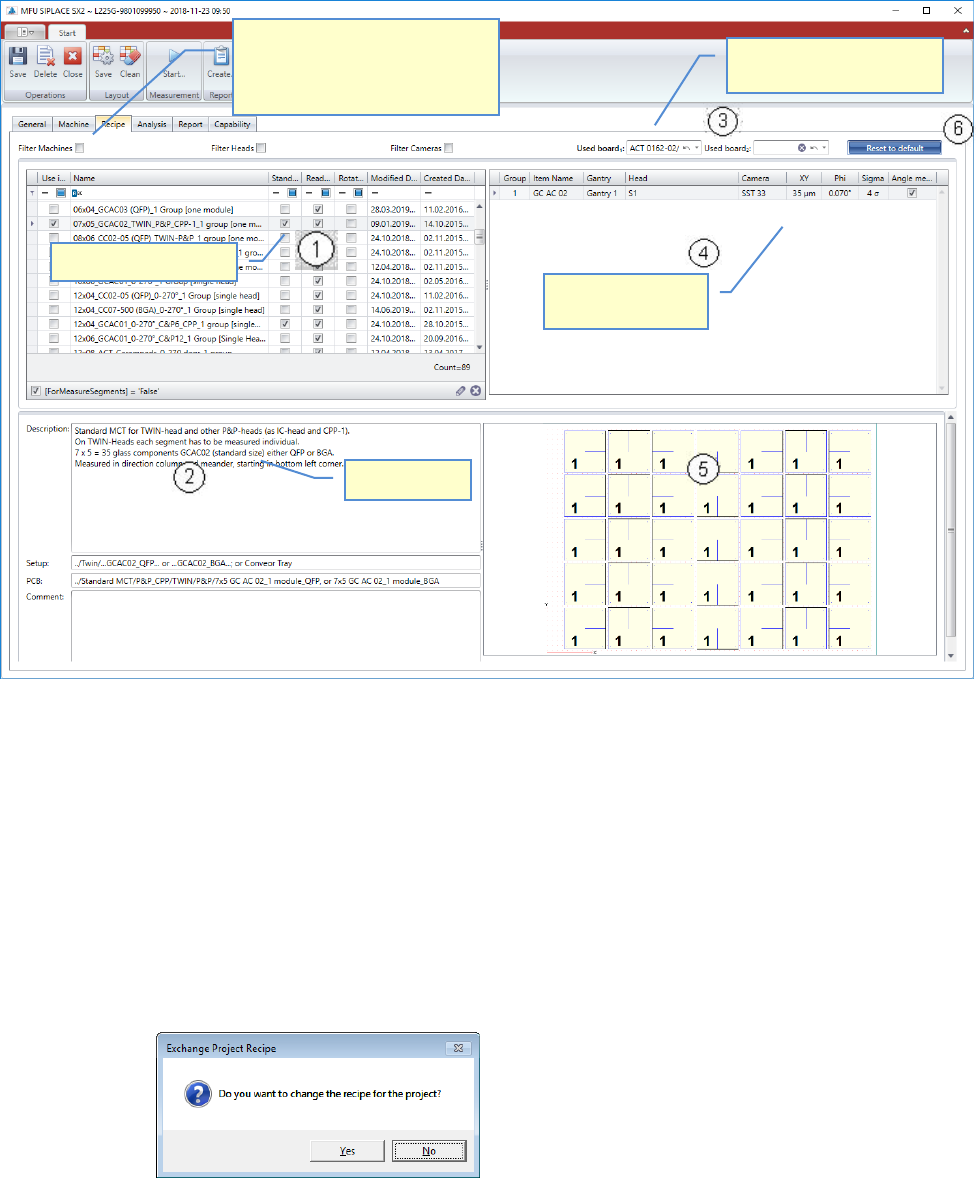
In this step, you must select the recipe that is to be used to perform the measurement.
(1) Recipe selection:
The content of the list is depending on the filter settings on top of the list, as well as on
the Measure Mode set in the Machine Tab.
You can reduce the content by setting the filters.
Highlight a line, to see the recipe details below the list.
To select a recipe for using in the project, activate the checkbox on the left end of the
line. If you activate the checkbox for a recipe, this recipe is assigned to the project.
If a recipe was already selected before, the software asks you for changing the assign-
ment!
(2) Details and information:
In this area you find a detailed description of the recipe which is highlighted above.
You can also read the information about the required setup and PCB data in Siplace Pro,
which you must schedule to the line.
List of valid recipes.
Filter for Recipes, to reduce the list
below. The list is already filtered
completely by default. Deselect
single filters to expand the list.
Select the Board that you
use for the measurement.
Item, Gantry, group
assignment!
Recipe Details
ASM AVS - USER MANUAL
PAGE 88 OF 182
(3) Select Glassplate:
You have to choose a glass board that you want to use in the project.
This is, to close the loop regarding calibration data.
Each glass board must have a valid calibration certificate, as well as the AVS device.
In the drop down list you will only see the boards that are defined (connected) to the de-
vice you are working on.
It is also possible to choose 2 glass plates if 2 plates were used in the project.
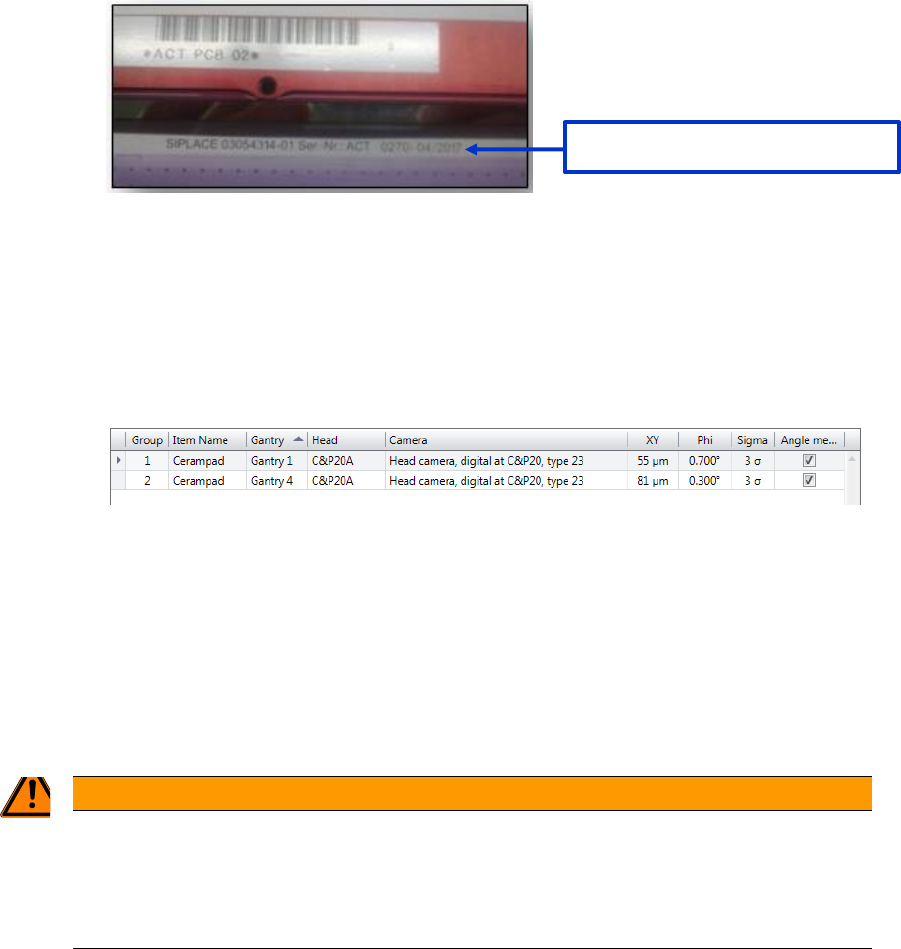
(4) Item Configuration:
Once you have selected a recipe for the project, you must assign the items, gantries,
groups, ….
Check if the Item name (link to SIPLACE Pro) is linked to the correct group and specifica-
tion values.
If this is not the case, you can change the group number (1
st
column).
- Assign the “Group” number to the corresponding Gantry.
If you Click onto a Group number, you can change the value to the required group,
via the drop-down list.
- Select the Checkbox in the “Angle” column, if you want to measure the angle on the
corresponding head.
In this view you can also change the Specification values, if you like to use different specifica-
tions in the project.
WARNING
2T! Wrong interpretation possible !
When the placement program is scheduled via Siplace Pro or the Linux line computer, you must always
make sure that the above assignment of items and groups to the relevant placement heads corresponds to
the reality!
[Serial-No.] – [production date]
ASM AVS - USER MANUAL
PAGE 89 OF 182
(5) Recipe Layout:
In this area, the layout of the recipe (measurement plan) is always displayed, which you
have marked in the table on the top left.
If you double-click on this layout, the image is displayed in a new window, which you can
then enlarge across the entire screen.
(6) Standard values:
If you have changed the specification limits for the individual groups in area (4), you can
return to the standard specification for the combination (machine/head/camera), stored
in the database, via the "Defaults" button.
5.2.24.1.4 Starting measurement
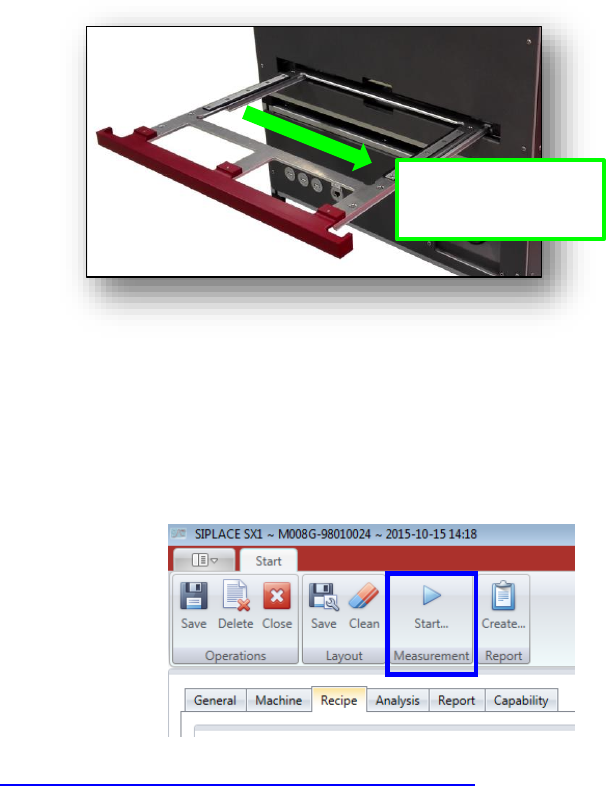
You have inserted a populated glass plate in the drawer of the AVS and pushed it into the de-
vice as far as it will go.
AVS insertion tray for ACT glass plate
When you have done all the settings in the Tabs “General”, “Machine” and “Recipe”, you can
directly click the “Start” Button in the Menu.
The Software switches to the measuring software AVS_Scan and a measurement starts direct-
ly.
See 4.3.2.1 »Current Results« during the measurement«
Insertion direction:
Arrows on plate must
point to the right.