3_AVS-V2_MCT-UM-internal_EN_07-2019.pdf - 第45页
ASM AVS - U SER M ANUAL P AGE 45 OF 182 5. 2.6 ASM AV S Sof twa re under S tar t p anel The str uct ure t re e in the lef t pa rt is b uilt o n a s fo llow s: Co untry , Cus tomer , Lin e, Mac hine , P roje ct The par t …
ASM AVS - USER MANUAL
PAGE 44 OF 182
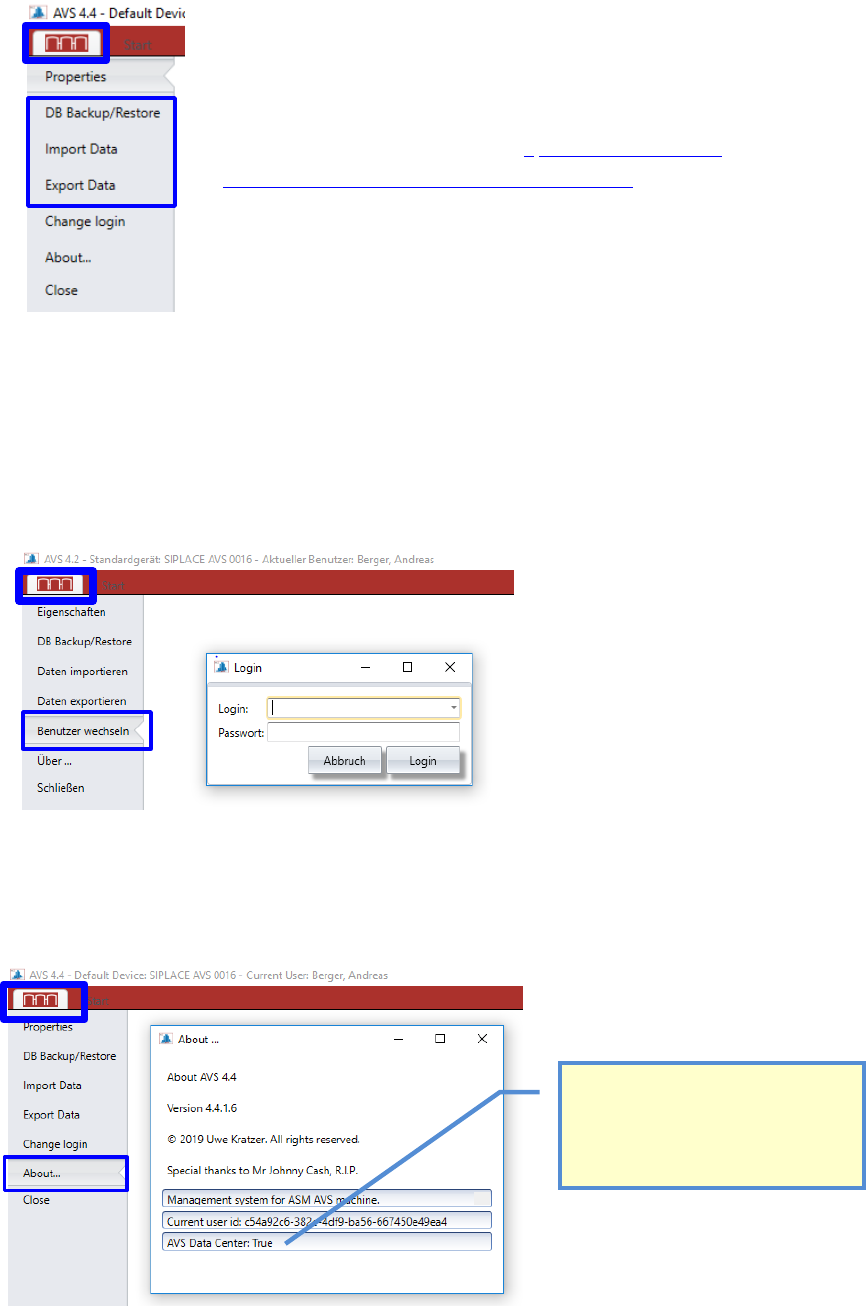
5.2.3 Data Transfers
5.2.4 Change User
It is possible to change the user without having to restart the software.
This has advantages especially for devices that are used in manufacturing, because the device is
often used by different users.
5.2.5 About….
Here you find the information about the software version which is installed on the device.
Detailed Information to the menu points of the Data
Transfers you find in the manual „ 2_AVS-V2_Software
Installation_Edition_12-2017_EN_MM-YYYY“
This Boolean is only True on the AVS
Software Server in MUC Headquarter.
Different functions can only be used on
this PC (e.g. Create Master-Boards for
Calibration,….).
ASM AVS - USER MANUAL
PAGE 45 OF 182
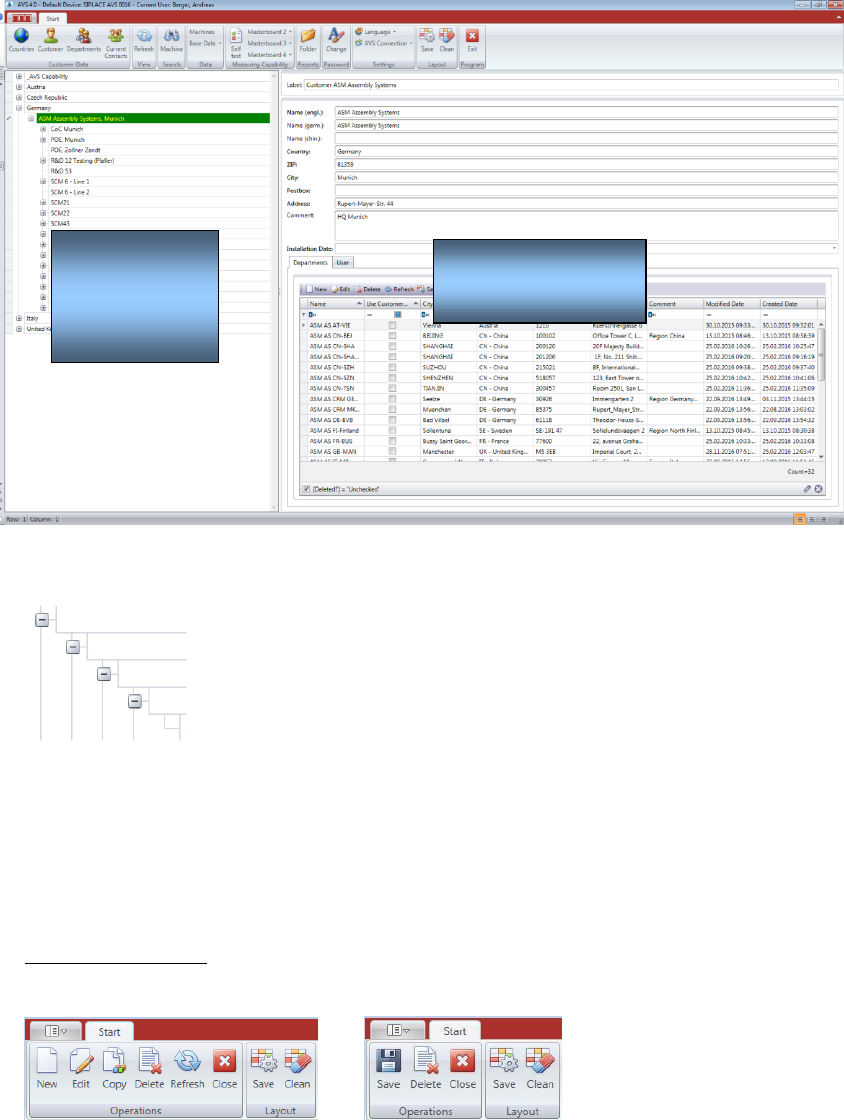
5.2.6 ASM AVS Software under Start panel
The structure tree in the left part is built on as follows:
Country,
Customer,
Line,
Machine,
Project
The part on the right side, shows the detailed information to the selected element in the struc-
ture tree.
5.2.7 Principles of the AVS SW views
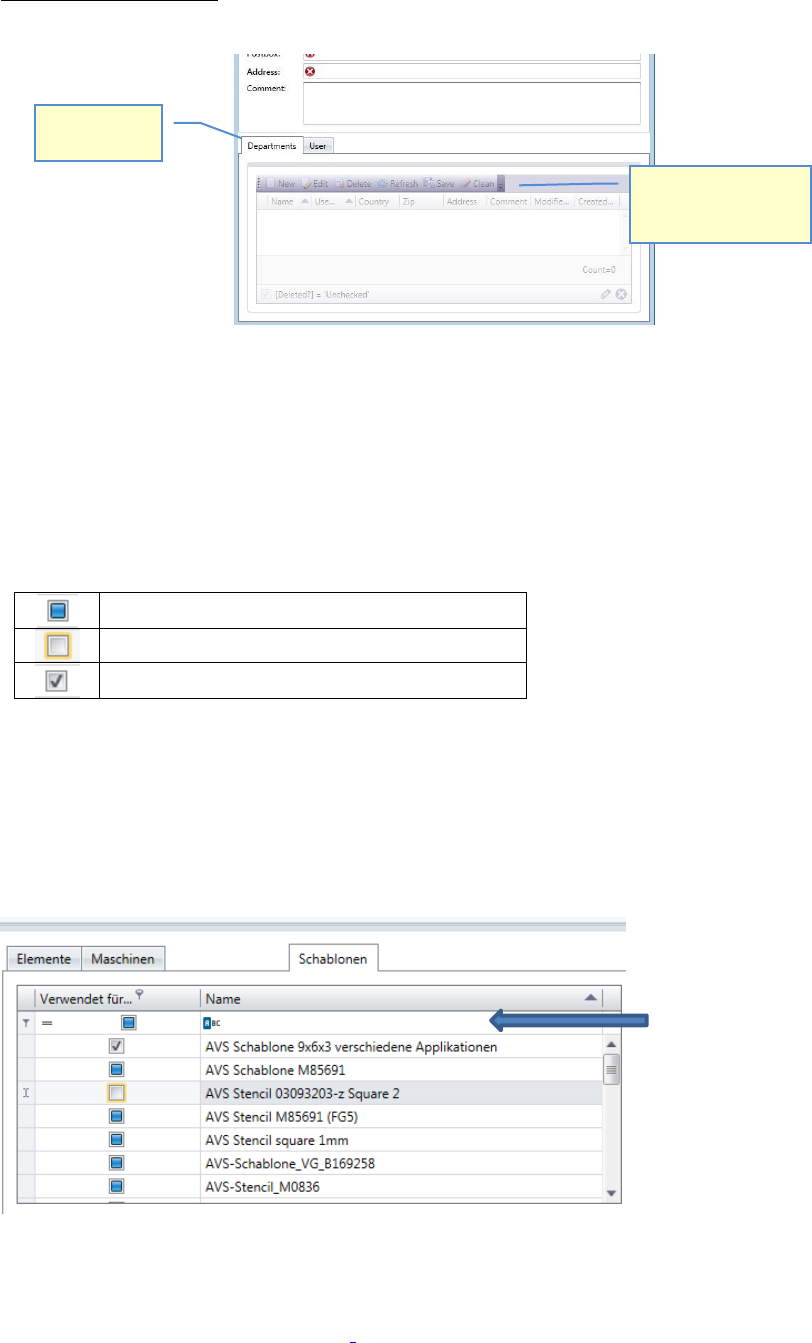
Top of the window:
The different views of the software have principle structure, which is similar to each view.
Menu area in windows for selection Menu area in Editing windows
Each dialog, has an “Operations” group and a “Layout” group.
In the dialogs for selection you find the functions “New”, “Edit”, “Copy” and “Refresh”, beside
the standard functions “Save”, “Delete” and “Close”.
If you press the “Save” button in the layout group, you save the settings for the Window, regard-
ing size and division of the different areas in the view.
The button “Save” in the Operations group saves the valid data, listed in the view.
Information
Navigation
(structure
tree)
ASM AVS - USER MANUAL
PAGE 46 OF 182
Bottom of the window:
Many views show an area at the bottom of the window, which shows you other relating data.
For the different Tabs there you have the possibility to get an overview of the relating data and
to add new relating data, if you miss them in the lists.
5.2.8 Tables with selection check boxes
The checkboxes in the selection tables has 3 status.
No selection has been made yet
Not assigned
Assigned
In each table there is a possibility of filtering in the first line.
This is especially helpful with check boxes, where you can filter for selected (assigned) entries.
For text fields, unfortunately, only the beginning text can be searched, it is not possible to search
for contained characters in the text.
5.2.9 Data Structure of the AVS Software
Details on the structure of the data in the AVS Software can be found in section „2_AVS-
V2_Software Installation_Edition_.....“.
Tabs with
relating data
You can directly add a
new, or edit valid
relating data.
Line for
filtering