3_AVS-V2_MCT-UM-internal_EN_07-2019.pdf - 第80页
ASM AVS - U SER M ANUAL P AGE 80 OF 182 The en tries wi th t he c harac ter s fo und are disp laye d dir ect ly be low in t he stru ctur e t ree, fil tere d. 1. Cl ick on t he s earc h r esult you wou ld li ke to f ind i…
ASM AVS - USER MANUAL
PAGE 79 OF 182
5.2.22 Navigation to the SIPLACE machine
To find the machine that has to be measured, you can choose between
two different ways.
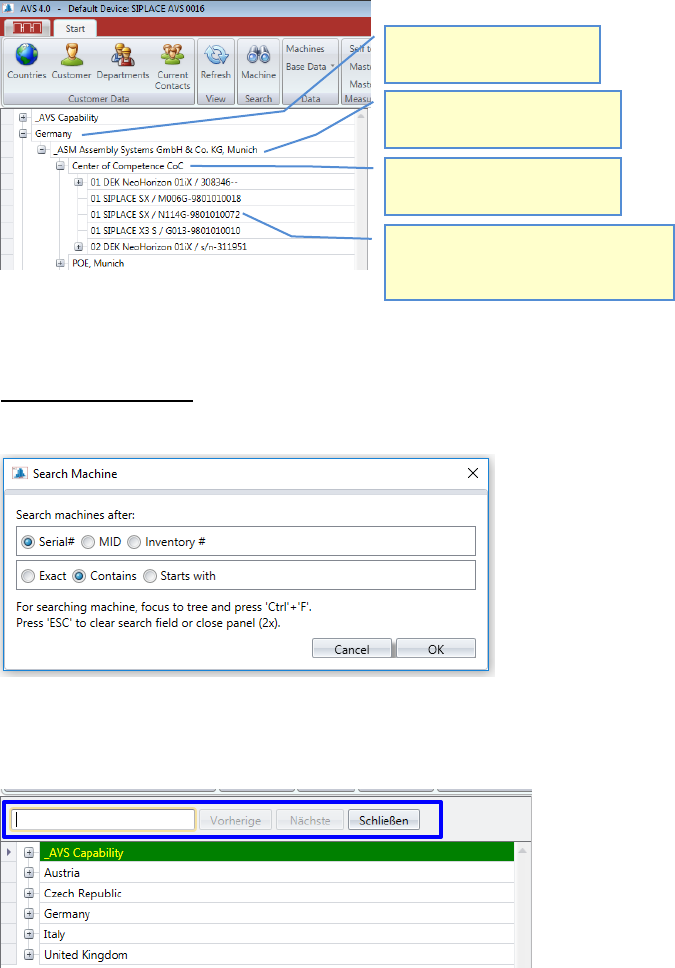
1. Navigation via the structure tree on the left-hand side
2. Navigation using the search function in the structure tree
SEARCH FUNCTION
Before starting a machine search, you need to adjust the search parameters.
Choose for what term you want to search and how the software should search for that.
Now press "Ctrl-F" and an editable text field will open between the menu bar and the structure
tree.
Enter your search term. The search starts with the input of the first character.
1. Select a line, resp. open
the knot (+).
2. Select a country, resp.
open the knot (+).
2. Select a customer, resp.
open the knot (+).
4. Under the line you find the allo-
cated machines with the number
of the position in the line.
ASM AVS - USER MANUAL
PAGE 80 OF 182
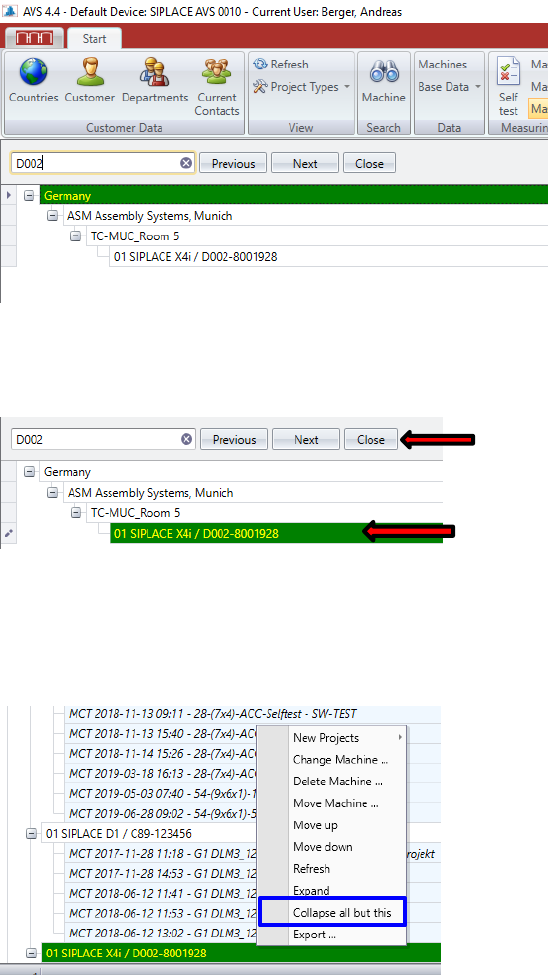
The entries with the characters found are displayed directly below in the structure tree, filtered.
1. Click on the search result you would like to find in order to highlight it green!
Now close the search function.
The entire structure tree will be opened and the highlighted line (yellow font on green back-
ground) will be at the bottom in the visible area.
To reduce the structure tree to the most necessary, click with the right mouse button on the se-
lected search result and select the function "Collapse all but this" from the pop-up menu.
You now see only the search result (the machine) embedded in the structure.
2. Double-click on the search result!
The software automatically jumps to the selected entry and opens the individual tree nodes
there. The rest is closed and you can start working right away.
ASM AVS - USER MANUAL
PAGE 81 OF 182
5.2.23 Creating, editing, moving machines
5.2.23.1 Edit/Create a machine
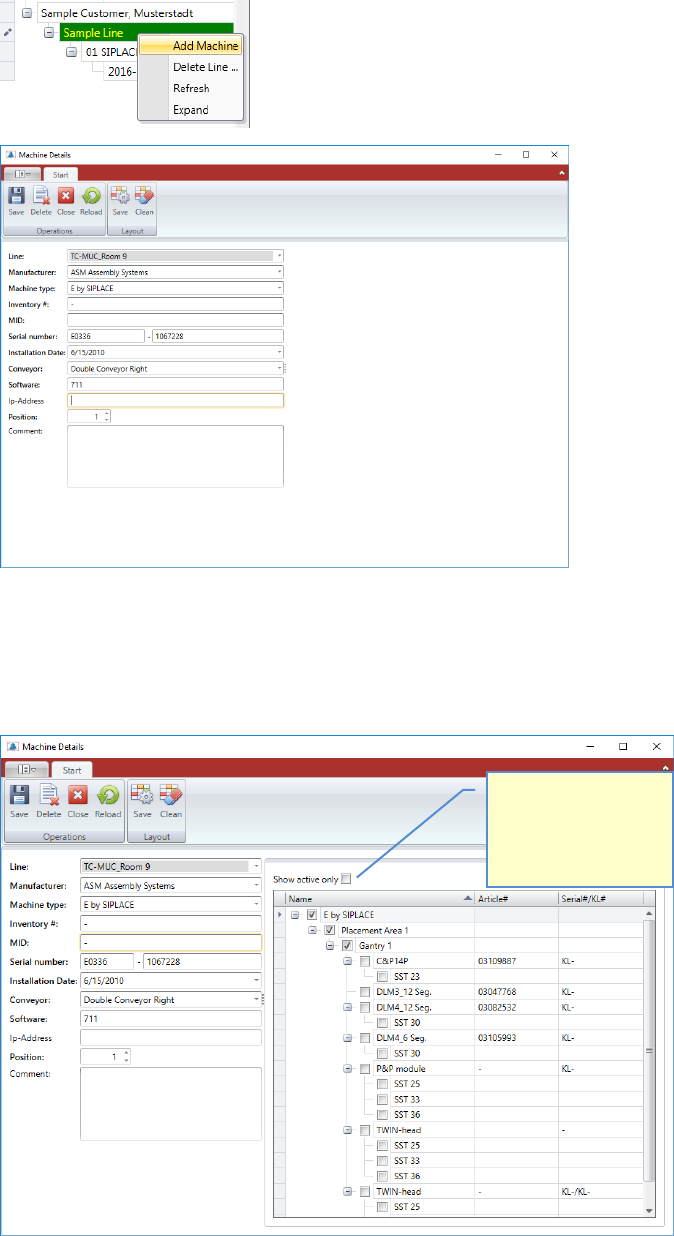
Create a Machine, either by using the Machine Menu, or right mouse click on the line in the
structure tree.
For the creation of a machine, the corresponding machine type must be available.
Fill out the base data on the left side of the window first.
Once you press the save button, you get the possible configuration of the selected machine
type, on the right side of the window.
Check this box, to see
the configuration of
your machine, without
all other possible
configurations.