3_AVS-V2_MCT-UM-internal_EN_07-2019.pdf - 第36页
ASM AVS - U SER M ANUAL P AGE 36 OF 182 If AVS Dat a whe re a lre ady av aila ble: • If y ou just want t o Update the data, cho o se Overwrit e and select the checkbox Overwite all conflicts. • If y ou are OK with your a…
ASM AVS - USER MANUAL
PAGE 35 OF 182
4.3 Import of SIPLACE Pro Data - Procedure
Following is the description for the import of printed circuit boards (boards) and tables (tables):
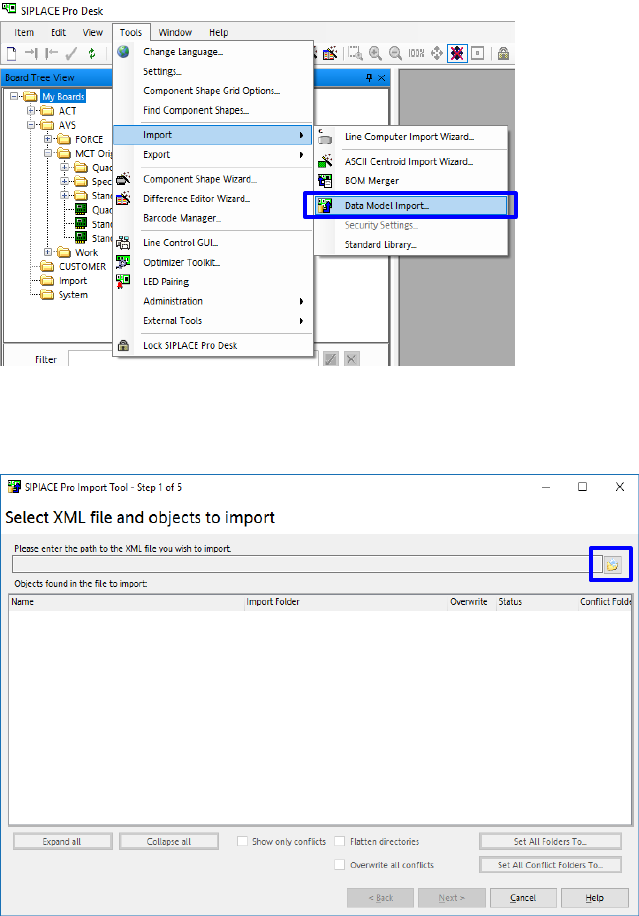
• Start the SIPLACE Pro Desktop software.
• Select Data Model Import:
Extras - Import - Data model import.
• Click on the folder button highlighted above.
4.3.1 Import of PCB’s in SIPLACE Pro
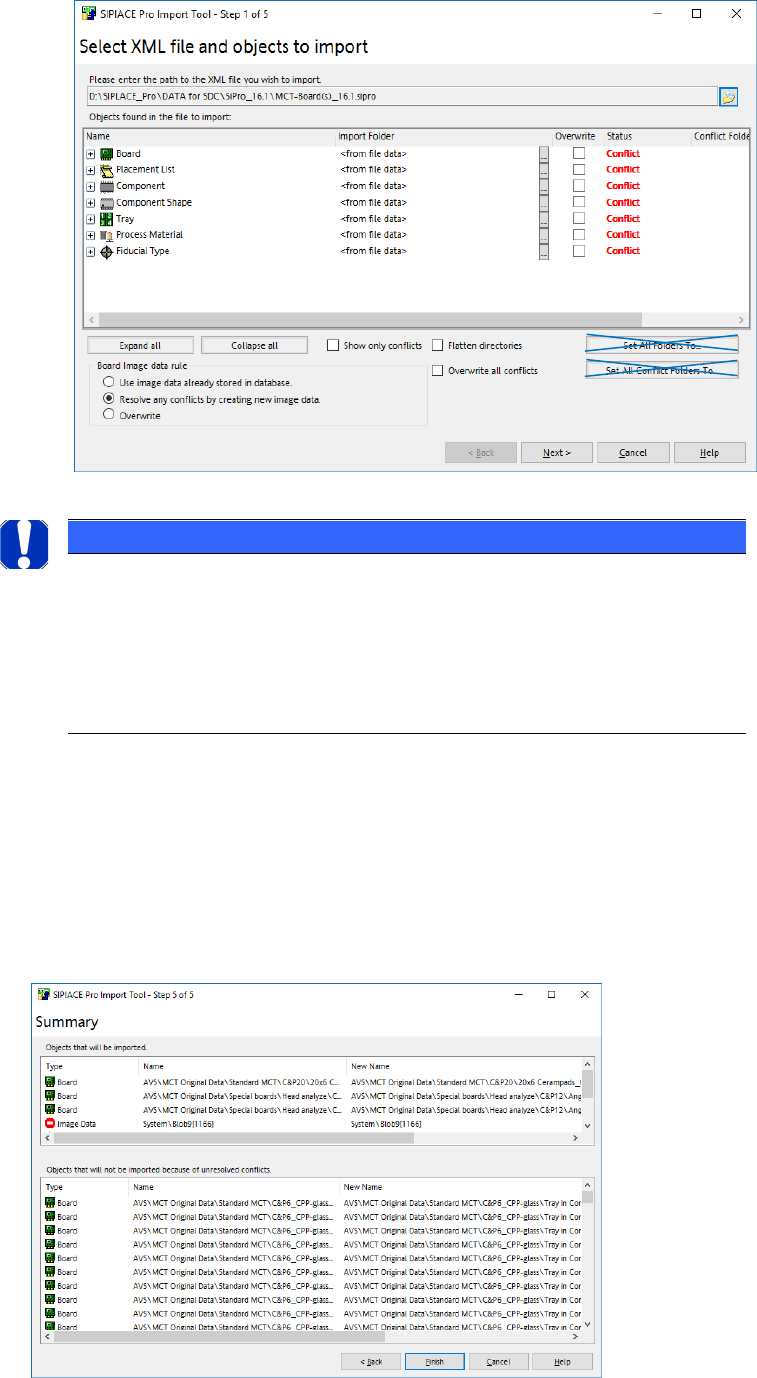
• Choose the *.sipro file according your Software Version.
• Choose the file with the Board descriptions „MCT-Board(s)….“.
• Click on „Open“.
ASM AVS - USER MANUAL
PAGE 36 OF 182
If AVS Data where already available:
• If you just want to Update the data, choose Overwrite and select the checkbox Overwite all
conflicts.
• If you are OK with your available Vision Data and you want to keep them save, choose “Use
image data already stored in database”.
• Click „Next“.
• Click „Finish“.
NOTICE
Import of Data
• Don’t change the target folder!
• Don’t activate the checkbox for reduced folders.
• To avoid duplicate entries, use the possibility of starting with an emp-
ty database and then import the actual * .sipro files!
ASM AVS - USER MANUAL
PAGE 37 OF 182
4.3.2 Import of Tables
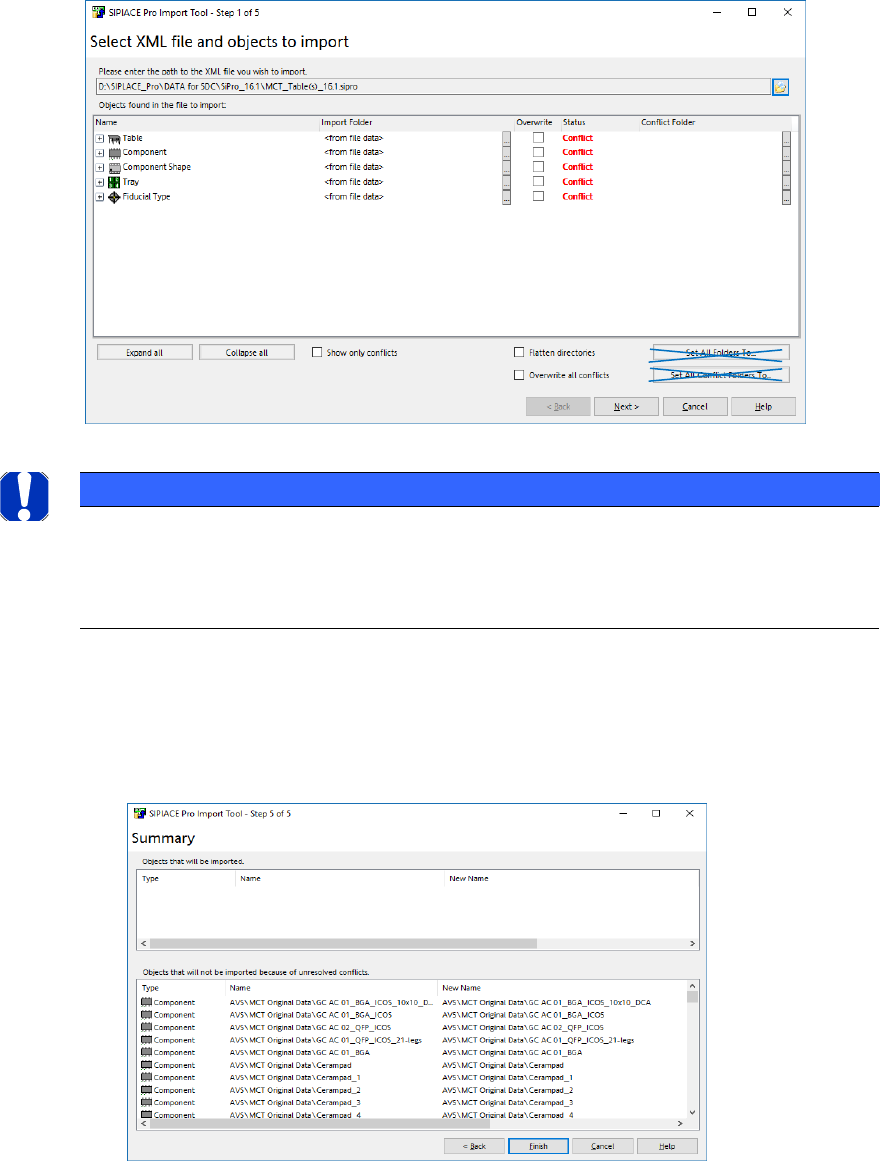
The process of importing tables is the same as importing PCB’s (see previous section).
• Choose the *.sipro file according your Software Version.
• Choose the file with the Table descriptions „MCT-Table(s)….“.
• Click on „Open“.
NOTICE
Import of Table Data
• Don’t change the target folder!
• Never activate „Flatten directories“.
• If you just want to Update the data, select the checkbox Overwite all conflicts.
If you are OK with your available Vision Data and you want to keep them save, don’t select
this checkbox.
• Click „Next“.
• Click „Finish“.