4OM-1003-007.pdf - 第204页
2.2 Nothing Displayed on T ouch Screen T able 4B4 Symptom Nothing is displayed on the touch screen. Cause (Cause 1) The screen saver function is activated. (Cause 2) Power is not supplied from the source. Remedy (Remedy …
2. Easy Troubleshooting
Described below is how to troubleshoot simple problems that can be
solved by the machine operator.
When the operator cannot solve a problem, he/she should get in con-
tact with the supervisor (a person in charge of machine management).
2.1 Power Operation Impossible
Table 4B3
Symptom When the [POWER ON] button on the operation panel is pressed, the ma-
chine is not powered.
Cause
(Cause 1) The [POWER ON] button on the operation panel is not held down
for more than one second.
(Cause 2) The power breaker is set to "OFF".
(Cause 3) The lamp of the [POWER ON] button on the operation panel illumi-
nates in red.
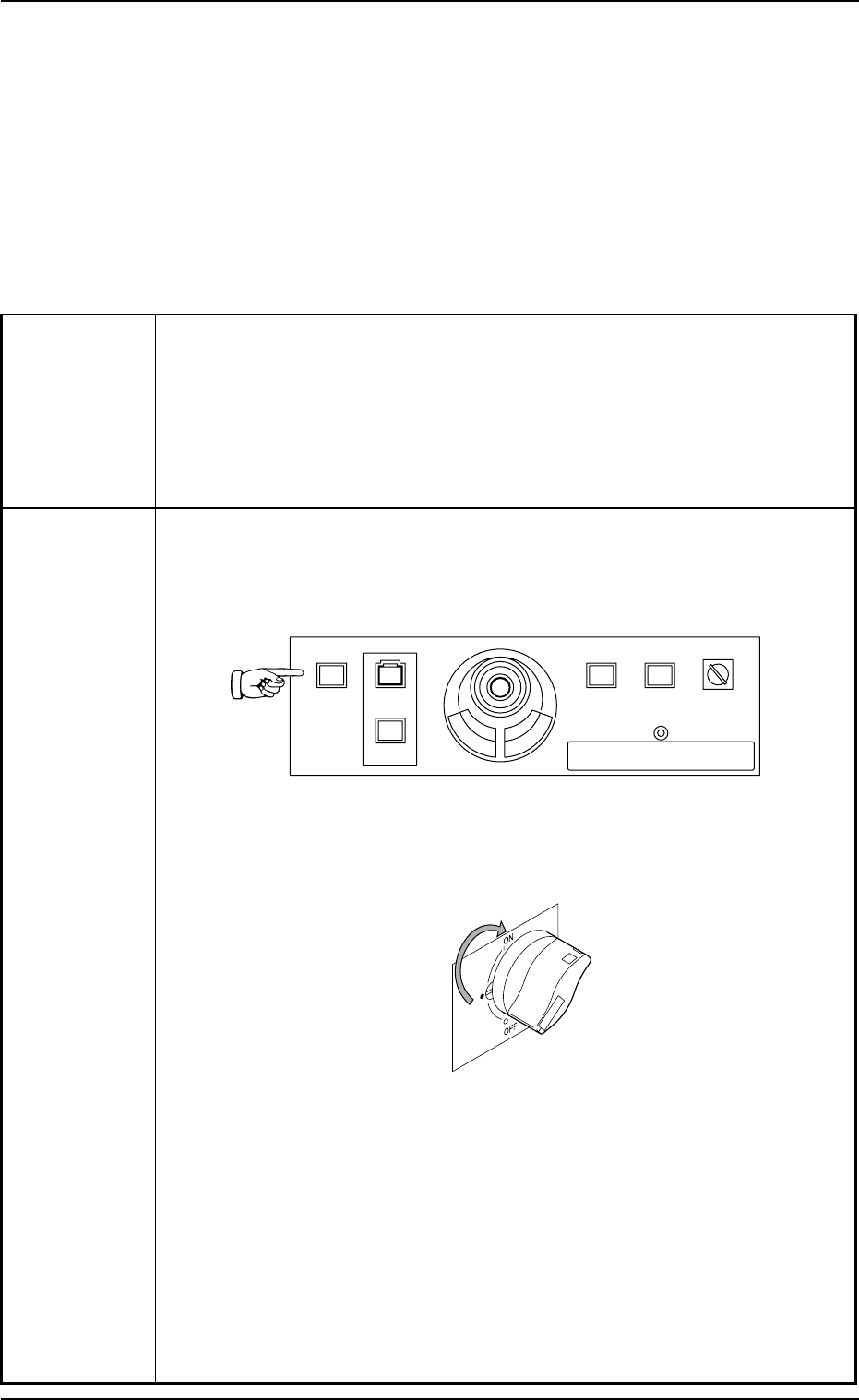
Remedy (Remedy 1) Hold down the [POWER ON] switch on the front or the rear op-
eration panel for more than one second.
When the LED of the [POWER ON] button illuminates in yellow-
ish green, it indicates that the power is supplied to the machine.
Fig. 4B5 Front Operation Panel
(Remedy 2) Set the power breaker to "ON".
Fig. 4B6
(Remedy 3)
• Wait until the program is started completely.
• Cancel the "Emergency Stop" mode to reset the machine to its normal
condition.
Refer to "2.3 [EMERGENCY STOP] Switch Pressed" for details.
• Close the front safety door.
• Set the main air pressure to the specified one "0.5 MPa (5.1 kgf/cm
2
)".
Refer to "1.1.1 Confirmation of Power Supply and Air Pressure" in "Section
3" of "Vol. 1" for details.
0412-002 2-23
AIL01ETRP
POWER ON
STOP
START
ENABLE
RUN SETUP
OPERATION
LOCK
PNL CHANGE
2. Easy Troubleshooting

2.2 Nothing Displayed on Touch Screen
Table 4B4
Symptom Nothing is displayed on the touch screen.
Cause (Cause 1) The screen saver function is activated.
(Cause 2) Power is not supplied from the source.
Remedy (Remedy 1) Touch a part of the touch screen. The foreground activities will
occur in any running application.
(Remedy 2) Refer to "2.1 Power Operation Impossible" for details and follow
the remedial procedure.
0305-001 2-24 AIL01ETRP
2.2 Nothing Displayed on Touch Screen
2.3 [EMERGENCY STOP] Switch Pressed
2.3.1 During Automatic Operation
Table 4B5
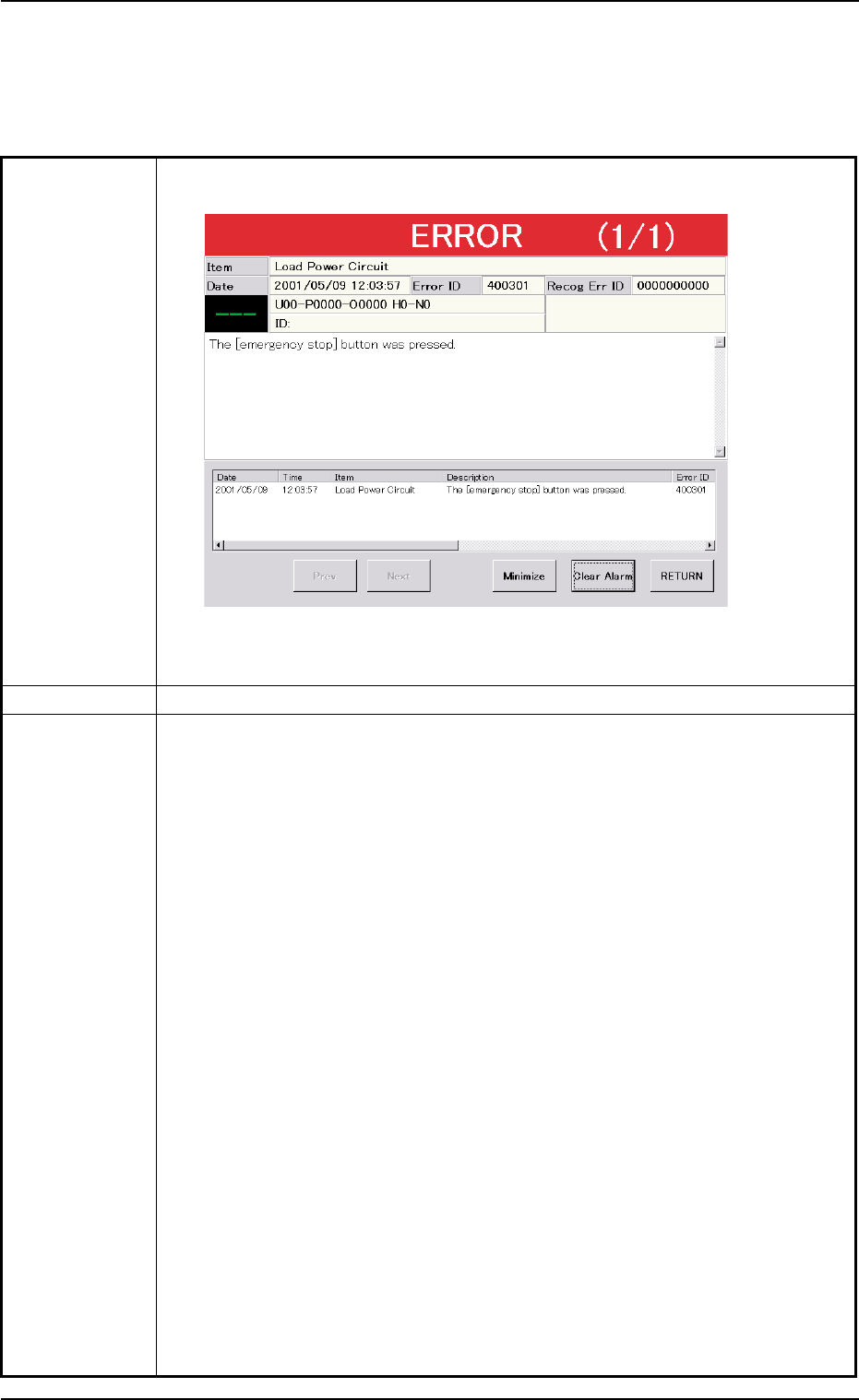
Symptom (1) The [POWER ON] button turns red and the following window opens.
Fig. 4B7
Cause (1) An [EMERGENCY STOP] switch was pressed.
Remedy (1) Press the [RETURN] button.
(2) Check for fallen components and remove them if any.
Check the areas below the vacuum nozzles located between Stations #12
and #6.
Especially, when a component has fallen on the camera in the component
recognition section (Station #3), be sure to remove it.
(3) Check the tape feeders.
When a component to be picked up still remains in the cavity of a tape,
remove it from the cavity.
(4) Unlock the [EMERGENCY STOP] switch.
(5) Hold down the [POWER ON] button for more than 1 second to re-supply
power to the machine.
• When the LED of the [POWER ON] button turns yellowish green, it indi-
cates that power is supplied to the machine.
When the LED is kept red, re-check the cause and remove it.
(6) Press the [ALL] button (entitled "ZERO") in the "AUTO OPN." window. In 2
seconds, press the [ENABLE] button on the operation panel to zero all
devices.
(7) Check whether or not the P.C.B. in the middle of component placement is
located out of the positioning section or the components are normally placed
(not dispersed).
0305-001 2-25 AIL01ETRP
2.3 [EMERGENCY STOP] Switch Pressed