Printer 710_810 v8 Transportation.pdf - 第105页
TRANS PORTATION MACHI NE POWE R UP SEQU ENCE Chapter Issue 7 Oct 06 Technical Reference Manual 34.105 Set T ime and Time Zone 16. In order for the machine PC to log event s correctly , the system time, date and correct t…
TRANSPORTATION
MACHINE POWER UP SEQUENCE
34.104 Technical Reference Manual Chapter Issue 7 Oct 06
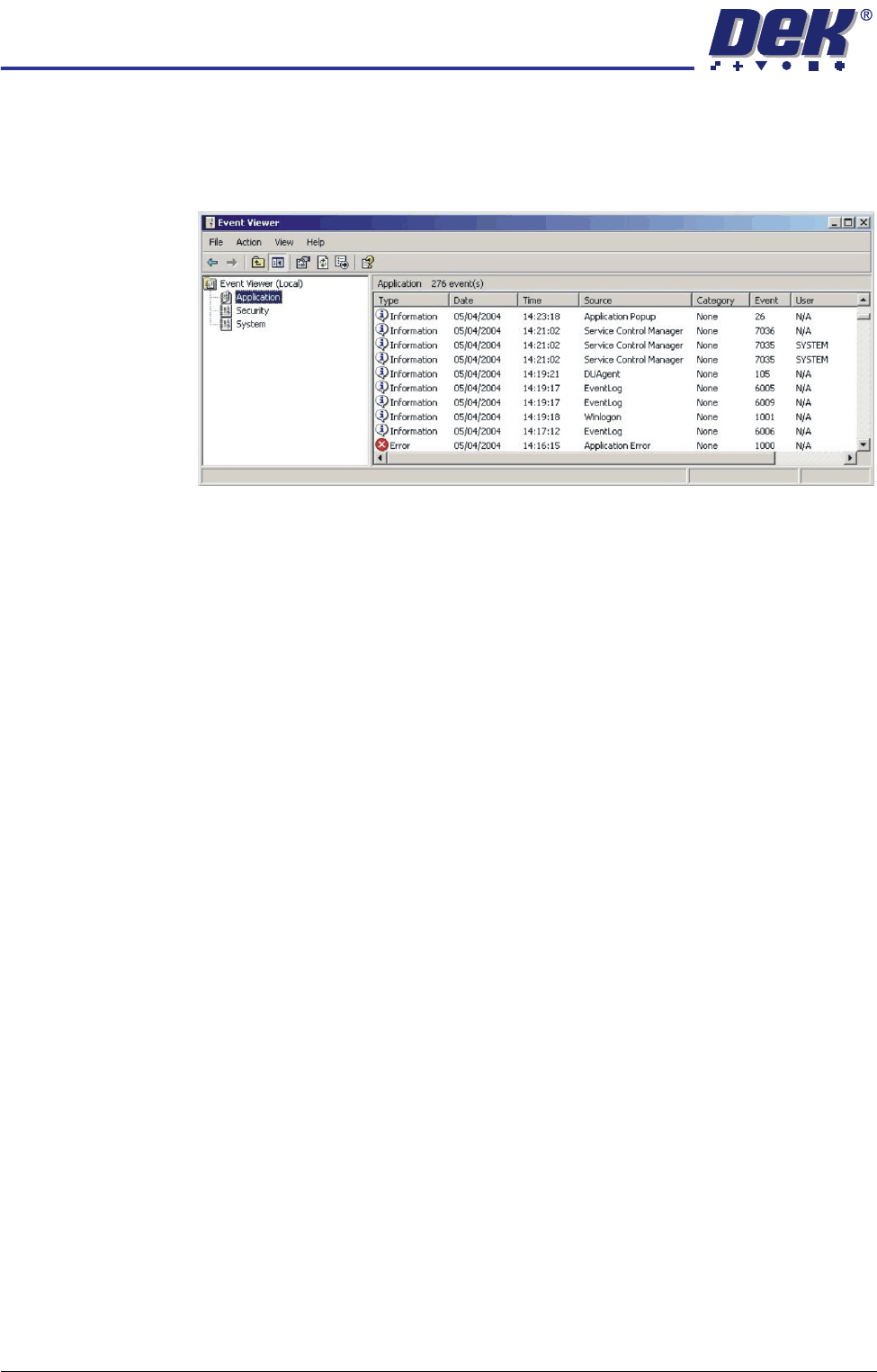
14. Examine the Event Log, looking for errors. Errors are indicated by a white
cross in a red circle in the left most column. Any errors reported that display
'Winlogon' in the source column, indicates that a problem has been found
on the system hard disk.
When errors are found, the Event Log is to be forwarded to DEK CSG
Helpdesk, by e-mail - helpdesk@dek.com, hardcopy or fax - +44 1305
208382.
15. If no errors are found in the Event Viewer, close down Event Viewer.
TRANSPORTATION
MACHINE POWER UP SEQUENCE
Chapter Issue 7 Oct 06 Technical Reference Manual 34.105
Set Time and Time
Zone
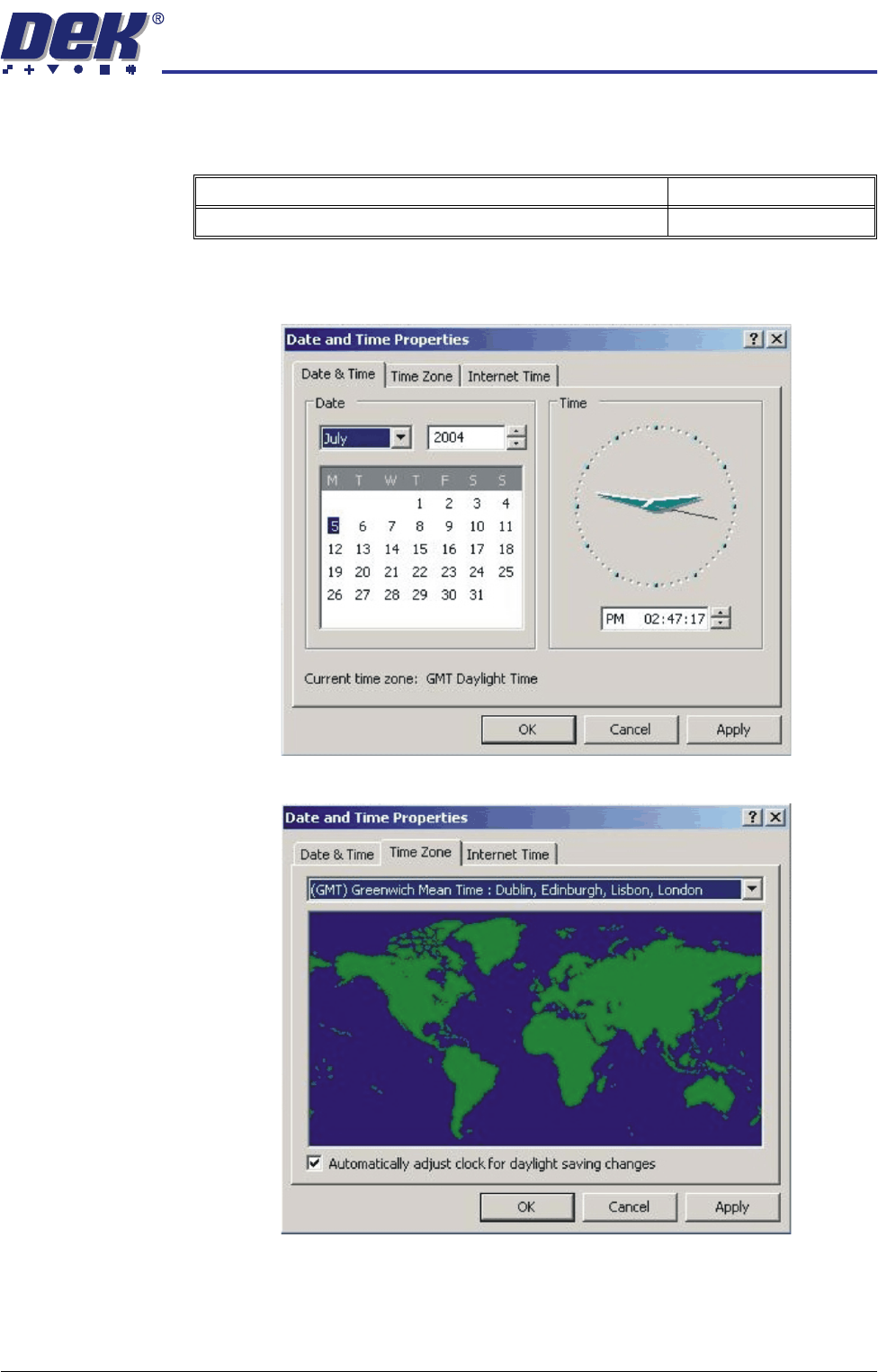
16. In order for the machine PC to log events correctly, the system time, date
and correct time zone must be set.
a. Using the mouse, double click on the time, displayed at the right hand side
of the Windows taskbar. The Date/Time Properties window is displayed.
b. Click on the Time Zone tab.
c. Select the appropriate locale/time zone from the drop down menu box.
d. Click on Apply.
e. Click on the Date & Time tab. Adjust to local time and date and select OK.
Detail Accept
Set the machine PC time and date
TRANSPORTATION
MACHINE POWER UP SEQUENCE
34.106 Technical Reference Manual Chapter Issue 7 Oct 06
E Stop Loop
Operation
17. Carry out the following:
a. Restart the DEK program.
b. During the machine initialisation, press the System button when
prompted.
c. On completion of the machine initialisation, check correct operation of the
E Stop Button and printhead cover/shutter.
d. If the E Stop button is activated, ‘System Power Down’ is displayed on
the monitor. If the printhead cover/shutter is opened, ‘Cover Opened’ is
displayed on the monitor.
e. After rectifying the E Stop condition, press the System button when
prompted.
Screen Cleaner Function Check
WARNING
RECOMMENDED SOLVENTS. ANY SOLVENTS USED MUST COMPLY WITH
LOCAL ENVIRONMENTAL GUIDELINES. DEK RECOMMEND USING SOLVENTS
THAT ARE ENVIRONMENTALLLY FRIENDLY, IE CFC FREE AND WATER BASED.
SOLVENTS USED MUST HAVE FAST EVAPORATION RATES AND FLASHPOINT
SPECIFICATIONS GREATER THAN 39ºC.
WARNING
SOLVENT SPRAY. THE UNDERSCREEN CLEANER SPRAYS A FINE JET OF
SOLVENT SOLUTION ON TO THE CLEANER. APPROVED PROTECTIVE
CLOTHING SHOULD BE WORN.
WARNING
SOLDER PASTE AND SOLVENTS. WHEN USING OR HANDLING ANY SOLDER
PASTE OR SOLVENT FORMULATION THE MANUFACTURERS’ RECOMMENDED
SAFETY PRECAUTIONS MUST BE STRICTLY ADHERED TO.
WARNING
PROTECTIVE CLOTHING. APPROVED PROTECTIVE CLOTHING SHOULD BE
WORN BY SOLDER PASTE AND SOLVENT HANDLERS AT ALL TIMES TO
ELIMINATE FUME INHALATION, EYE CONTACT, SKIN CONTACT AND
INGESTION.
Blue/Cyclone USC To setup the blue/Cyclone under screen cleaner carry out the following:
1. Ensure that the external solvent tank is fitted with an empty 5 litre container.
2. From the Start menu, select Show Classic.
3. Select Maint..
4. Select Calib Machine.
5. Select Solvent.
6. Select Set Solv Empty and confirm by selecting Yes.
7. Replace the empty 5 litre container with a 5 litre container full of the solvent
to be used.
8. Select Set Solv Full and confirm by selecting Yes.
9. Select Exit.
10. Select Exit.