Printer 710_810 v8 Transportation.pdf - 第108页
TRANSPORT ATION MACHINE POW ER UP S EQUENCE 34.108 Technical Reference Manual Chapter Issue 7 Oct 06 ProFlow Cont act Position setup For machin es using ProFlow only , set up the contact hei ght positi on as follows: 1. …

TRANSPORTATION
MACHINE POWER UP SEQUENCE
Chapter Issue 7 Oct 06 Technical Reference Manual 34.107
11. Select Exit.
12. Select Open Cover and lift the front printhead cover/shutter.
13. Select Prime Solvent and when prompted press the two button control
switches simultaneously until the paper is wet (this may take several
attempts before solvent is sprayed onto the paper).
14. Select Prime Paper and when prompted press the two button control
switches simultaneously to feed a clean area of dry paper over the solvent
dispense pipe ensuring that the paper feeds correctly.
15. Select Exit.
16. Select Hide Classic to return to the main screen.
17. Close the front printhead cover/shutter and press the System button.
Vortex USC To setup the Vortex under screen cleaner carry out the following:
1. Ensure that the external solvent tank is fitted with an empty 5 litre container.
2. From the Start menu, select Show Classic.
3. Select Maint..
4. Select Calib Machine.
5. Select Solvent.
6. Select Set Solv Empty and confirm by selecting Yes.
7. Replace the empty 5 litre container with a 5 litre container full of the solvent
to be used.
8. Select Set Solv Full and confirm by selecting Yes.
9. Select Exit.
10. Select Exit.
11. Select Exit.
12. Select Open Cover and lift the front printhead cover/shutter.
13. Select Prime Solvent and when prompted press the two button control
switches simultaneously until the cleaning cassette wet cell is impregnated
with solvent (this may take several attempts before solvent is sprayed onto
the wet cell).
14. Select Exit.
15. Select Hide Classic to return to the main screen.
16. Close the front printhead cover/shutter and press the System button.
TRANSPORTATION
MACHINE POWER UP SEQUENCE
34.108 Technical Reference Manual Chapter Issue 7 Oct 06
ProFlow Contact
Position setup
For machines using ProFlow only, set up the contact height position as follows:
1. Load a stencil with an off centre image.
2. Fit an empty transfer head to the ProFlow pressure mechanism. Remove
the cover.
NOTE
Ensure wipers and skis are fitted to the transfer head.
CAUTION
MACHINE JAMMING.
In order to prevent the inadvertent jamming of squee-
gee mechanical mechanisms, the following procedure must be carried out
in the correct sequence.
3. Position a 0.1mm shim on the stencil under the transfer head.
4. Select Show Classic.
5. Select Maint..
6. Select Calib Machine.
7. Select ProFlow.
8. Select ProFlow Heights.
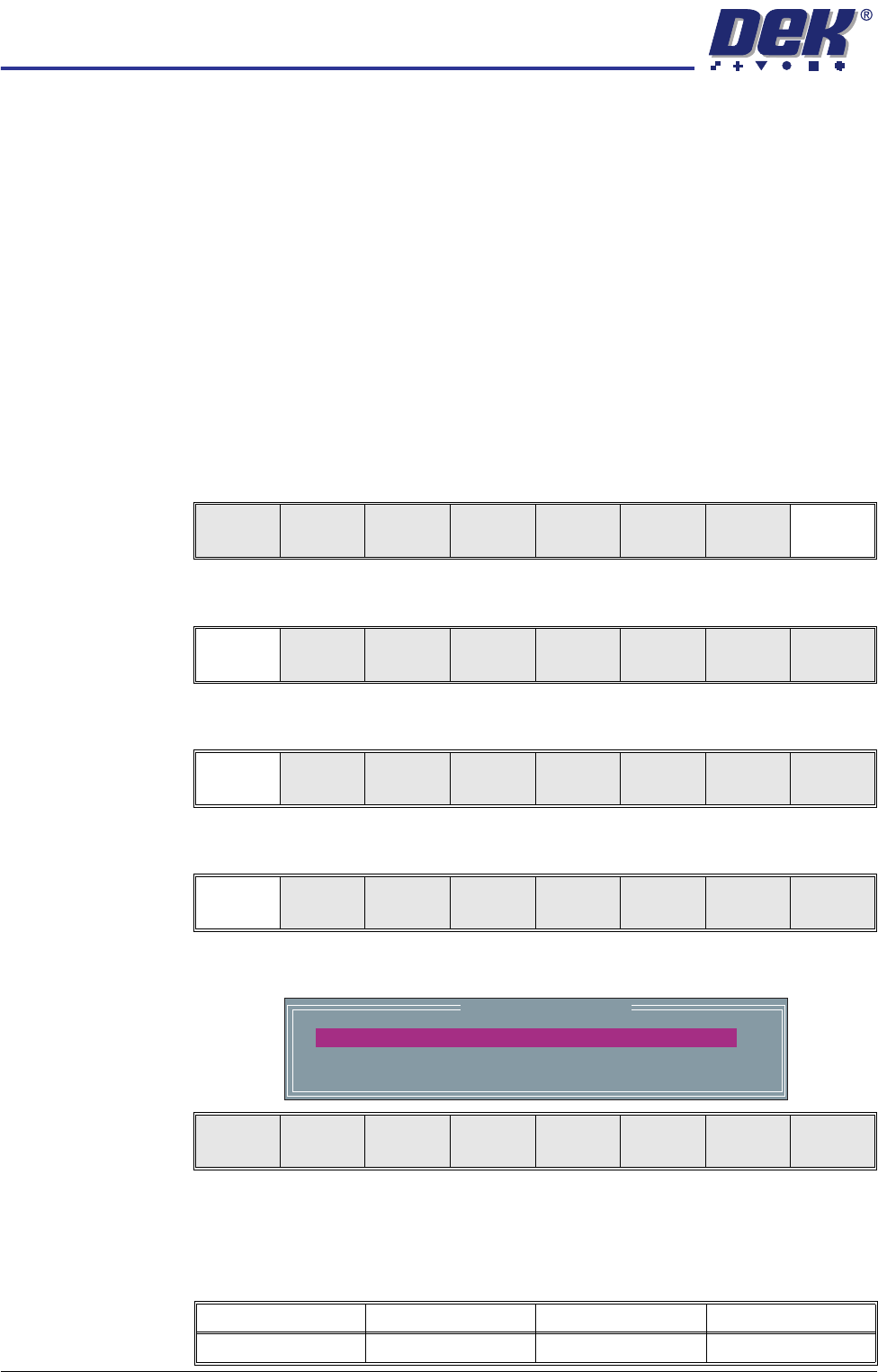
The following window and menu bar is displayed:
9. PFLOW CONTACT POS. is highlighted.
This parameter sets the height of the ProFlow printhead so that it just
touches the stencil surface.
Run
Open
Cover
Knead
Paste
Clean
Screen
Adjust Setup Monitor Maint.
Calib
Machine
House
Keeping
Set
Prefs
Diagnost
Te st
Cycles
Exit
ProFlow Offset Vision Solvent Exit
ProFlow
Heights
Transfer
Material
Exit
ProFlow Calibrations
PFLOW CONTACT POS.
0.0
mm
Move to
Position
Restore
Defaults
Next Previous Incr. Decr. Exit
Minimum Maximum Increment Default
- 10mm +10mm 0.1mm 0.0mm
TRANSPORTATION
MACHINE POWER UP SEQUENCE
Chapter Issue 7 Oct 06 Technical Reference Manual 34.109
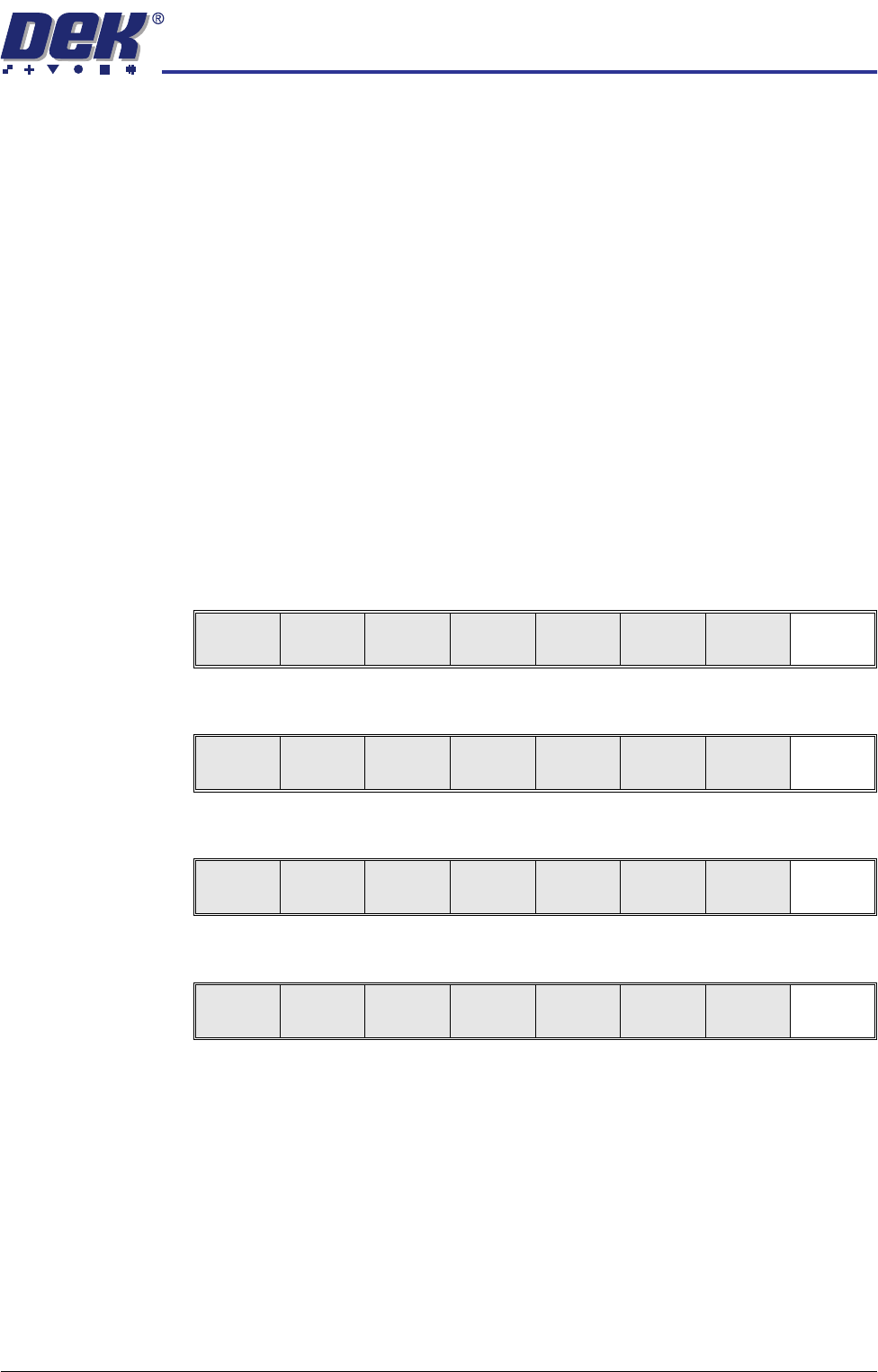
10. Using the Incr. or Decr. keys, set the Contact Position to 5.5mm.
11. Select Move to Position, the ProFlow unit is driven to the position set.
NOTE
Correct contact height is when the shim is just held between the transfer
head wipers and stencil. At this position it is not possible to slide the shim
sideways past the transfer head skis. If correct contact height is not yet
achieved, carry out the following steps:
12. If correct contact height is achieved go to Step 17. If correct contact height
is not yet achieved, continue with Step 13.
13. Using the Incr. or Decr. keys, increase or decrease the Contact Position set
height by 0.5mm (eg 5.0mm or 6.0mm).
NOTE
Normally the contact position is between 4mm and 8mm (nominally 6mm).
14. Select Move to Position, the ProFlow unit is driven to the position set.
15. Repeat Steps 13 and 14, varying the set position, until the correct contact
height is achieved.
16. Select Exit.
17. Select Exit.
18. Select Exit.
19. Select Exit.
20. Open the front printhead cover/shutter and remove the shim. Remove
empty transfer head, if necessary.
21. Close the front printhead cover/shutter.
22. Press the System button.
Move to
Position
Restore
Defaults
Next Previous Incr. Decr. Exit
ProFlow
Heights
Transfer
Material
Exit
ProFlow Offset Vision Solvent Exit
Calib
Machine
House
Keeping
Set
Prefs
Diagnost
Te st
Cycles
Exit