80S-2080F480F5.pdf - 第118页
2 Introduction and Ba sic Concepts SIPLACE 80S-20/F4/F5 User Manual 2.4 Brief Description and Principles of the User Interface 05/99 I ssue from Software Version SR.405.xx 2 - 34 2.4.2.6 Shut down computer Use this optio…

SIPLACE 80S-20/F4/F5 User Manual 2 Introduction and Basic Concepts
05/99 Issue from Software Version SR.405.xx 2.4 Brief Description and Principles of the User Interface
2 - 33
2.4.2.2 Process
Click on this symbol to continue placement after stopping the processing (placement) of the PCB, e.g. in order
to change between Single functions.
The color of the "Stop processing" symbol changes to red.
2.4.2.3 Abort Processing
The symbol lights up red.
Click on this symbol to abort process of a PCB, e.g. after a fatal error message. You will be asked to confirm
the command.
PLEASE NOTE
An error message on the status bar is automatically acknowledged.
2.4.2.4 Continue Processing
The symbol lights up green.
Click on this symbol to continue processing and complete a PCB despite a fatal error message.
PLEASE NOTE
An error message on the status bar is automatically acknowledged.
2.4.2.5 Switching to the operating system (user class: line engineer or above)
Use this option to switch to the Windows user interface. From there, you can then return to the SIPLACE user
interface.
2 Introduction and Basic Concepts SIPLACE 80S-20/F4/F5 User Manual
2.4 Brief Description and Principles of the User Interface 05/99 Issue from Software Version SR.405.xx
2 - 34
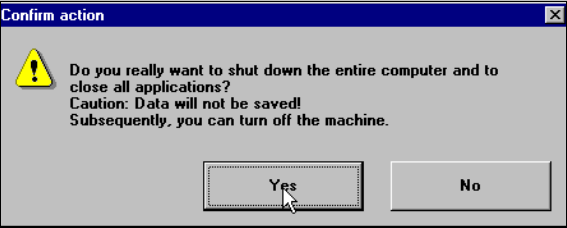
2.4.2.6 Shut down computer
Use this option to shut down the station computer. A box will appear with a message, warning you of the pos-
sibility of losing data and prompting you to confirm the action.
SIPLACE 80S-20/F4/F5 User Manual 2 Introduction and Basic Concepts
05/99 Issue from Software Version SR.405.xx 2.4 Brief Description and Principles of the User Interface
2 - 35
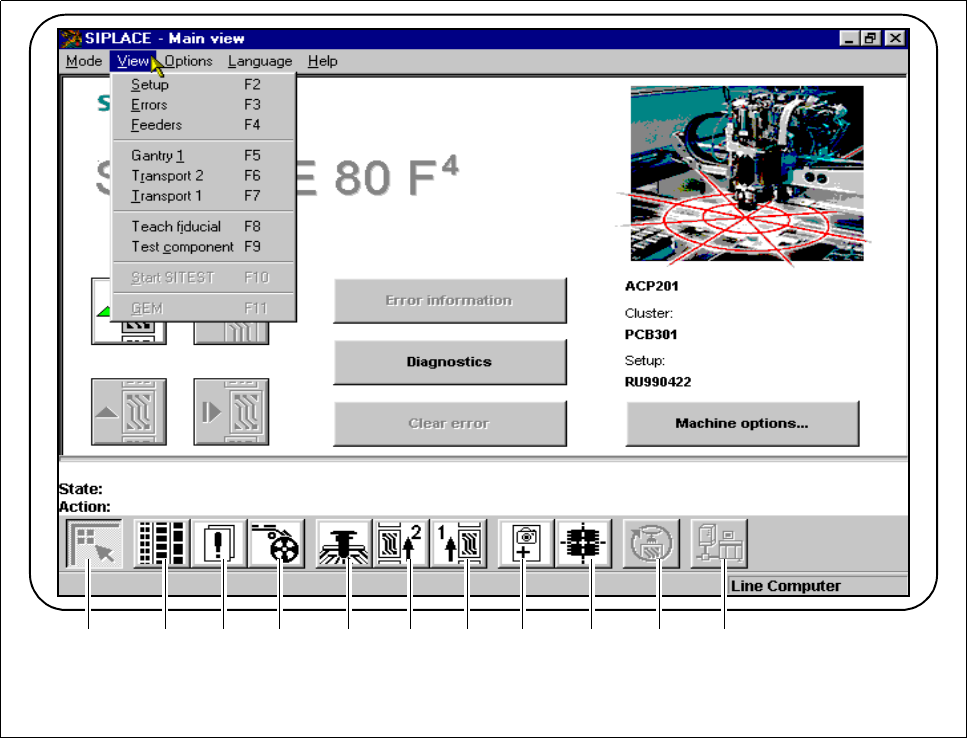
2.4.3 The View Menu
The "View" menu is subdivided into three main function groups: Placement functions, Single functions and
Vision functions. You can also start the SITEST and use the functions of the GEM interface. The functions can
be selected from either the menu bar or the button bar.
Fig. 2.4.3 Main view
- Key to Fig. 2.4.3
1 Main view 2 Set-up
3 Errors 4 Component feeder systems
5 Gantry functions 6 Transport functions 2 (Double transport option)
7 Transport functions 1 (standard) 8 Teach fiducials
9 Test component 10 Sitest
11 GEM interface (option)
1 8 3 2 5 4 6 7 9 10 11