Portal-Operation-Manual-REV-I.pdf - 第16页
PVA Portal Manual Revision I / Janua ry 2022 Page 16 of 106 6. Selecting “ Explorer ” will open Windows® e xplorer, allowing the operator t o navigate the folders locat ed on t he computer. 7. Sele cting “ Shu tdown ” wi…
PVA Portal Manual
Revision I / January 2022
Page 15 of 106
Portal Shell Overview
Portal Shell provides the operator with access to general setup of the workcell. It provides an
interface to launch any software needed to interact with the workcell.
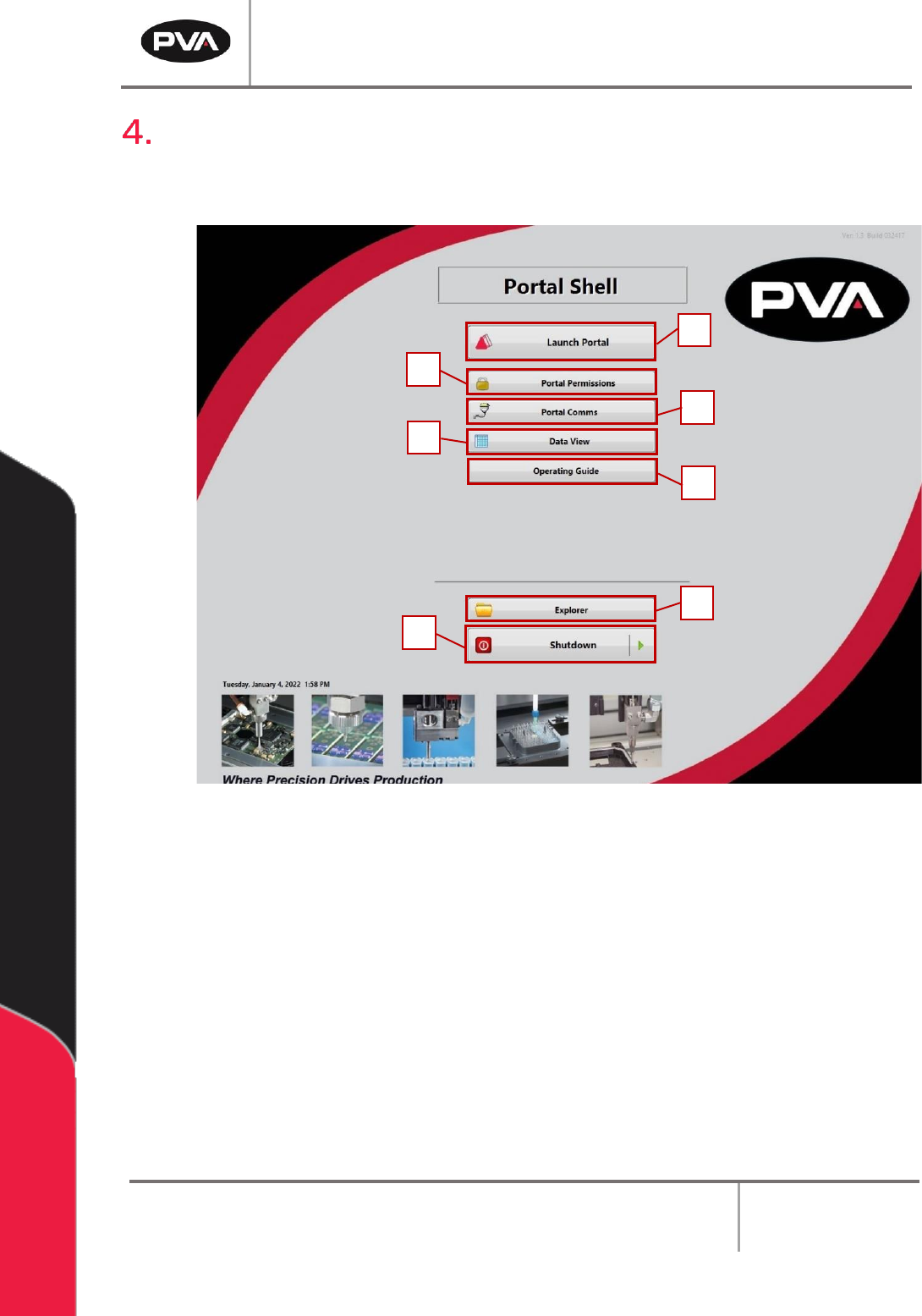
Figure 2: Portal Shell Overview
1. Select “Launch Portal” to start the Portal software and operate the workcell
through the Portal window. Refer to Section 5 for more information.
2. Select “Portal Permissions” to start the Portal Permissions software. This opens
the options to adjust user access. Refer to Section 11 for more information.
3. Select “Portal Comms” to open the Portal Comms software, allowing the operator
to adjust the Galil communication settings. Refer to Section 12 for more information.
4. Selecting “Data View” will allow the operator to view any logged data. Refer to
Section 13 for more information.
5. Select “Operating Guide” to view the PVA Portal User Manual.
1
2
3
4
5
6
7
PVA Portal Manual
Revision I / January 2022
Page 16 of 106
6. Selecting “Explorer” will open Windows® explorer, allowing the operator to navigate
the folders located on the computer.
7. Selecting “Shutdown” will shut down the computer.
The number of options available on the Portal Shell depends on the machine configuration.
Refer to machine specific manuals for more information.
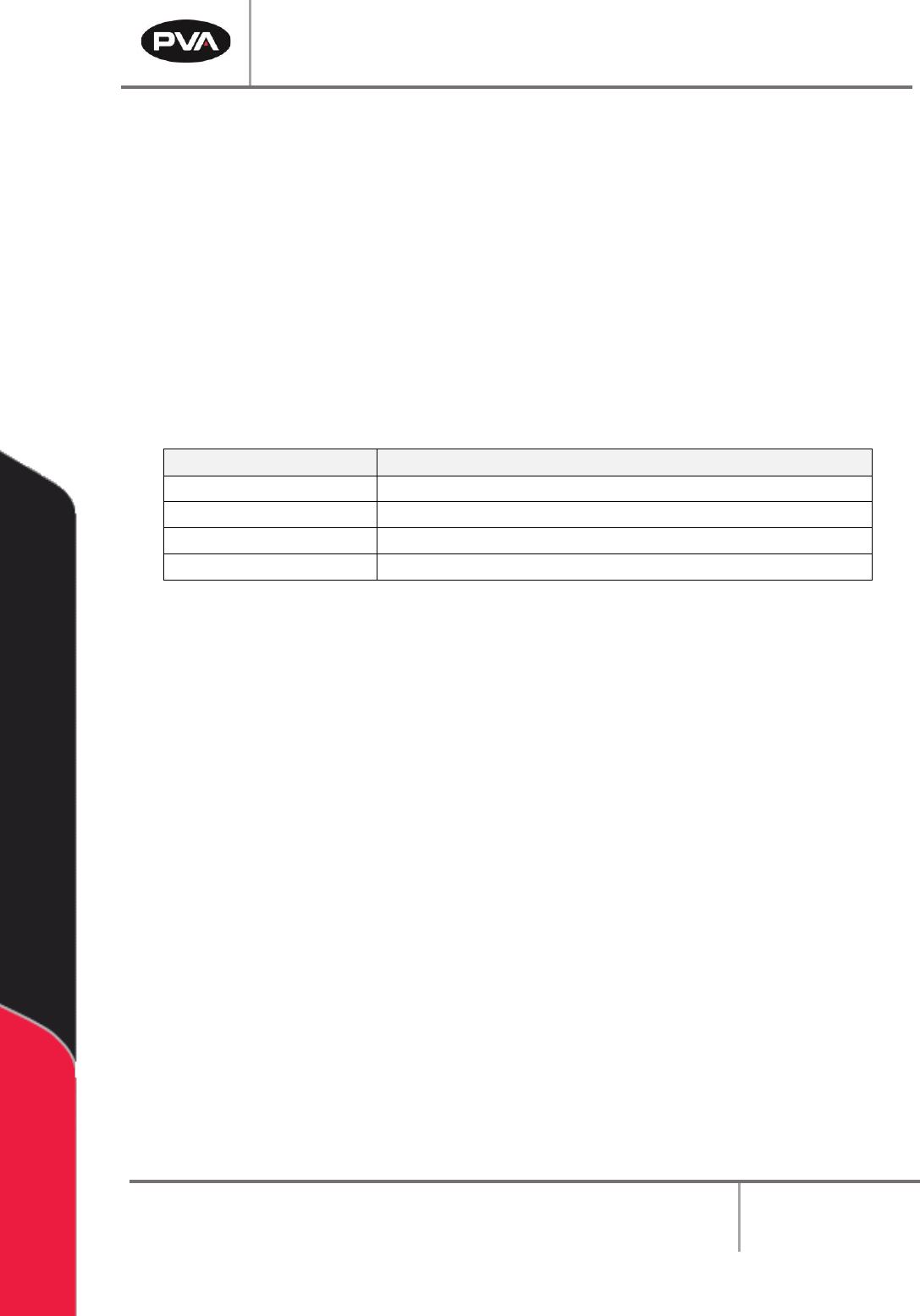
4.1.1 Portal Shell Keyboard Shortcuts
Note: It is not necessary to exit Portal Shell for normal operation, this is a
maintenance feature.
Keys
Action
F1
Keyboard Shortcut Help
Ctrl + Shift + F12
Exit Portal Shell Application
Ctrl + Shift + D
Launch Windows® Desktop
Ctrl + Shift + W
Launch Desktop Then Exit Portal Shell Application
PVA Portal Manual
Revision I / January 2022
Page 17 of 106
Portal Overview
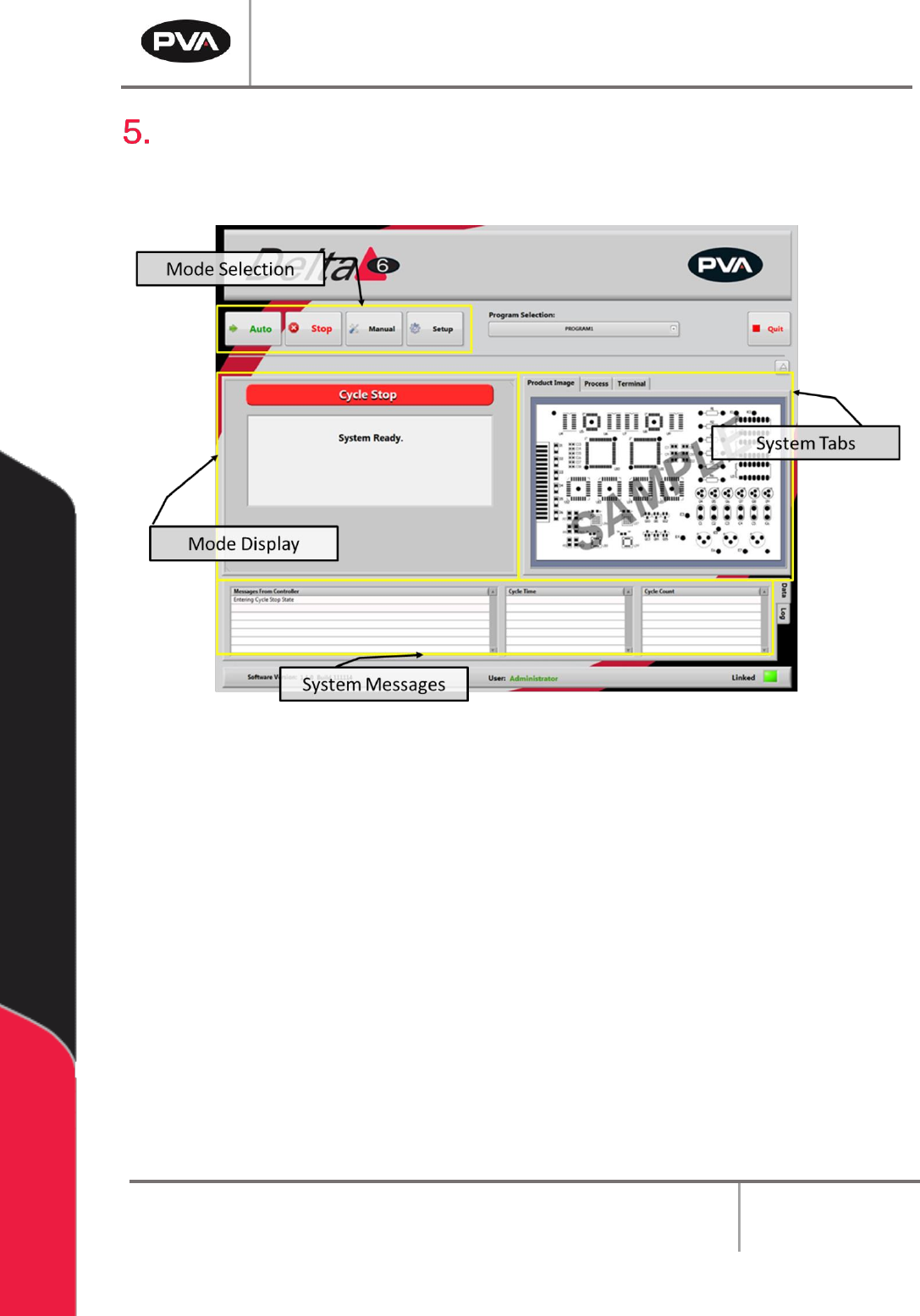
The Portal screen has several components. Understanding the sections of the Portal
screen will ensure successful navigation of the Portal program.
Figure 3: Portal Screen Overview
• Select the desired mode from the mode selection area.
Note: Cycle Stop mode must be selected in order to change to a new mode.
• Upon selecting a mode, the options for that mode will be shown in the mode display
section of the screen.
• The System Tabs section of the screen remains the same no matter what mode is
selected. This section of the screen contains the terminal used to communicate
with the controller. The Terminal is used as a debug tool.