Portal-Operation-Manual-REV-I.pdf - 第34页
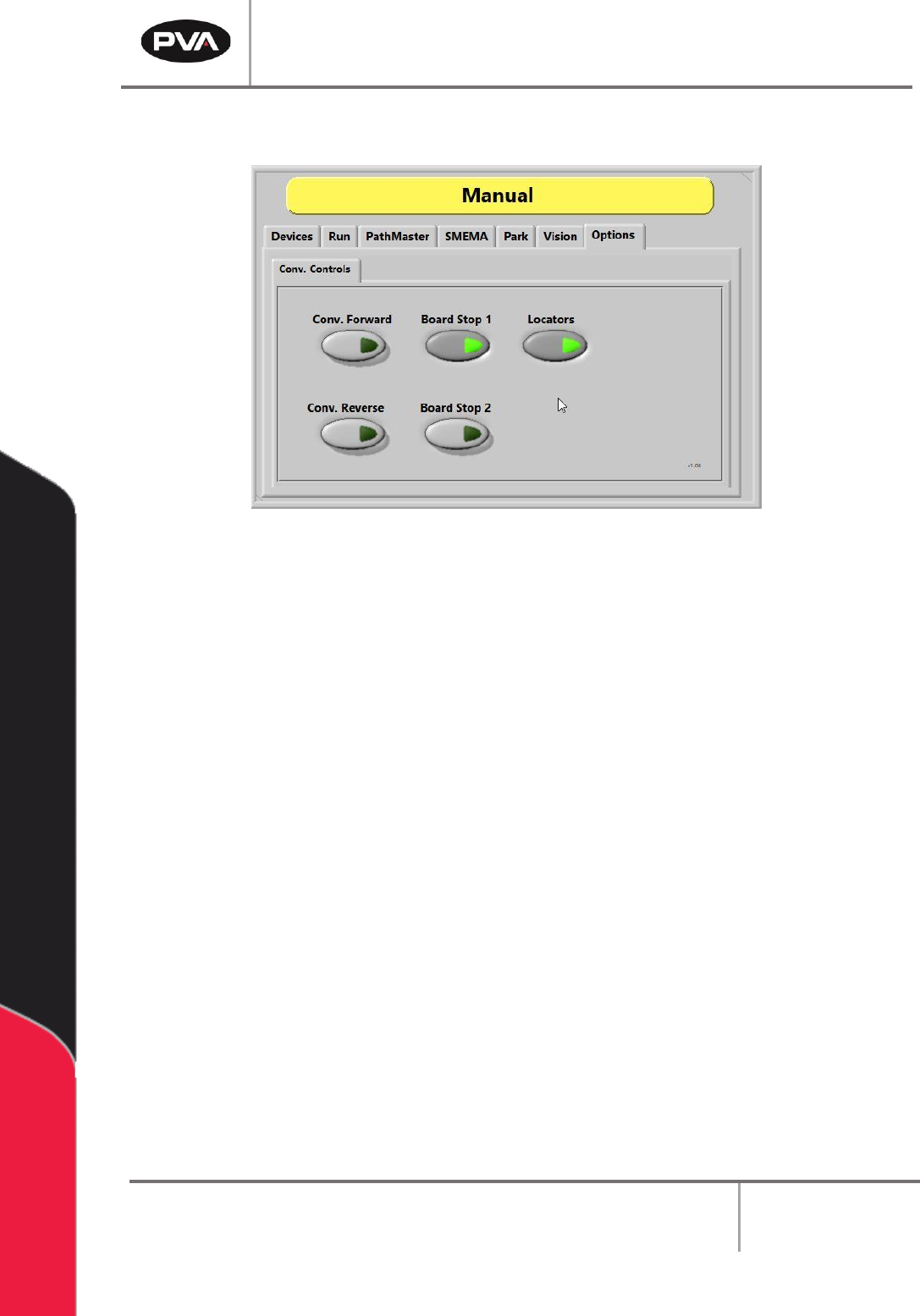
PVA Portal Manual Revision I / Janua ry 2022 Page 34 of 106 6.7 Conveyor Controls Figure 28 : Conveyor Controls The conveyor a nd the b oard stops are controlled in the “ Conv. Con trols ” tab foun d under the ” Options …
PVA Portal Manual
Revision I / January 2022
Page 33 of 106
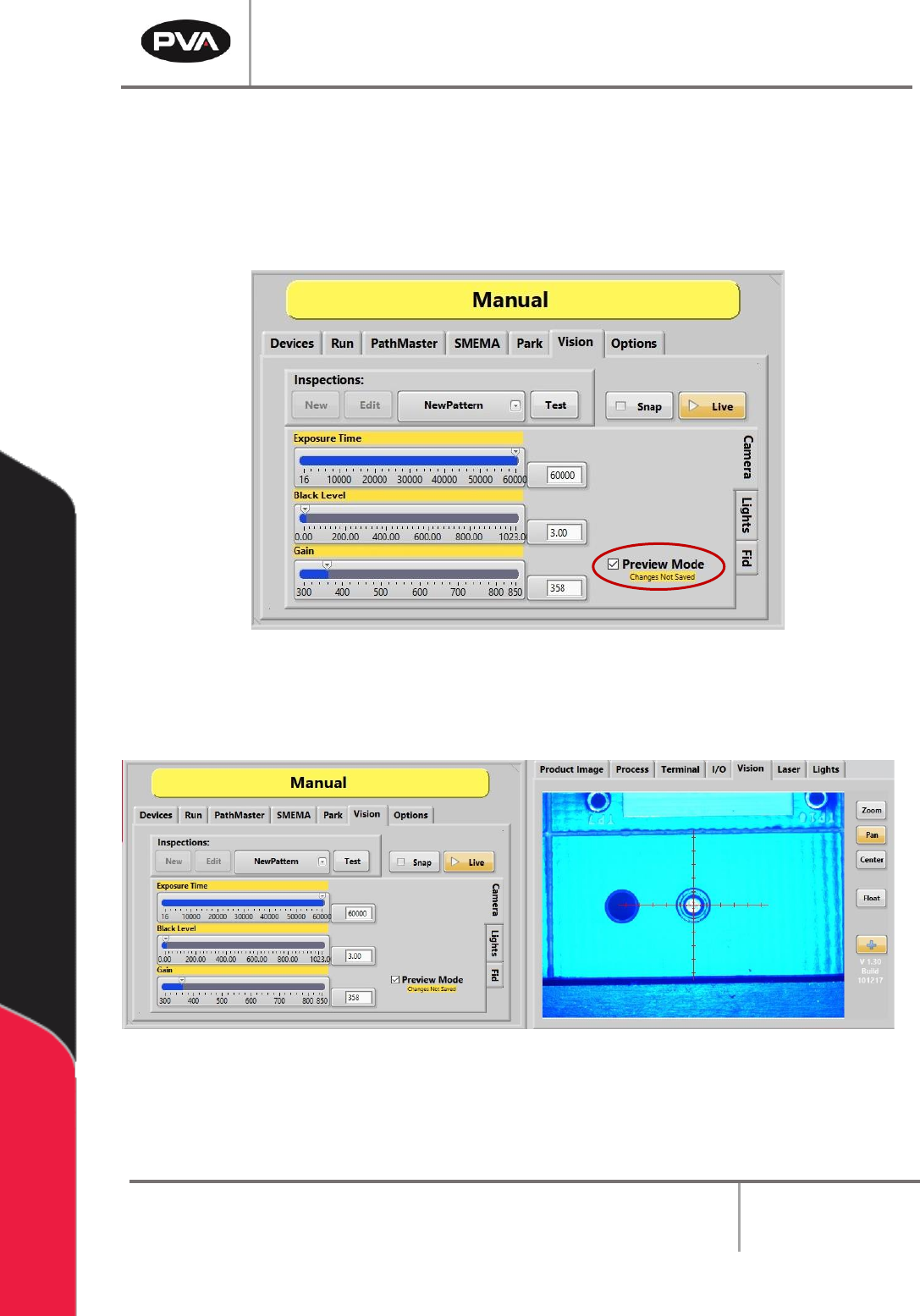
6.6.3.3 Preview Mode
In Preview Mode, settings adjustments and their effects can be viewed without saving any
changes.
1. Ensure the Preview Mode box is checked.
Figure 26: Preview Mode
2. Adjust the Shutter Speed, Brightness, and Gains settings to see how they affect
the image on the right.
Figure 27: Viewing Setting Adjustments in Preview Mode
PVA Portal Manual
Revision I / January 2022
Page 34 of 106
6.7 Conveyor Controls
Figure 28: Conveyor Controls
The conveyor and the board stops are controlled in the “Conv. Controls” tab found under
the ”Options” tab. These options allow the operator to adjust the position of the boards in
the workcell.
Note: Only workcells with conveyors will have this option.
1. Select the “Options” tab and then the “Conv. Controls” tab.
2. Select the “Conv. Forward” button to move the conveyor forward.
3. Select the “Conv. Reverse” button to reverse the conveyor direction.
Note: This option is only available on bi-directional systems.
4. Select the “Board Stop 1” button to turn the board stops on or off.
5. Select the “Board Stop 2” button to turn the board stops on or off. Board Stop 2
operates the upstream board stops for bi-directional systems. This feature can also
be for any additional stops like a buffer, queue zone, or conveyor.
6. Select the “Locators” button to move the locators to the up or down position.
Note: This is an optional feature for workcells with pneumatic-powered board
locators. Only workcells with board locators will have this option. If this feature is
present, the operator can move the board locators to the up and down positions.
PVA Portal Manual
Revision I / January 2022
Page 35 of 106
6.8 FIS
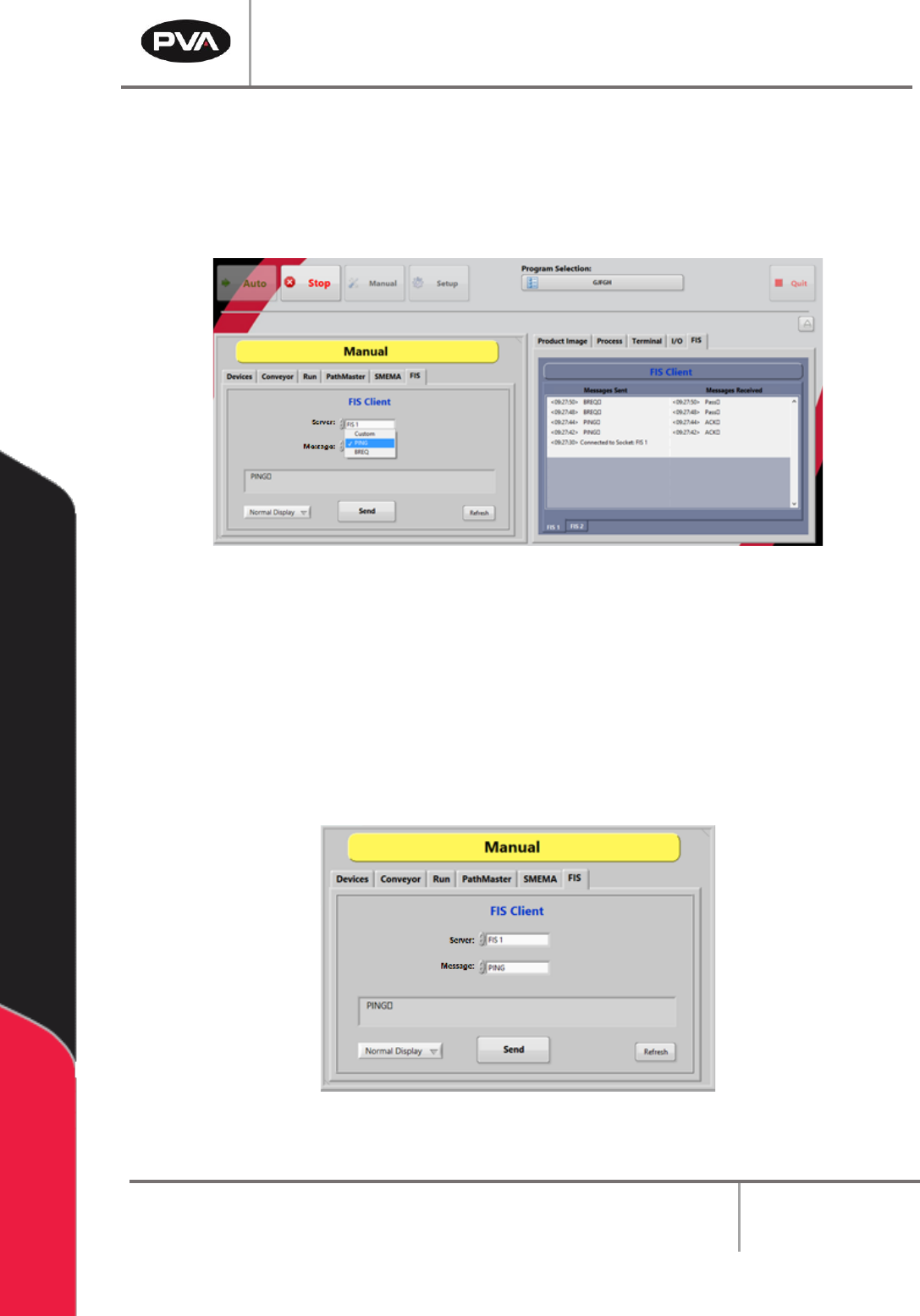
The PVA integrated Factory Information System (FIS) is an optional add-on. It is
configurable and will interface with the majority of factory information systems. If
necessary, its messages can be customized.
Figure 29: FIS Client Mode and Message Screens
6.8.1 FIS Client Mode Screen
1. The FIS Client mode screen can be seen in Manual mode when the FIS tab is
selected.
2. To change the display format, select an option from the Display drop down menu
(Normal, ‘\’ Code, Hex Code).
Figure 30: FIS Client Mode Screen