Portal-Operation-Manual-REV-I.pdf - 第32页
PVA Portal Manual Revision I / Janua ry 2022 Page 32 of 106 6.6.3.2 Editing Inspections 1. To edit a Quick Fid insp ection, click the “ Edit ” button. 2. Sele ct the rectangle to ol and draw a recta ngle around t he fidu…
PVA Portal Manual
Revision I / January 2022
Page 31 of 106
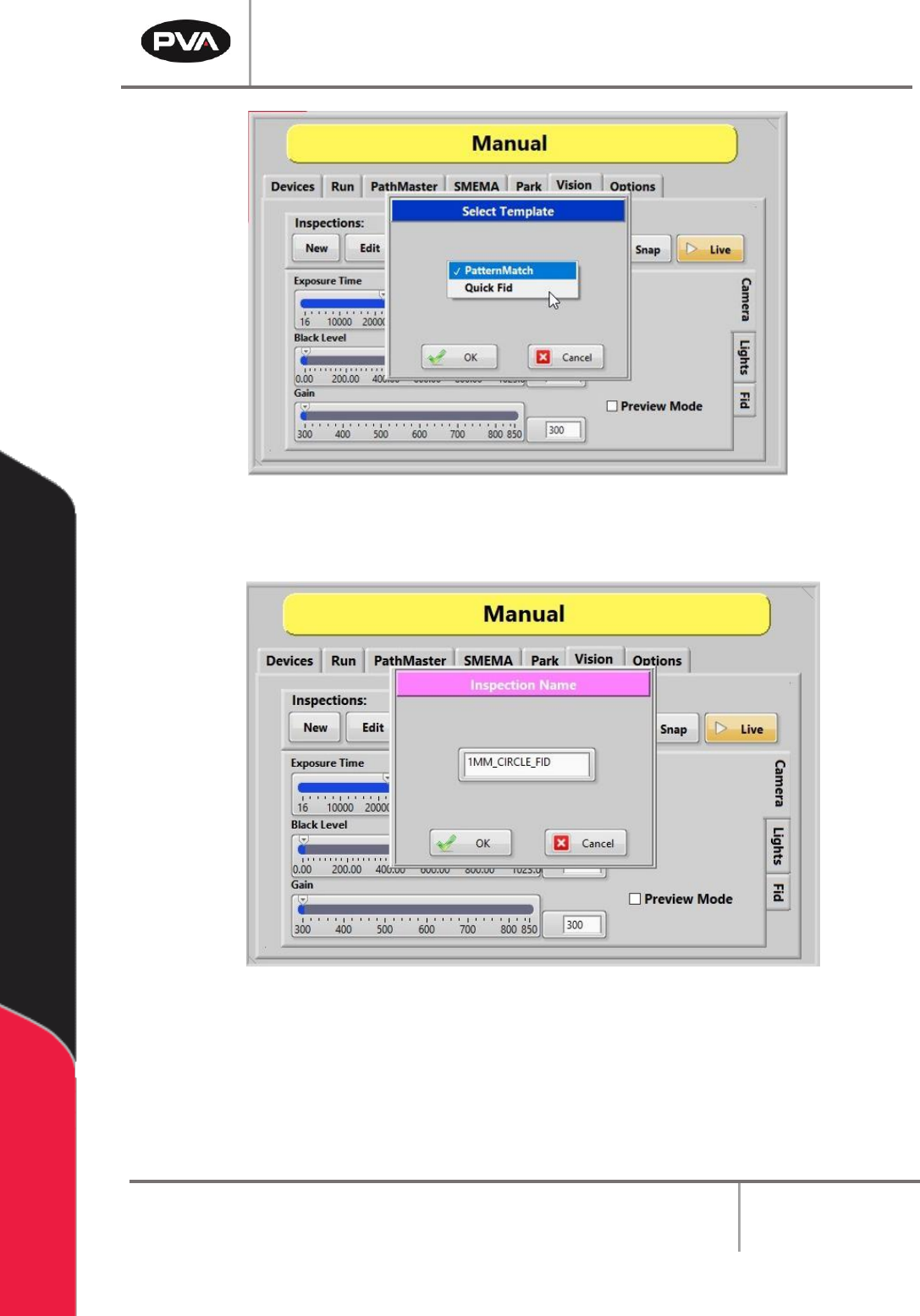
Figure 23: Selecting a Quick Fid Template
5. Give the Quick Fid inspection a unique name and then click the “OK” button.
Figure 24: Changing the Inspection Name
6. The new Quick Fid inspection has been created.
PVA Portal Manual
Revision I / January 2022
Page 32 of 106
6.6.3.2 Editing Inspections
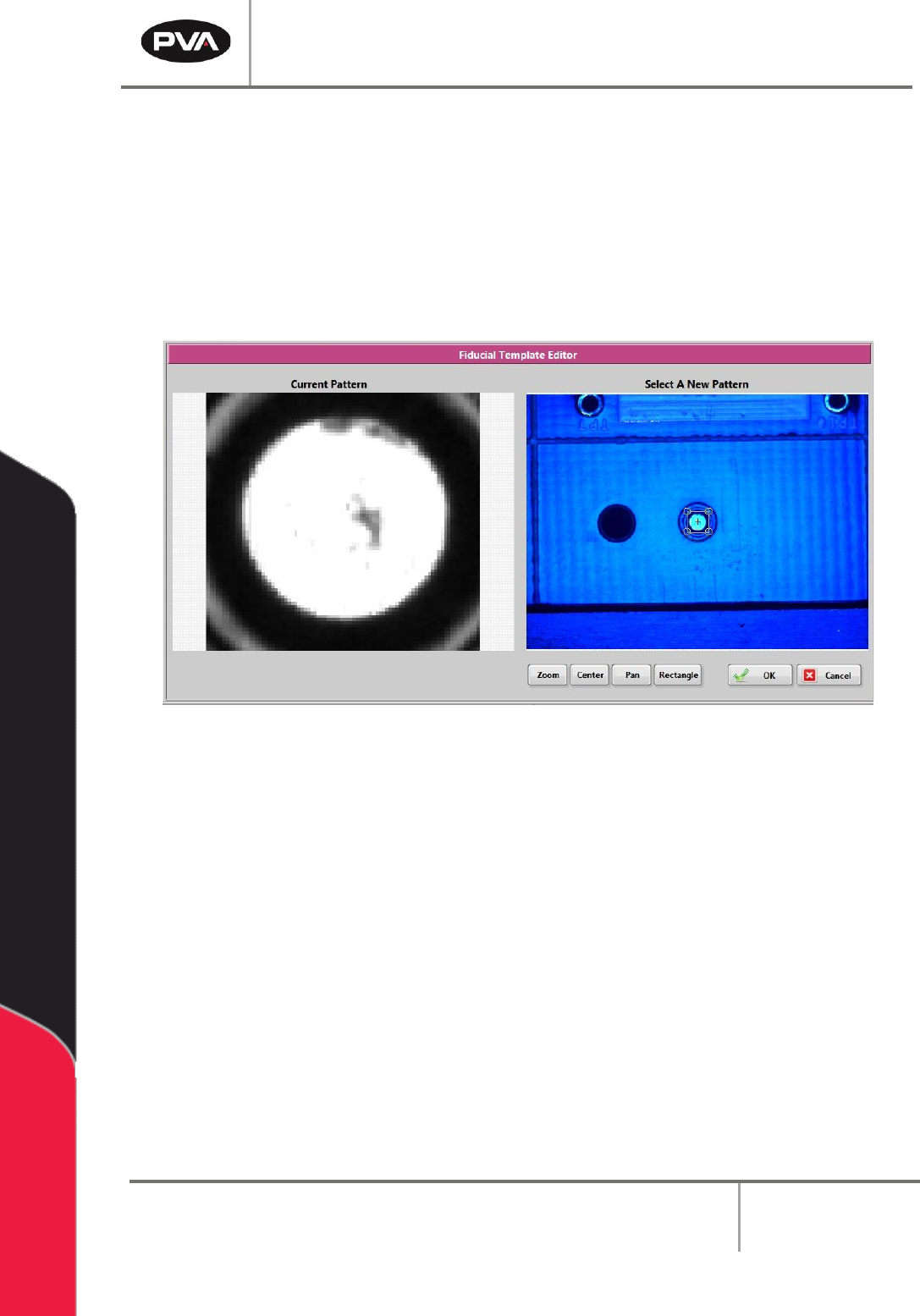
1. To edit a Quick Fid inspection, click the “Edit” button.
2. Select the rectangle tool and draw a rectangle around the fiducial template.
3. Select the “OK” button to save the changes.
4. Select the “Cancel” button to exit and discard any changes.
Figure 25: Fiducial Template Editor
PVA Portal Manual
Revision I / January 2022
Page 33 of 106
6.6.3.3 Preview Mode
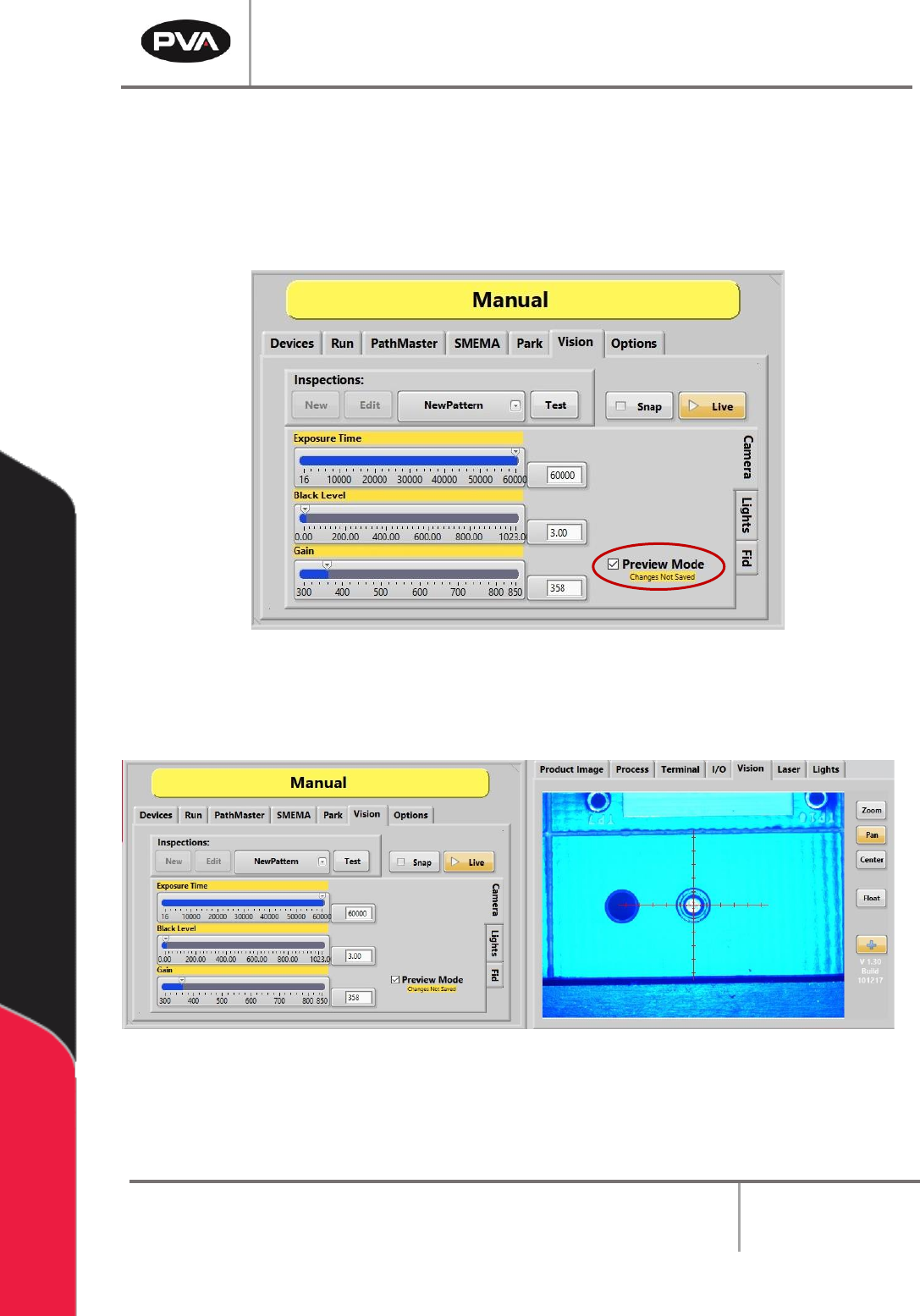
In Preview Mode, settings adjustments and their effects can be viewed without saving any
changes.
1. Ensure the Preview Mode box is checked.
Figure 26: Preview Mode
2. Adjust the Shutter Speed, Brightness, and Gains settings to see how they affect
the image on the right.
Figure 27: Viewing Setting Adjustments in Preview Mode