Portal-Operation-Manual-REV-I.pdf - 第29页
PVA Portal Manual Revision I / Janua ry 2022 Page 29 of 106 Figure 20 : FID Light Option s 10. Select the “ Fid Ta b ” to set the tolerance for the B fiducial for the current ins pection. Note: An inspection ca n be used…
PVA Portal Manual
Revision I / January 2022
Page 28 of 106
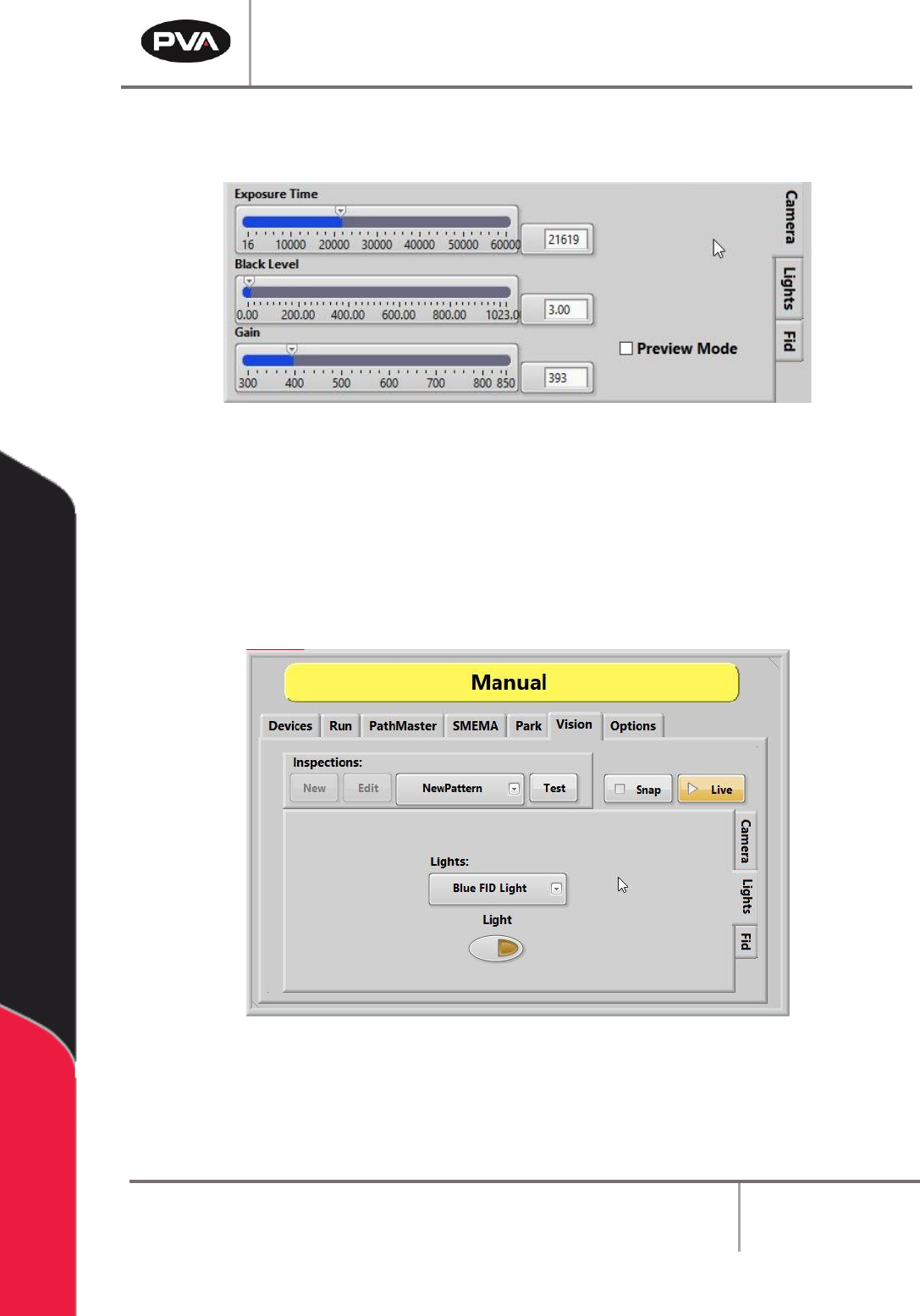
8. Select the “Camera” tab to set the camera attributes related to the current
inspection. In this tab, the shutter speed, brightness, and gain can also be adjusted.
Figure 18: Camera Tab Options
Note: The selected program is updated as soon as image adjustments are changed for
shutter speed, brightness, and gain.
9. Select the “Lights” tab to toggle the selected light on and off. This is a manual only
function that does not change on the automated inspection. Within the Lights drop
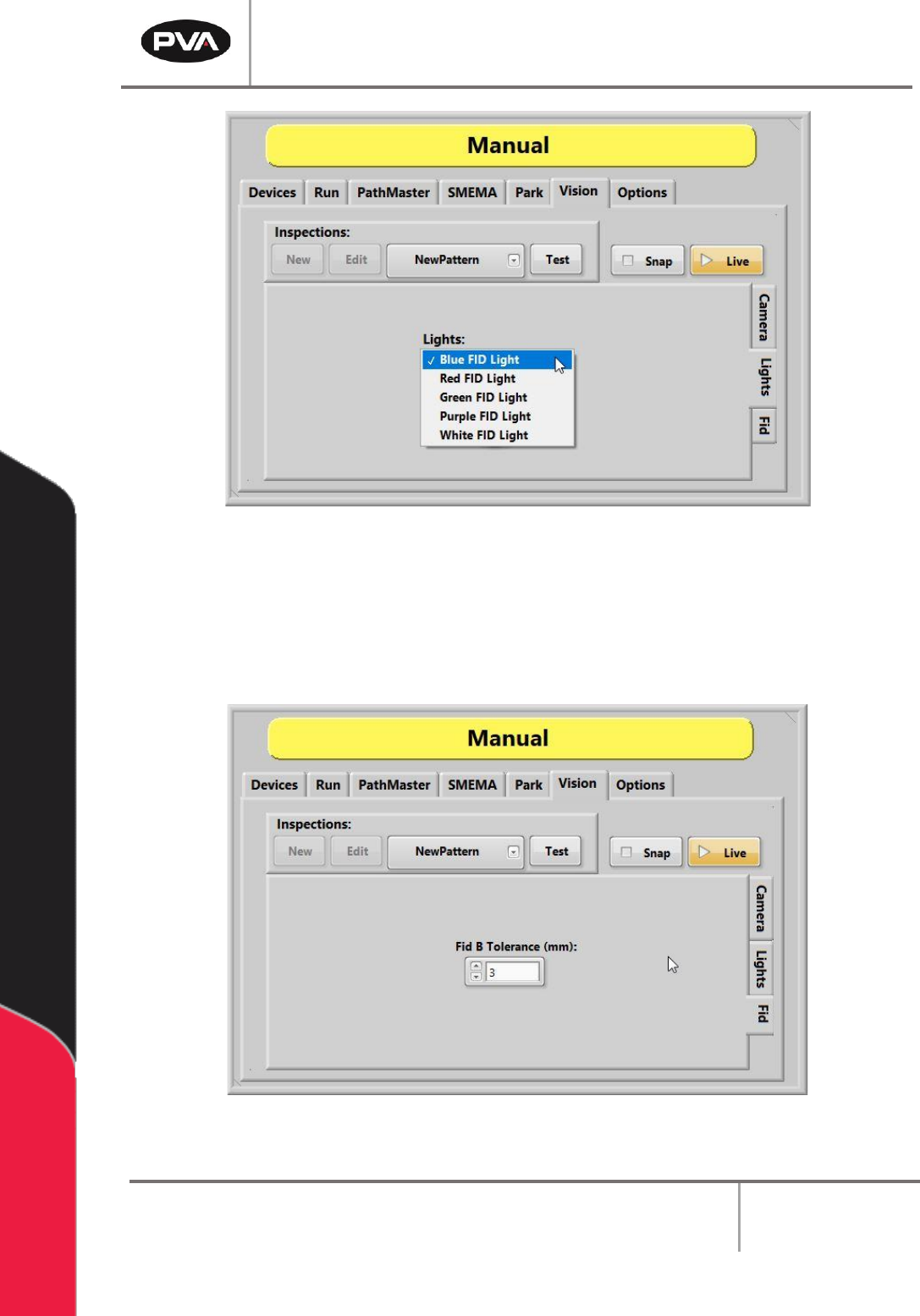
down menu, the FID Light color can be changed to blue, red, green, purple, or white.
Figure 19: Lights Tab
PVA Portal Manual
Revision I / January 2022
Page 29 of 106
Figure 20: FID Light Options
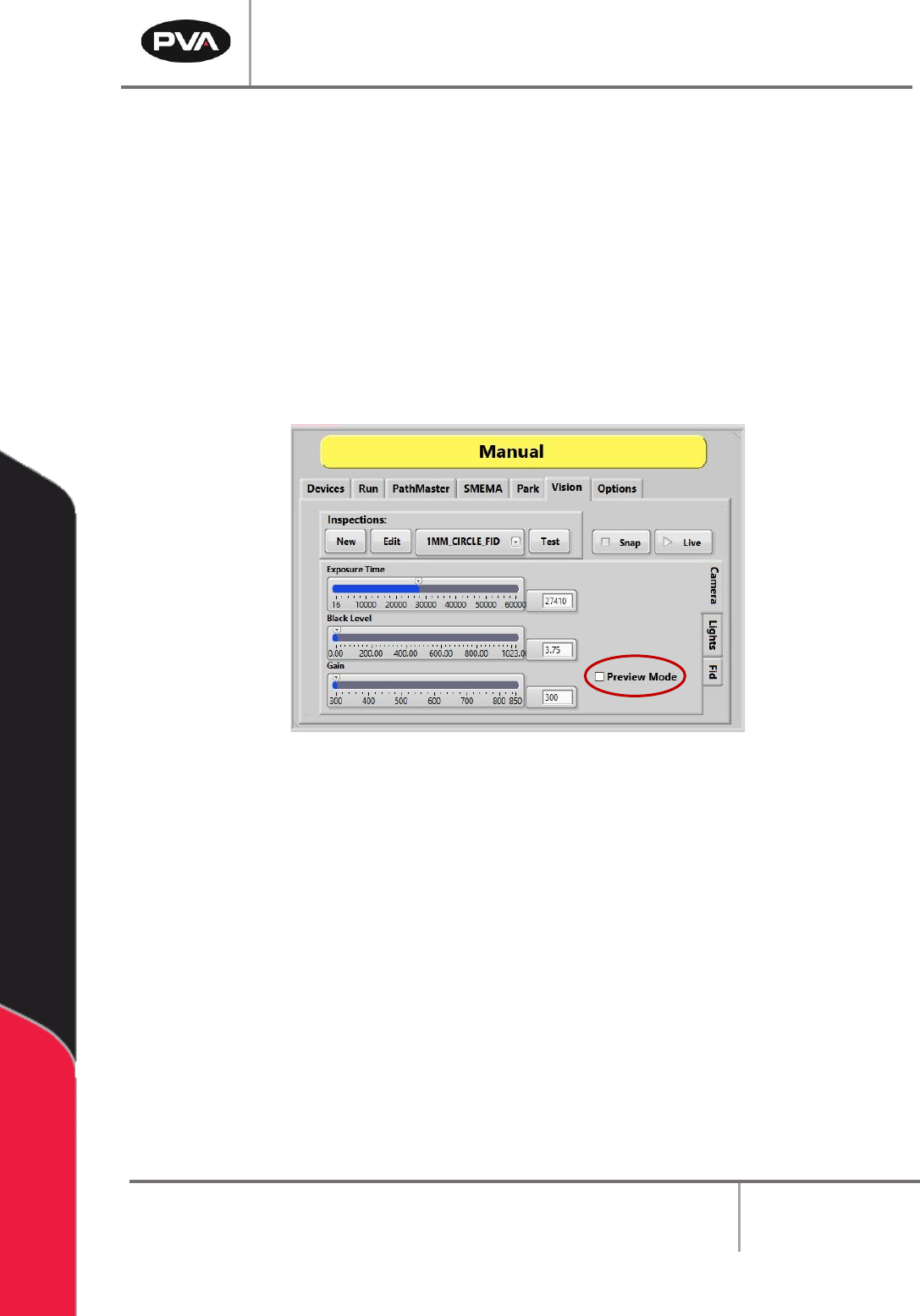
10. Select the “Fid Tab” to set the tolerance for the B fiducial for the current inspection.
Note: An inspection can be used for an A or B fiducial or general inspection type.
Fiducial tolerance is the radial tolerance from nominal for a fiducial B type
inspection. Refer to the PathMaster® Vision manual for more information.
Figure 21: Manual Vision, FID
PVA Portal Manual
Revision I / January 2022
Page 30 of 106
6.6.3 Quick FID Inspection
Quick Fid Inspection is an optional application in Portal. This option must be enabled to
use the following functions. This application provides the use of fiducials without the
ability to do inspections.
6.6.3.1 Create a New Inspection
1. Uncheck the “Preview Mode” box. Changes to Inspections cannot be made in
Preview Mode. Changes made to the Camera attributes in Preview Mode do not
change the current inspection and are discarded.
Figure 22: Quick Fids
2. Under Inspections, select the “New” button.
3. Select the “Quick Fid” inspection template from the dropdown menu.
4. Select the “OK” button.