Portal-Operation-Manual-REV-I.pdf - 第96页
PVA Portal Manual Revision I / Janua ry 2022 Page 96 of 106 15.8 Stop Cod es For position a nd limit errors, th e error scree n shows stop codes f or all the motors. This shows which a xis (or axes) caus ed the machin e …
PVA Portal Manual
Revision I / January 2022
Page 95 of 106
15.7 Limit Error Recovery Procedure
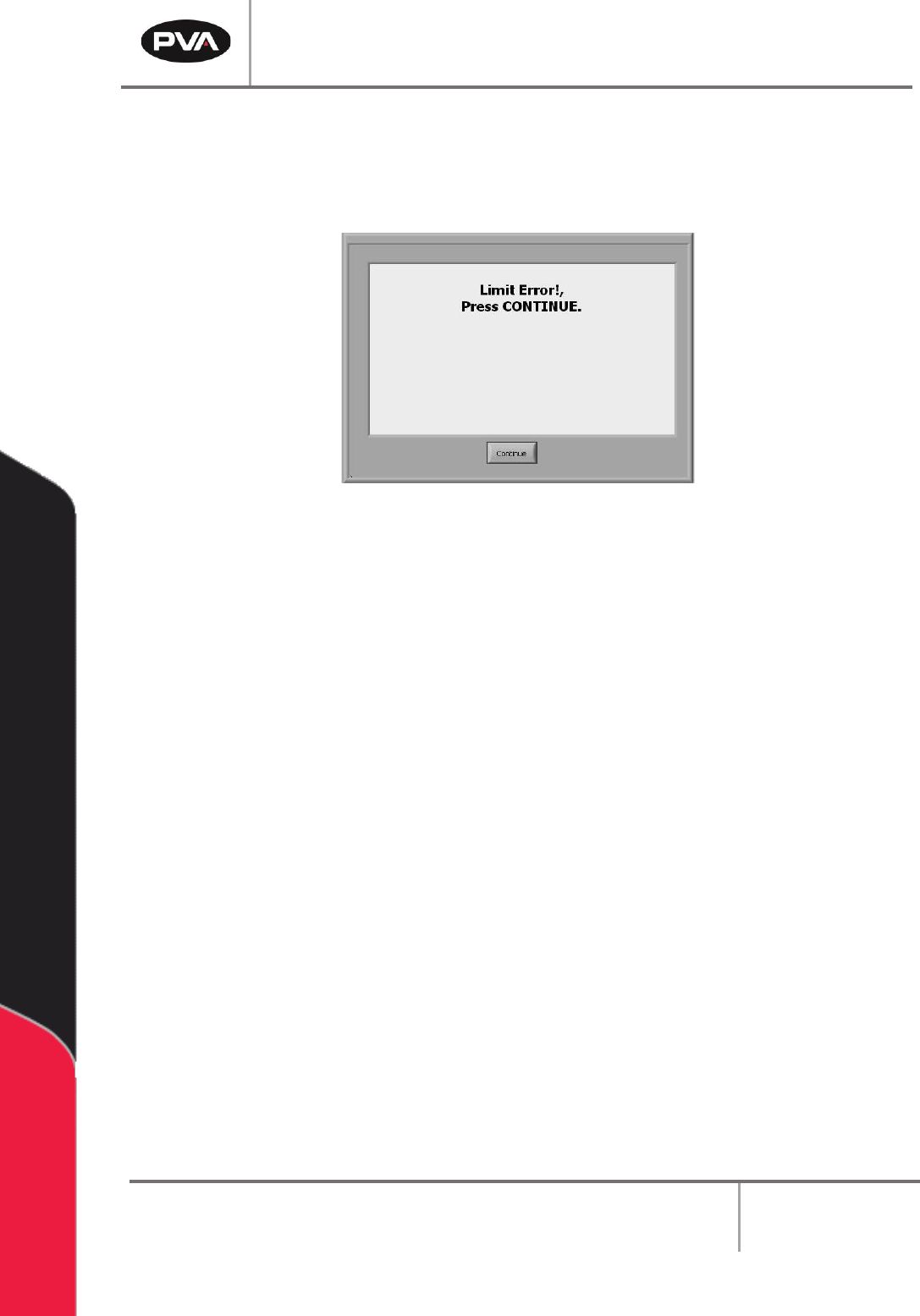
The machine encounters a limit error when the gantry exceeds the software or hardware
limits. The stop codes are shown in the system messages window.
Figure 121: Limit Error
1. Engage the “Emergency Stop” button.
2. Open the access door.
3. Move the dispense head to the center of the work area. Engage the brake on the Z-
axis. Turn the motor coupling by hand to move the dispense head, as necessary.
4. Close the access door.
5. Disengage the “Emergency Stop” button.
6. Select the “Continue” button to clear the error.
7. Perform the Startup Procedure. Refer to Section 10.1 for more information.
PVA Portal Manual
Revision I / January 2022
Page 96 of 106
15.8 Stop Codes
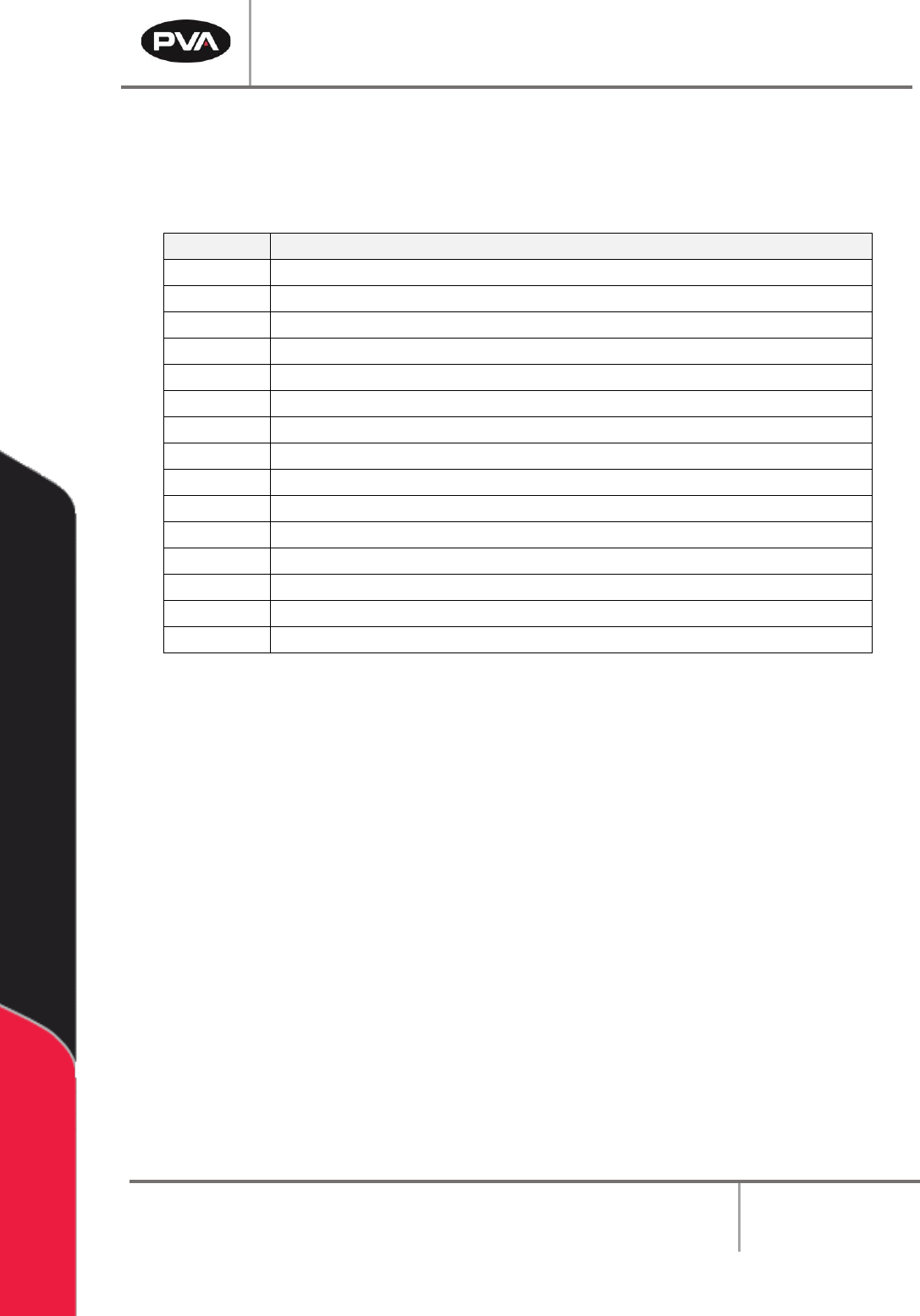
For position and limit errors, the error screen shows stop codes for all the motors. This
shows which axis (or axes) caused the machine to fault.
Code
Meaning
0
Motors are running, independent mode.
1
Motors stopped at commanded independent position.
2
Decelerating or stopped by FWD limit switch or software.
3
Decelerating or stopped by REV limit switch or software.
4
Decelerating or stopped by Stop Command (ST).
6
Stopped by Abort input.
7
Stopped by Abort command (AB).
8
Decelerating or stopped by Off-on-Error (OE1).
9
Stopped after Finding Edge (FE).
10
Stopped after Homing (HM).
50
Contour running.
51
Contour Stop.
99
MC timeout.
100
Motors are running, vector sequence.
101
Motors stopped at command vector.
Table 2: Stop Code Definitions
PVA Portal Manual
Revision I / January 2022
Page 97 of 106
15.9 Request the Motion Controller Version
Perform the procedure below to request the motion controller firmware version. Refer to
the PathMaster® Manual for more information.
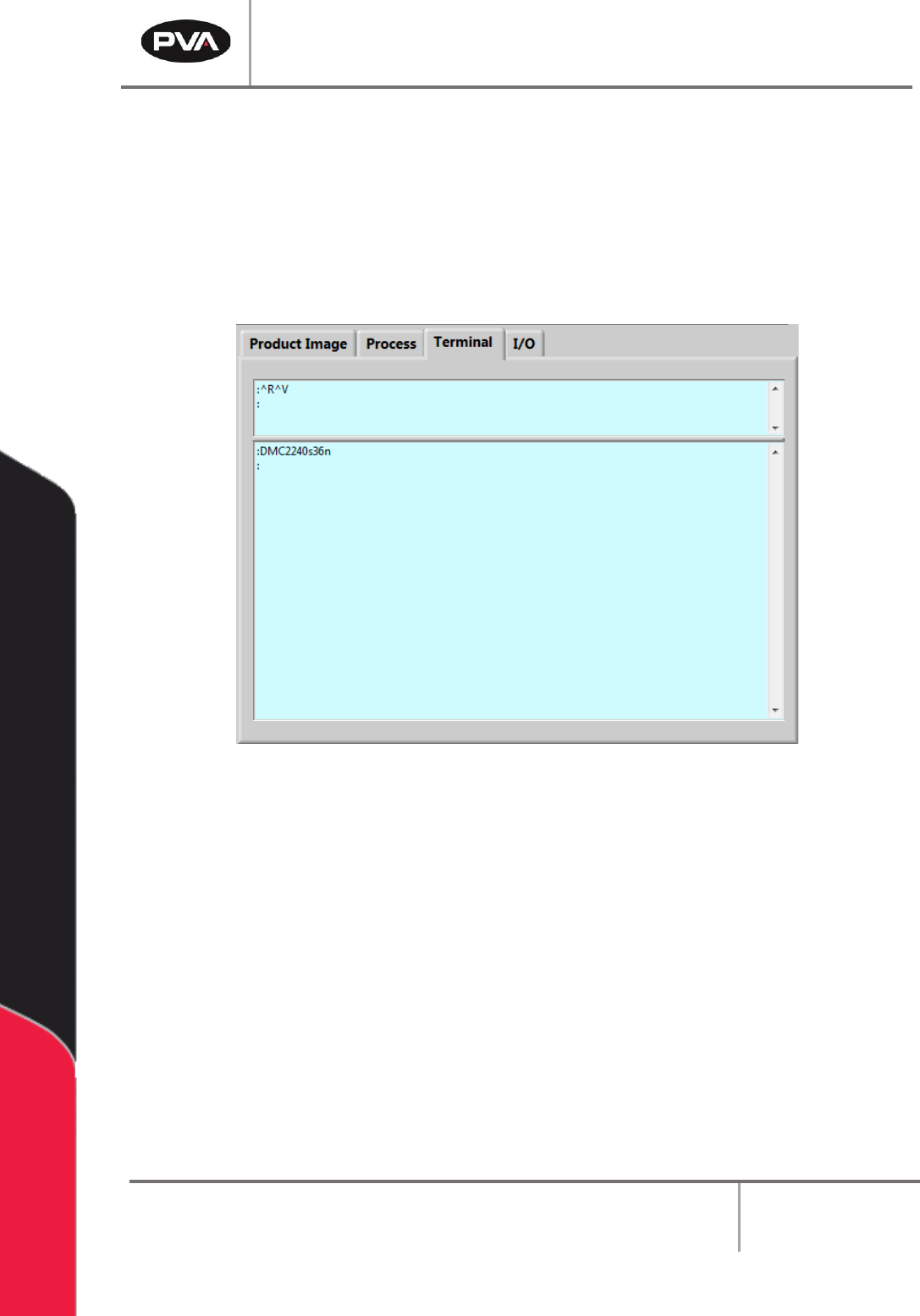
1. Select the Terminal tab on the right side of the Portal window.
2. In the terminal window type “^R^V”.
Figure 122: Portal Terminal Window
3. Press the “Enter” button.
4. The motion controller model and firmware version are shown in the terminal
window.