Portal-Operation-Manual-REV-I.pdf - 第72页
PVA Portal Manual Revision I / Janua ry 2022 Page 72 of 106 5. A screen confirming the user wants to shut down will be sho wn; select the “ Yes ” button to confirm shutdown. Figure 77 : Portal Shutd own Question 6. A scr…
PVA Portal Manual
Revision I / January 2022
Page 71 of 106
10.5 Standby Position
The end effector will move to the Standby Position when the homing sequence is
complete, all calibration procedures are complete, a part is finished being processed, or if
the machine is waiting for parts but it is not necessary to move to solvent or auto purge.
The Standby Position is a defined location, different from the Home Position. Usually, the
Standby Position is near the board stop to decrease travel during Auto Cycle. The
workcell always goes back to the Standby Position in Cycle Stop mode. If the Standby
Position needs to be changed, refer to Section 8.3 for more information on reteaching the
position.
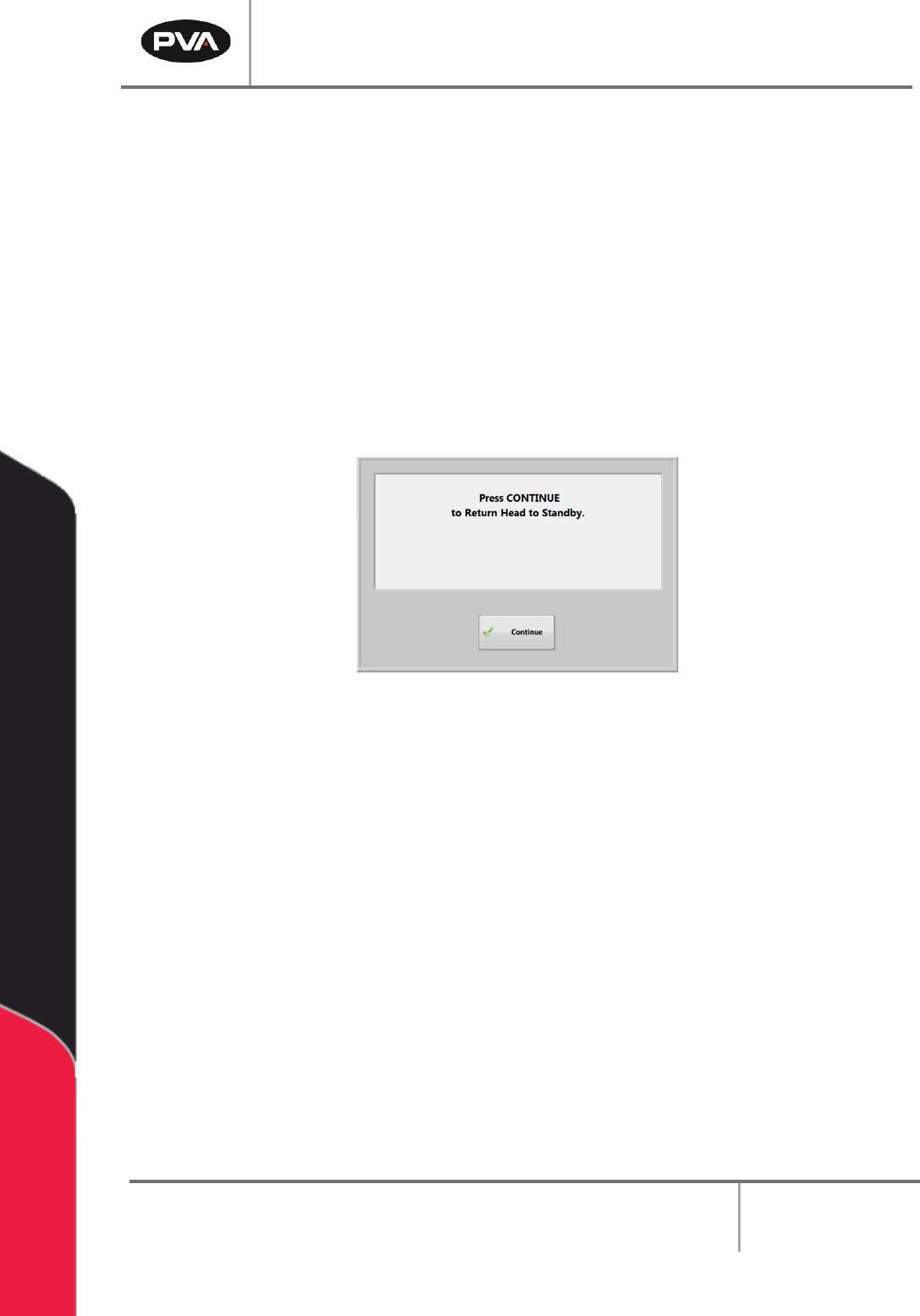
• When Portal opens select the “Continue” button to return the heads to the
Standby Position and to go to Cycle Stop mode.
Figure 76: Return Head to the Standby Position
10.6 Shut Down Procedure
If the machine is in cycle, wait for the cycle to finish and then return to Cycle Stop mode.
The machine must be in Cycle Stop mode in order to shut down.
Note: If the system needs to be flushed before it is shutdown, it is necessary to flush
the system before shutting down Portal.
1. If the machine is in Auto Cycle, wait for the cycle to finish.
2. Select the “Stop” button.
3. Close PathMaster®.
4. Select the “Quit” button on the Portal interface, on the right side of the window.
PVA Portal Manual
Revision I / January 2022
Page 72 of 106
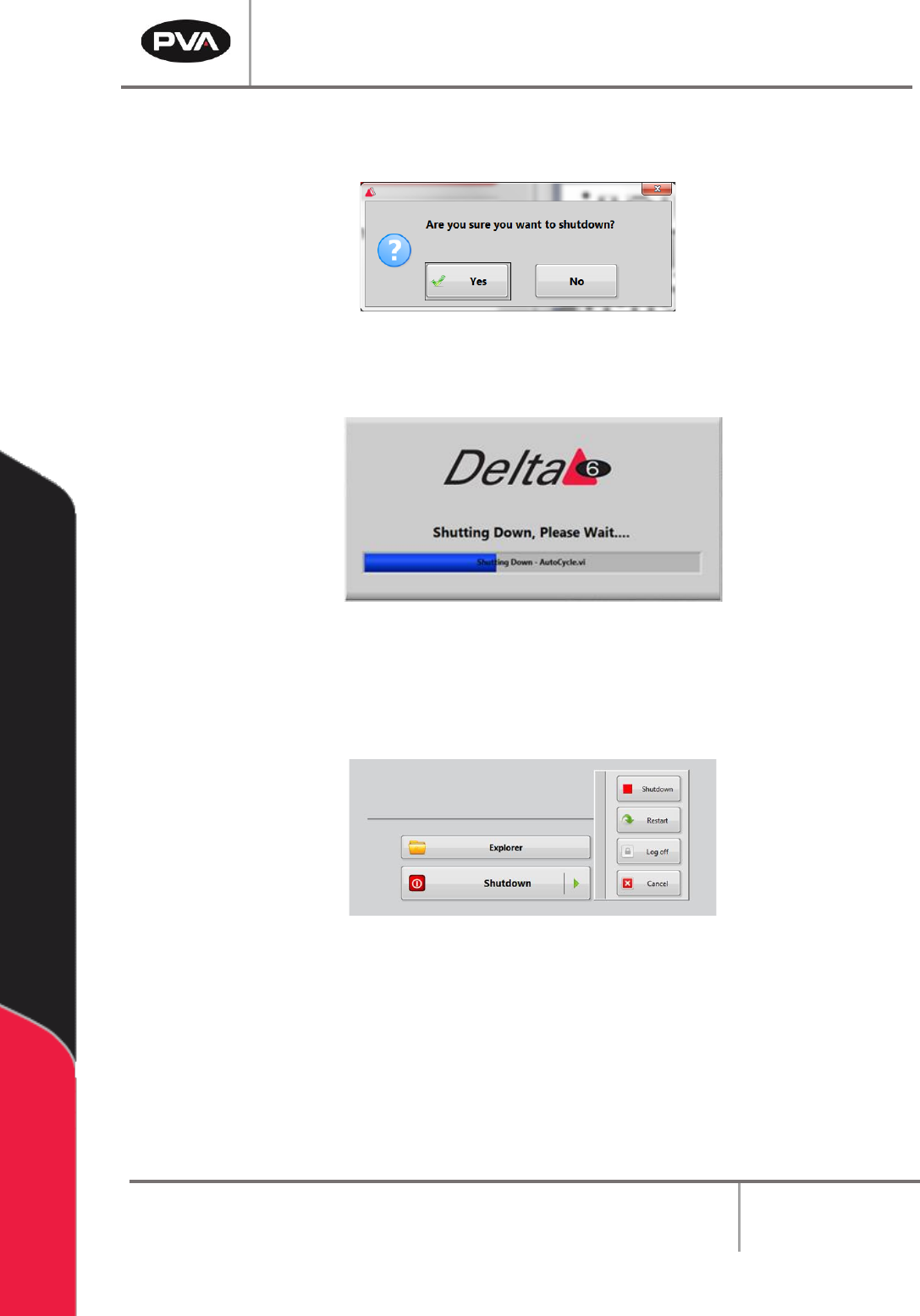
5. A screen confirming the user wants to shutdown will be shown; select the “Yes”
button to confirm shutdown.
Figure 77: Portal Shutdown Question
6. A screen will show that Portal is shutting down.
Figure 78: Portal Shutdown Screen
7. When Portal is closed, the Portal Shell window will be shown. Select the “Shutdown”
button to shut down the attached PC. To restart or log off, select the green arrow
on the “Shutdown” button and select "Restart" or "Log Off".
Figure 79: Portal Shutdown Options
8. For a list of ways to exit the Portal Shell screen without turning off the computer,
press the “F1” button on the keyboard. A window with shortcuts to exit the Portal
Shell will be shown. Refer to Section 4.1.1 for more information on Portal keyboard
shortcuts.
Note: Ensure that the PC has been correctly shutdown BEFORE stopping power to
the workcell. Refer to the Workcell Installation Guidelines and Troubleshooting
Maintenance manual for additional information on how to shut down the workcell.
PVA Portal Manual
Revision I / January 2022
Page 73 of 106
Portal Permissions
Each user must have a username and password. To see any changes that have been made,
log out and log back in. To add a user or make changes to the password or user permissions
perform the following steps:
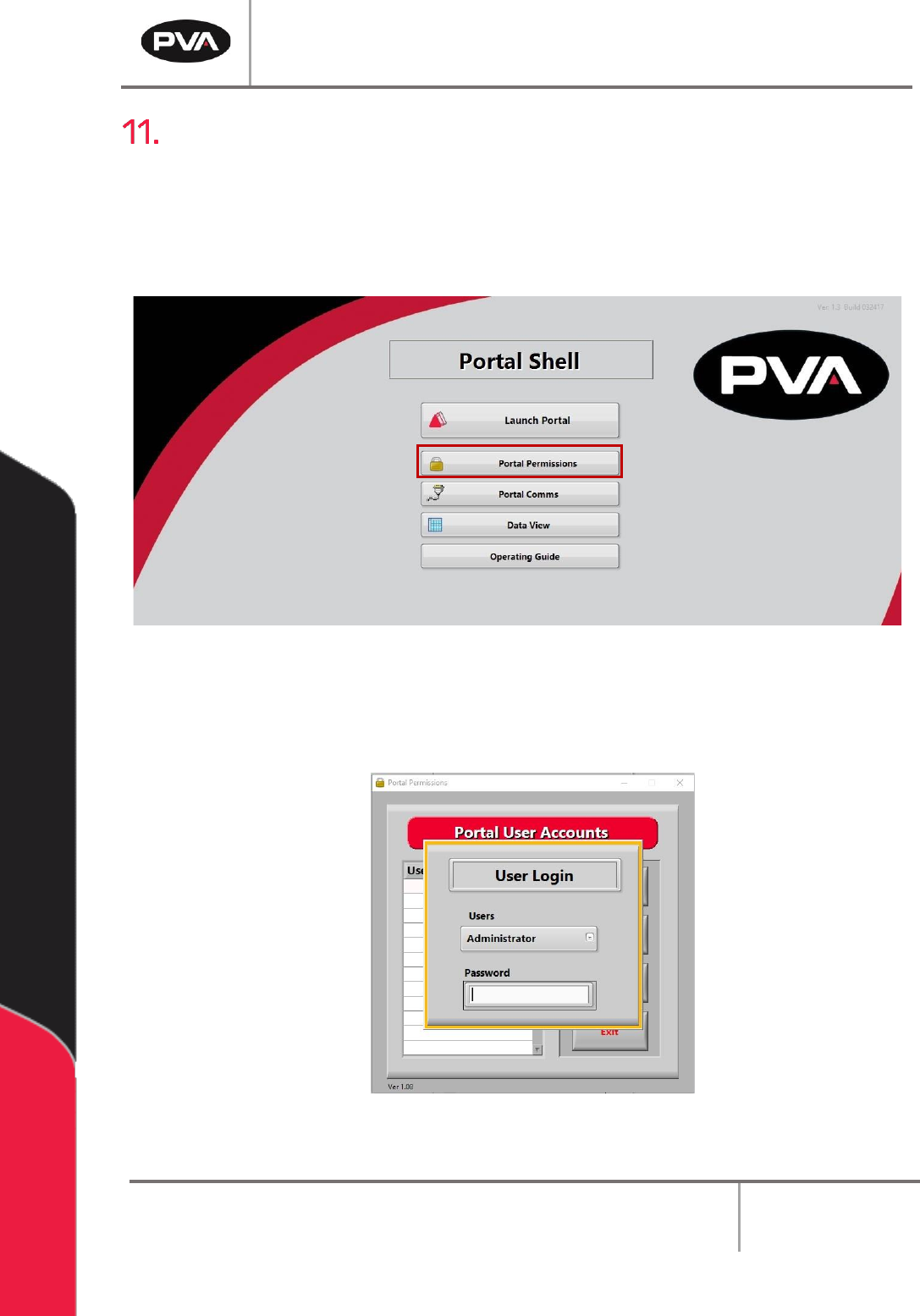
1. Select the “Portal Permissions” button from the Portal Shell screen.
Figure 80: Portal Permissions
2. The administrator must login.
Figure 81: Portal Administrator Login Screen