Portal-Operation-Manual-REV-I.pdf - 第86页
PVA Portal Manual Revision I / Janua ry 2022 Page 86 of 106 Figure 107: Path Pr ogram File Location 14.3 How to Train a New Pa rt PartCodes must be trained in order t o create a new part record. A PartCode coul d be a ba…
PVA Portal Manual
Revision I / January 2022
Page 85 of 106
14.2.1 To Edit Part Name or Part ID
To edit a Part Name or Part ID, hold the “CTRL” key down and double click the necessary
field. This action prevents accidental edits to these fields.
14.2.2 To Edit a Property Field
1. To edit a property field, click on the part name to expand the property list.
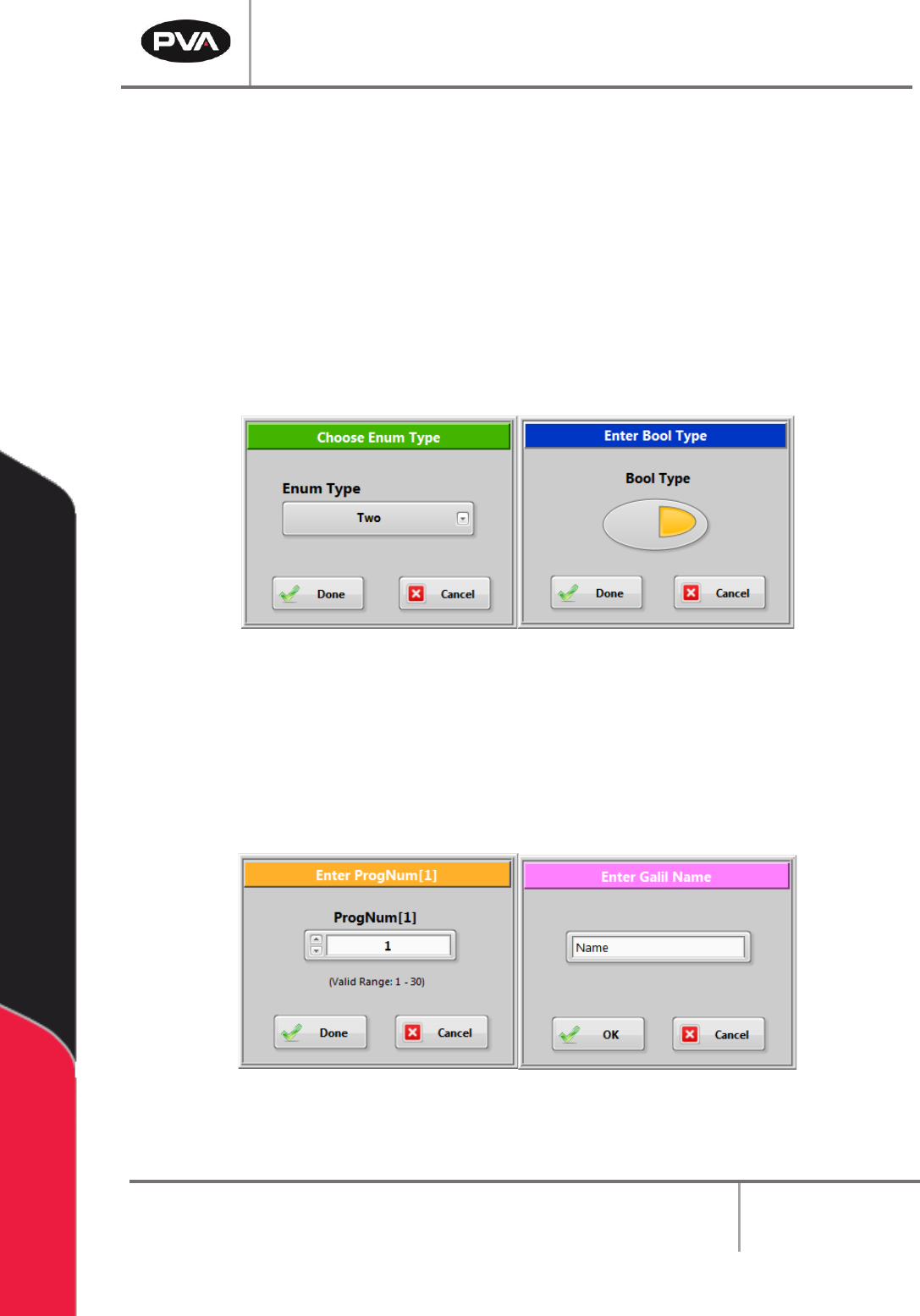
2. Double click on the property that is to be edited. The edit property window shown
will depend on the data type of the selected property.
Figure 105: Choose Enum and Enter Bool Type Windows
3. The edit field may have limits on what can be entered. For example, a property of
type ‘String’ may be restricted to a length of 12 characters and some characters
may not be allowed. A property of type ‘Num’ may only allow numbers in the range
of 1 - 30 to be entered.
Figure 106: Enter ProgNum and Enter Galil Name Windows
PVA Portal Manual
Revision I / January 2022
Page 86 of 106
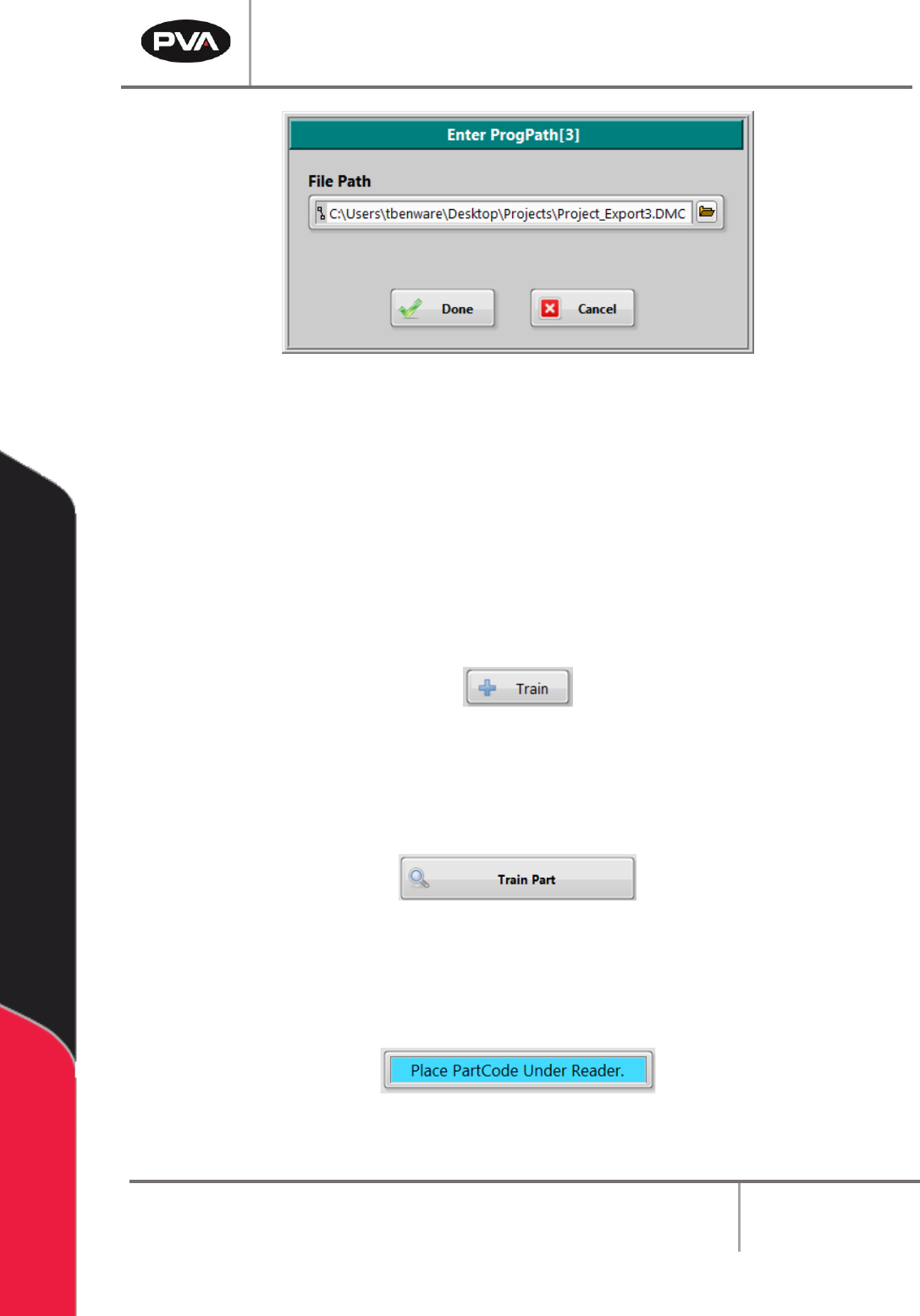
Figure 107: Path Program File Location
14.3 How to Train a New Part
PartCodes must be trained in order to create a new part record. A PartCode could be a
barcode, RFID tag, etc. PartCodes must be unique to the dataset. If the trained PartCode
is found in the dataset, the Train window will close and the part matching the PartCode
will be selected.
1. Select the “Train” button from the Recipe Manager window.
Figure 108: Train Button
2. The Train window will open. Select the “Train Part” button.
Figure 109: Train Part Button
3. The Train window will display a prompt to put the PartCode under the reader.
Figure 110: PartCode Prompt
PVA Portal Manual
Revision I / January 2022
Page 87 of 106
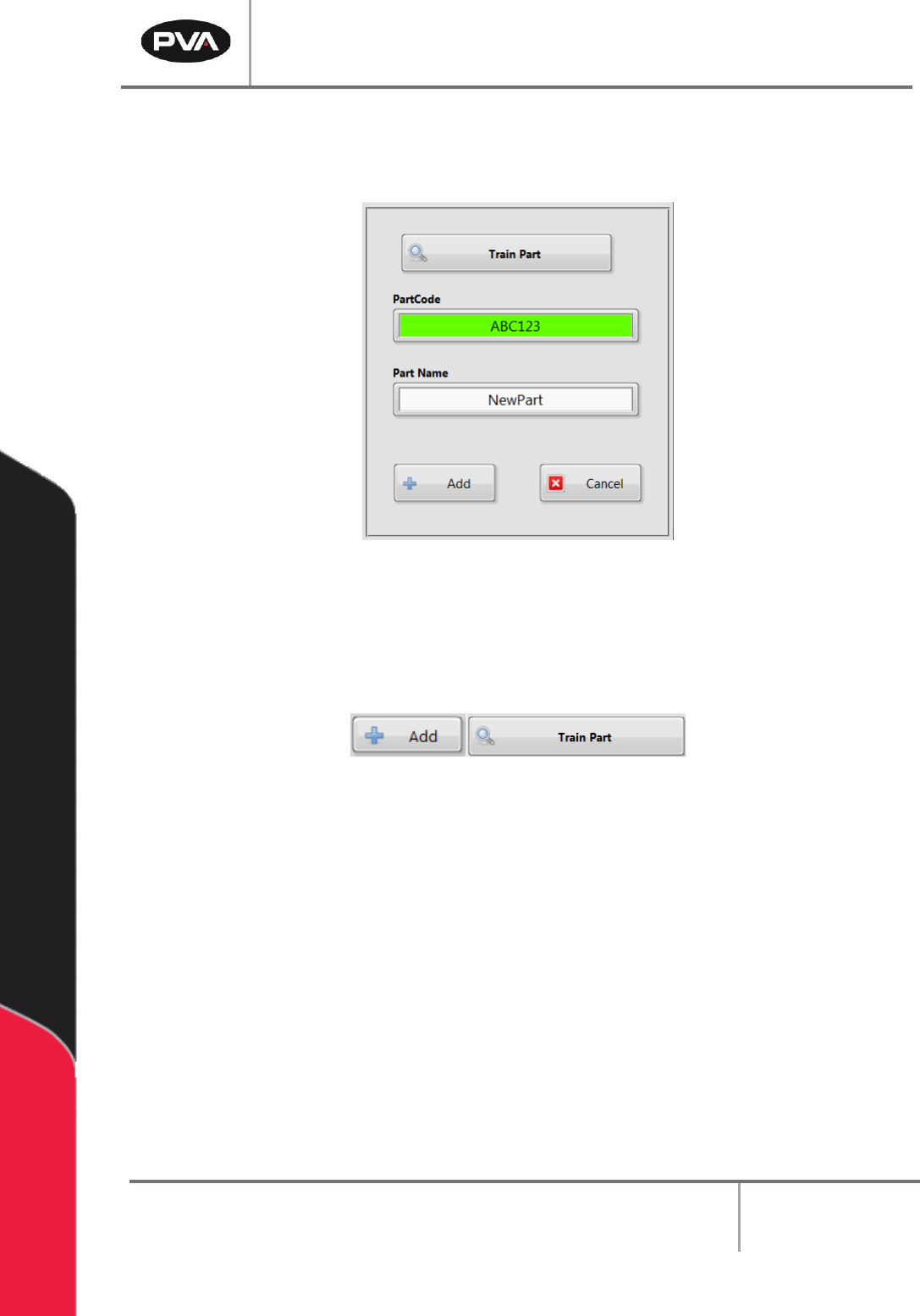
4. After the PartCode is read, the value is shown in the PartCode field.
5. Enter a unique part name in the Part Name field.
Figure 111: Train Part Window
6. Click the “Add” button to add the new part to the dataset or click the “Train Part”
button to train the PartCode.
Figure 112: Add and Train Part Buttons
Note: If an error needs to be corrected in the PartCode scanned, or if the PartCode
scan was incomplete, select the “Train Part” button.