Portal-Operation-Manual-REV-I.pdf - 第87页
PVA Portal Manual Revision I / Janua ry 2022 Page 87 of 106 4. After th e PartCode is r ead, the valu e is shown in the PartCode field. 5. Enter a unique p art name in th e Part Name field. Figure 111 : Train Part Wind o…
PVA Portal Manual
Revision I / January 2022
Page 86 of 106
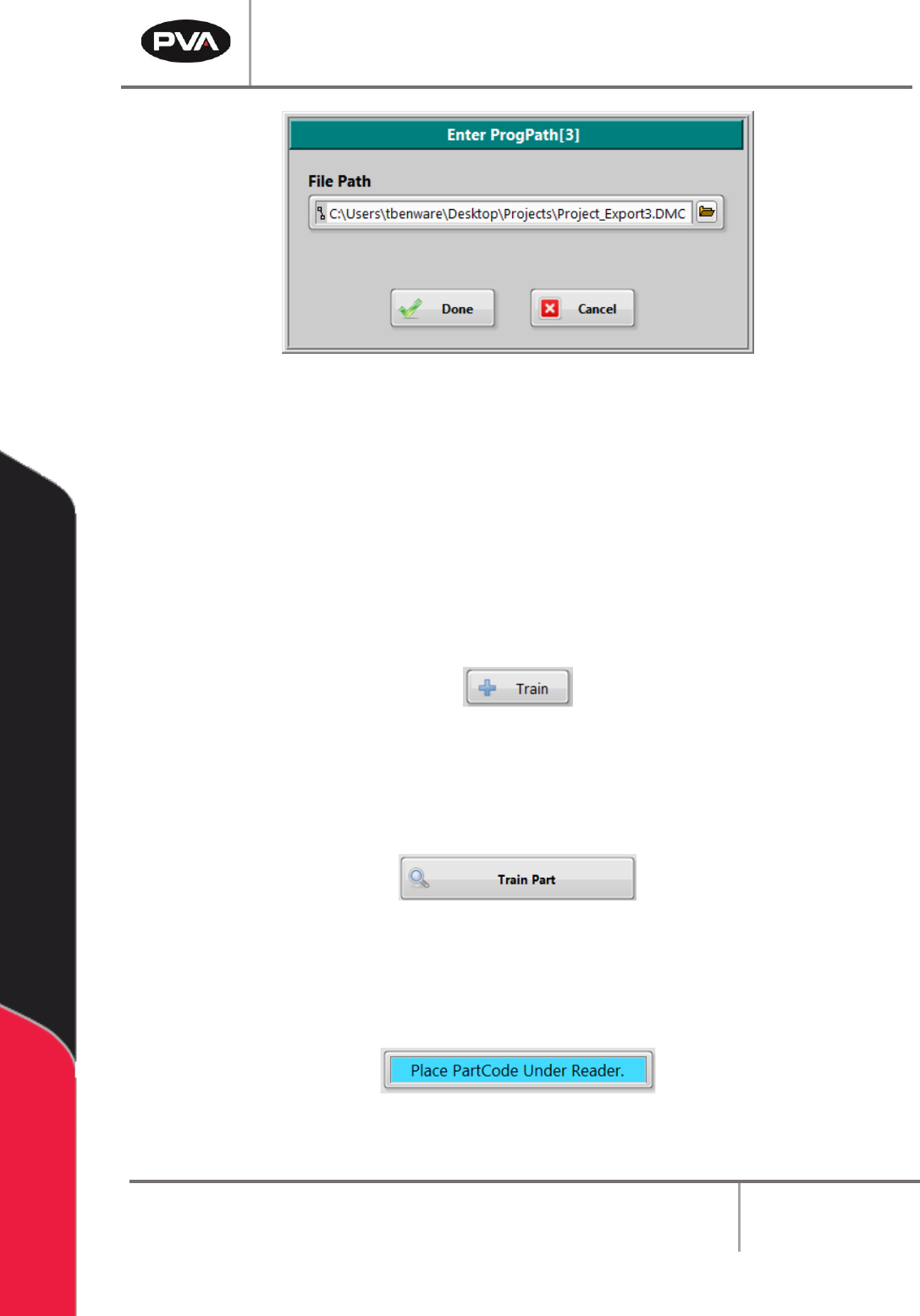
Figure 107: Path Program File Location
14.3 How to Train a New Part
PartCodes must be trained in order to create a new part record. A PartCode could be a
barcode, RFID tag, etc. PartCodes must be unique to the dataset. If the trained PartCode
is found in the dataset, the Train window will close and the part matching the PartCode
will be selected.
1. Select the “Train” button from the Recipe Manager window.
Figure 108: Train Button
2. The Train window will open. Select the “Train Part” button.
Figure 109: Train Part Button
3. The Train window will display a prompt to put the PartCode under the reader.
Figure 110: PartCode Prompt
PVA Portal Manual
Revision I / January 2022
Page 87 of 106
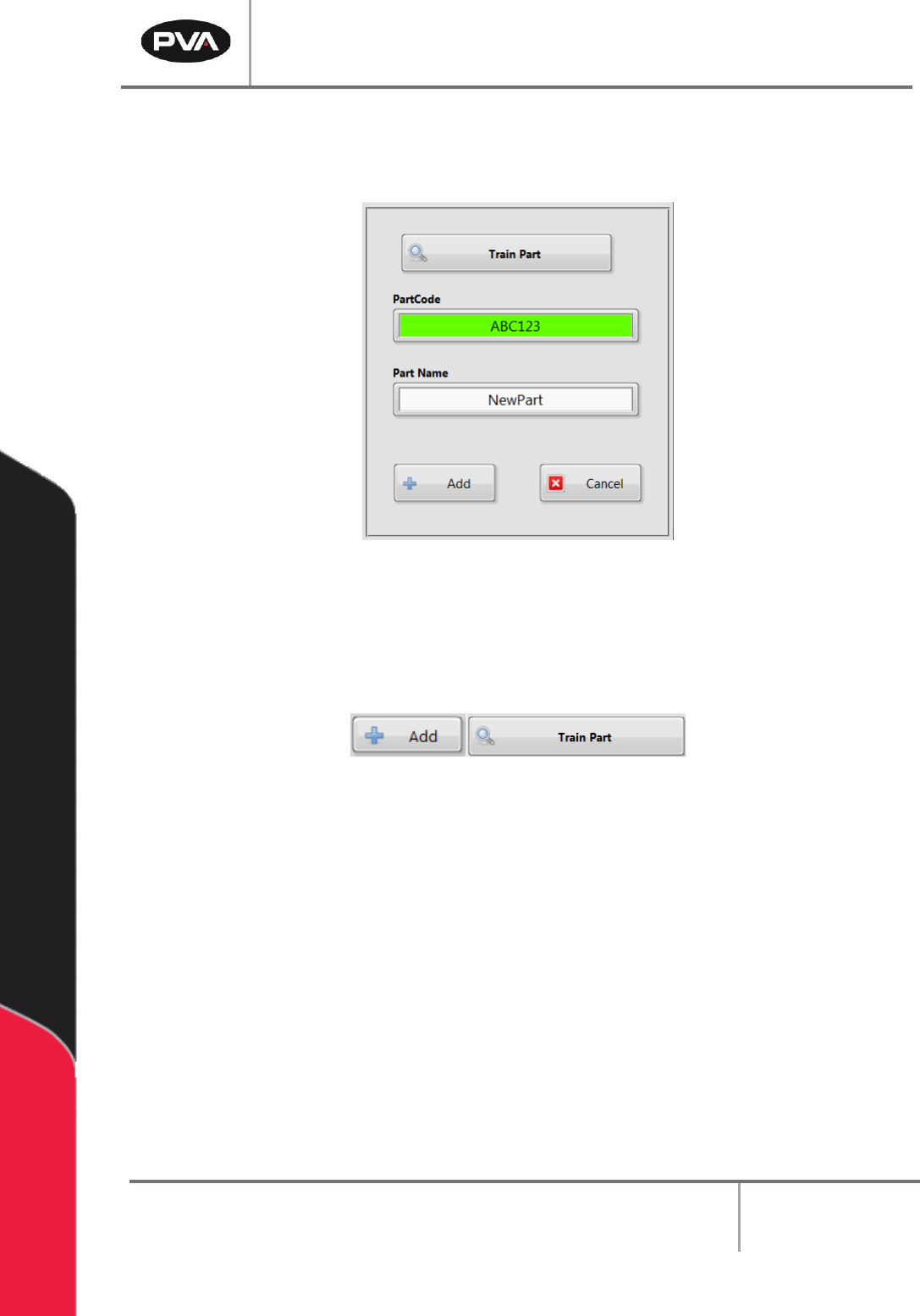
4. After the PartCode is read, the value is shown in the PartCode field.
5. Enter a unique part name in the Part Name field.
Figure 111: Train Part Window
6. Click the “Add” button to add the new part to the dataset or click the “Train Part”
button to train the PartCode.
Figure 112: Add and Train Part Buttons
Note: If an error needs to be corrected in the PartCode scanned, or if the PartCode
scan was incomplete, select the “Train Part” button.
PVA Portal Manual
Revision I / January 2022
Page 88 of 106
14.3.1 Train Part Faults
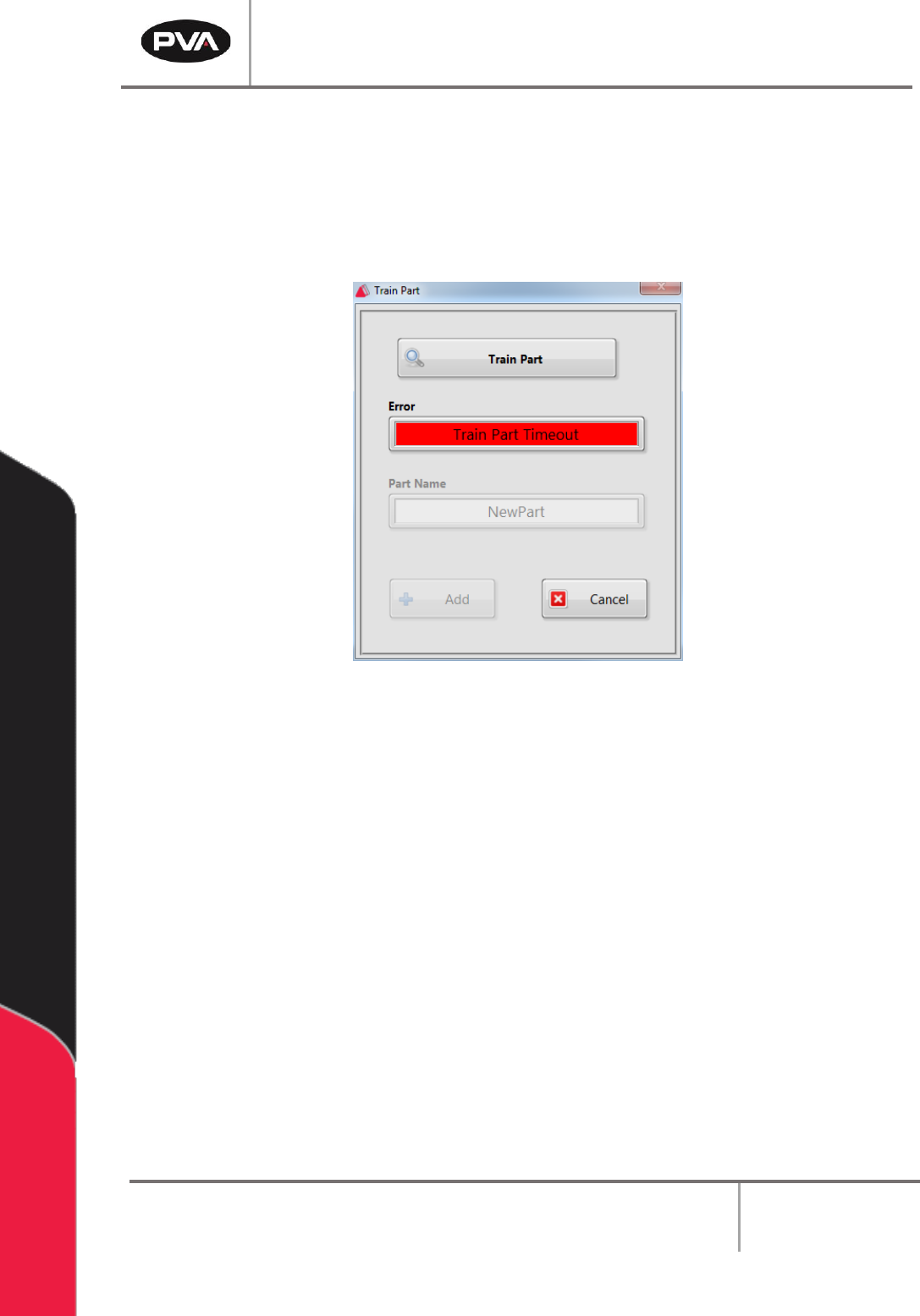
There are two types of faults that can occur when training a part:
1. Train Part Timeout: A timeout fault that occurs when the user clicked the “Train
Part” button to request a PartCode, but the system did not respond within the 10
second timeout period.
Figure 113: Train Part Timeout Error
2. Train Part Failed: This fault occurs when the system returns a Negative
Acknowledge (NAK) when asked to read the PartCode. This means that the device
could not successfully read the PartCode.