Portal-Operation-Manual-REV-I.pdf - 第78页
PVA Portal Manual Revision I / Janua ry 2022 Page 78 of 106 12.2 Primary Connection The Primary Conn ection ta b has the setti ngs for the primary communication between the Galil and Portal. 1. The Primary Handle and Typ…
PVA Portal Manual
Revision I / January 2022
Page 77 of 106
Portal Communications
Portal Communications contains the parameters for communicating between Portal and
the Galil. There are two virtual communications established with the controller: the
Primary Connection and the Unsolicited Connection.
Note: Changing the IP Address, Port, or Handle will cause communication issues
unless main program modifications are done correctly. Contact PVA before changing
any default values.
12.1 Communication
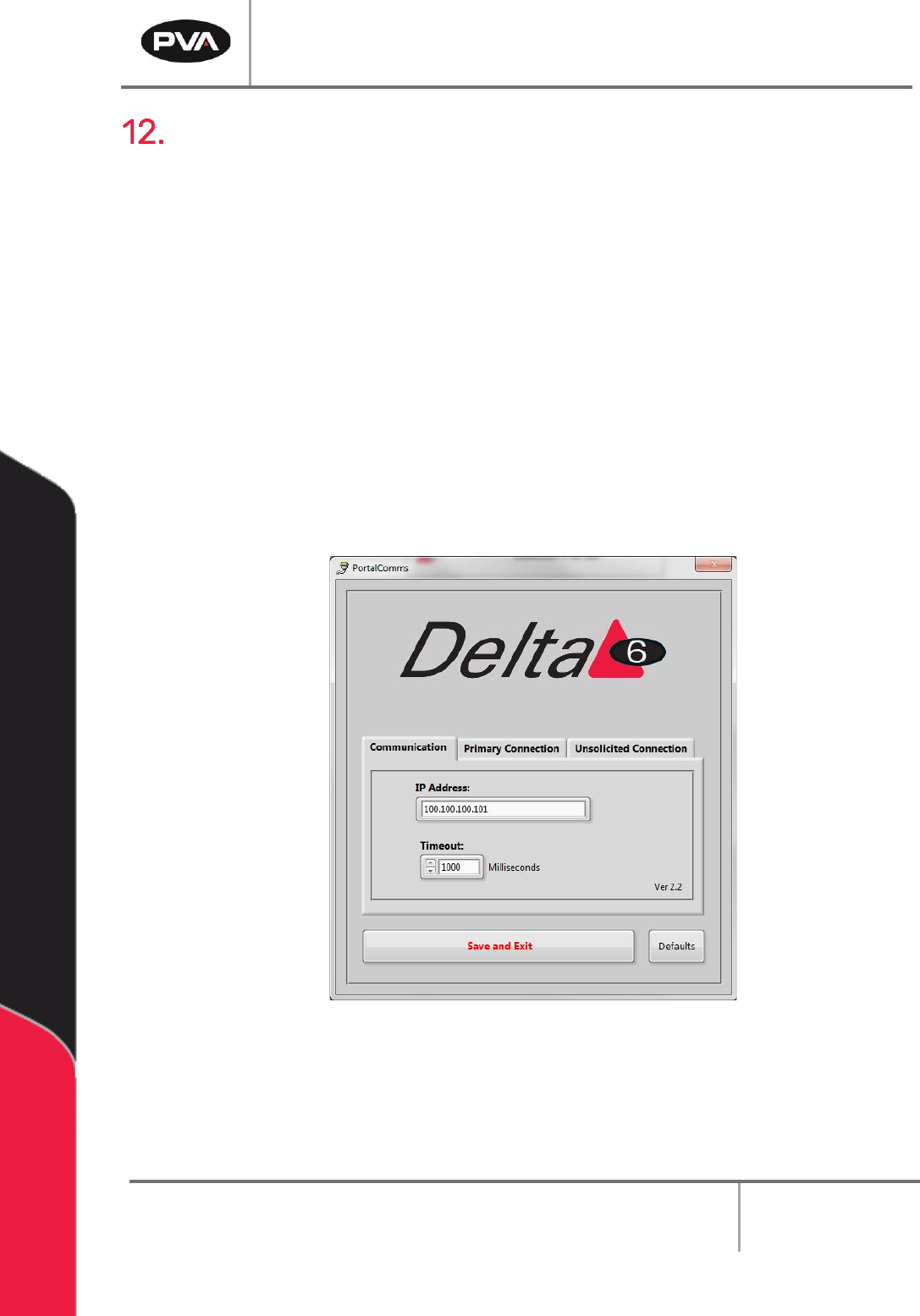
The Communication tab contains the IP Address and the Timeout.
1. To change the IP Address, type the new value in the box.
2. To change the Timeout value, type a new value in the box or use the arrows to
increase or decrease the value.
Figure 87: Communication Tab
3. Select the “Save and Exit” button to save the updated values.
Note: Selecting the “Defaults” button at any time will return the Communication
settings to the default factory settings.
PVA Portal Manual
Revision I / January 2022
Page 78 of 106
12.2 Primary Connection
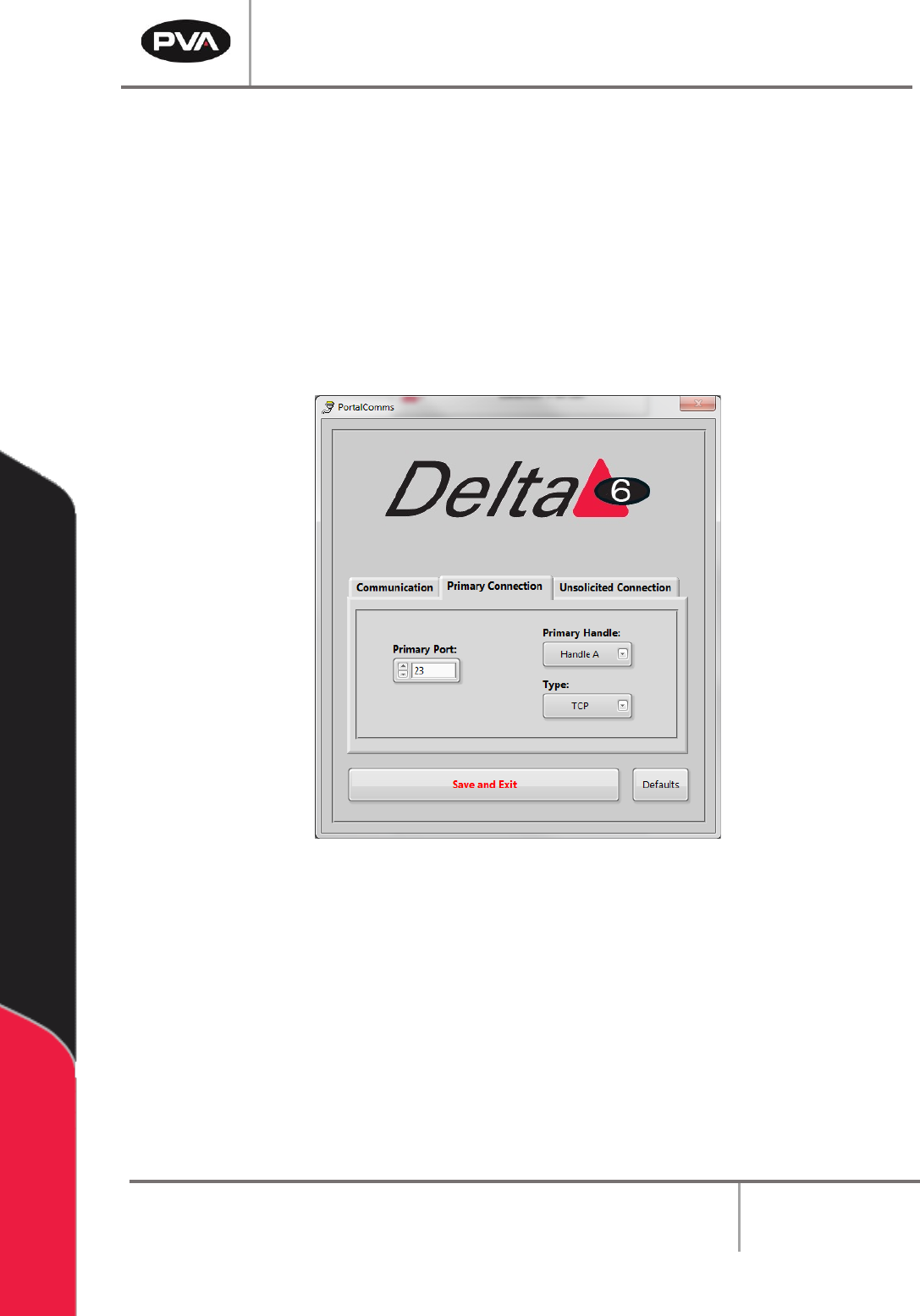
The Primary Connection tab has the settings for the primary communication between the
Galil and Portal.
1. The Primary Handle and Type must be different from the settings for the
Unsolicited Connection.
2. Select the arrow next to the setting to select a setting from the drop-down menu.
3. Select the “Save and Exit” button to save the updated values.
Figure 88: Primary Connection Tab
Note: Selecting the “Defaults” button at any time will return the Primary Connection
settings to the default factory settings.
PVA Portal Manual
Revision I / January 2022
Page 79 of 106
12.3 Unsolicited Connection
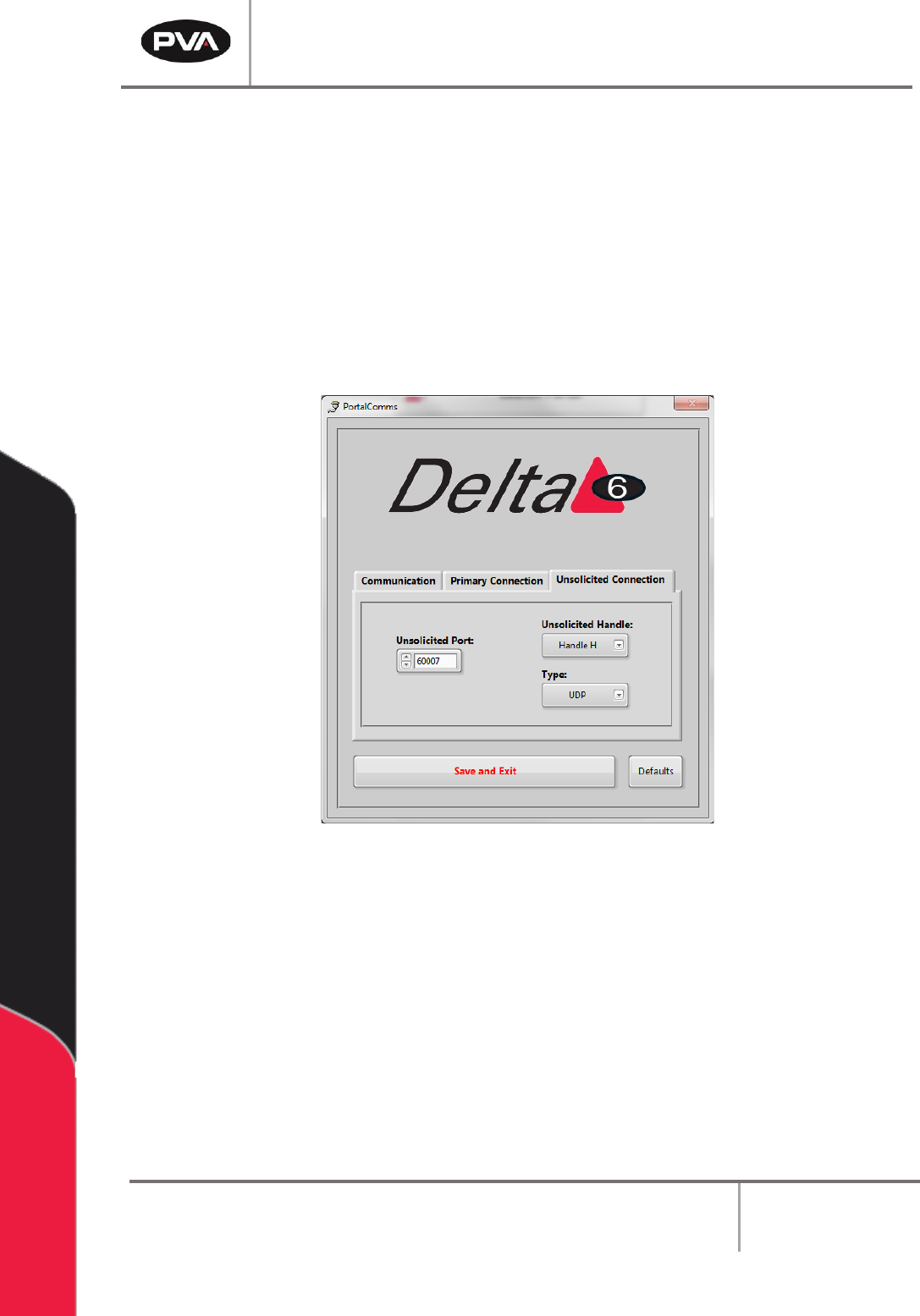
The Unsolicited Connection tab has the settings for the system messages
communication between the Galil and Portal.
1. The Unsolicited Handle and Type must be different from the settings for the
Primary Connection.
2. Select the arrow next to the setting to select a setting from the drop-down menu.
3. Select the “Save and Exit” button to save the updated values.
Figure 89: Unsolicited Connection Tab
Note: Selecting the “Defaults” button at any time will return the Unsolicited
Connection settings to the default factory settings.