Portal-Operation-Manual-REV-I.pdf - 第22页
PVA Portal Manual Revision I / Janua ry 2022 Page 22 of 106 6.2 Run Mode Figure 9: Run Tab Run mode allows testing of a do wnloaded path program for a single cy cle . The path can be run as “ WET ” or “ DRY ”. En sure th…
PVA Portal Manual
Revision I / January 2022
Page 21 of 106
6.1 Device Selection
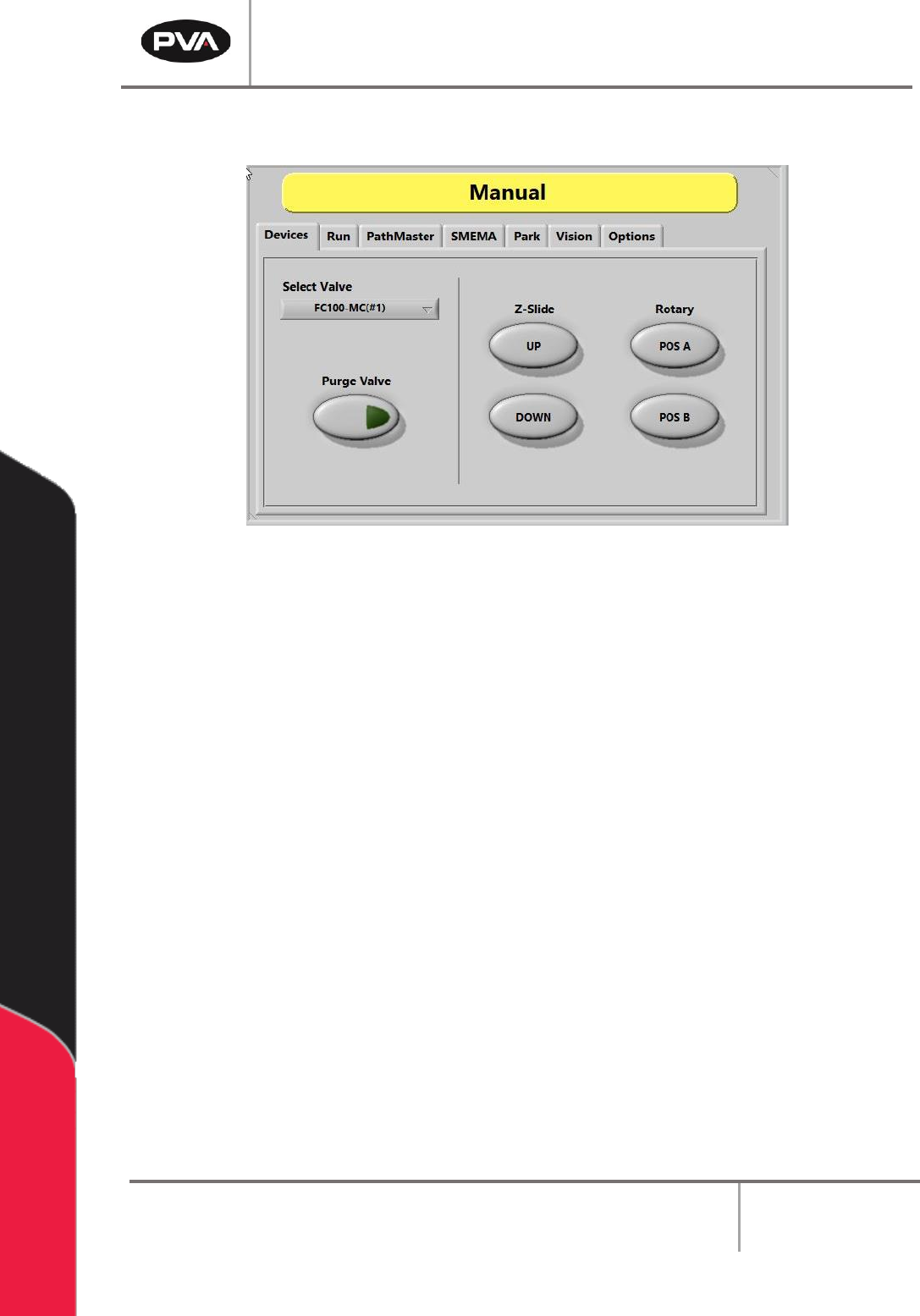
Figure 8: Devices Tab
Workcells with devices have a Device Selection mode. Select the active head or valve from
the drop-down menu under the “Devices” tab. The pneumatic Z-slide(s) and rotary(s), if
equipped, can be operated with the applicable buttons.
Note: When programming or operating the workcell, do not use the valve to move
components or boards. PVA is not responsible for damages caused from operating
the valves incorrectly.
1. Select the “Devices” tab.
2. Select a device or valve from the Select Valve drop down menu.
3. Select the “Purge” button to operate the valve selected. The valve will purge until
the “Purge” button is released so that it is no longer selected.
4. Select the Z-Slide - “UP” or “Down” buttons to raise or lower the pneumatic Z-slide
for the active head.
5. Select the Rotary - “POS A” or “POS B” buttons to put the rotary in the home
position (Default, A) or the auxiliary position (B).
PVA Portal Manual
Revision I / January 2022
Page 22 of 106
6.2 Run Mode
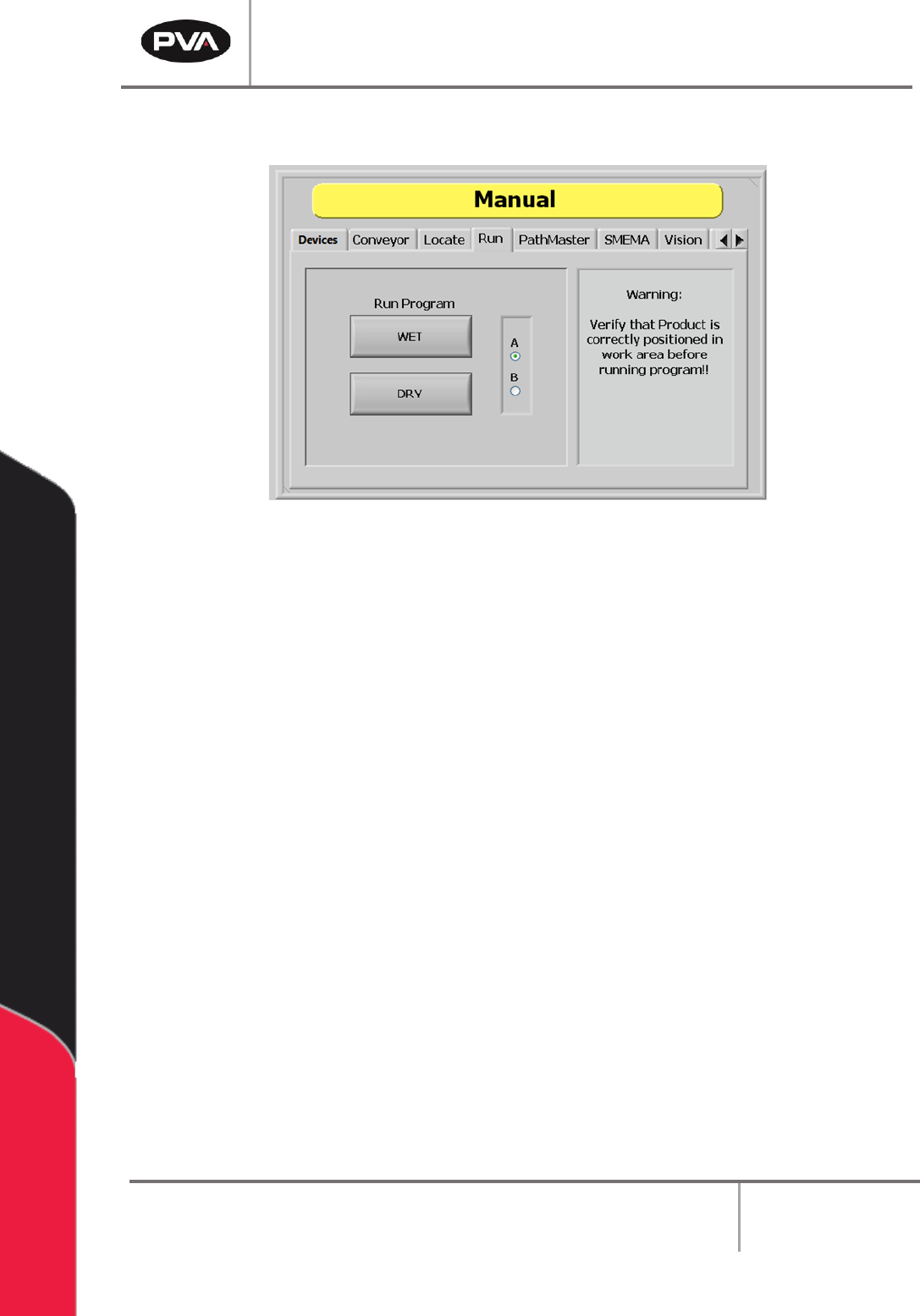
Figure 9: Run Tab
Run mode allows testing of a downloaded path program for a single cycle. The path can be
run as “WET” or “DRY”. Ensure that the part is in the correct position inside the workcell
before the path is run or the results will not be accurate and could damage the workcell.
1. Select the “Run” tab.
2. Select the “A” or “B” radio button to select which side will run. Select the “A” radio
button for the left side program select drop down or the “B” radio button for right
side program select drop down.
3. Select the Run Program - “WET” button to run the selected program with the
valves turned on.
4. Select the Run Program - “DRY” button to run the selected program with the
valves turned off. If this button is selected, the valves will move but they will not
dispense.
Note: Confirm the correct program is selected from the Program Selection drop down
menu. Ensure the part is correctly installed and all board stops and locators are in the
correct position to prevent a crash.
PVA Portal Manual
Revision I / January 2022
Page 23 of 106
6.3 PathMaster®
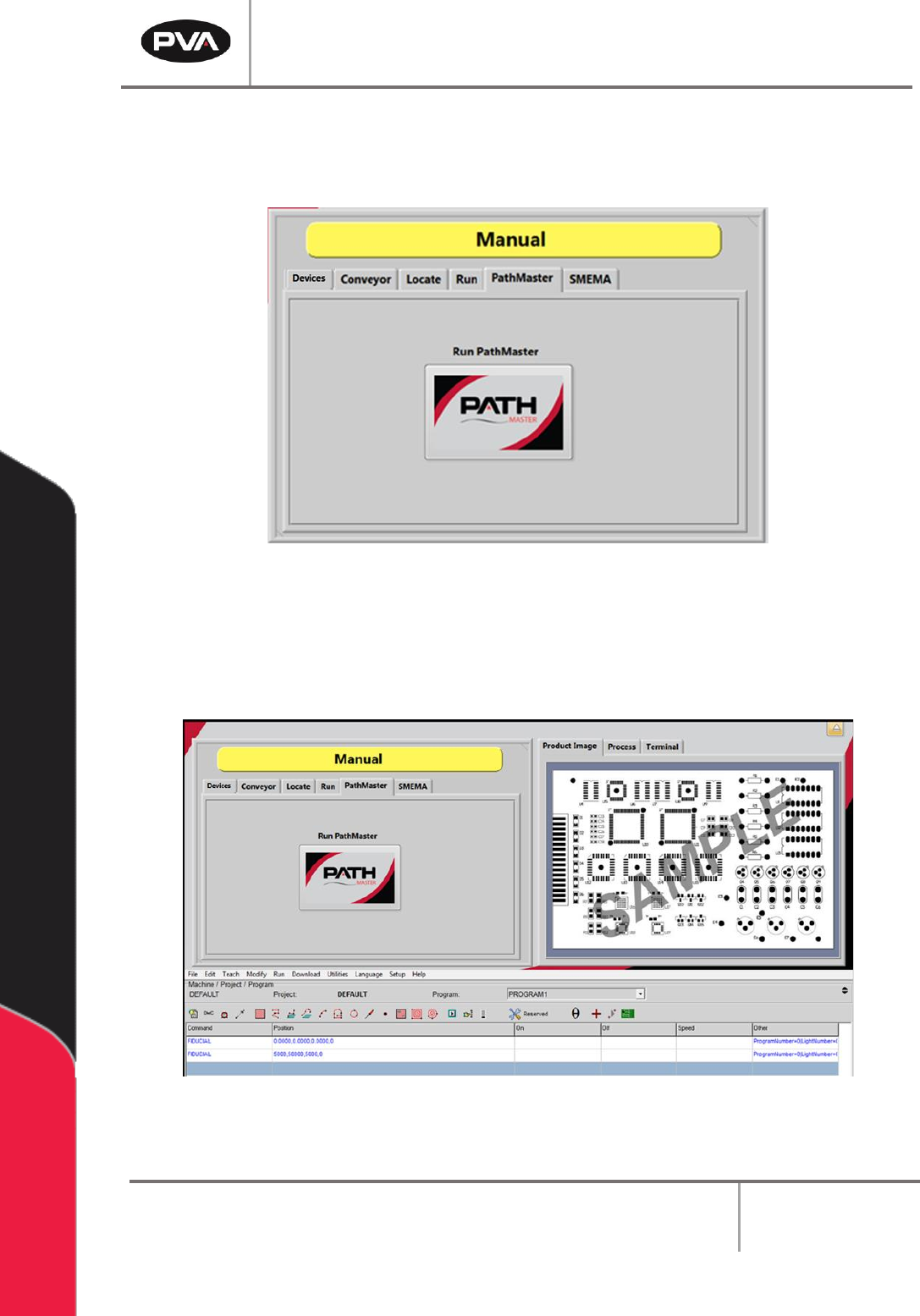
The PathMaster tab contains a button that launches the included PathMaster® software.
Figure 10: Launch PathMaster® from Manual Mode
1. Select the PathMaster tab.
2. Select the “Run PathMaster” button to open the software. The PathMaster®
window will open below the Portal screen.
Figure 11: PathMaster® Open in Manual Mode of Portal