Portal-Operation-Manual-REV-I.pdf - 第31页
PVA Portal Manual Revision I / Janua ry 2022 Page 31 of 106 Figure 23 : Selectin g a Quick Fi d Template 5. Give the Quick Fid inspection a u nique name and then click the “ OK ” b utton. Figure 24 : Chan ging the Inspe …
PVA Portal Manual
Revision I / January 2022
Page 30 of 106
6.6.3 Quick FID Inspection
Quick Fid Inspection is an optional application in Portal. This option must be enabled to
use the following functions. This application provides the use of fiducials without the
ability to do inspections.
6.6.3.1 Create a New Inspection
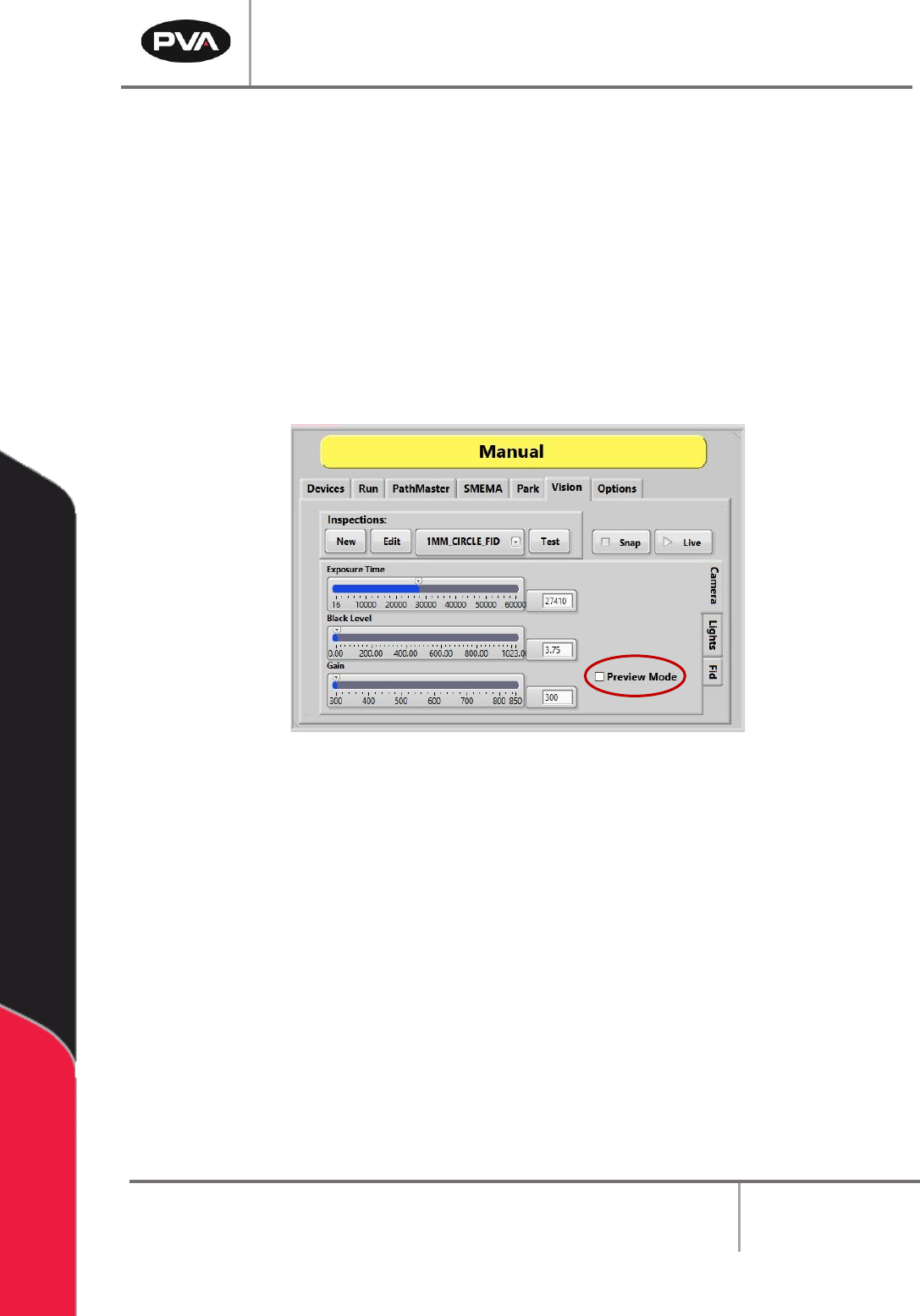
1. Uncheck the “Preview Mode” box. Changes to Inspections cannot be made in
Preview Mode. Changes made to the Camera attributes in Preview Mode do not
change the current inspection and are discarded.
Figure 22: Quick Fids
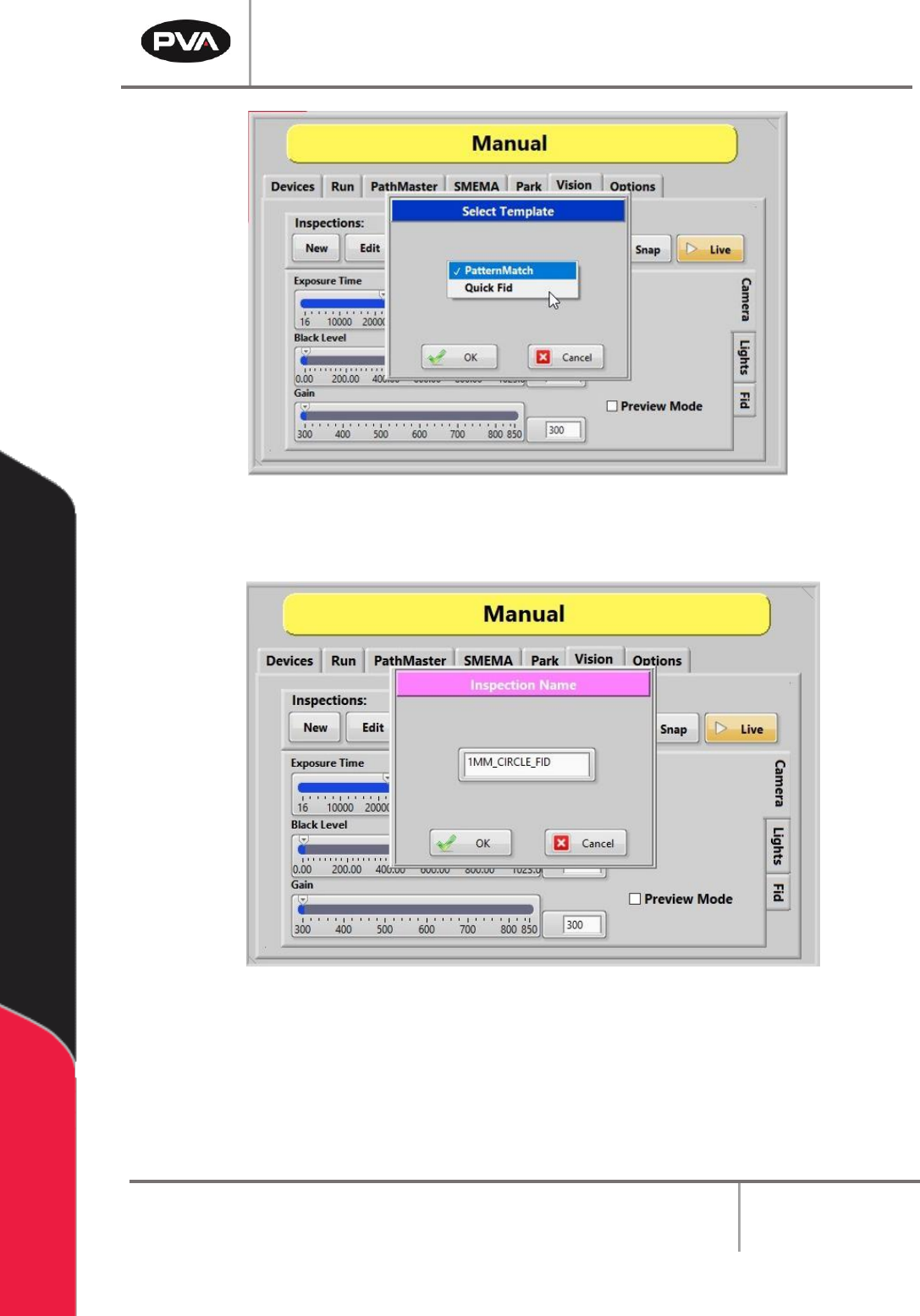
2. Under Inspections, select the “New” button.
3. Select the “Quick Fid” inspection template from the dropdown menu.
4. Select the “OK” button.
PVA Portal Manual
Revision I / January 2022
Page 31 of 106
Figure 23: Selecting a Quick Fid Template
5. Give the Quick Fid inspection a unique name and then click the “OK” button.
Figure 24: Changing the Inspection Name
6. The new Quick Fid inspection has been created.
PVA Portal Manual
Revision I / January 2022
Page 32 of 106
6.6.3.2 Editing Inspections
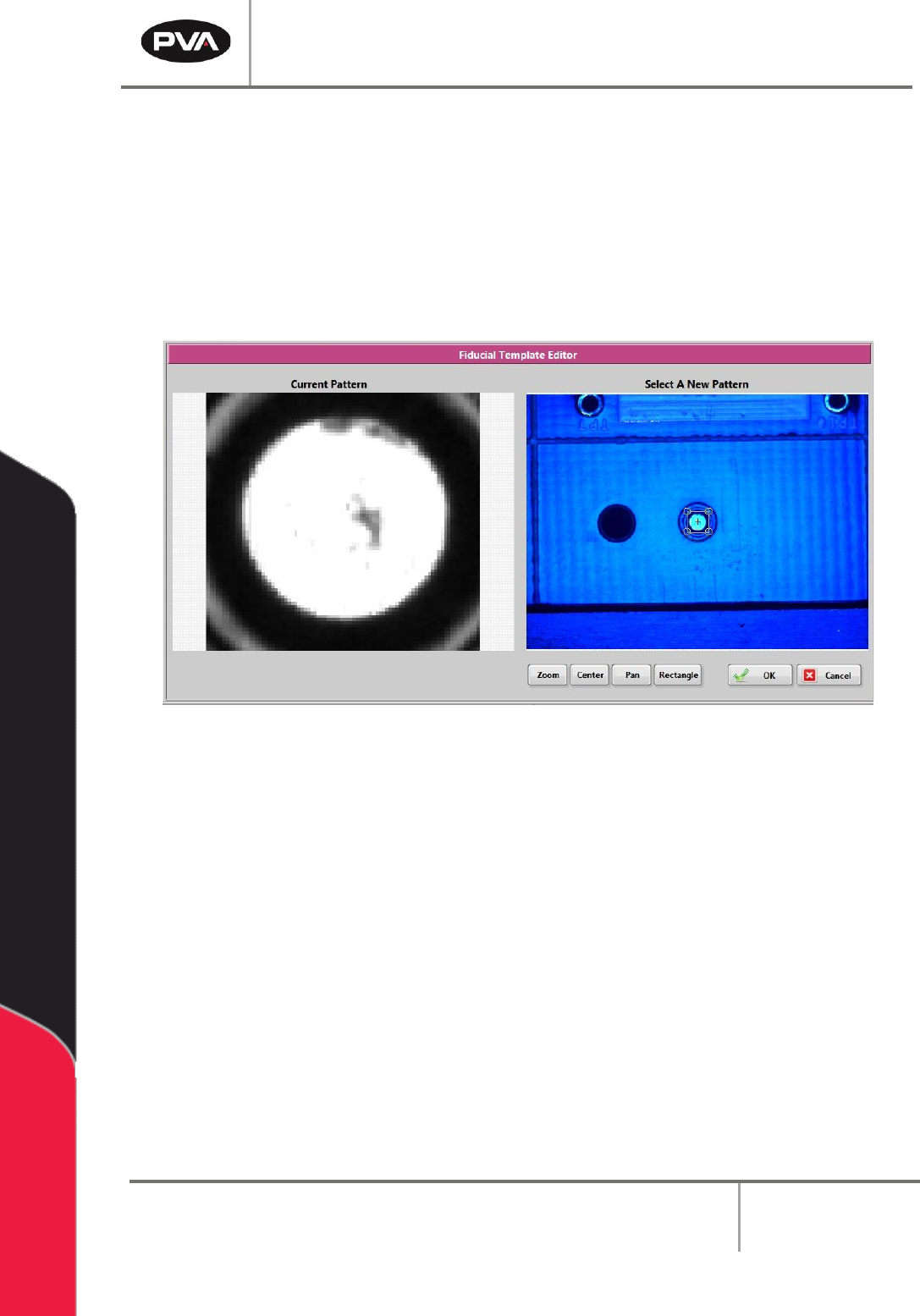
1. To edit a Quick Fid inspection, click the “Edit” button.
2. Select the rectangle tool and draw a rectangle around the fiducial template.
3. Select the “OK” button to save the changes.
4. Select the “Cancel” button to exit and discard any changes.
Figure 25: Fiducial Template Editor