Portal-Operation-Manual-REV-I.pdf - 第37页
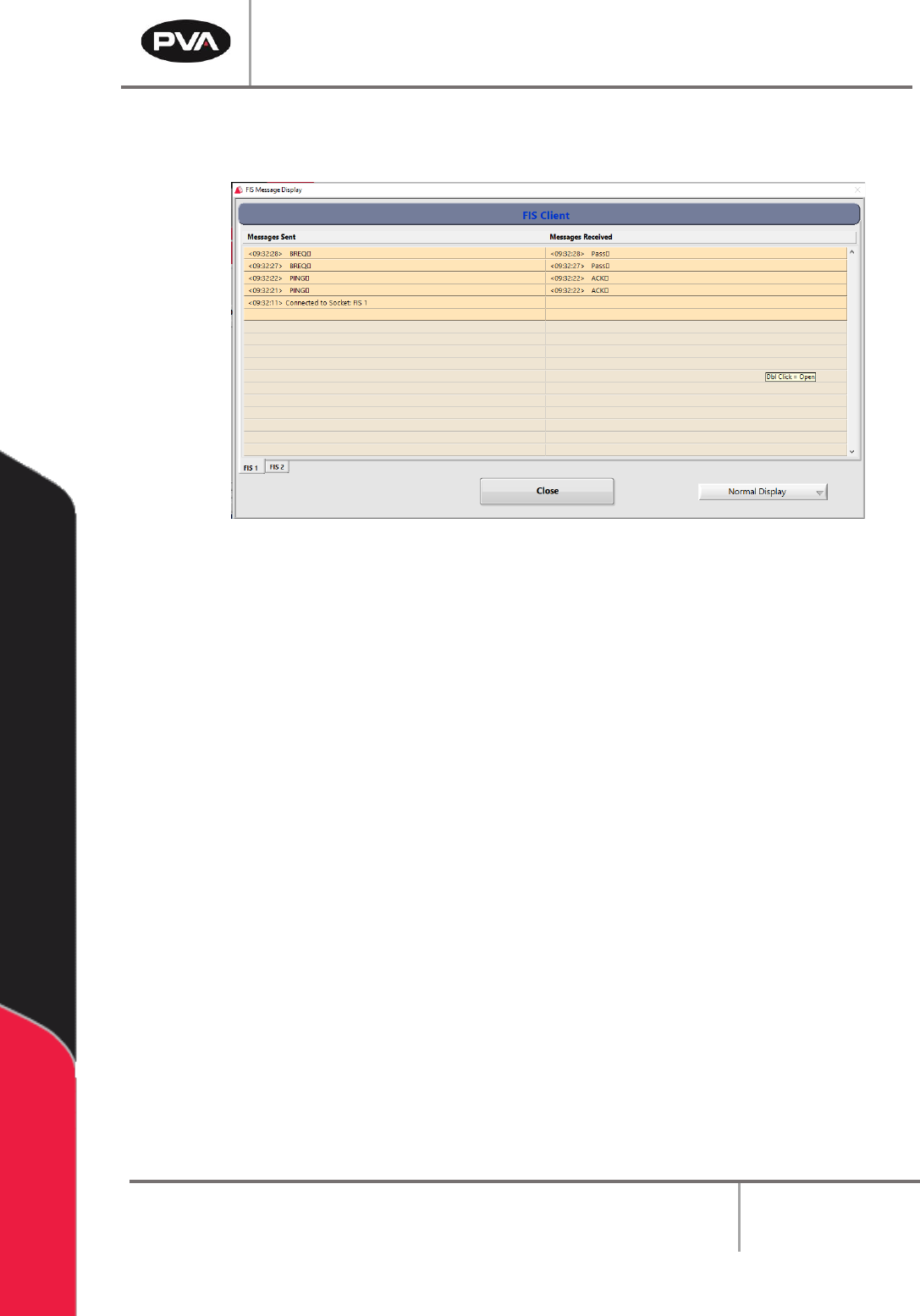
PVA Portal Manual Revision I / Janua ry 2022 Page 37 of 106 2. To access th e large pop- up displa y, hold th e “ CTRL ” button o n the key board and double click on the messag e terminal. Figure 32 : FIS Mess age Displa…
PVA Portal Manual
Revision I / January 2022
Page 36 of 106
3. Select the Server drop down menu to select the server for which to send a
message. The server list is specific to each workcell.
4. Select the message to send from the Message drop down menu. The message will
be shown in the message box.
5. If the Custom Message option is selected from the Message menu, the message
window can be edited. To edit the message window, use the keyboard and type the
message exactly as it should be received by the server.
6. Select the “Clear” button to clear the custom message. The “Clear” button is only
available for custom messages.
7. After selecting or typing the message, select the “Send” button to send the
message.
8. Select the “Refresh” button to refresh any dynamic data in the message, such as a
Galil variable. The “Refresh” button is not shown for custom messages.
6.8.2 FIS Client Message Screen
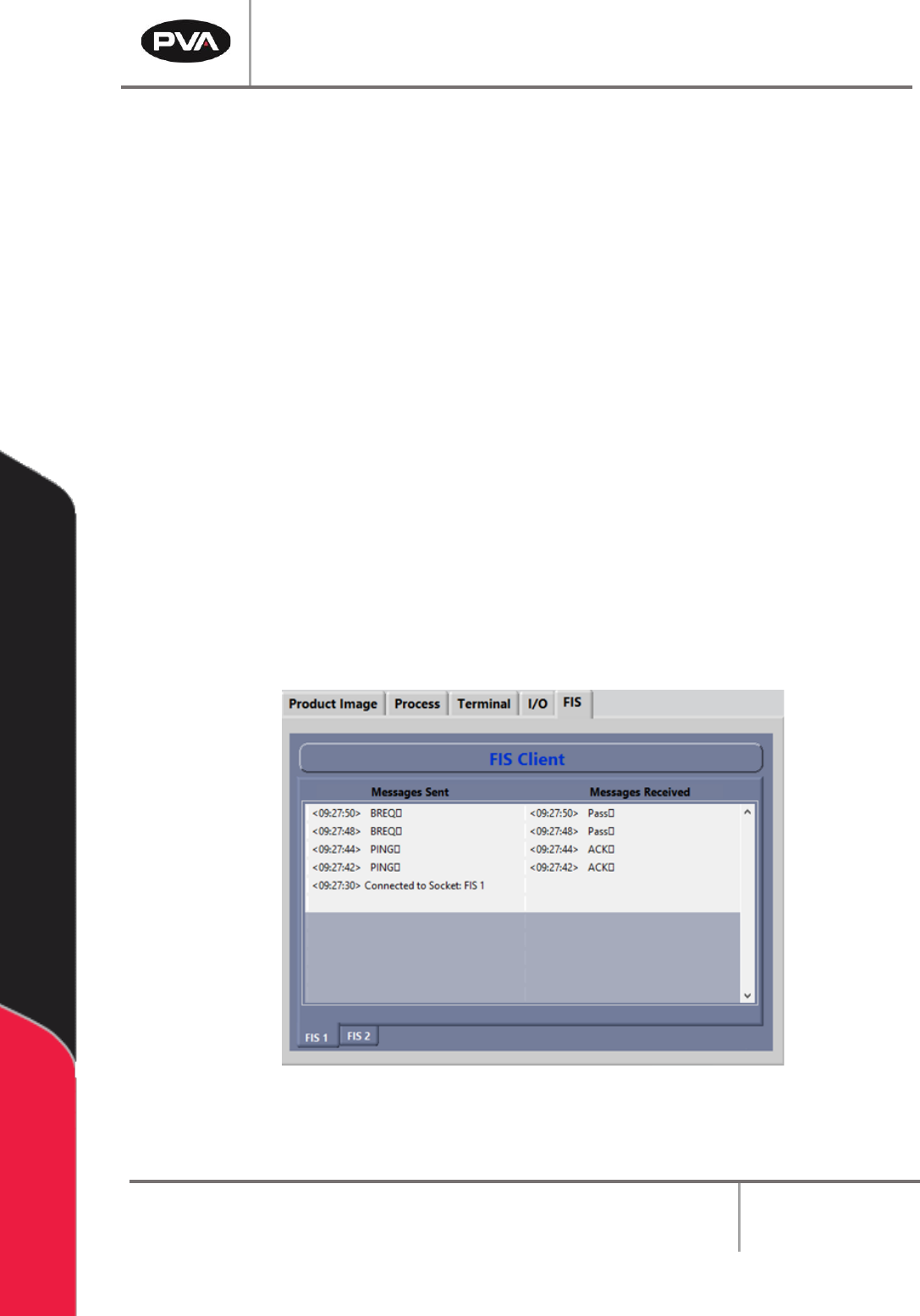
1. To see the FIS Client message screen, select the FIS tab from the Systems tab.
Figure 31: Message Terminal
PVA Portal Manual
Revision I / January 2022
Page 37 of 106
2. To access the large pop-up display, hold the “CTRL” button on the keyboard and
double click on the message terminal.
Figure 32: FIS Message Display Window
3. To change the display format, select an option from the Display drop down menu
(Normal, ‘\’ Code, Hex Code).
4. Select “FIS 1” or “FIS 2” at the bottom right corner of the window to select the FIS
instance (server) that is desired.
5. Select the “Close” button to close the popup window.
PVA Portal Manual
Revision I / January 2022
Page 38 of 106
Auto Mode
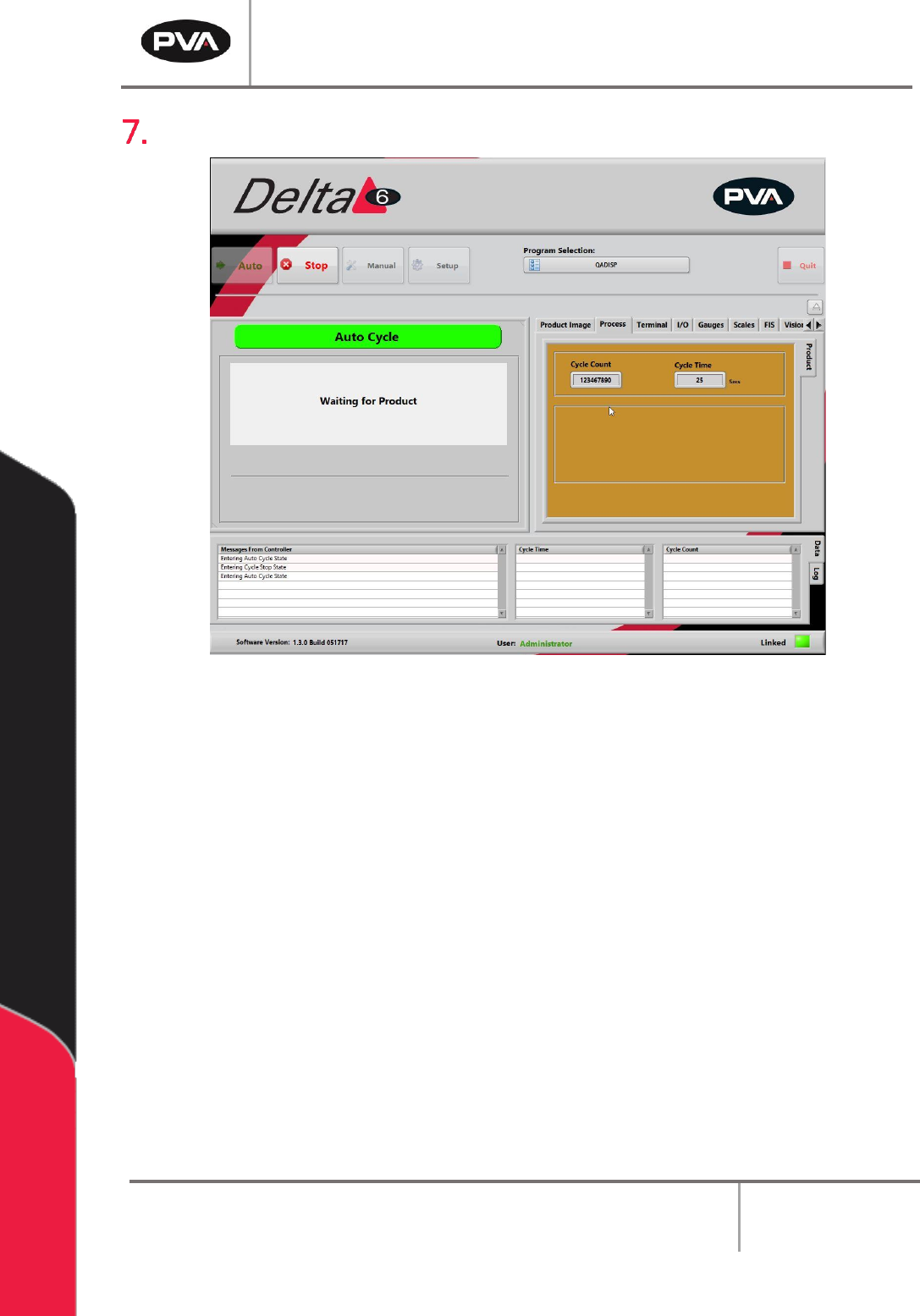
Figure 33: Auto Cycle Mode
In Auto Mode, the workcell automatically processes parts as they are available. Some
possible workcell setups include conveyor equipped, stand-alone with a door, or stand-
alone with a light curtain
For a workcell with a conveyor, the part is put on the conveyor by an operator or through
an upstream process. The part is sensed at the entrance of the workcell and is sent to the
stop. When the part is against the stop, it is sensed and the PathMaster® program will
begin. When the PathMaster® program is finished, the board is sent to the end of the
conveyor for the next step. When the part is released or removed, the procedure starts
again.
For workcells without a conveyor, all parts must be put in the workcell manually. Optional
part-in-place sensors sense when a part is present. If a part is not sensed, a “Waiting for
Product” message is shown. When the workcell is ready to operate, use the hand switches
to produce parts. Remove all finished parts before the next cycle starts.
If the workcell has a light curtain, the light curtain can be used to initiate cycles.