Portal-Operation-Manual-REV-I.pdf - 第25页
PVA Portal Manual Revision I / Janua ry 2022 Page 25 of 106 6.5 Park The Manual mod e Park tab allows the user to place the gan try/head/v alve(s) into a predefined Park Positi on . The positions are taught prior to ship…
PVA Portal Manual
Revision I / January 2022
Page 24 of 106
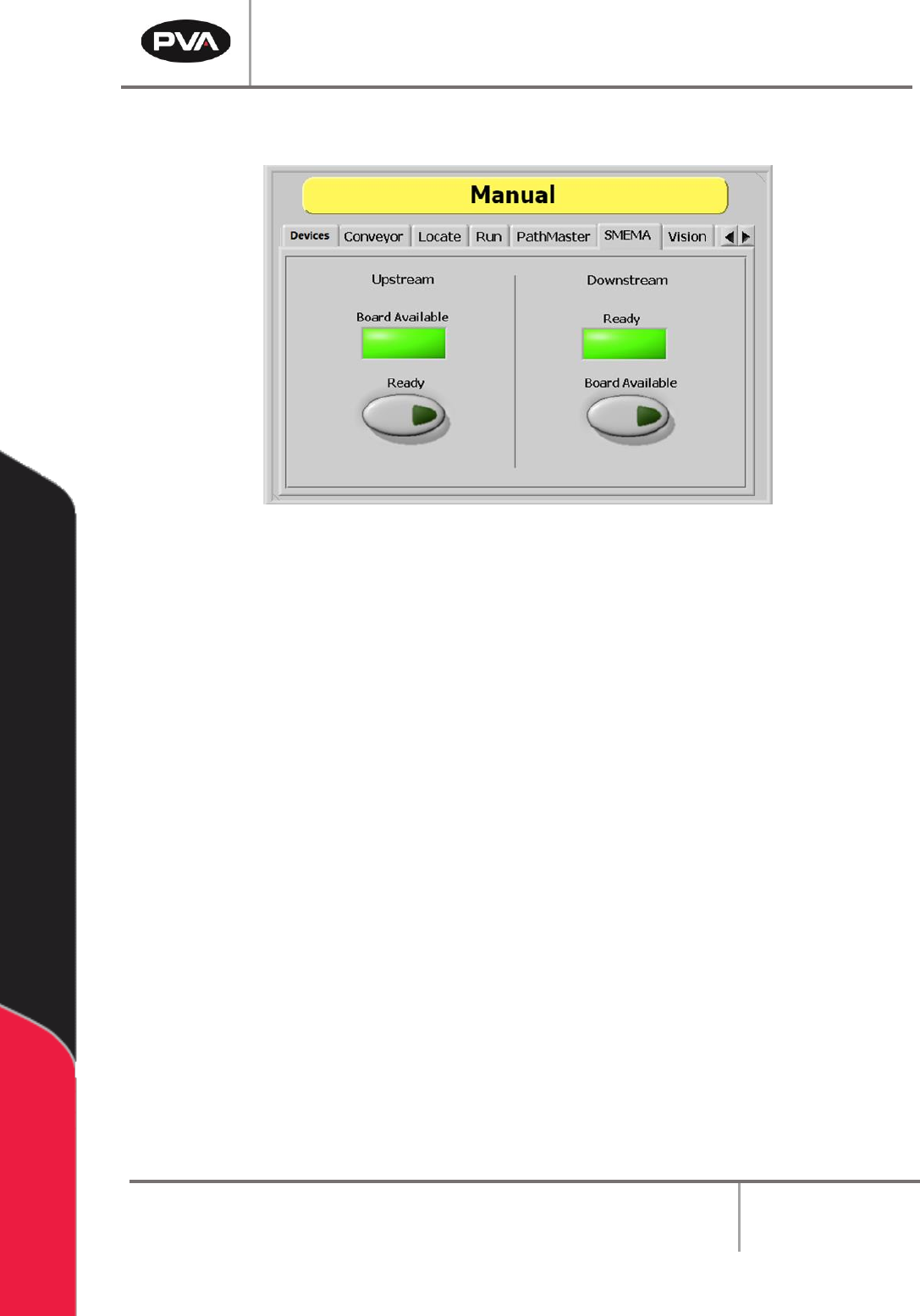
6.4 SMEMA Status
Figure 12: SMEMA Status
When the workcell is put in-line, the SMEMA signals communicate with the upstream and
downstream machines. Under the “SMEMA” tab, inputs to the workcell can be checked and
the Upstream Ready and Downstream Board Available output signals can be changed.
1. Select the “SMEMA” tab.
Note: The Upstream “Board Available” signal turns on when the upstream machine
sends a board available signal.
2. Select the Upstream - “Ready” button to toggle the Ready output to the upstream
machine on or off. When turned on, the workcell can receive parts.
Note: The Downstream “Ready” signal turns on when the downstream machine sends
a ready signal.
3. Select the Downstream - “Board Available” button to toggle the Board Available
output to the downstream machine on or off. When turned on, the workcell can send
parts.
PVA Portal Manual
Revision I / January 2022
Page 25 of 106
6.5 Park
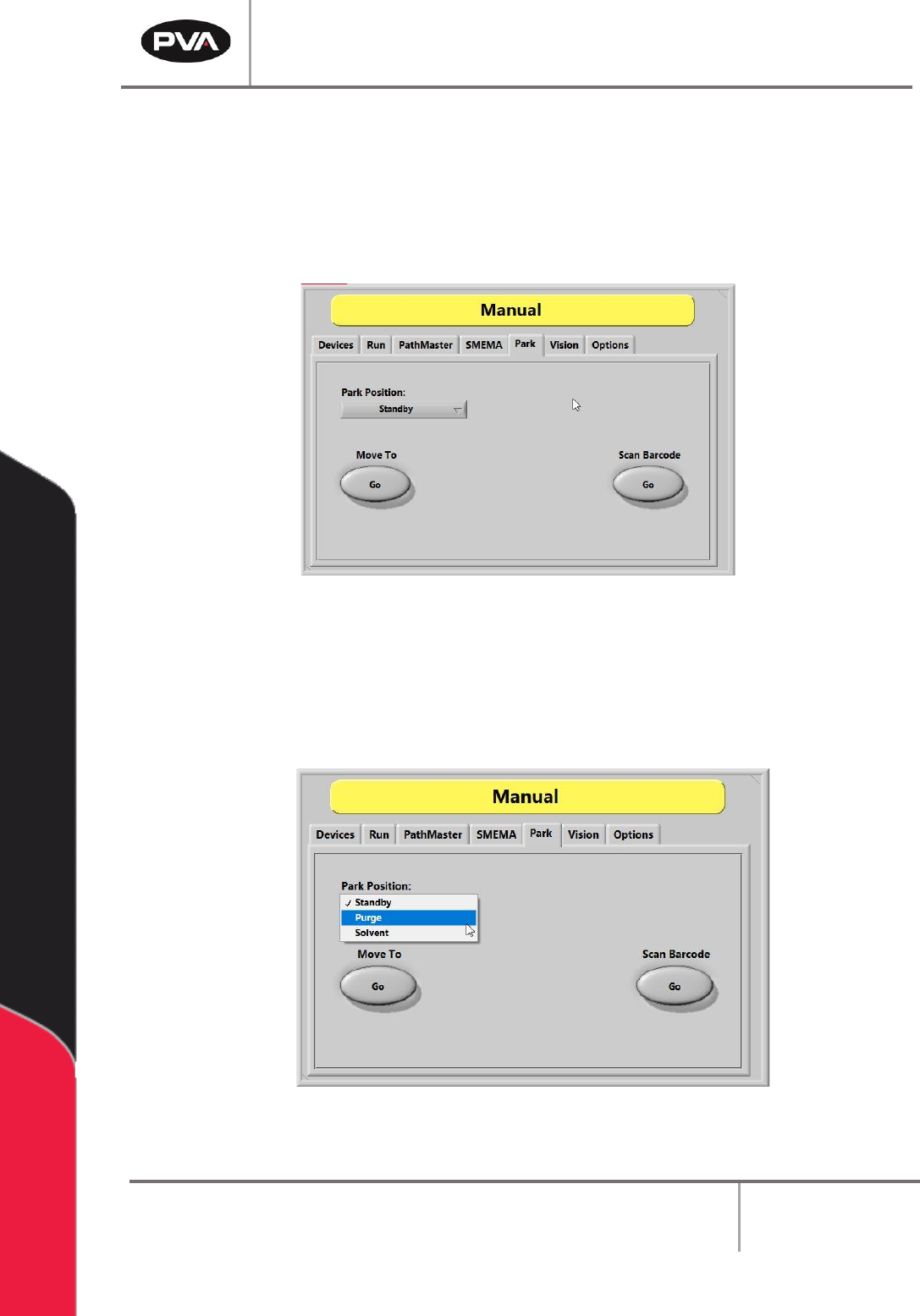
The Manual mode Park tab allows the user to place the gantry/head/valve(s) into a
predefined Park Position. The positions are taught prior to shipment and can be retaught
in Setup Mode under the Positions tab, if needed. The most common Park Positions are
Standby, Purge, and Solvent.
Figure 13: Park Position Options
To place the head into a Park Position:
1. Navigate to the Park Position drop down list.
2. From the list, select the desired position – Standby, Purge, or Solvent.
Figure 14: Choosing a Park Position Option
3. Select/press the Move To – “Go” button.
PVA Portal Manual
Revision I / January 2022
Page 26 of 106
6.6 Vision
For more information on vision and fiducials, refer to the Vision manual.
6.6.1 Vision Window
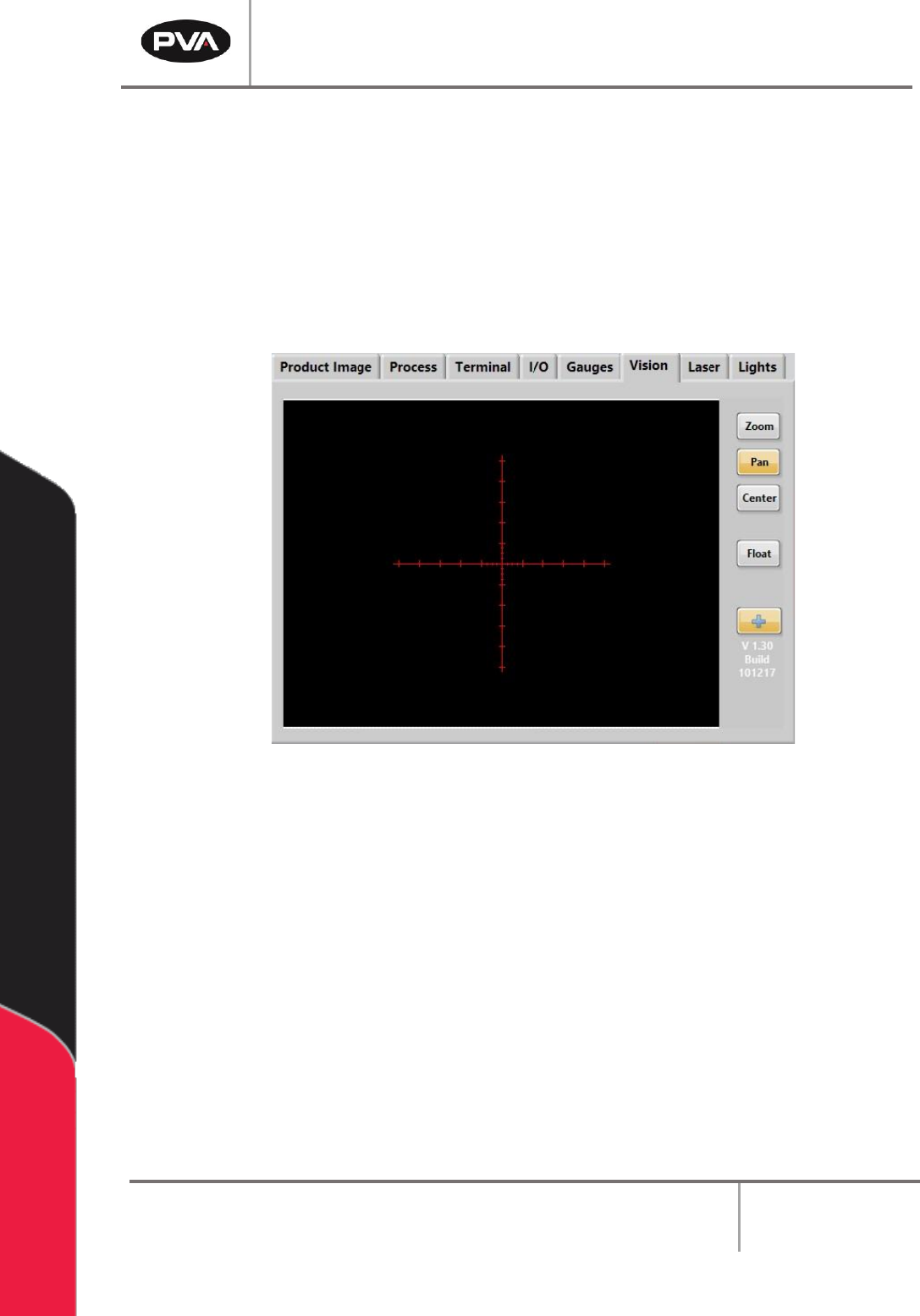
Shown below is the standard Vision Window. To access the Vision Window, select the
Vision tab from the System tab section of the screen.
Figure 15: Vision Window
• Select the “Zoom” button to zoom in or increase the size of the image on the
screen. This option is available for both static and live images.
• Select the “Pan” button to move across the zoomed image.
• Select the “Center” button to resize the image to its original size and align it with
the center of the screen.
• Select the “+” (Crosshair) button to toggle the crosshair overlay on and off. This
option is available for both static and live images.
• Select the “Float” button to open up a floating vision window that stays on top of
the Portal window.