Portal-Operation-Manual-REV-I.pdf - 第74页
PVA Portal Manual Revision I / Janua ry 2022 Page 74 of 106 3. When the administrat or is logged i n, the operator has acce ss to Portal u ser accounts and can select the per missions for each us er. Figure 82 : Portal U…
PVA Portal Manual
Revision I / January 2022
Page 73 of 106
Portal Permissions
Each user must have a username and password. To see any changes that have been made,
log out and log back in. To add a user or make changes to the password or user permissions
perform the following steps:
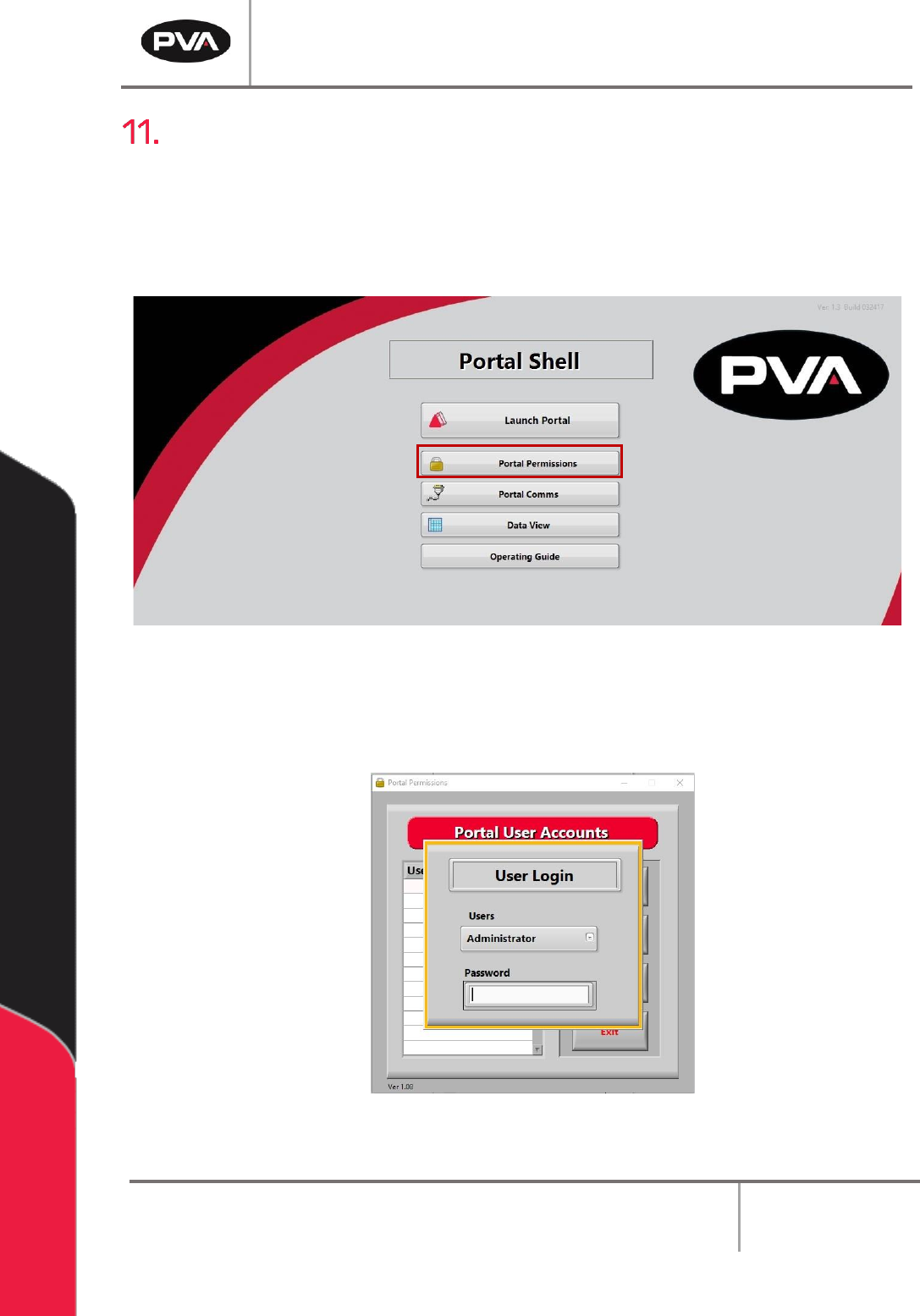
1. Select the “Portal Permissions” button from the Portal Shell screen.
Figure 80: Portal Permissions
2. The administrator must login.
Figure 81: Portal Administrator Login Screen
PVA Portal Manual
Revision I / January 2022
Page 74 of 106
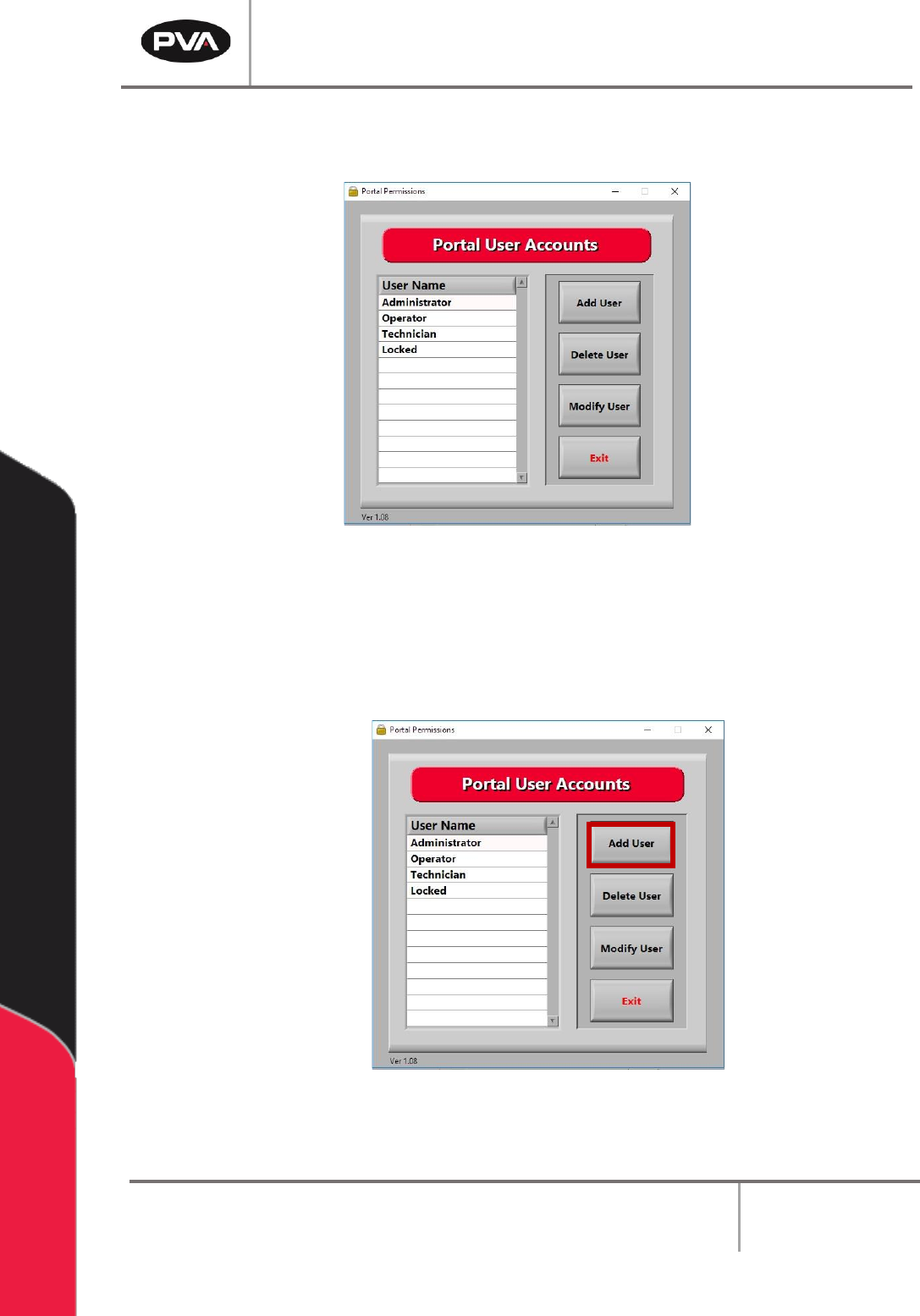
3. When the administrator is logged in, the operator has access to Portal user accounts
and can select the permissions for each user.
Figure 82: Portal User Accounts Screen
11.1 To Add a User Account
1. Select the “Add User” button.
Figure 83: Select “Add User”
PVA Portal Manual
Revision I / January 2022
Page 75 of 106
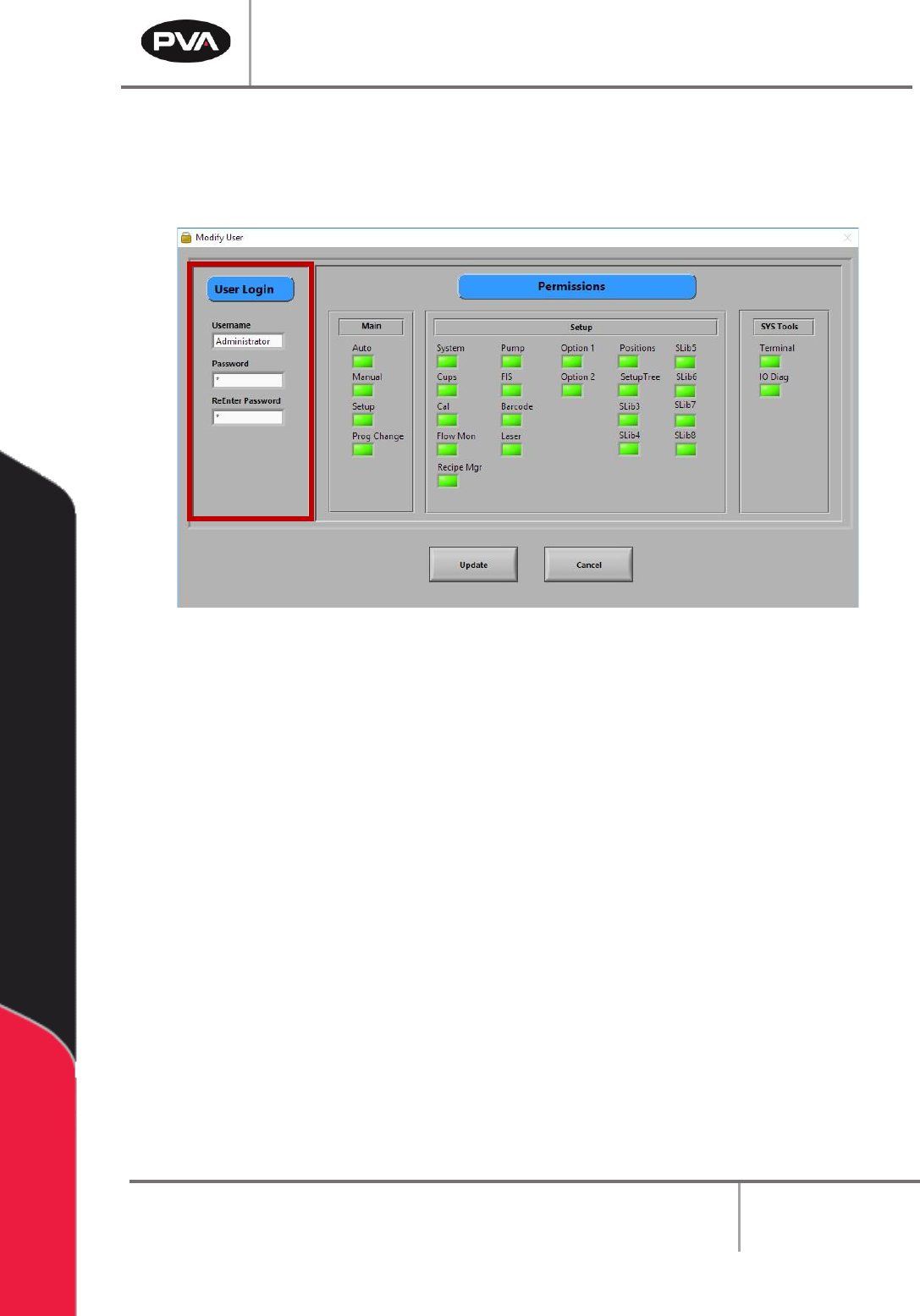
2. Under User Login, type the Username, Password, and re-enter the Password.
3. Select the correct Permissions for each user by clicking on the related permissions
boxes. When selected, the permission boxes will be bright green.
Figure 84: Enter the User Login
4. Select the “Add User” button.
5. Repeat steps 1-4 as many times as necessary to set up all the required accounts.
6. Select the “Exit” button to save and close Portal user accounts.