Portal-Operation-Manual-REV-I.pdf - 第73页
PVA Portal Manual Revision I / Janua ry 2022 Page 73 of 106 Portal Perm issions Each user must have a username and passwo rd . To see any changes t hat have been made, log out and log back in. To add a user or ma ke chan…
PVA Portal Manual
Revision I / January 2022
Page 72 of 106
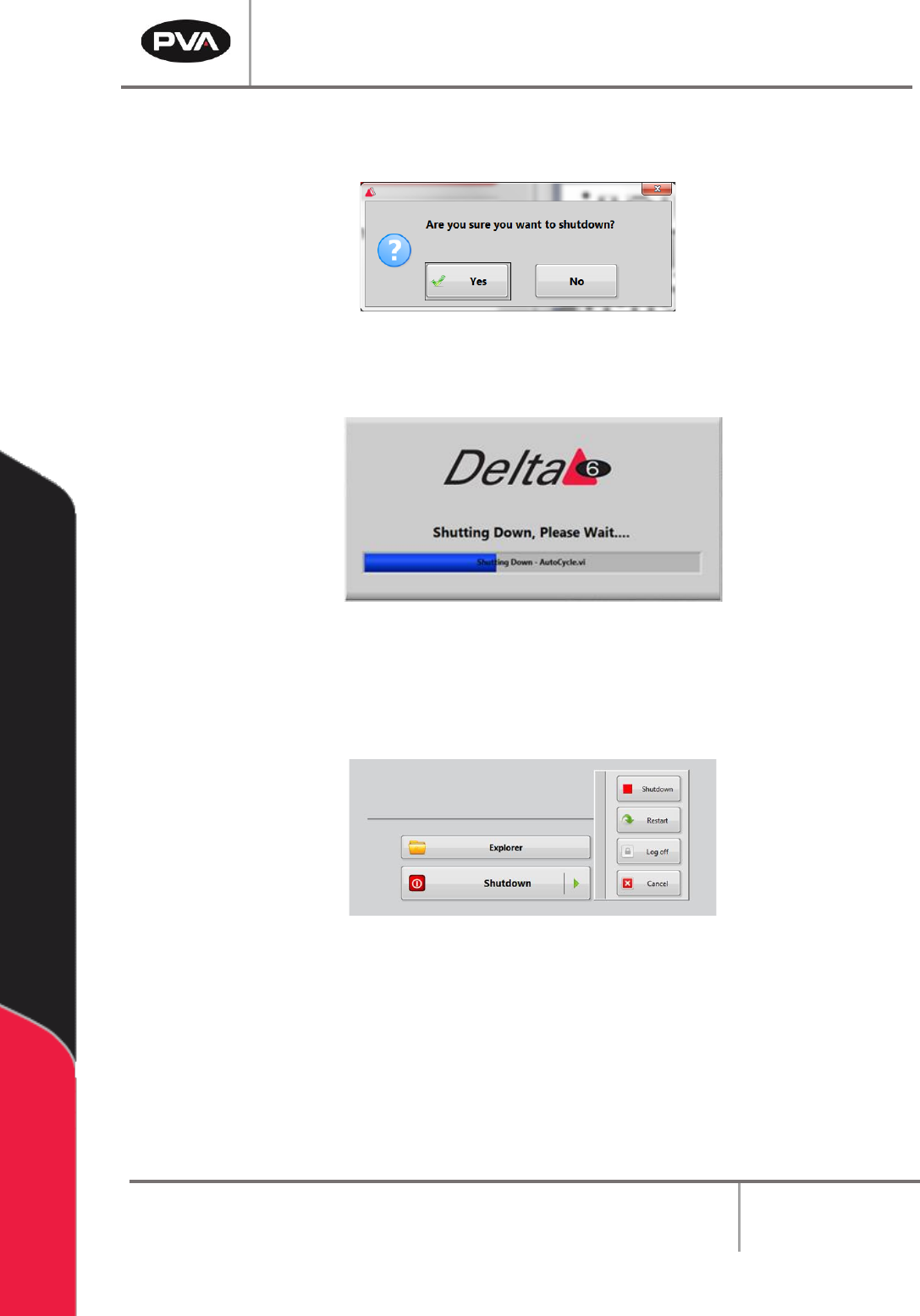
5. A screen confirming the user wants to shutdown will be shown; select the “Yes”
button to confirm shutdown.
Figure 77: Portal Shutdown Question
6. A screen will show that Portal is shutting down.
Figure 78: Portal Shutdown Screen
7. When Portal is closed, the Portal Shell window will be shown. Select the “Shutdown”
button to shut down the attached PC. To restart or log off, select the green arrow
on the “Shutdown” button and select "Restart" or "Log Off".
Figure 79: Portal Shutdown Options
8. For a list of ways to exit the Portal Shell screen without turning off the computer,
press the “F1” button on the keyboard. A window with shortcuts to exit the Portal
Shell will be shown. Refer to Section 4.1.1 for more information on Portal keyboard
shortcuts.
Note: Ensure that the PC has been correctly shutdown BEFORE stopping power to
the workcell. Refer to the Workcell Installation Guidelines and Troubleshooting
Maintenance manual for additional information on how to shut down the workcell.
PVA Portal Manual
Revision I / January 2022
Page 73 of 106
Portal Permissions
Each user must have a username and password. To see any changes that have been made,
log out and log back in. To add a user or make changes to the password or user permissions
perform the following steps:
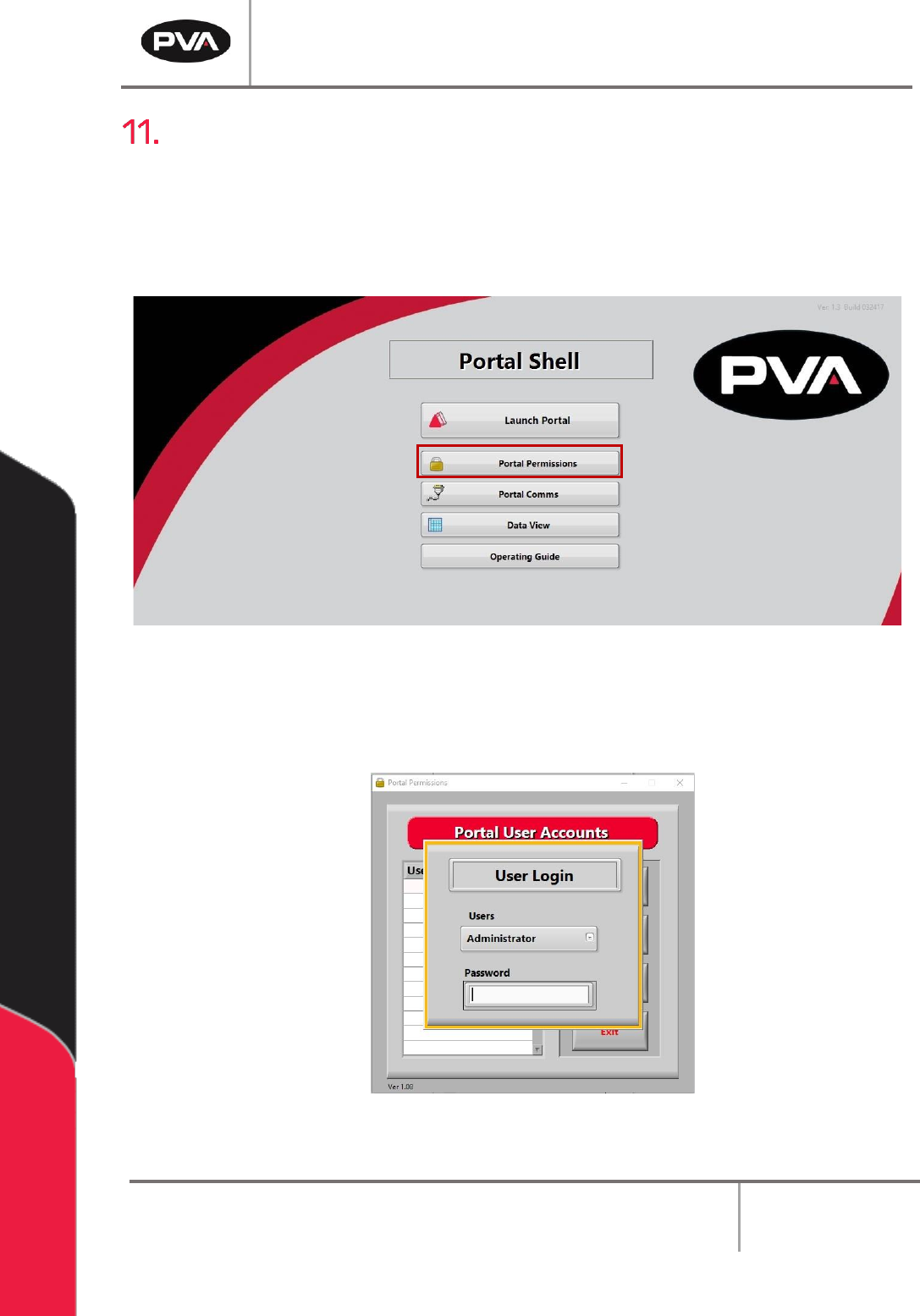
1. Select the “Portal Permissions” button from the Portal Shell screen.
Figure 80: Portal Permissions
2. The administrator must login.
Figure 81: Portal Administrator Login Screen
PVA Portal Manual
Revision I / January 2022
Page 74 of 106
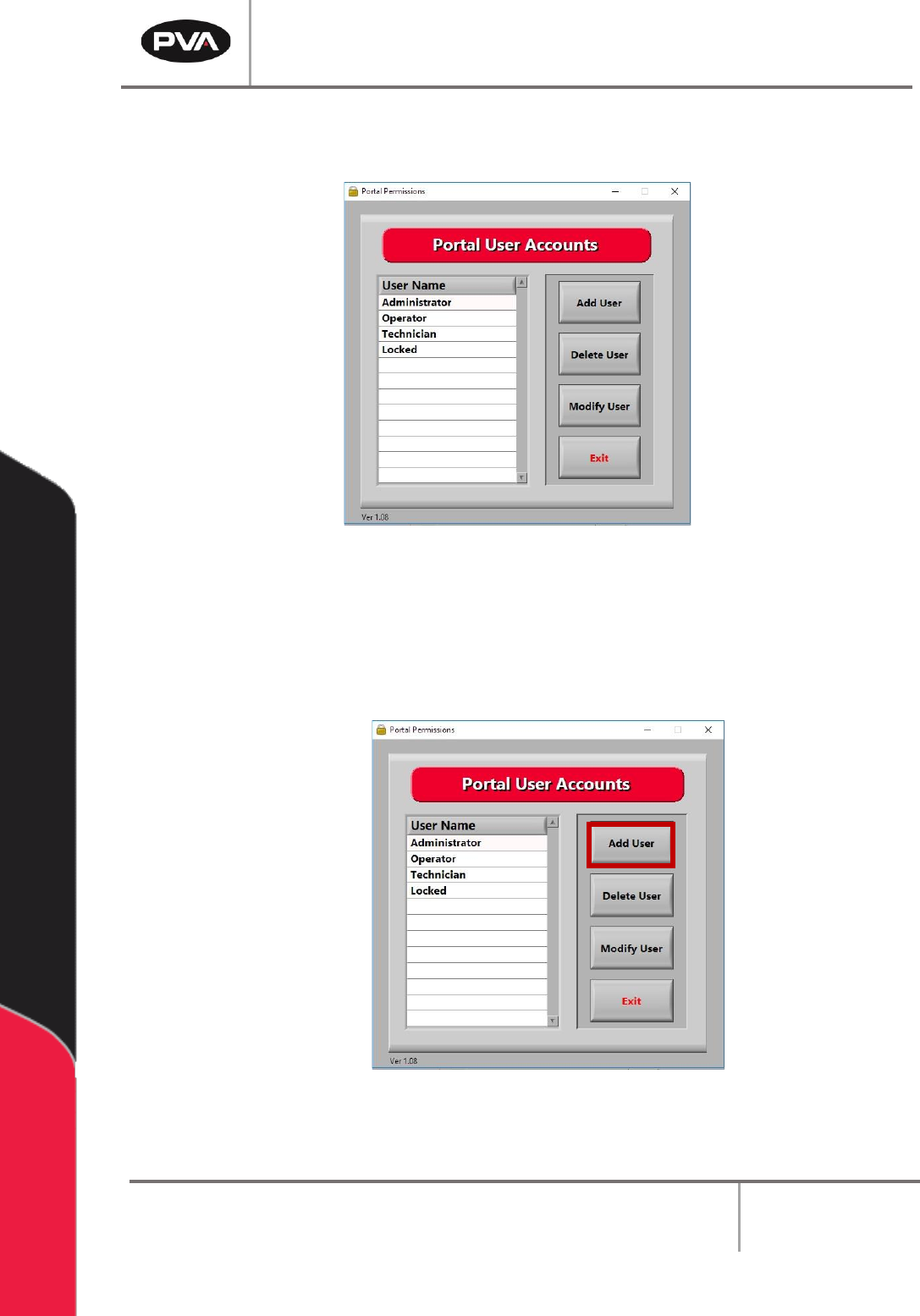
3. When the administrator is logged in, the operator has access to Portal user accounts
and can select the permissions for each user.
Figure 82: Portal User Accounts Screen
11.1 To Add a User Account
1. Select the “Add User” button.
Figure 83: Select “Add User”