Portal-Operation-Manual-REV-I.pdf - 第57页
PVA Portal Manual Revision I / Janua ry 2022 Page 57 of 106 System T abs There are thre e standard Syst em Tabs : Produc t Image , Process , and Termi nal . The options that ar e shown in Portal depend on t he workcell c…
PVA Portal Manual
Revision I / January 2022
Page 56 of 106
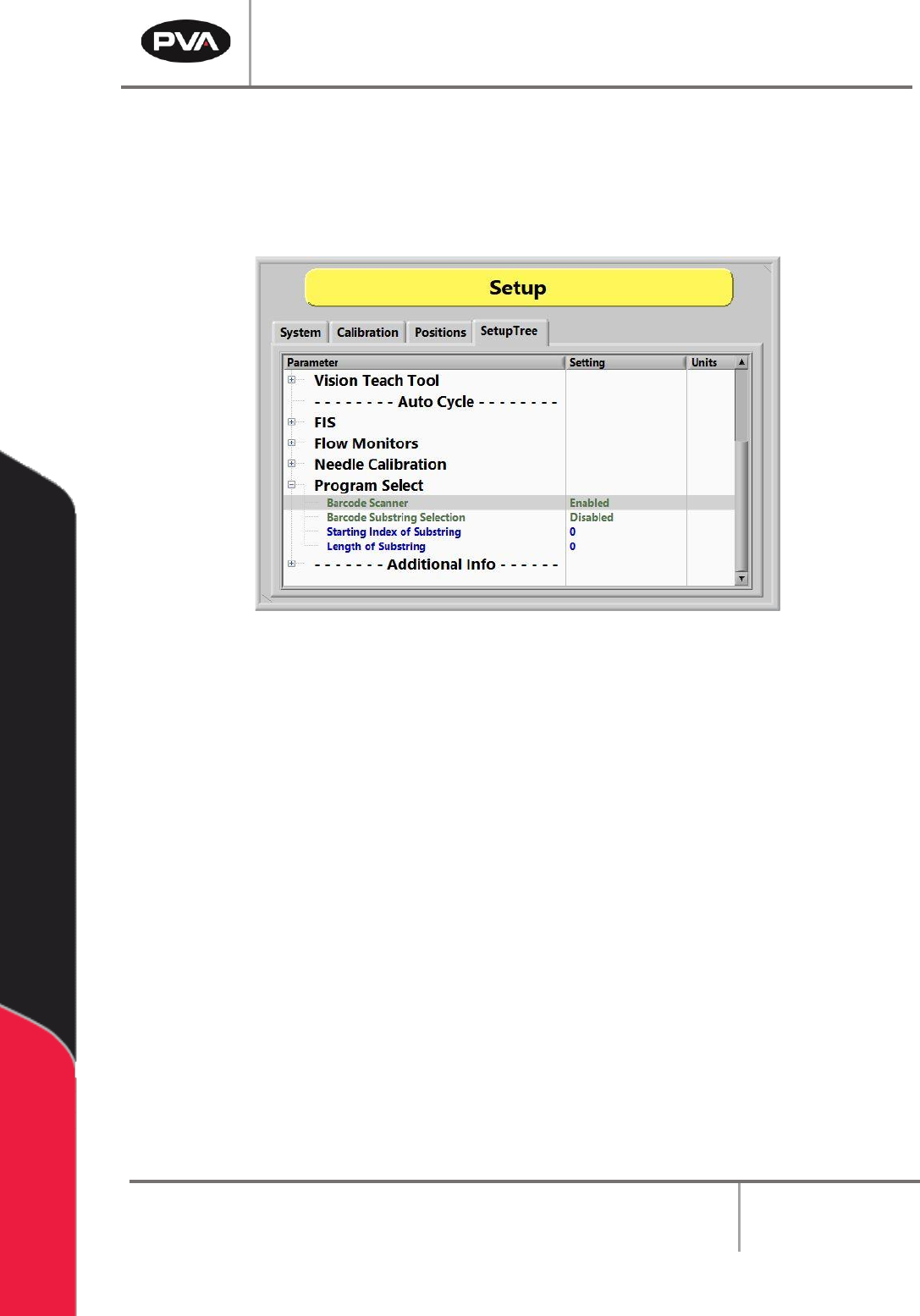
8.4.10 Program Select
Program Select is an Auto Cycle option to enable or disable the Barcode Scanner. When
enabled, the program will be selected based on the barcode read.
Note: Not all systems will have this option.
Figure 52: Enable or Disable the Barcode Scanner in Program Select
PVA Portal Manual
Revision I / January 2022
Page 57 of 106
System Tabs
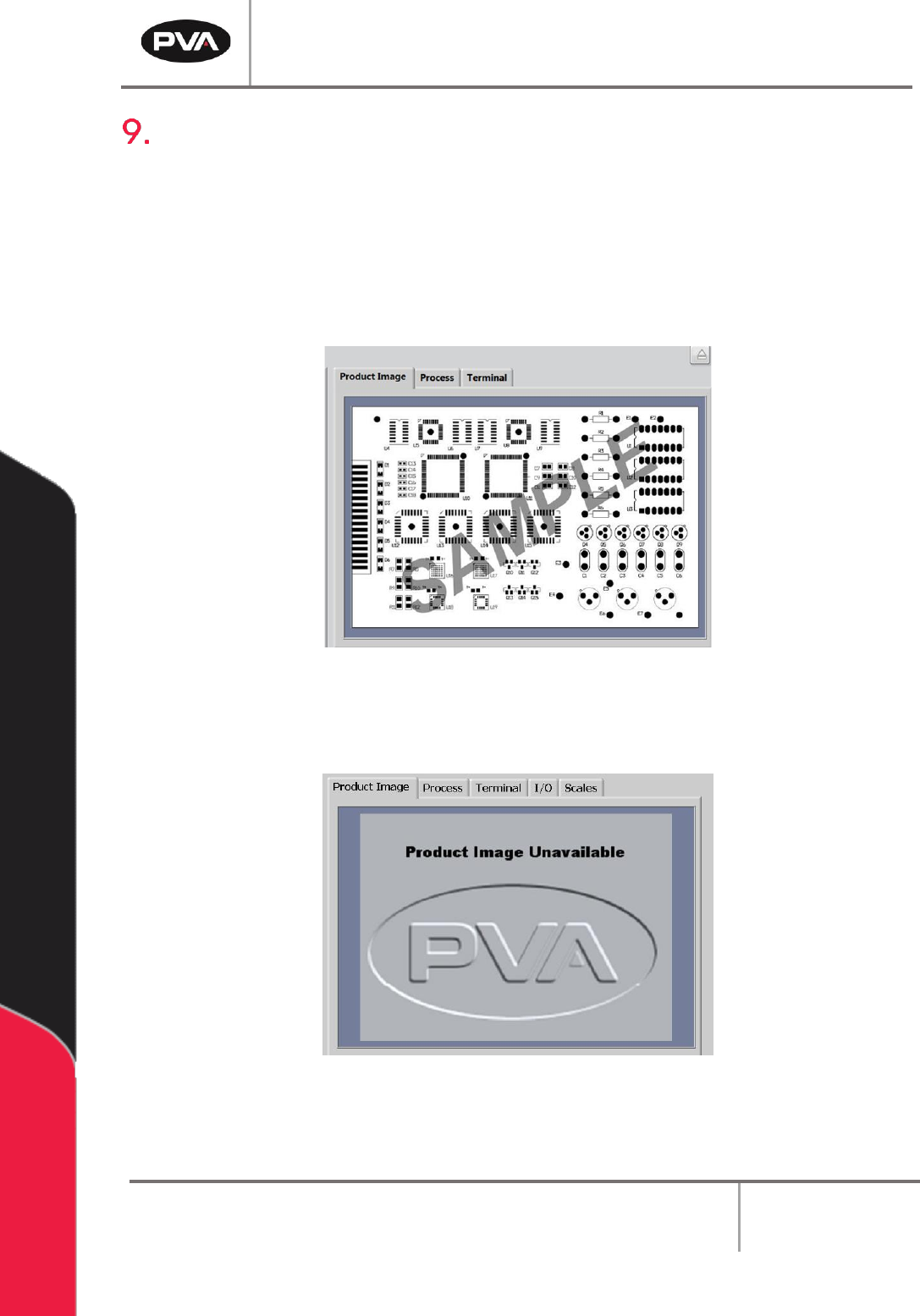
There are three standard System Tabs: Product Image, Process, and Terminal. The
options that are shown in Portal depend on the workcell configuration. Refer to the
machine specific manuals and appendices for more information.
9.1 Product Image
The Product Image tab will show an imported image, or the sample image shown below.
Figure 53: Product Image Tab
If the file name does not match the program name or there are no images associated with a
program, the following image will be displayed by default:
Figure 54: Product Image Unavailable
Note: This is only the case when Part/Recipe Manager is disabled. Refer to Section
14.2 for more information.
PVA Portal Manual
Revision I / January 2022
Page 58 of 106
9.1.1 Adding Product Images
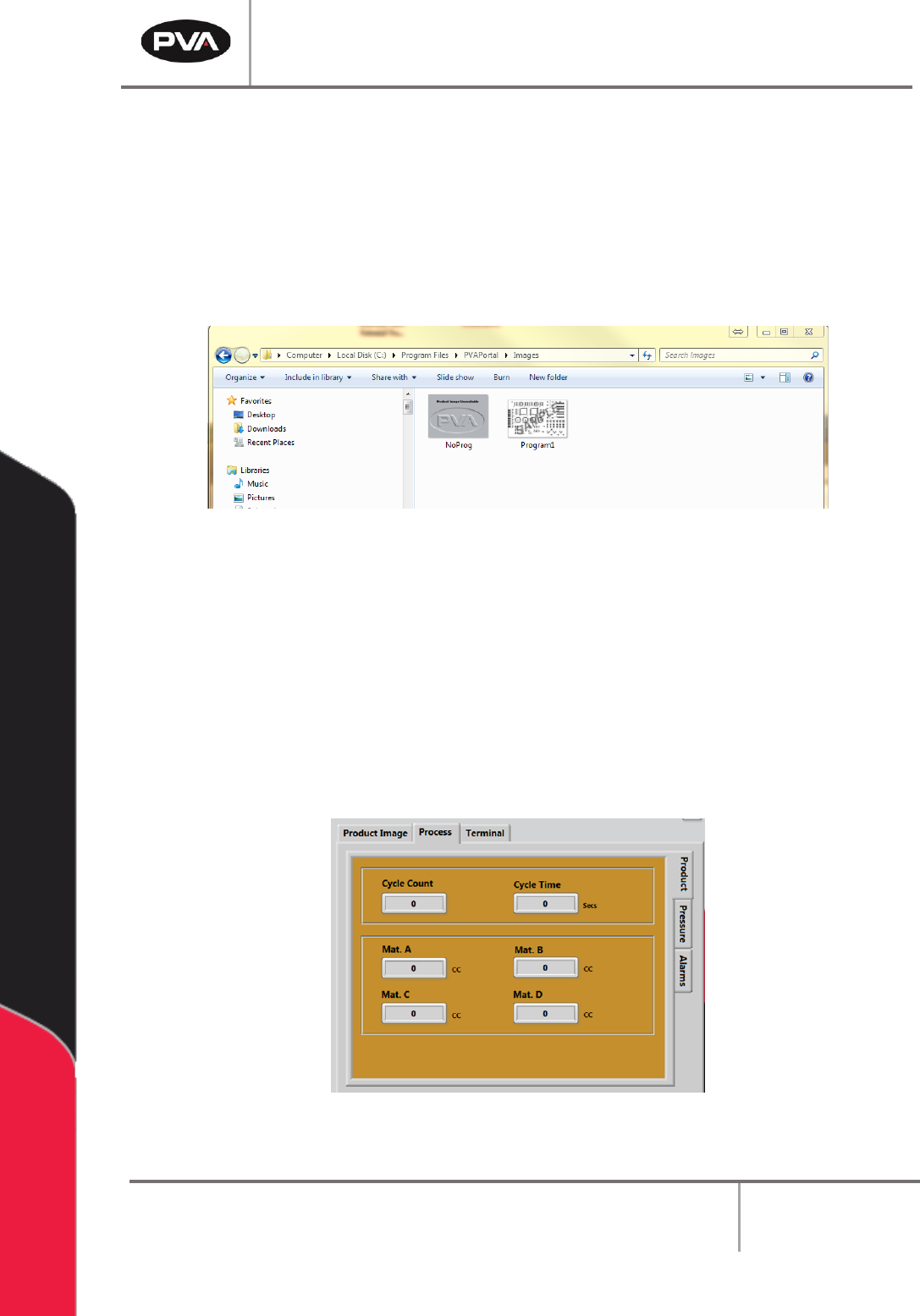
1. Copy and paste the Product Image to the following directory:
C:\Program Files\PVAPortal\Images
Note: The Product Images must be a JPEG/JPG file.
2. Rename the file to match the PathMaster® Program Name.
Figure 55: Product Image Directory
9.2 Process
9.2.1 Product
The Product tab is on the right-hand side of the System Tabs screens within the Process
tab. This screen shows the Cycle Count and Cycle Time as well as the Material Volume
from the previous Auto Cycle or One Shot Run. The data in this screen is updated after
every run.
Figure 56: Process Product Tab