Portal-Operation-Manual-REV-I.pdf - 第81页
PVA Portal Manual Revision I / Janua ry 2022 Page 81 of 106 2. Sele ct a log fil e to view. Click the “ OK ” button to loa d the file. Figure 92 : Log File Selection 3. While in the embedd ed DataView versio n, press and…
PVA Portal Manual
Revision I / January 2022
Page 80 of 106
DataView
The Portal DataView application can run as a standalone application or as an embedded
version within PVA Portal. The window for the standalone version can be resized,
maximized, or minimized. The embedded version is in the Log tab on the main Portal
screen and has a fixed dimension that is sized accordingly. Additional configuration of each
version of the DataView app is handled in the Portal Sysconfig.ini file. Refer to the ini
configuration parameters listed below for more information.
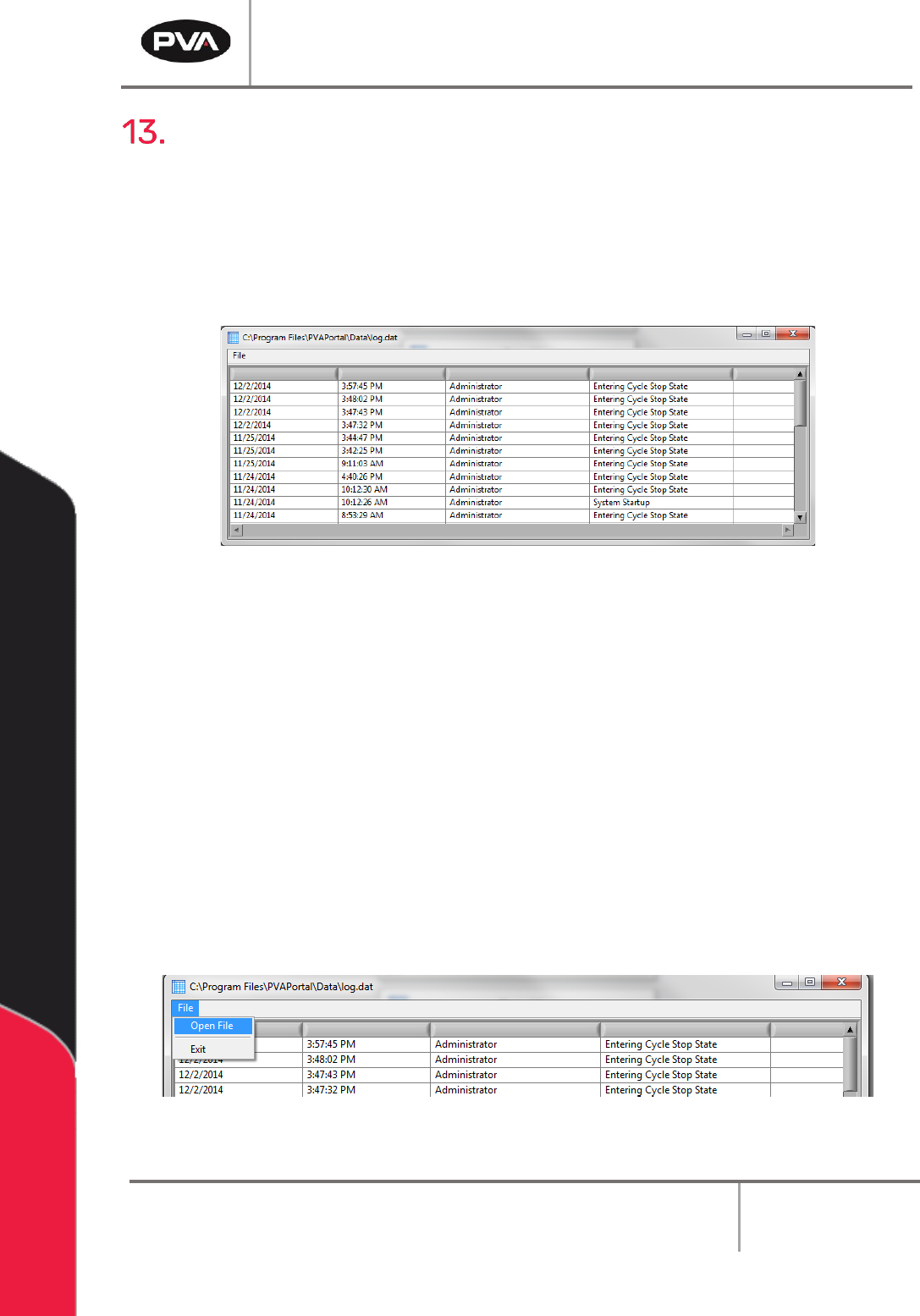
Figure 90: Log File
13.1 Startup Log File
PVA Portal can write data to any of 10 different log files. However, DataView can only
display the content of one log file at a time. On startup, the default log file is loaded into
DataView.
The default log is configured by setting the ‘InitialLogFile’ key in the [DataView] section of
the configuration files.
To load a log file other than the initial log file:
1. When DataView is running in the standalone version, select File -> Open File on the
menu bar.
Figure 91: Open File from Standalone DataView
PVA Portal Manual
Revision I / January 2022
Page 81 of 106
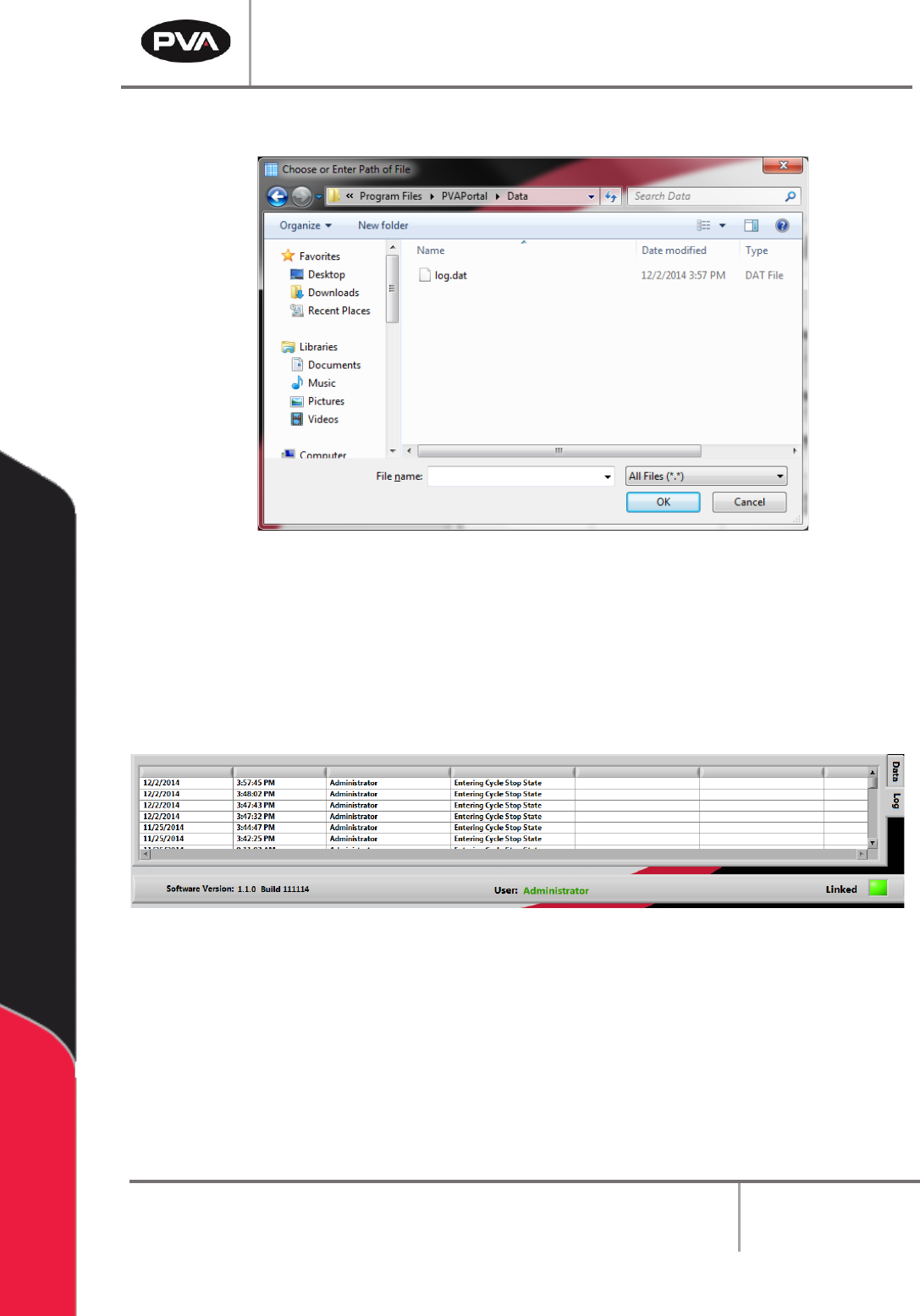
2. Select a log file to view. Click the “OK” button to load the file.
Figure 92: Log File Selection
3. While in the embedded DataView version, press and hold the ‘CTRL’ key while
‘double clicking’ the data grid to select a log file to view. The standalone version
can be launched from within Portal by pressing and holding the ‘ALT’ key while
‘double clicking’ the data grid.
Figure 93: Embedded DataView
PVA Portal Manual
Revision I / January 2022
Page 82 of 106
Part Manager
Part Manager is an embedded library used to manage Portal Part Selection and Part
Recipes. Part Recipes can be configured in the Recipe Manager window. The Recipe
Manager window is accessible from the Portal Part Selection field when in the workcell is
in Setup mode. The structure of a recipe can be defined from the ‘PartDataType.cfg’ file.
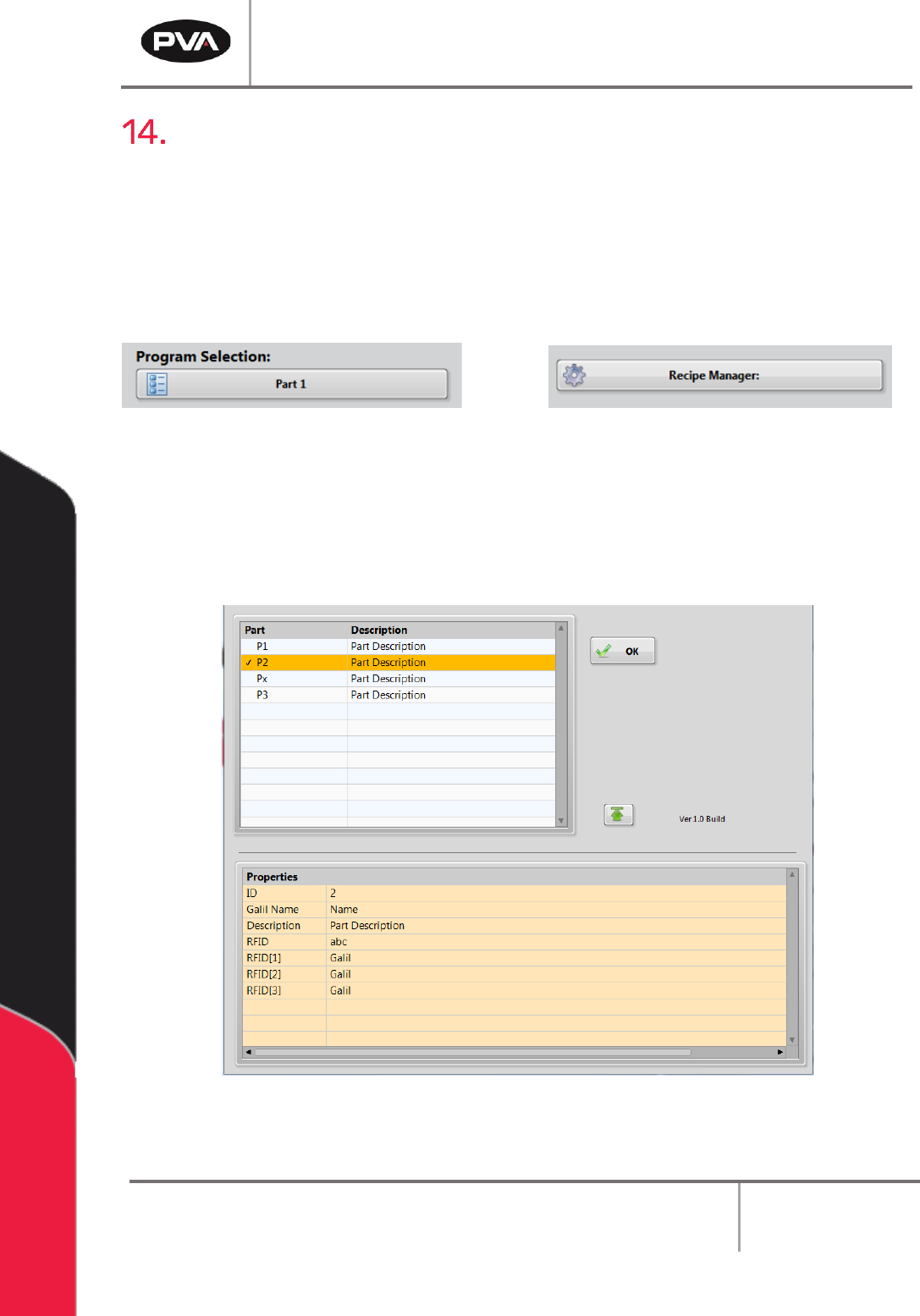
In Setup mode, there is a Recipe Manager drop down menu. In every other mode, the
drop-down menu will say Program Selection.
Figure 94: Recipe Manager and Program Selection Menus
14.1 Part Selection Console
1. To see the Part Selection Console, select the drop-down menu and select a part.
Figure 95: Part Selection Console