Portal-Operation-Manual-REV-I.pdf - 第56页
PVA Portal Manual Revision I / Janua ry 2022 Page 56 of 106 8.4.10 Program Select Program Select is an Auto Cycle option to enable or disable th e Barcode Scanner . When enabled, the progr am will be selected bas ed on t…
PVA Portal Manual
Revision I / January 2022
Page 55 of 106
11. Repeat this procedure at least three times then average the results.
12. Open the Main Program in a text editor such as Windows® NotePad.
13. Search for the variable: FCA_CAL=. This will be in the section titled: REM !!!!
Machine-Specific Information!!!!
14. Type in the new value for FCA_CAL= (e.g.: FCA_CAL=48.003).
15. Download the modified main program and test changes.
Flow Monitor
Variables
A
DEZ
FCA_CAL
B
DEW
FCB_CAL
C
DEE
FCC_CAL
D
DEF
FCD_CAL
Table 1: Flow Monitor Variables
8.4.9 Needle Calibration
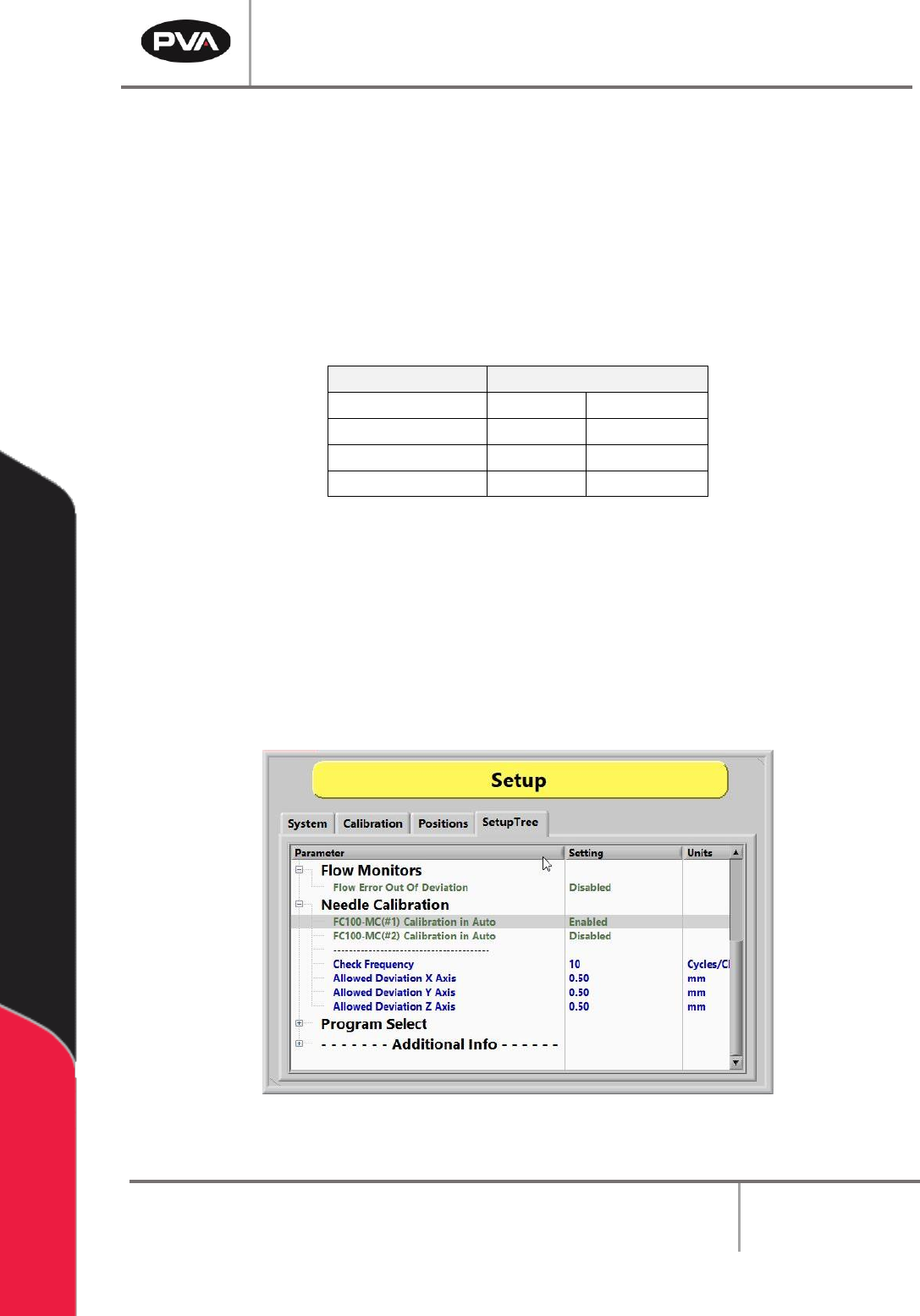
If the system is equipped with the Needle Calibration Sensor Block, refer to Figure 37.
Needle Calibration can be set to run in Auto Cycle. A list of tools will be listed along with
the option to enable or disable this function. The check frequency is the number of cycles
run per check. The allowable deviation can be set for the X, Y, and Z axis in mm.
Figure 51: Enable or Disable Tools for Needle Calibration
PVA Portal Manual
Revision I / January 2022
Page 56 of 106
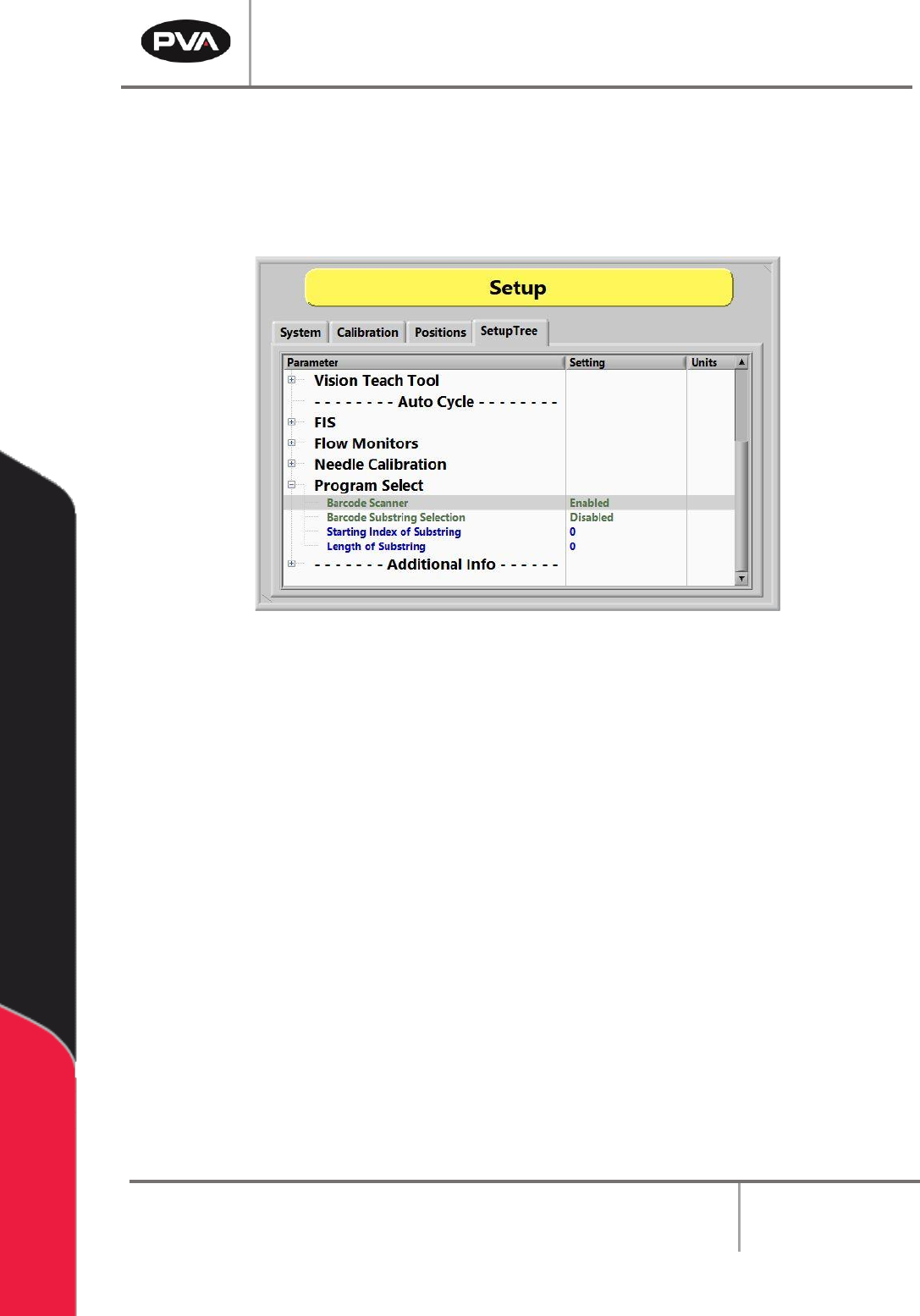
8.4.10 Program Select
Program Select is an Auto Cycle option to enable or disable the Barcode Scanner. When
enabled, the program will be selected based on the barcode read.
Note: Not all systems will have this option.
Figure 52: Enable or Disable the Barcode Scanner in Program Select
PVA Portal Manual
Revision I / January 2022
Page 57 of 106
System Tabs
There are three standard System Tabs: Product Image, Process, and Terminal. The
options that are shown in Portal depend on the workcell configuration. Refer to the
machine specific manuals and appendices for more information.
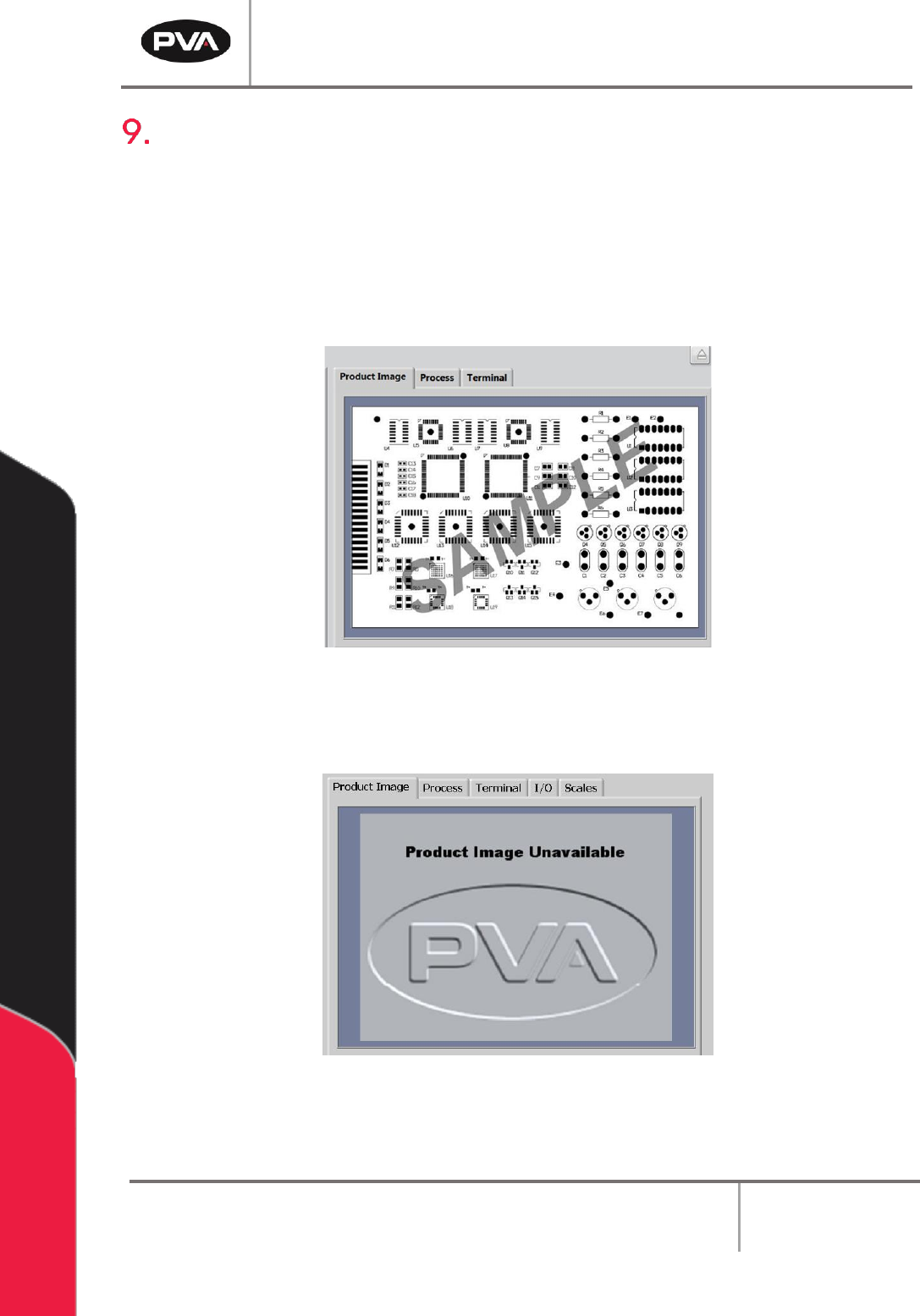
9.1 Product Image
The Product Image tab will show an imported image, or the sample image shown below.
Figure 53: Product Image Tab
If the file name does not match the program name or there are no images associated with a
program, the following image will be displayed by default:
Figure 54: Product Image Unavailable
Note: This is only the case when Part/Recipe Manager is disabled. Refer to Section
14.2 for more information.