00196962-04-BA-SX12-V2-EN.pdf - 第244页
5 Working with the machine User manual SIPLACE SX1/SX2 5.6 Alert information and online help From software version SC 706.1 SP1 Version 10/2014 244 5 Fig. 5.6 - 1 "Production" view with aler t message (example …

User manual SIPLACE SX1/SX2 5 Working with the machine
From software version SC 706.1 SP1 Version 10/2014 5.6 Alert information and online help
243
5.5.6 Application-oriented operation via color-coding markings
Icons, buttons and views can be highlighted in color. These color-coded highlights give you a clear
overview of when operator action is required or when warnings have been issued.
The station software uses the following color coded highlights:
5
5.6 Alert information and online help
If alerts occur during placement machine operations, the alert message in the status field of the
user interface will be shown in red. The icon for alert information will be active.
The button highlighted in red in the toolbar indicates that operator action is required.
Color State Meaning
Red Alert Operator action required.
Only in the view "Feeder modules, components and nozzles".
Orange Warning Operator notification is present.
Immediate operator action is not required.
Only in the view "Feeder modules, components and nozzles".
Green In progress Icon or button has machine under control and state is OK.
Only available in the views "Production", "Feeder Module,
Components and Nozzles", "Board", "Check Sensors and
Functions" and "Service".
Flashes green Waiting for board Replaces the "Busy" state if the machine is ready in production
operations but unable to process because there is no board
present.
Insert a board.
Only in the "Production" view.
5 Working with the machine User manual SIPLACE SX1/SX2
5.6 Alert information and online help From software version SC 706.1 SP1 Version 10/2014
244
5
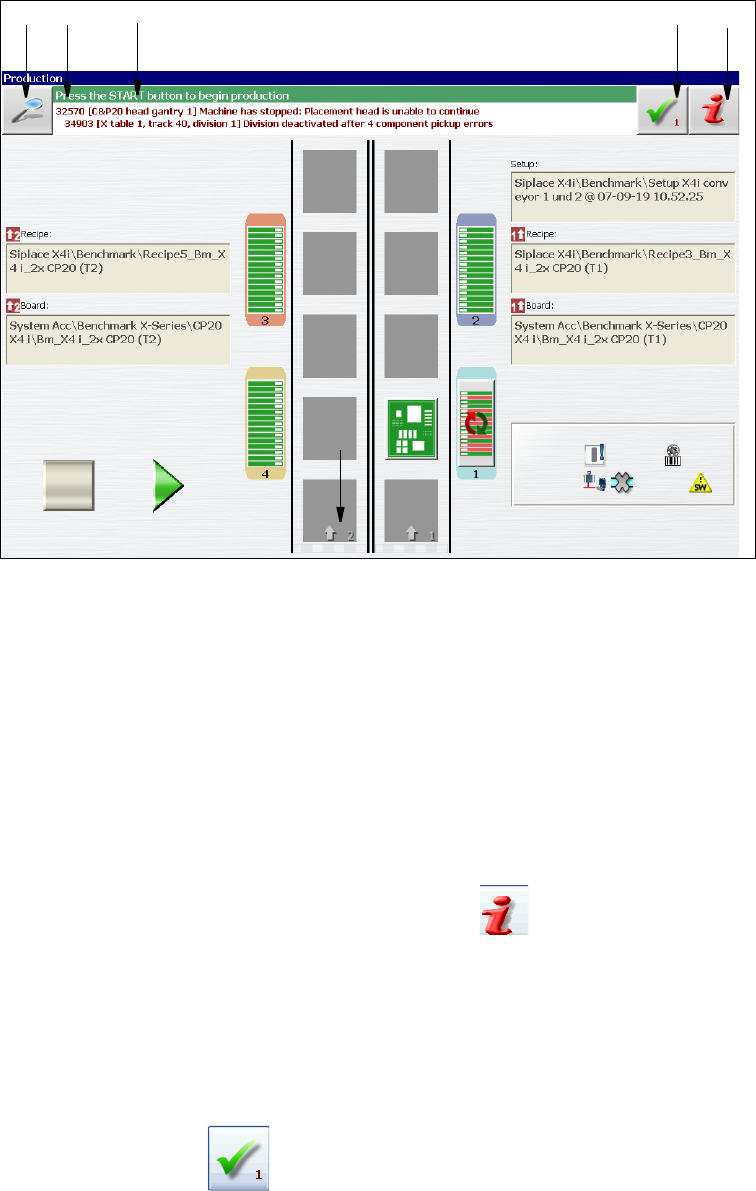
Fig. 5.6 - 1 "Production" view with alert message (example of SIPLACE X4i shown)
Legend for fig. 5.6 - 1
(1) Alert number
(2) Alert message: brief information about the alert
(3) "Details" icon: for opening detailed information (e.g. error source, time of occurrence)
(4) "Acknowledge alert" icon: for deleting the alert display
(5) "Alert information" icon: for opening the help function for the current alert
5.6.1 Viewing information about the current alert
To view information about the current alert, click on the icon to start the help system for the
station computer. The main window of the help system will open with alert information. The infor-
mation refers to the alert currently shown and from which the help function was started.
Once an alert has been resolved and the solution has been automatically determined by the ma-
chine, this alert will be automatically removed from the status field.
If the solution is not recognized automatically, the alert can also be manually deleted from the sta-
tus field.
To do this, click on the icon; the alert message will no longer be shown in the status field.
12
3
4
5
User manual SIPLACE SX1/SX2 5 Working with the machine
From software version SC 706.1 SP1 Version 10/2014 5.6 Alert information and online help
245
5.6.2 Viewing information about the selected alert
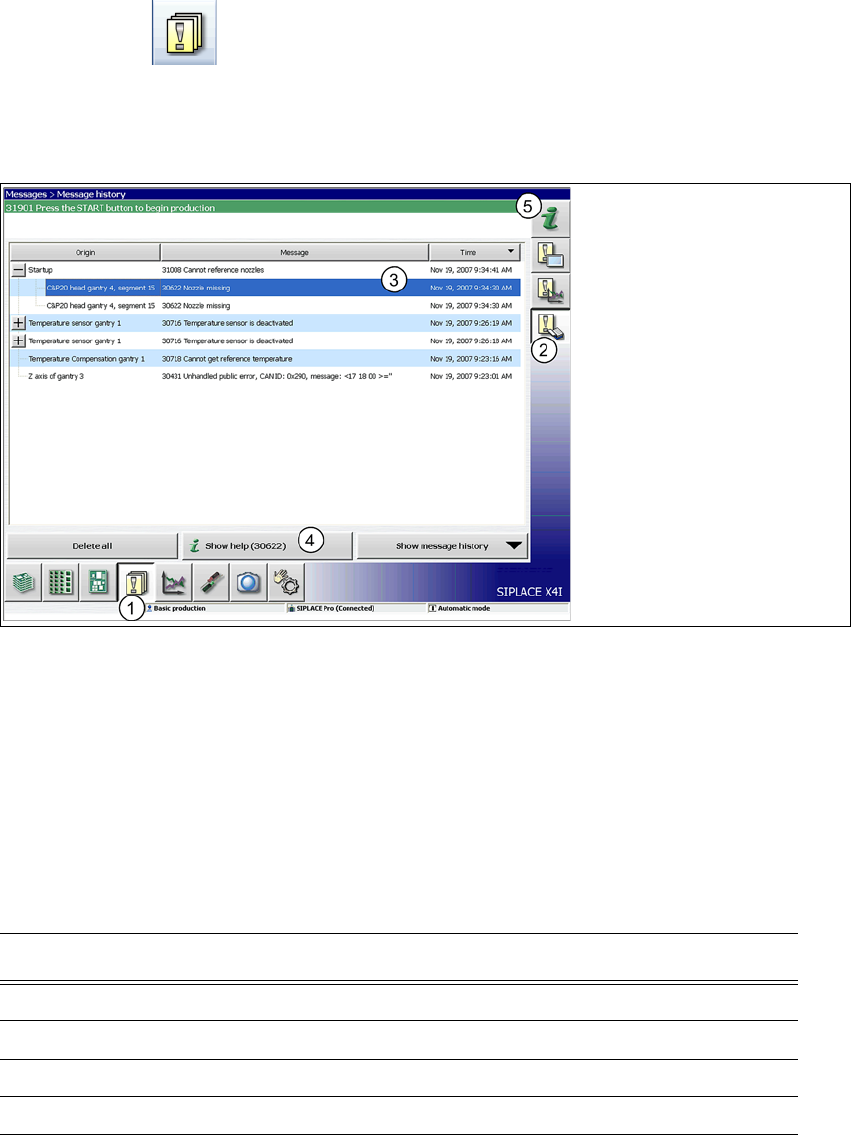
Click on the button in the toolbar (1).
All the alerts which occurred will be listed.
Click on the "Show message report" (2) button.
Click through the menu tree of the alert list (3), to open detailed alert messages.
. 5
Fig. 5.6 - 2 Example:alert list (example of SIPLACE X4i shown)
Select the alert display for which you want to view information from the list of alerts.
Click on the "Show Help" (4) button to view the information.
To view information about a different alert, search the index of the help system (5) by entering the
alert number.
5.6.3 Color coding in the online help alert information
5
Text highlight Meaning
Red text Alert number and message
Black text Possible cause(s) of alert
Green text Instructions for solving the alert
Blue underlined text Open additional information