00191913-01.pdf - 第133页
User Manual SIPLACE 80S-20/F4 3 Introduction and basic concepts Software Version SR.406.xx 02/2000 Issue US 3.3 User interface - views and menus 131 Machine options... 3 Depending on acc ess le vel, y ou ca n obtain in f…
3 Introduction and basic concepts User Manual SIPLACE 80S-20/F4
3.3 User interface - views and menus Software Version SR.406.xx 02/2000 Issue US
130
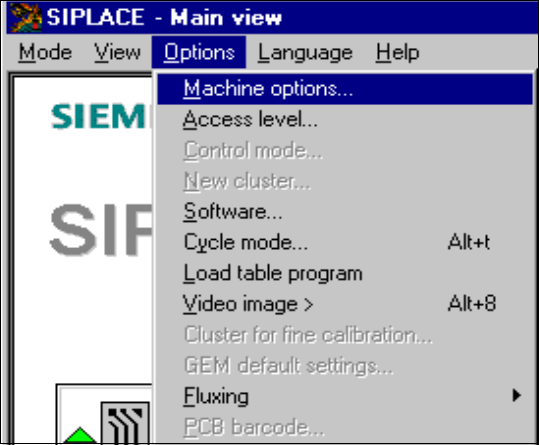
3.3.2.3 "Options" menu
The "Options" menu is only available in the main view. This menu contains all the supplementary
functions. 3
Å Click the required menu item and then make the appropriate settings or selections in the corre-
sponding windows or dialog boxes.
3
3
User Manual SIPLACE 80S-20/F4 3 Introduction and basic concepts
Software Version SR.406.xx 02/2000 Issue US 3.3 User interface - views and menus
131
Machine options... 3
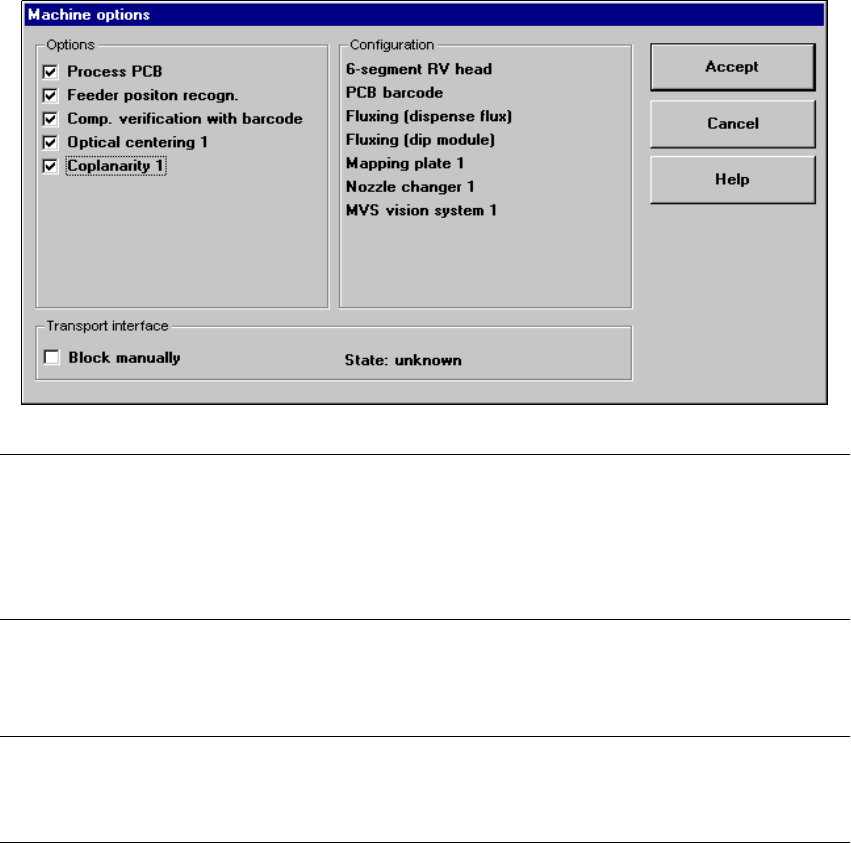
Depending on access level, you can obtain information about the station configuration
("Operator") or activate or deactivate the displayed machine options ("Line engineer", "Service").3
Å Click the menu item Machine options...
The following window is displayed.
3
NOTE
Only those machine options are displayed which are configured at the current station.
The different machine options and the associated functions are described in Chapter 4 Placement
functions, Chapter 11 Station extensions / hardware, Chapter 6 Vision functions and chapter 12
Station extensions / software. 3
Å Click the checkboxes corresponding to the machine options which you want to activate or
deactivate.
NOTE
At "Operator" access level, it is only possible to activate and deactivate the conveyor interface
options. 3
3 Introduction and basic concepts User Manual SIPLACE 80S-20/F4
3.3 User interface - views and menus Software Version SR.406.xx 02/2000 Issue US
132
Access level... 3
It is possible to protect some user interface functions against unauthorized use by setting an
access level and allocating a password. Functions which are not accessible from a given access
level cannot be executed since the associated push-button, radio buttons and menu commands
are either inactive or not displayed. 3
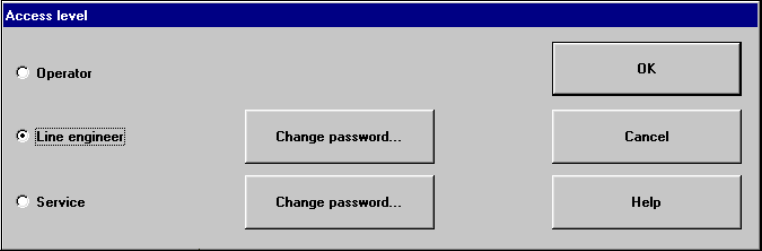
You can choose between the access levels "Operator", "Line engineer" and "Service". Passwords
can be allocated for the access levels "Line engineer" and "Service". 3
Å Click the menu item Access level ...
The "Access level" dialog box is opened.
3
Å Click the radio button for the required access level.
Å Click the "Change password" button to the right of the access level if you want to allocate a
password or change an existing password.
The dialog box for password entry is now displayed.
3