00191913-01.pdf - 第398页
8 Error information and diagnostics User Man ual SIPLACE 80S-20/F4 8.4 Diagnostics Software Version SR.406.xx 02/2000 Issue US 396 Diagnosis of an error without error messa ge By clicki ng on this button you can start di…
User Manual SIPLACE 80S-20/F4 8 Error information and diagnostics
Software Version SR.406.xx 02/2000 Issue US 8.4 Diagnostics
395
8.4.2.2 Diagnostics buttons
You can select one of three different ways of starting the diagnostics facility. 8
Diagnostics with automatic takeover of the error message
By clicking on this button you can start diagnostics for the errors displayed in the status line. 8
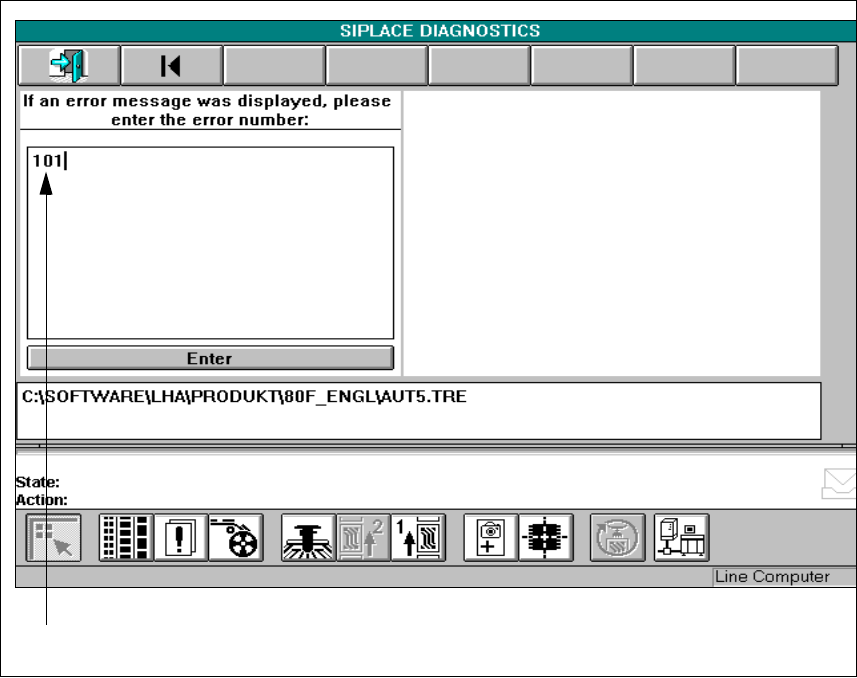
Diagnostics with manual input of the error message 8
Å Click on this button.
Å Into the input field type the error number for which you wish to start diagnostics and confirm
this with Enter.
Fig. 8.4 - 4 Diagnostics with manual input of the error message
Key to Fig. 8.4 - 4
1 Input field
8 Error information and diagnostics User Manual SIPLACE 80S-20/F4
8.4 Diagnostics Software Version SR.406.xx 02/2000 Issue US
396
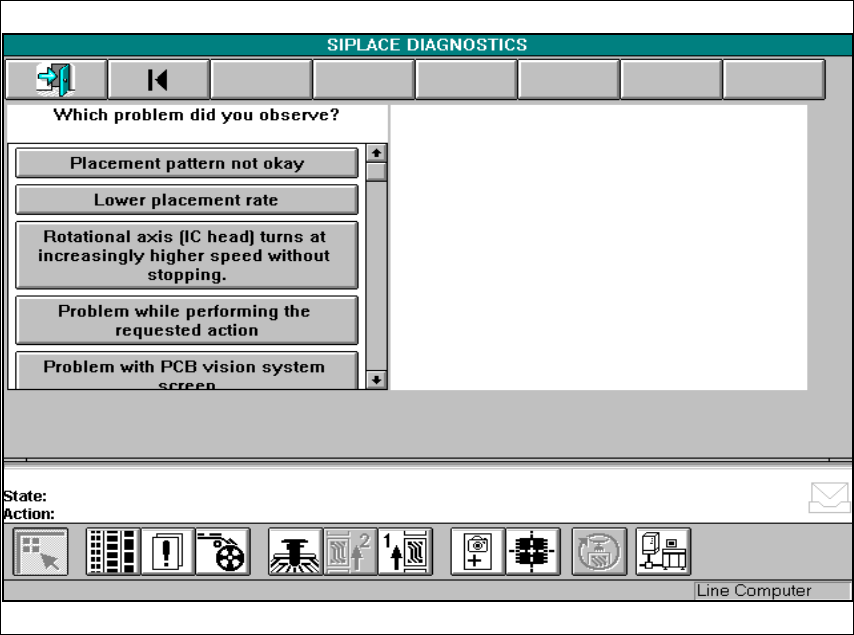
Diagnosis of an error without error message
By clicking on this button you can start diagnostics for errors for which there is no error message,
such as reduced placement performance, poor placement quality and so on. 8
Fig. 8.4 - 5 Diagnosis of an error without error message
User Manual SIPLACE 80S-20/F4 8 Error information and diagnostics
Software Version SR.406.xx 02/2000 Issue US 8.4 Diagnostics
397
8.4.3 Procedure
NOTE
The procedure is explained with the help of an example which uses Diagnostics with automatic
take-over of error message. The procedure is identical for all diagnostic methods and error
messages. 8
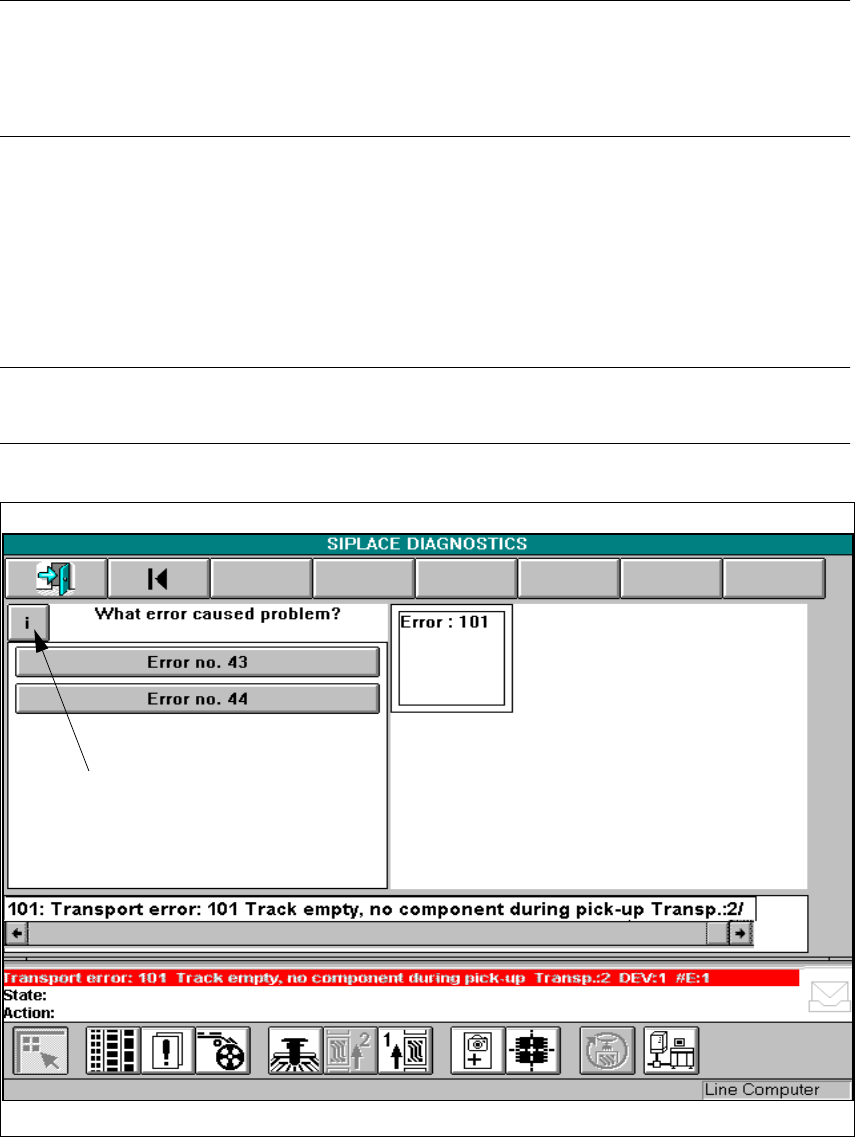
If an error occurs, the error message will be displayed on the status line in the main view
(see ). 8
Å Click on the Diagnostics button.
Å Click on the Diagnostics with automatic take-over of error message button.
Å Click on the Information button; read and comply with this information.
NOTE
Always read and comply with the information when an Information button appears. 8
Fig. 8.4 - 6 Obtaining information on an error