00191913-01.pdf - 第388页
8 Error information and diagnostics User Man ual SIPLACE 80S-20/F4 8.2 Calling error information Software Version SR.406.xx 02/2000 Issue U S 386 8.2 Calling error information If an e rror oc curs during operat ion, a co…
User Manual SIPLACE 80S-20/F4 8 Error information and diagnostics
Software Version SR.406.xx 02/2000 Issue US 8.1 General
385
8 Error information and diagnostics
8.1 General
If errors occur during operations at the placement station, you can all up information concerning
the possible causes and ways of eliminating the error in question. To do this, you start the help
system for the station computer (see Chapter 9).
– You call error information on the currently displayed error by clicking the "Error information"
button in the main view (see section 8.2.1).
– You can call up information on an observed error of a specific type by clicking the "Error infor-
mation" button in the corresponding error display (see section 8.2.2).
8 Error information and diagnostics User Manual SIPLACE 80S-20/F4
8.2 Calling error information Software Version SR.406.xx 02/2000 Issue US
386
8.2 Calling error information
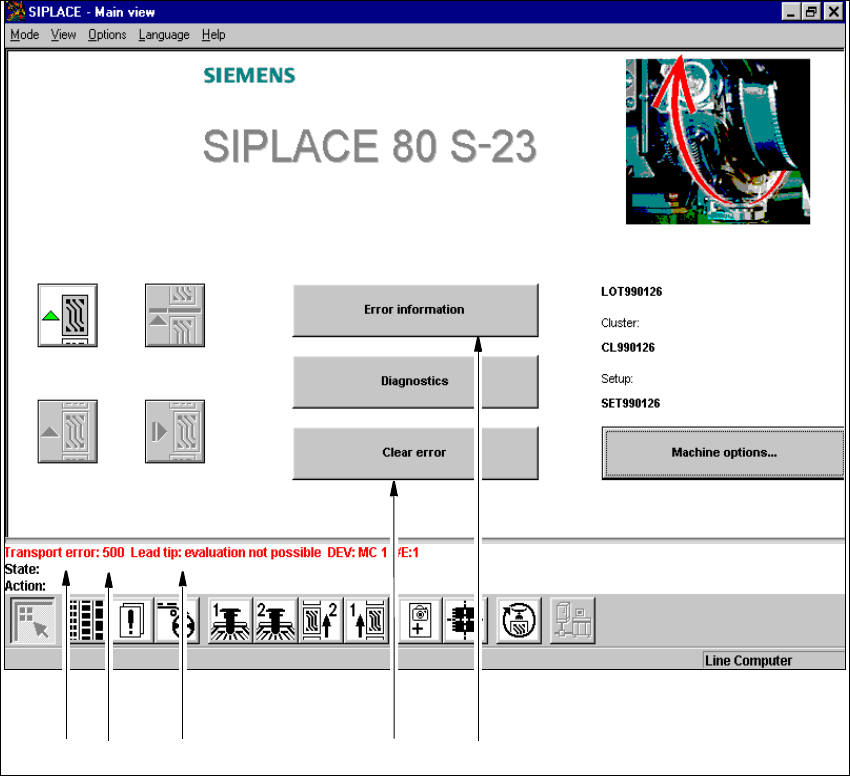
If an error occurs during operation, a corresponding error message is displayed in the status bar
in the user interface. In main view, the Error information and Clear error buttons are active
(see Fig. 8.2 - 1).
8
Fig. 8.2 - 1 Main view with error message
Key to Fig. 8.2 - 1
(1) Type of error (track, machine, transport or general error)
(2) Error number (the error number assigned to the error)
(3) Error message (summary information on error)
(4) "Clear error" button (to acknowledge the error after error elimination)
(5) "Error information" button (to call up help on the current error)
12 3 4 5
User Manual SIPLACE 80S-20/F4 8 Error information and diagnostics
Software Version SR.406.xx 02/2000 Issue US 8.2 Calling error information
387
8.2.1 Displaying information on the current error
Å In the main view, click the Error information button.
The main help system window is opened with error information on the current error (see
example in Fig. 8.2 - 3).
8.2.2 Displaying information on a selected error
8
Å Click the icon in the toolbar in main view.
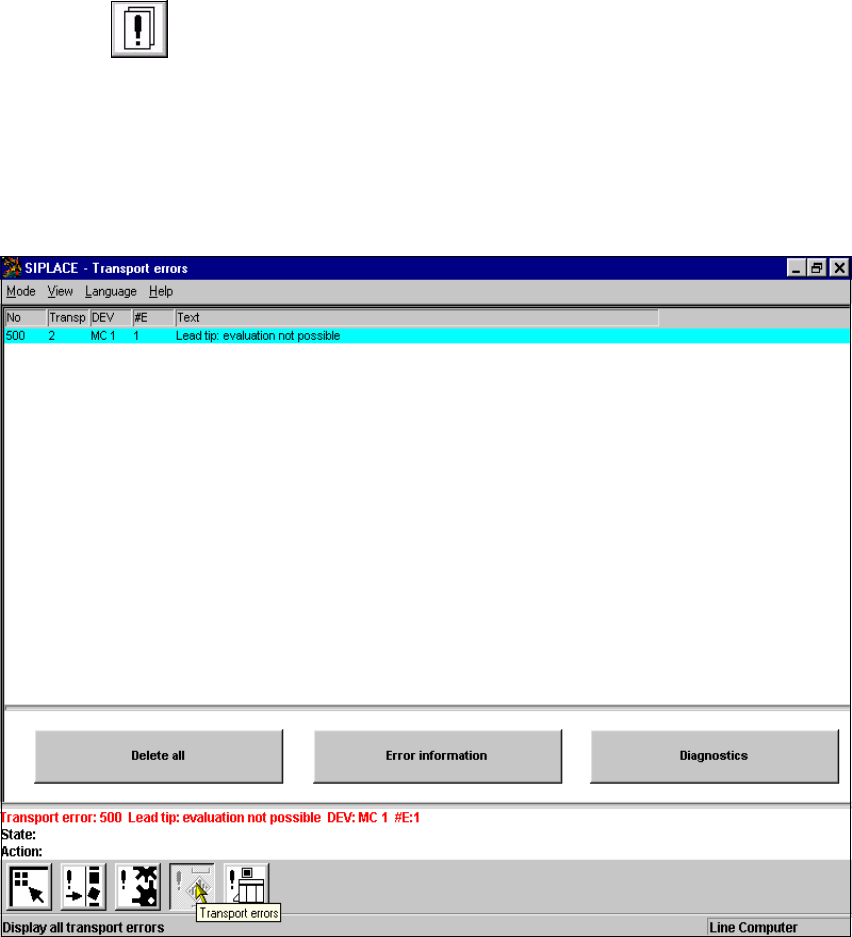
The user interface switches to the error display for the last error type to be active. All the errors
of the current error type which have occurred are listed in the display area.
Å If necessary, use the corresponding toolbar icon to switch the view to the required error type
(see Chapter 4, Section 4.2).
The display area is switched to the selected error type (see example in Fig. 8.2 - 2).
8
Fig. 8.2 - 2 Example: Error type "transport error"