00191913-01.pdf - 第409页
User Manual SIPLACE 80S-20/F4 9 Online help s ystem Software Version SR.406.xx 02/2000 Issue US 9.1 General 407 9.1.1.2 Display ing help on a topic area Å In the help s ystem’s "Conten ts" screen ( see sec tion…
9 Online help system User Manual SIPLACE 80S-20/F4
9.1 General Software Version SR.406.xx 02/2000 Issue US
406
9.1.1.1 Displaying the contents of the help system
Å In the Help menu, click the Content item or press the key combination Ctrl + F1.
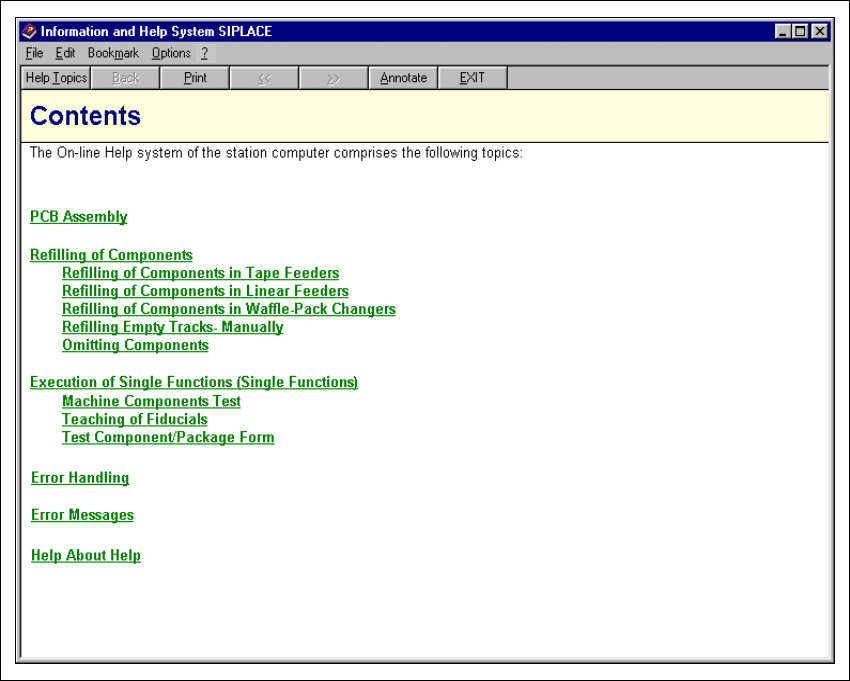
The main window of the station computer help system is opened (see Fig. 9.1 - 1).
All the topic areas present in this help system are listed in the window’s display area.
9
Fig. 9.1 - 1 Contents of the help system
9
All topic area or topic entries are displayed in green and are underlined. When you click one
of these entries, the display area switches to the help information for the corresponding topic
or topic area (see Fig. 9.1 - 2). 9
User Manual SIPLACE 80S-20/F4 9 Online help system
Software Version SR.406.xx 02/2000 Issue US 9.1 General
407
9.1.1.2 Displaying help on a topic area
Å In the help system’s "Contents" screen (see section 9.1 - 1), click the entry for the required
topic area (e.g. "Help About Help").
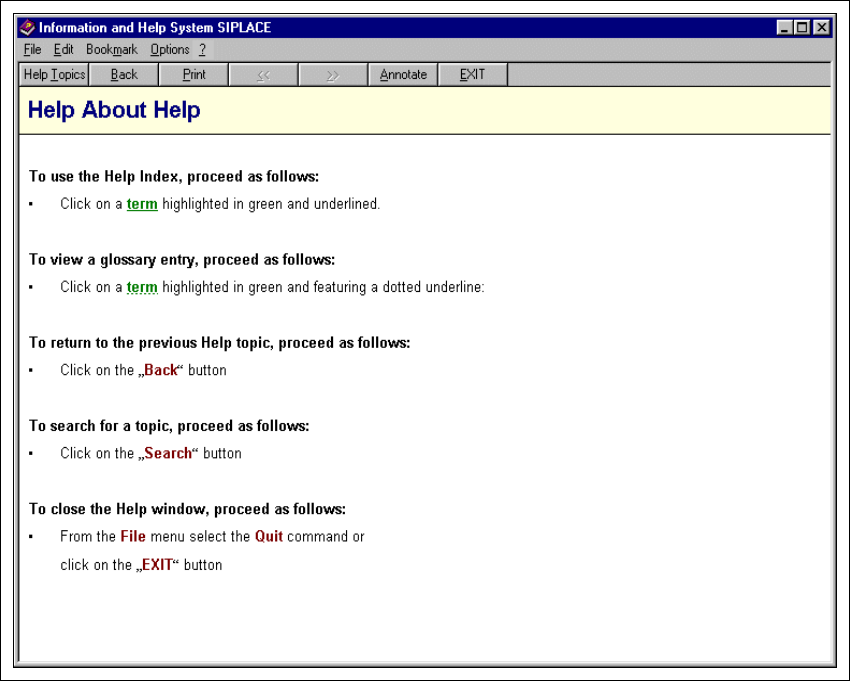
Help information on the selected topic area is now presented in the display area (see example in
Fig. 9.1 - 2).
9
Fig. 9.1 - 2 Example: Topic area "Help About Help"
9
9
9
9
9 Online help system User Manual SIPLACE 80S-20/F4
9.1 General Software Version SR.406.xx 02/2000 Issue US
408
9.1.1.3 Displaying help on the current view
Å In the Help menu, click the Help item or press the key combination Alt + F1.
The main help system window is opened.
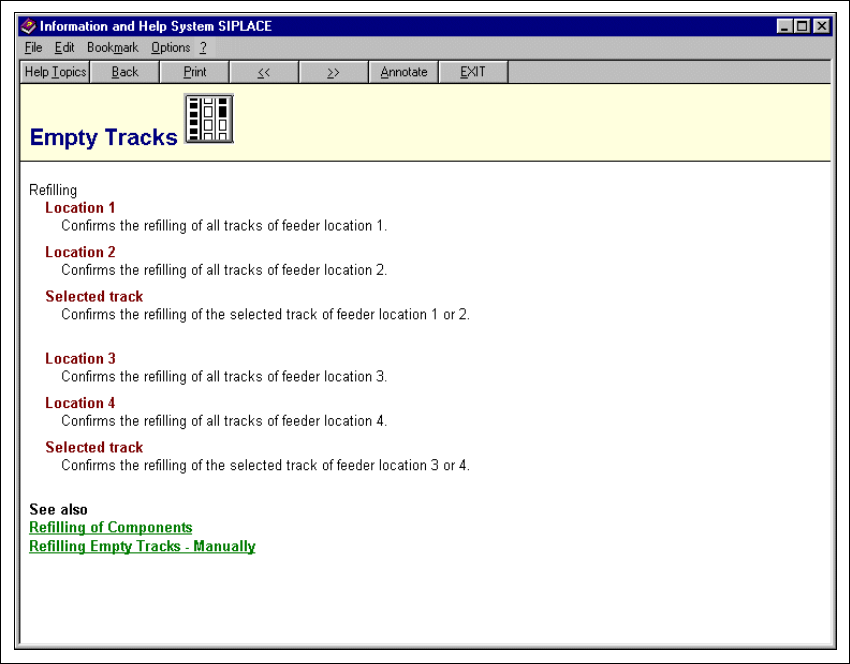
The display area now displays help information on the functions of the view which is currently
active in the SC user interface (see example in Fig. 9.1 - 3).
9
Fig. 9.1 - 3 Example: Help on the current view "Empty Tracks"
9
Any entry which is linked to supplementary help information is displayed in green and under-
lined. When you click on such an entry, the display area switches to help on the corresponding
topic (see Fig. 9.1 - 4). 9
9