00191913-01.pdf - 第232页
6 Vision functions User Manual SIPLACE 80S-20/F4 6.4 Access to the ’Teach Fiducial’ and ’Test Component’ Options Software version SR.406.xx 02/2000 Issue US 230 6 Fig. 6.4 - 3 T est component option: menus Y ou can selec…
User Manual SIPLACE 80S-20/F4 6 Vision functions
Software version SR.406.xx 02/2000 Issue US 6.4 Access to the ’Teach Fiducial’ and ’Test Component’ Options
229
6
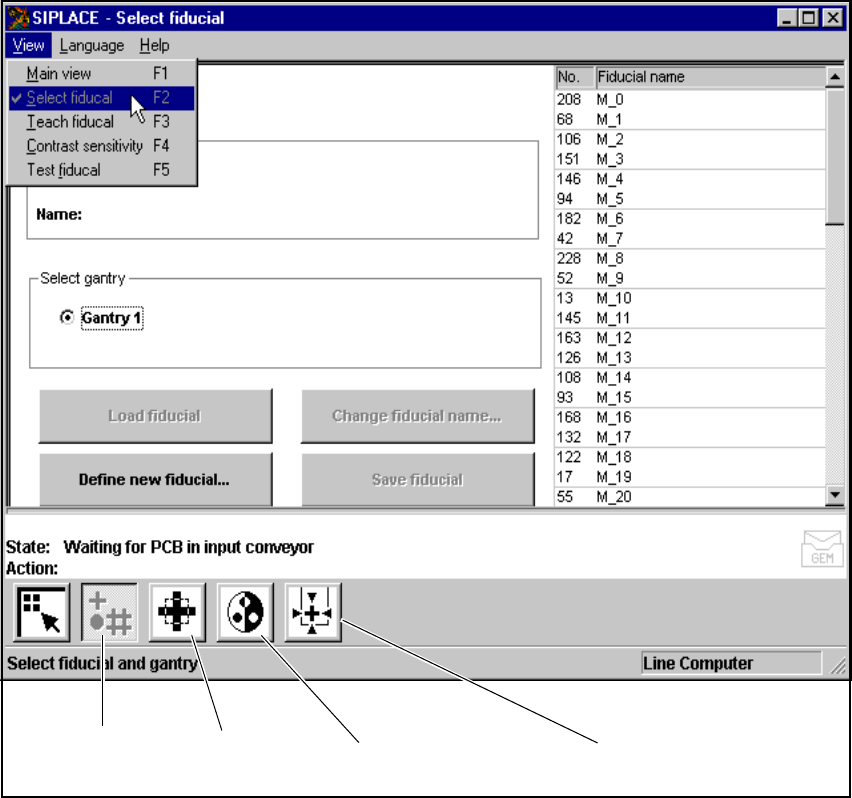
Fig. 6.4 - 2 Teach fiducial option: menus
You can select the following menus from the Teach fiducial option either by clicking on the icons
in the symbols bar or by using function keys F2 to F5: 6
– Select fiducial
– Teach fiducial
– Contrast sensitivity, and
– Test fiducial.
You can return to the Main view menu either by clicking on the Main view icon or by pressing
function key F1. 6
Contrast sensitivity
icon
Test fiducial
icon
Select fiducial
icon
Test fiducial
icon
6 Vision functions User Manual SIPLACE 80S-20/F4
6.4 Access to the ’Teach Fiducial’ and ’Test Component’ Options Software version SR.406.xx 02/2000 Issue US
230
6
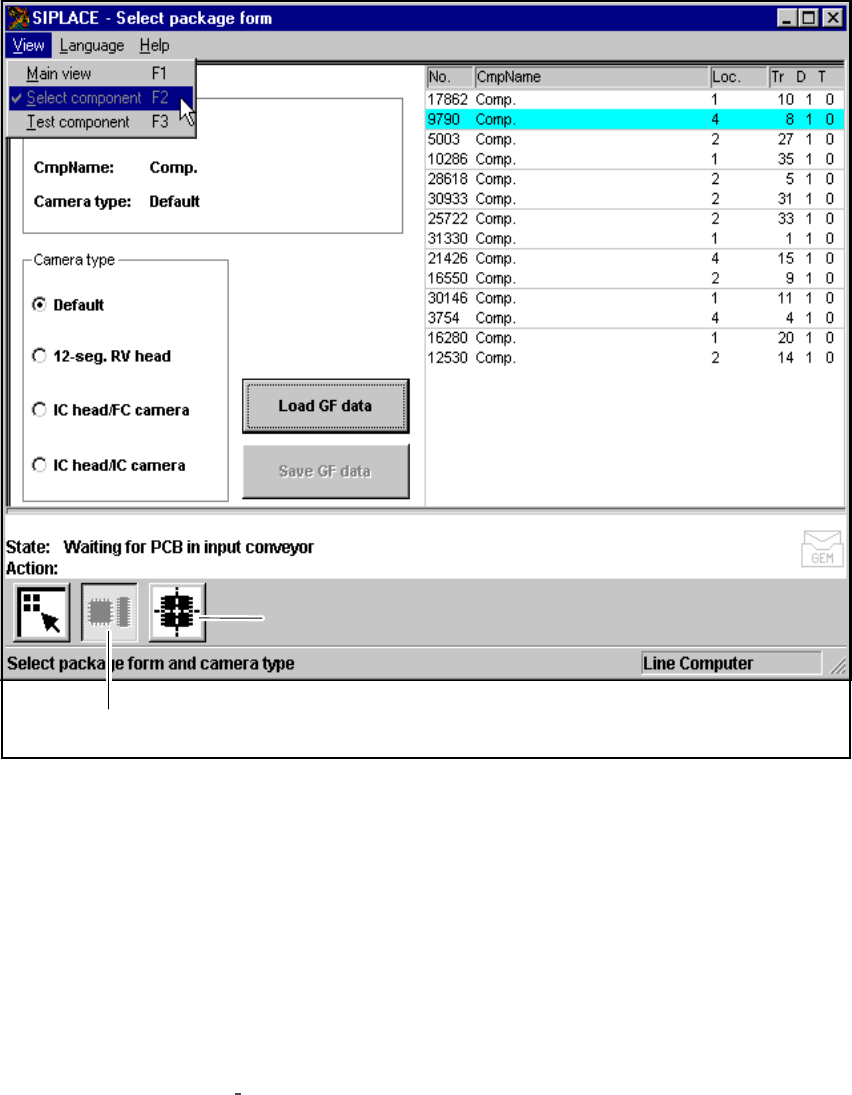
Fig. 6.4 - 3 Test component option: menus
You can select the following menus from the Test component option either by clicking on the
icons (buttons) or by pressing function keys F2 to F3: 6
– Select package form
– Test component
You can return to the Main view menu either by clicking on the Main view icon or by pressing
function key F1. 6
The options Teach fiducial and Test component are described in Section 6.5 from page 232 and
Section 6.6 from page 267.
6
’Select package form’ icon
’Test component’ icon

User Manual SIPLACE 80S-20/F4 6 Vision functions
Software version SR.406.xx 02/2000 Issue US 6.4 Access to the ’Teach Fiducial’ and ’Test Component’ Options
231
To provide you with some orientation, at the start of each section you will find a flow chart and a
brief description for the Teach fiducial and Test component options. Each flow chart begins with
Main view menu and shows you the hierarchical structure of all of the menu options. 6
NOTE 6
Section 3 includes a general description of 6
– using the menus with trackball, touch screen and function keys F1 to F12.
– the layout of the screen.
– the screen displays.