SIPLACE Vision Customer_en.pdf - 第31页
User Interface Station Interface for Teaching Component Shapes Setting the Algorithms S tudent Guide SIPLACE Vision (Customer) Edition 12/2008 EN User Interface 31 4.9 Setting the Algorithms Use the list on the right to …
User Interface
Programming Interface for Illumination Adjustment Station Interface for Teaching Component Shapes
Student Guide SIPLACE Vision (Customer)
User Interface Edition 12/2008 EN
30
4.8 Programming Interface for Illumination Adjustment
Each component type definition sets the optimum standard illumination type for that particular
component shape. However, there are some component surfaces, which can not be adequately
illuminated with these standard values. In these cases, you will need to adjust the illumination at the
station.
Adjusting the illumination
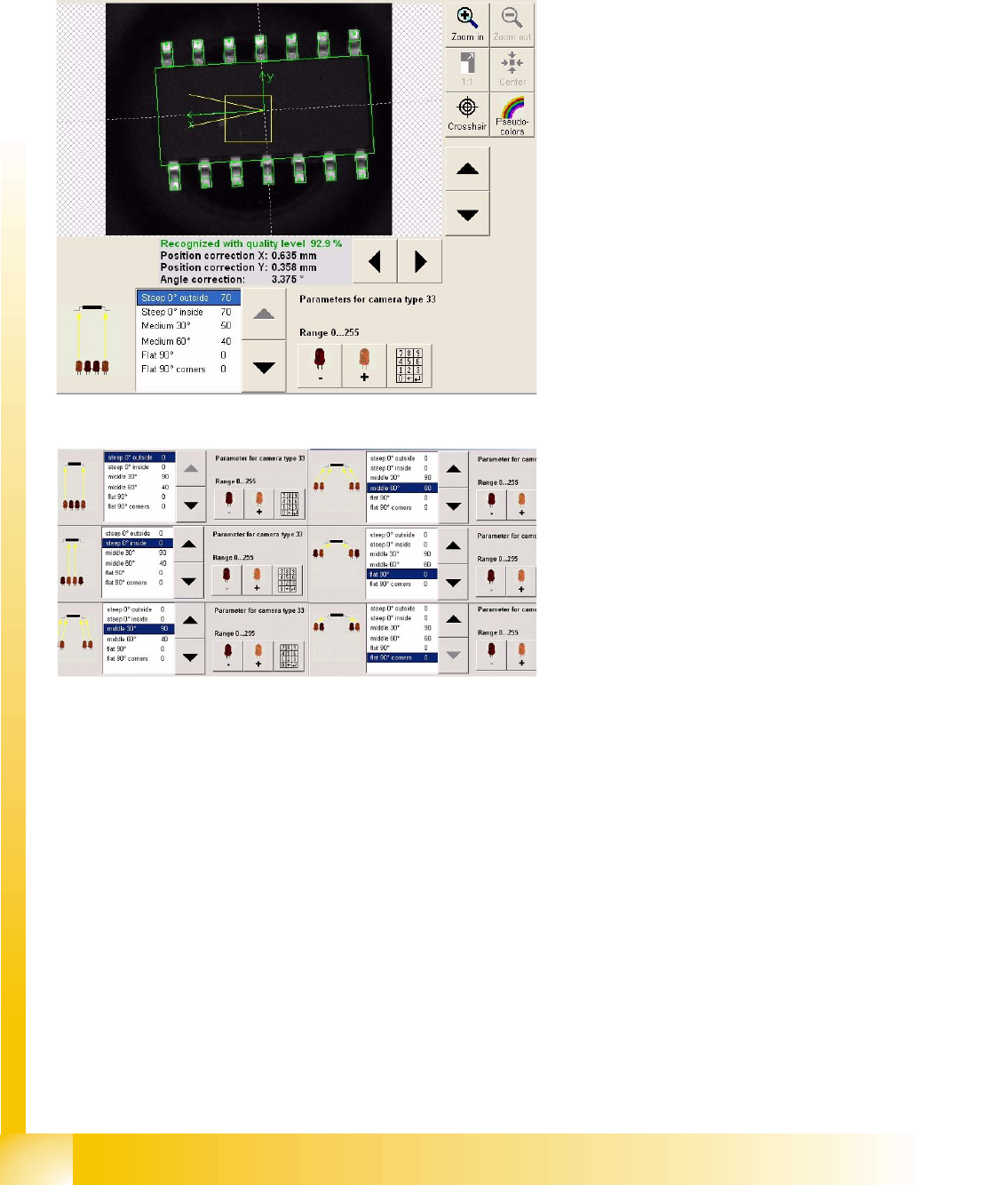
Any suitable recognition step can be selected for
illumination adjustment.
In the example shown, the middle illumination
level was selected. The indicated illumination
angle is flatter than in the diagram above.
A new image recording is automatically made after
each alteration, enabling the user to evaluate the
illumination during adjustment.
Illumination levels
The adjacent diagram shows the regions for
selection the 6 different illumination levels.
Use the arrow buttons (up/down) to select the
required level.
Use the relevant LED symbol +/- to adjust the
intensity of each illumination level (256 steps).
User Interface
Station Interface for Teaching Component Shapes Setting the Algorithms
Student Guide SIPLACE Vision (Customer)
Edition 12/2008 EN User Interface
31
4.9 Setting the Algorithms
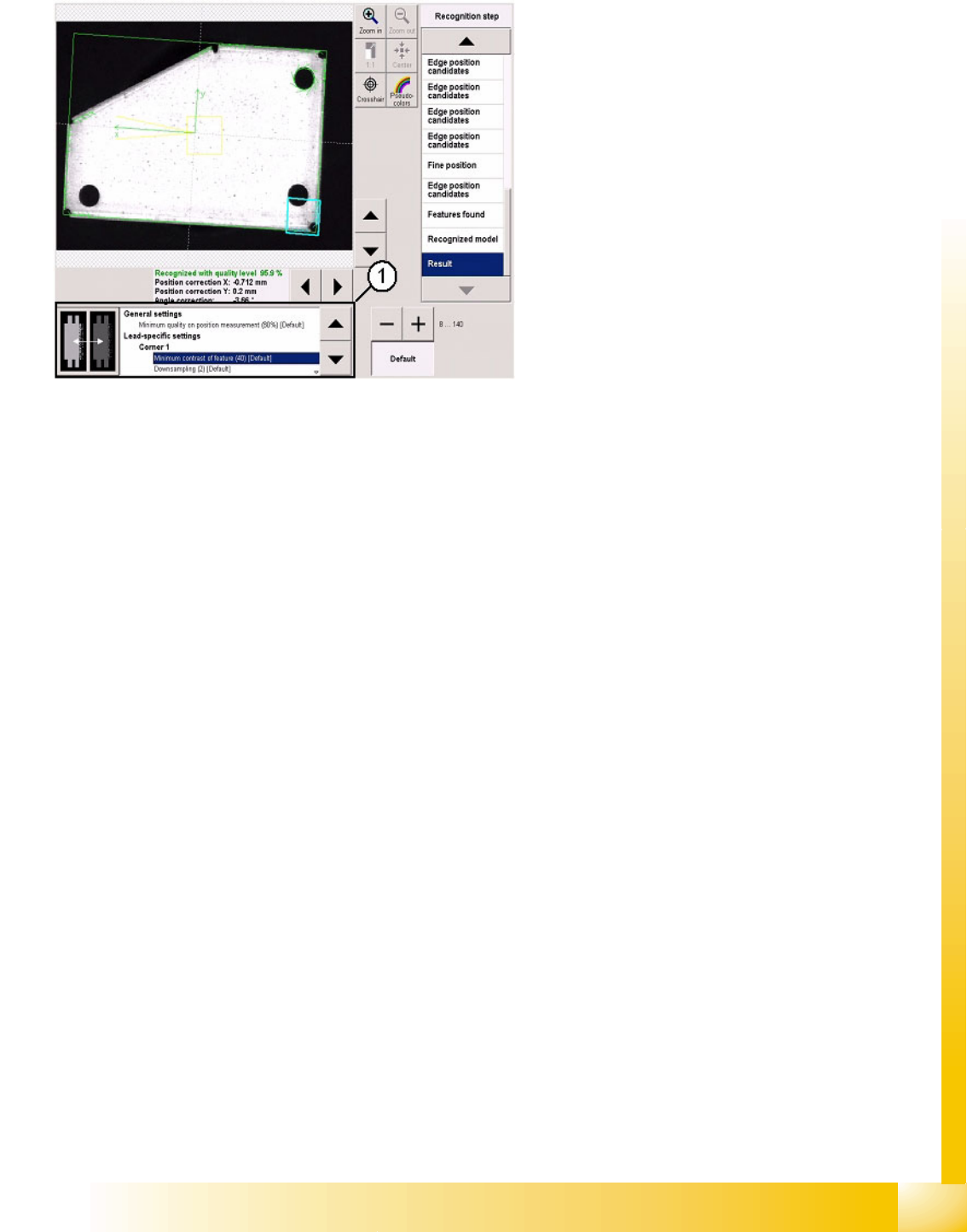
Use the list on the right to select and adjust the
individual measurement steps.
Settings are only possible here in exceptional
cases e.g. when analyzing images with inverted
colors.
1. The algorithm thresholds can be set in the
window shown. The recognition steps can be
altered independently of these.
The algorithm thresholds apply for the entire
position recognition function and for the
respective group descriptions.
User Interface
Error Analysis Logs Enabling Vision Log Recording
Student Guide SIPLACE Vision (Customer)
User Interface Edition 12/2008 EN
32
4.10 Error Analysis Logs
Note: These functions may ONLY be accessed by users with service technician privileges!
4.10.1 Enabling Vision Log Recording
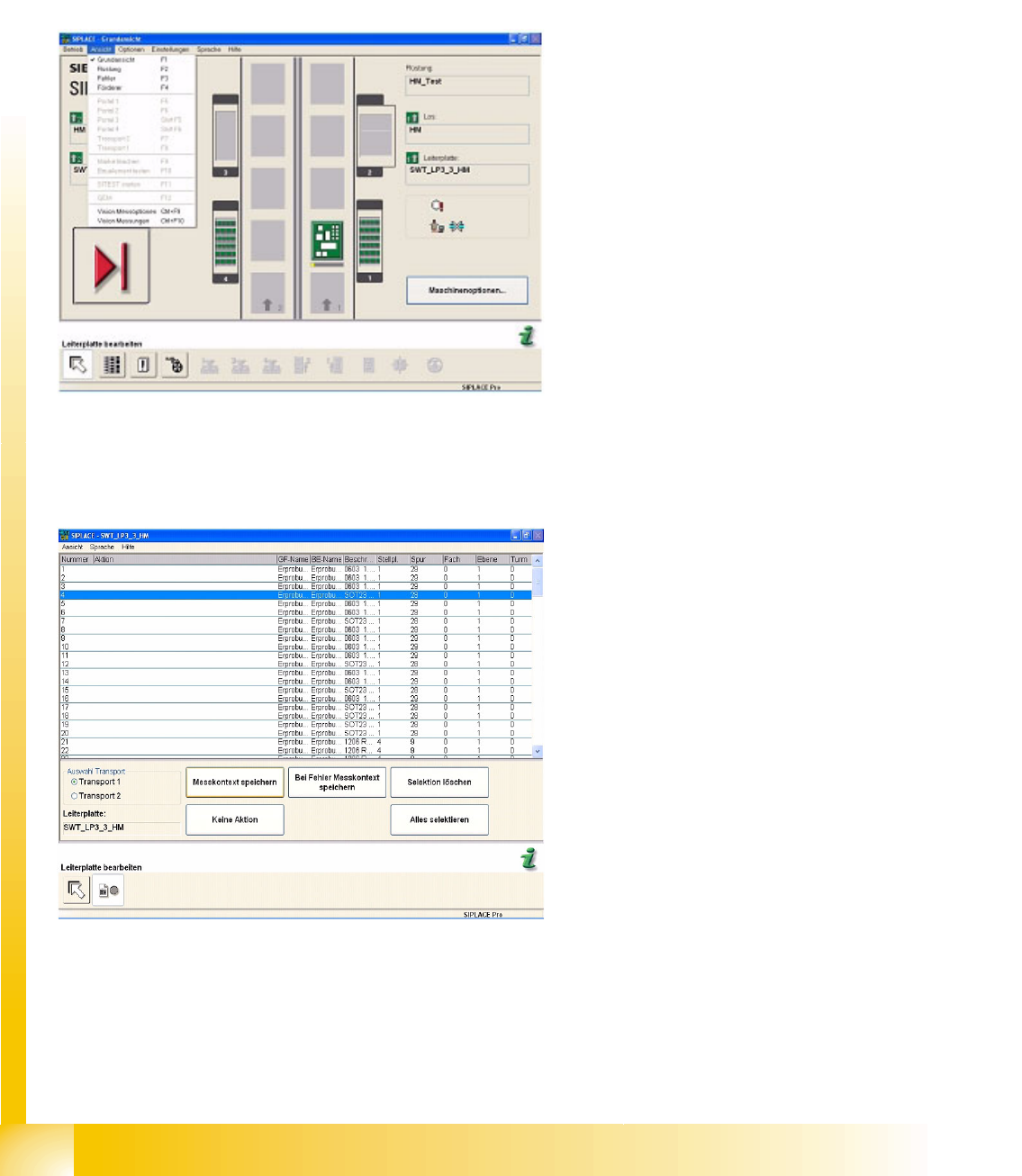
In the pulldown menu View, the user can enable recording of an analysis and result log for Vision
centering and the related error localization procedure. To access the Vision menu, select the operating
mode Setter.
4.10.1.1 Vision Measurement Options
Use this menu to set the Report of measurement results for selected components.
Items in the pulldown menu View:
Vision measuring option – can also be opened
with CTRL + F9.
Vision measurement - can also be opened
with CTRL + F10.
Once a component has been selected in the list,
the buttons will be enabled.
Save measurement context saves the analysis
and results log for this component shape.
No Activity is the default value (no recording is
performed).
Error Save measurement result saves the
centering errors in the analysis and results log
for this component shape (see also the
attached error log).
Delete Selection or Select All are function buttons
for easier selection of the component shape.