MAN00000772_SI-G200BB_SVCPDFA.pdf - 第10页
Work Procedure WKGB-10101-01 Installin g System Sof tware SHEET 4/8 4. Click the Next button o n the W elcome screen. 5. Click the Y es button on the ASM Software License screen. 6. Click the Next button o n the User In-…
Work Procedure
WKGB-10101-01
Installing System Software
SHEET
3/8
5 Connect the local PC through network to
connect it to the front side PC body.
In an environment in which PC cannot be
brought in, put installer file into the USB
memory, and connect to the USB port in the
front side PC.
In this case, use the USB memory only for the
installer, and do not put the other files into the
USB memory.
6 Install a system software into the front side
PC.
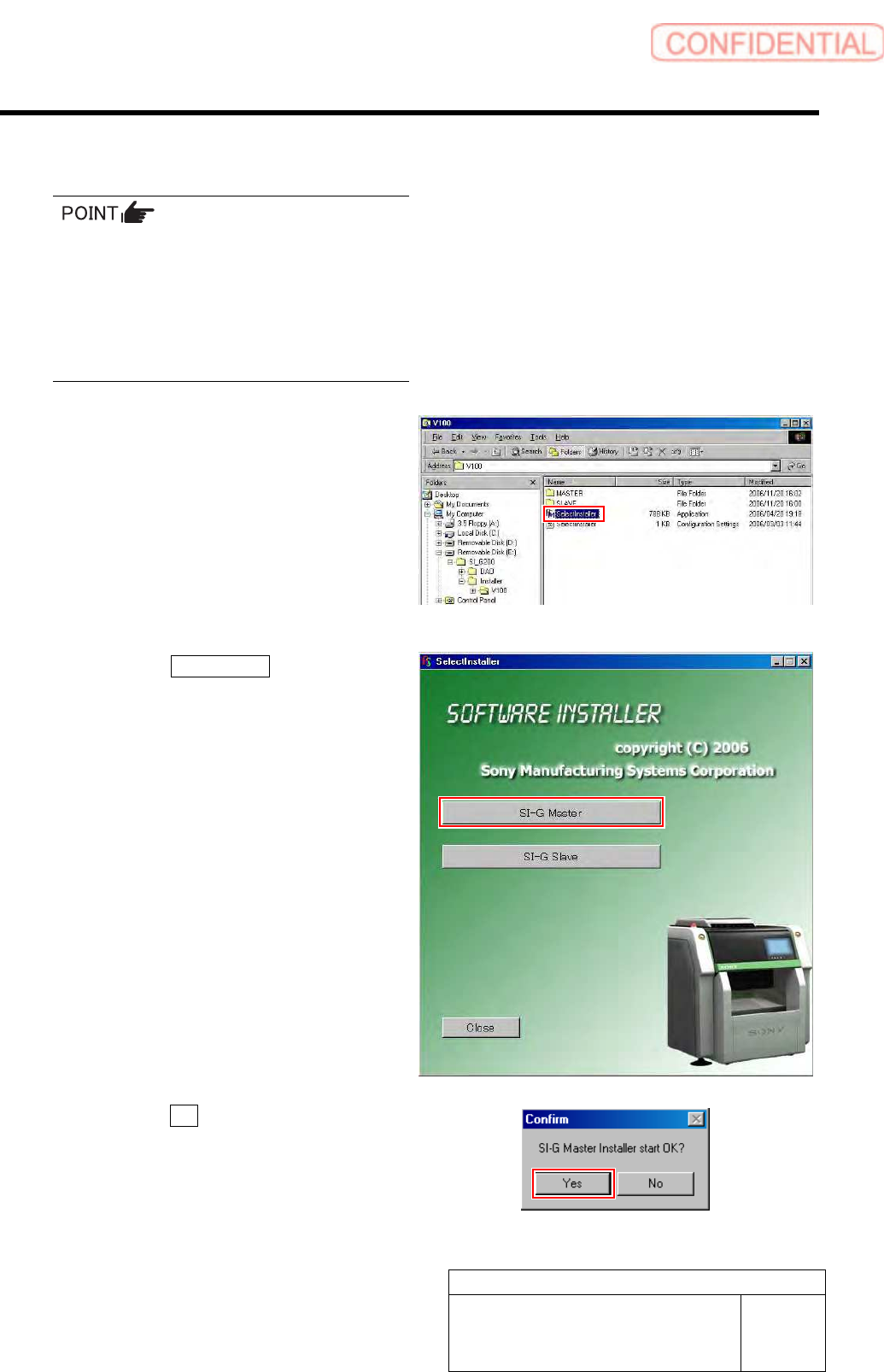
1. Double-click the “SerectInstaller” file.
An installer screen appears.
2. Click the SI-G Master button.
Confirm dialog box is displayed.
3. Click the Yes button on the Confirm
dialog box.
Work Procedure
WKGB-10101-01
Installing System Software
SHEET
4/8
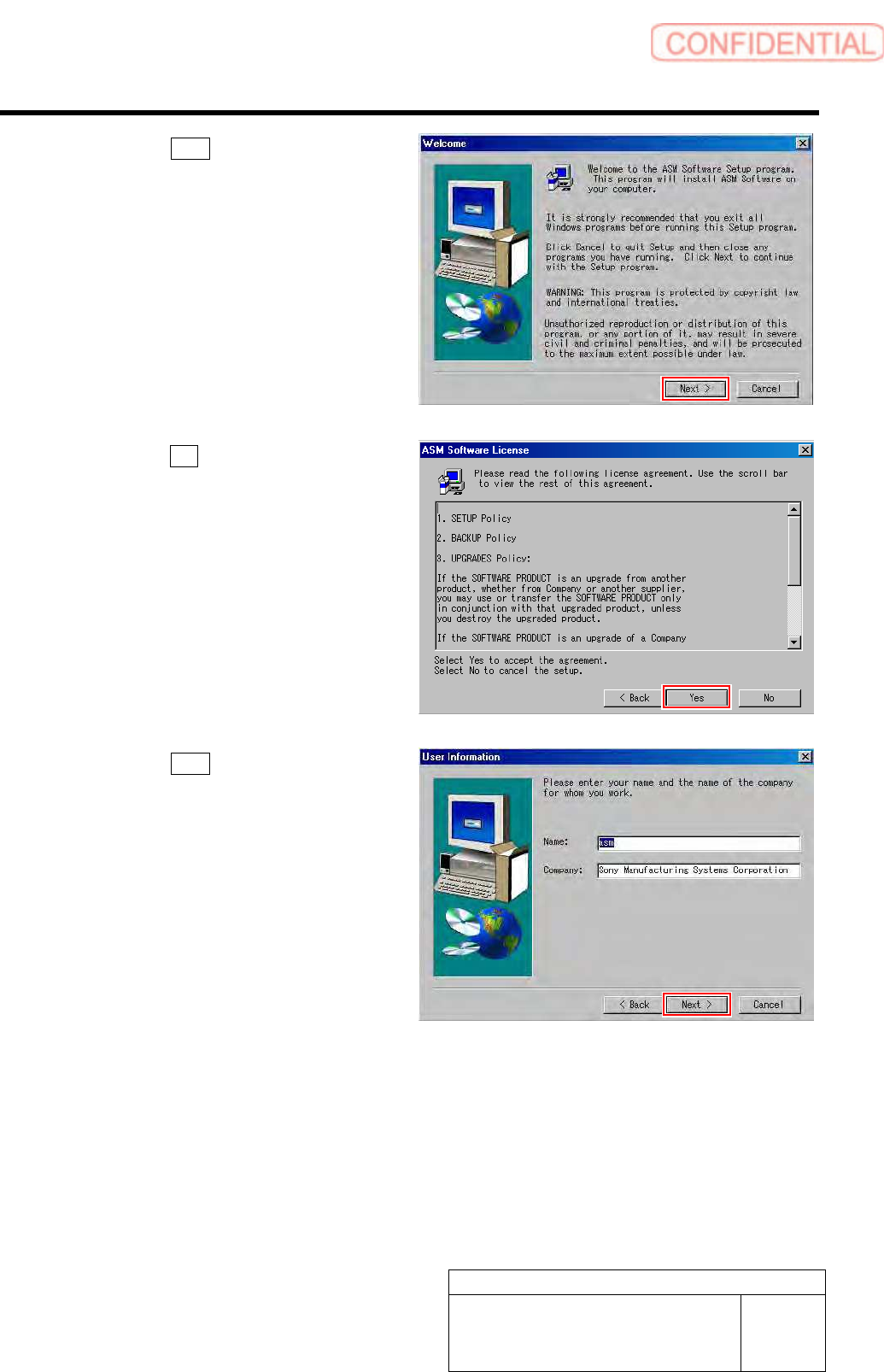
4. Click the Next button on the Welcome
screen.
5. Click the Yes button on the ASM
Software License screen.
6. Click the Next button on the User In-
formation screen.
Work Procedure
WKGB-10101-01
Installing System Software
SHEET
5/8
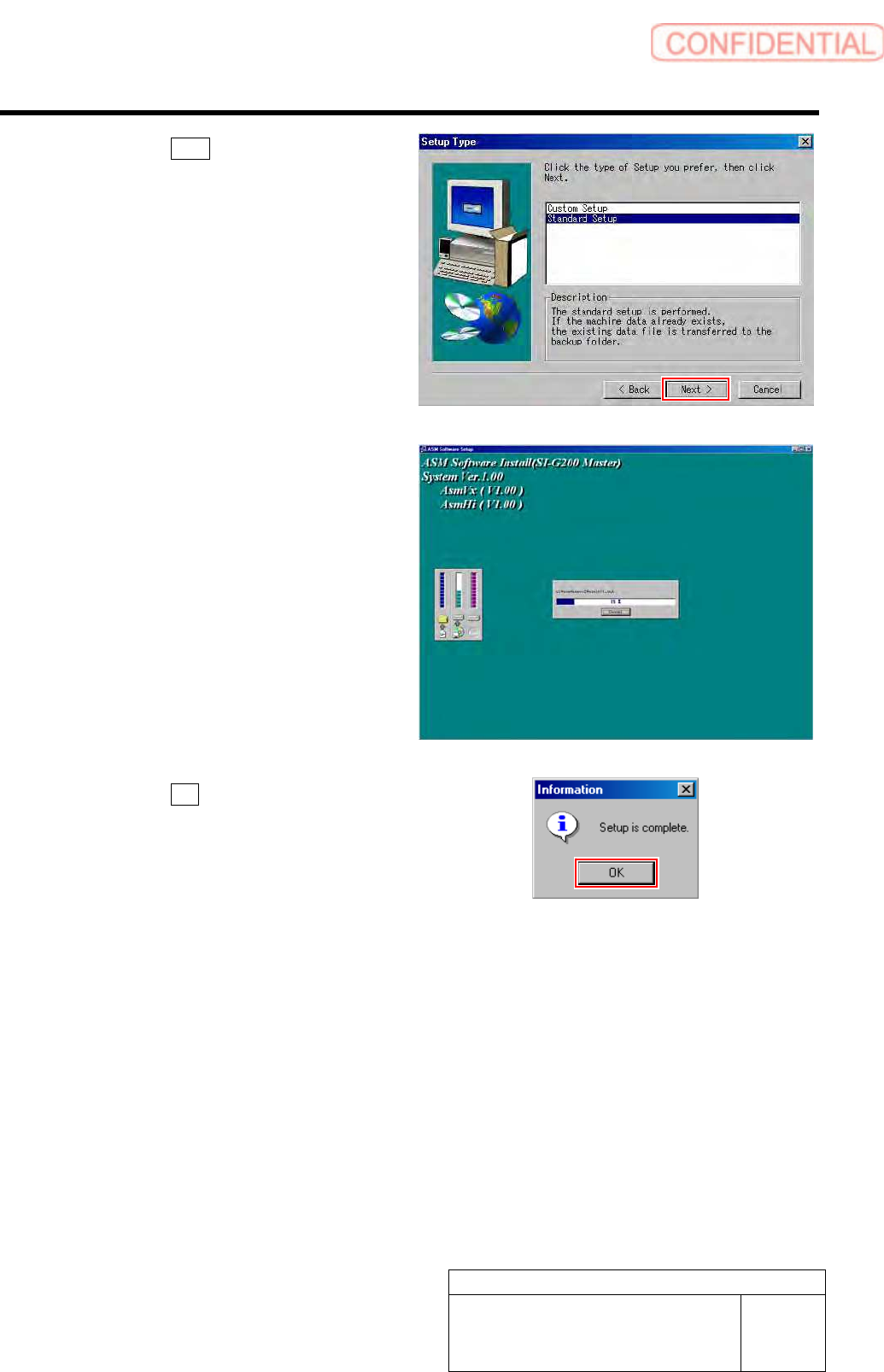
7. Click the Next button on the Setup
Type screen.
Installation of the system software is started.
When installation is ended, Information dialog
box appears.
8. Click the OK button on the Informa-
tion dialog box.