MAN00000772_SI-G200BB_SVCPDFA.pdf - 第370页
Adjustment HLGB-10425-01 Adjustment and checking of H-axis soft ware limit SHEET 5/6 3. Open Notepad by the ac_p aram.ini file. 4. Input “1.500” into a space of “SOFT_LIMIT_PLUS” of [AC_H]. 5. Input “- 26.40” into a spac…
Adjustment
HLGB-10425-01
Adjustment and checking of H-axis
software limit
SHEET
4/6
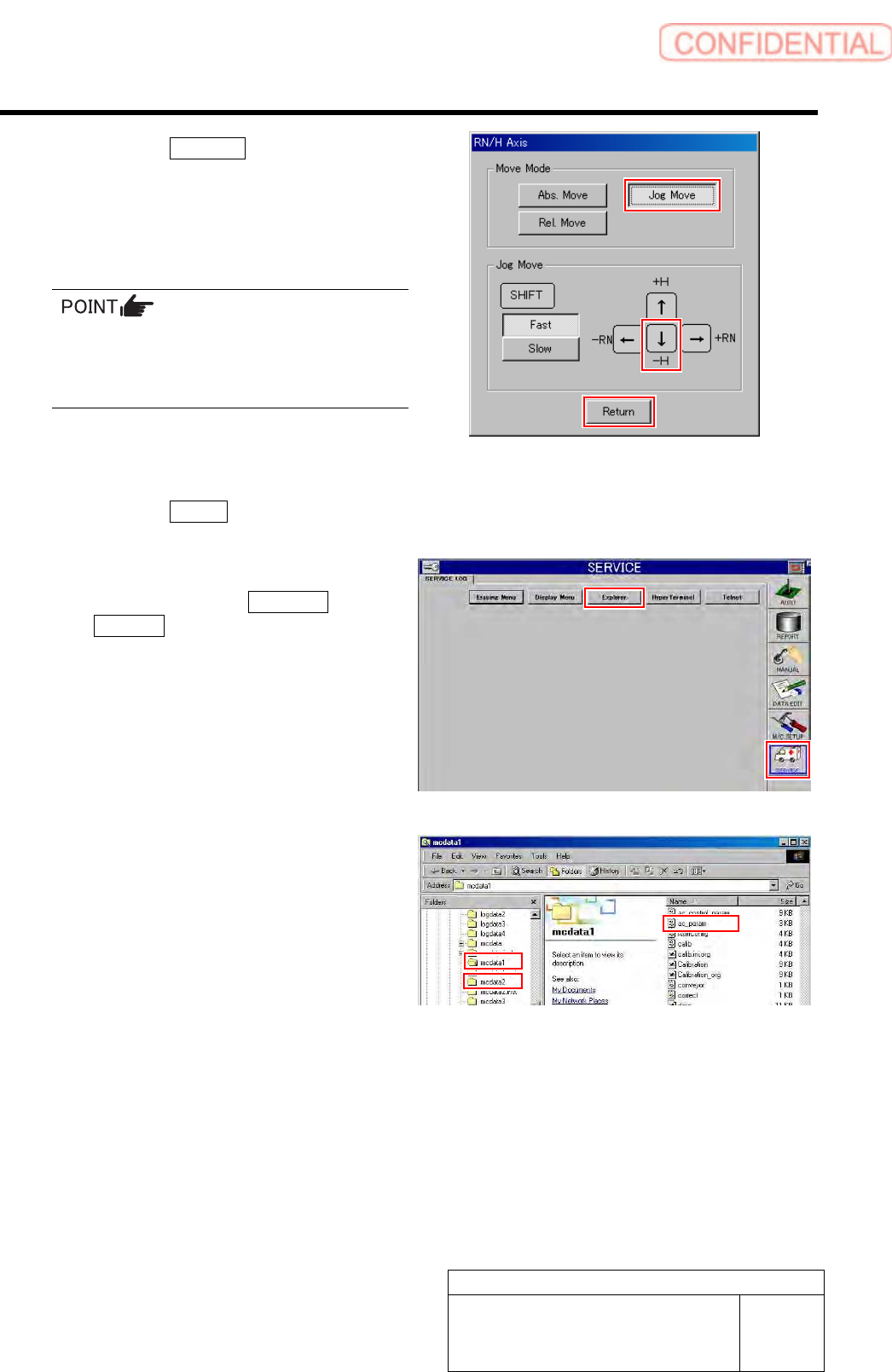
4. Click the Jog Move button in the move
mode.
5. Press the downward cursor to
jog-move the H-axis to a position of
-26.7mm, and check that alarm of
over-travel is displayed.
Unless the alarm of over-travel is displayed
when the H-axis is at the position of -26.7mm,
re-perform “Adjustment of OT sensor at bottom
end of H-axis [HLGB-10405-01]”.
6. Press the [ORG] button on the
operation panel.
Origin position return of the H axis is performed.
7. Click the Return button to close the
RN/H Axis screen.
7 Set the H axis software limit.
1. Click in an order of SERVICE menu
Explorer button.
Explorer screen is displayed.
2. Again open the Properties window of
the ac_param.ini file for the front side
and rear side, and check the
“Read-only”.
Adjustment
HLGB-10425-01
Adjustment and checking of H-axis
software limit
SHEET
5/6
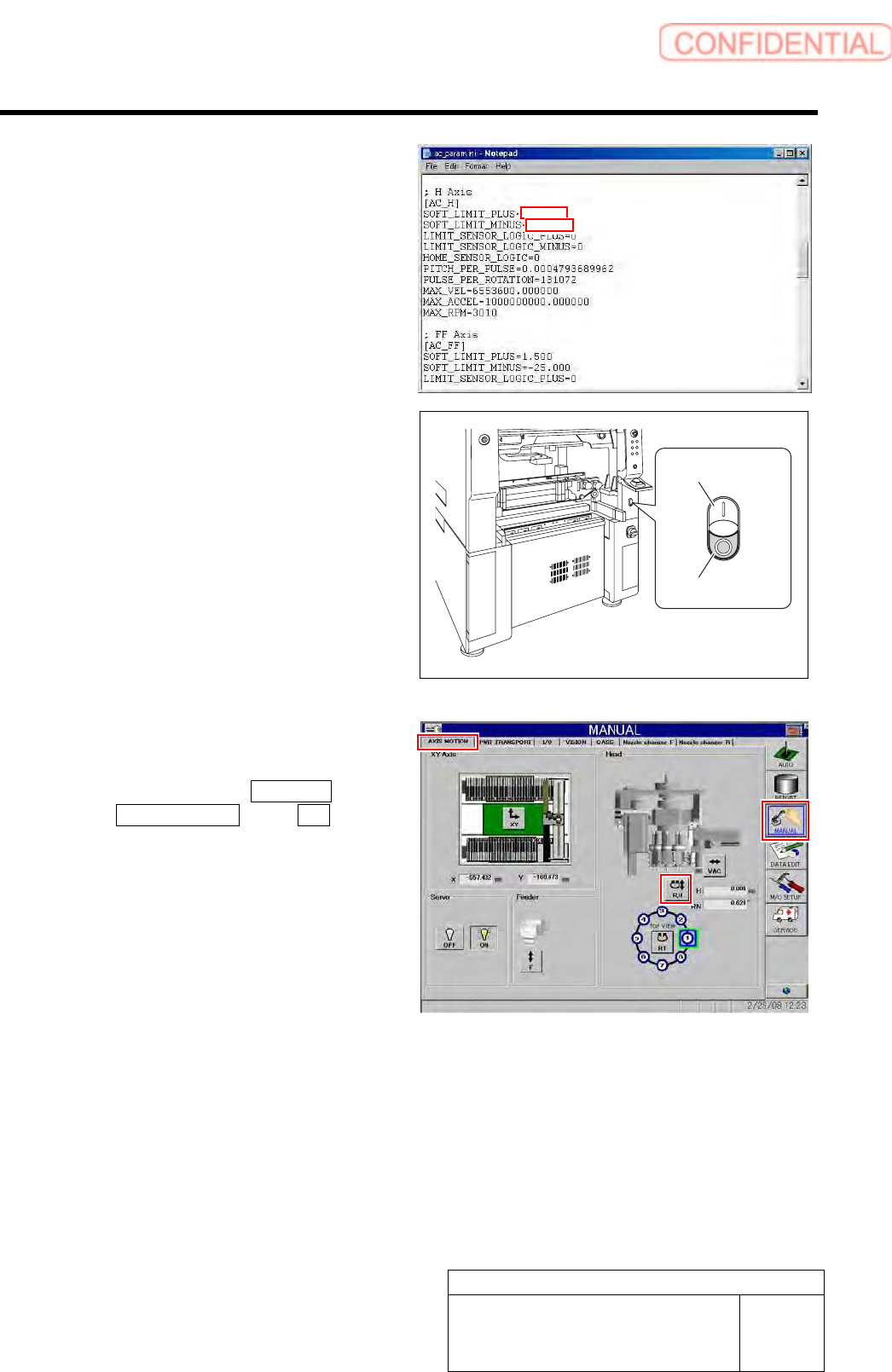
3. Open Notepad by the ac_param.ini
file.
4. Input “1.500” into a space of
“SOFT_LIMIT_PLUS” of [AC_H].
5. Input “- 26.40” into a space of
“SOFT_LIMIT_MINUS” of [AC_H].
6. Save the ac_param.ini file and end.
7. Open the Properties window of the
ac_param.ini file, and check the
“Read-only”.
8 Re-start the unit.
1. Close the explorer window.
2. Press the power off switch.
Shutting down of the system starts and the power
is automatically shut off.
3. Press the power on switch.
The system starts, and the set H axis software
limit value is reflected on the equipment.
9 Check operation of the set H axis software
limit (positive side).
1. Click in an order of MANUAL menu
AXIS MOTION tab R.H button.
RN/H Axis screen is displayed.
3.800
Power off switch
1.50
-26.40
Adjustment
HLGB-10425-01
Adjustment and checking of H-axis
software limit
SHEET
6/6
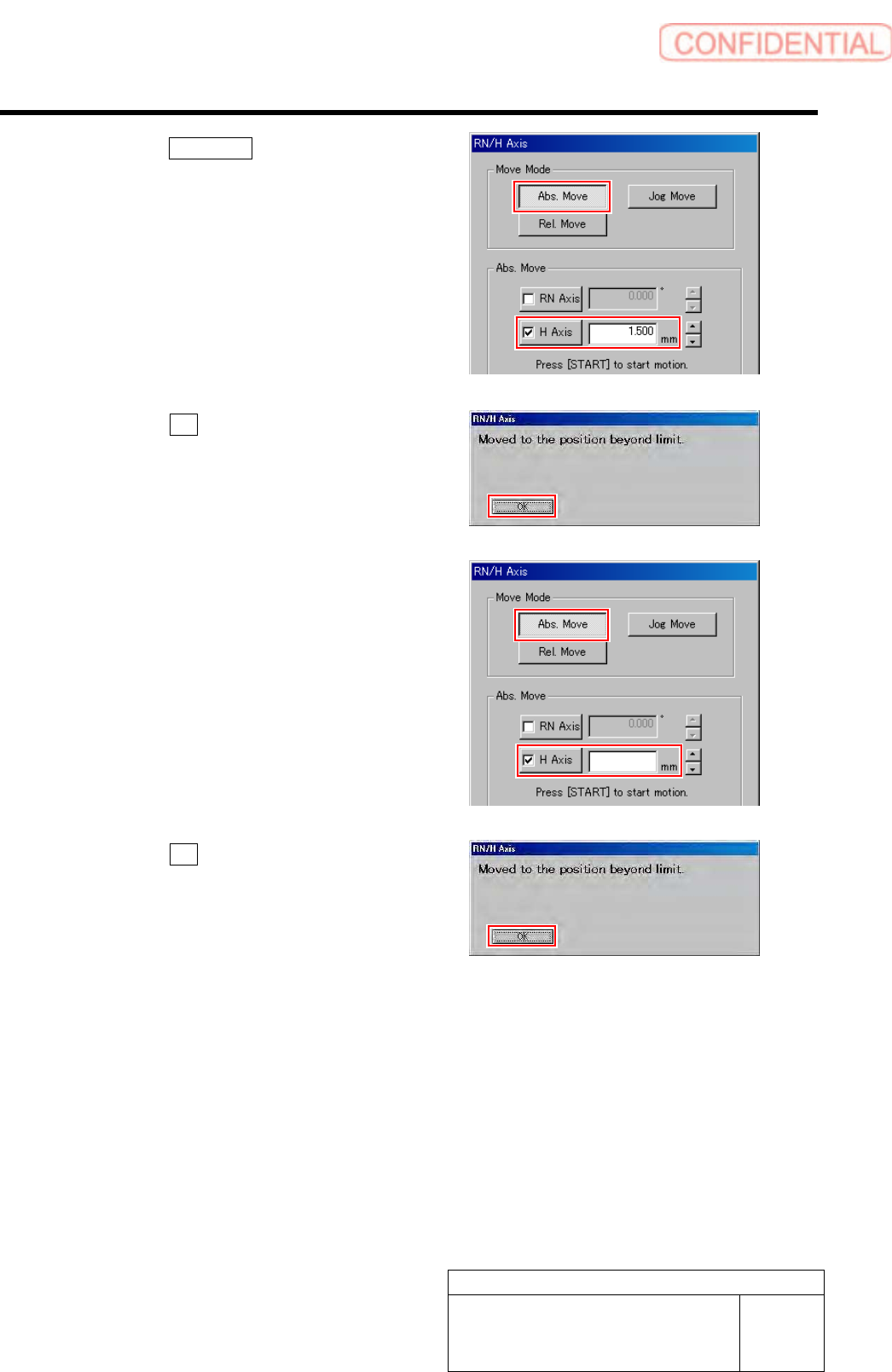
2. Click the Abs. Move button.
3. Click the H-axis button and input “1.5”
into the input space.
4. Press the [START] button on the
operation panel.
The Message of “Moved to the position beyond
limit” displayed.
5. Click the OK button.
10 Check operation of the set H axis software
limit (negative side).
1. Input “-26.4” into the input space of
the H-axis in the Abs. Move.
2. Press the [START] button on the
operation panel.
The Message of “Moved to the position beyond
limit” displayed.
3. Click the OK button.
11 Return to the HI screen and press the [ORG] button on the operation panel.
Origin position return is performed.
-26.40