4H4CEOM2.pdf - 第13页
Page 7-7 DA T A MODIFICA TION 7 4H4C-E-OMA07-A01-04 7-4 Feeder Layout / Stock Data The feeder layout and the stock data are indicated together , and the feeder state arranged on the feeder table is checked. The chip data…
Page 7-6
Board Recognition Data
4H4C-E-OMA07-A01-02
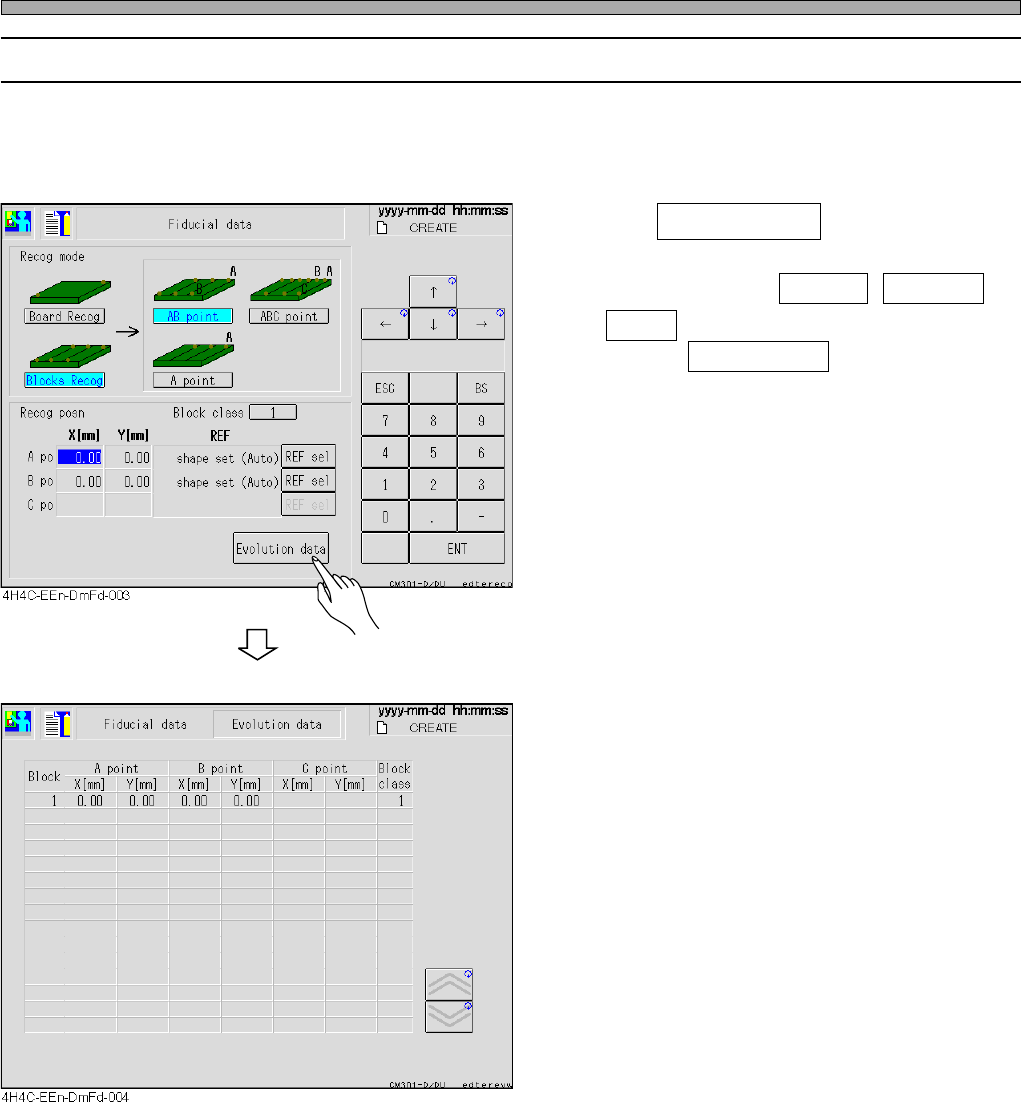
7-3-2 Evolution Data
For the block recognition, the recognition position coordinates of the board recognition data and all
recognition coordinates extended from each block origin coordinate of the block attribute data can
be checked.
1. Press Evolution data .
∗ Only when either of AB point , ABC point ,
A point for block of the recognition mode are
selected, Evolution Data can be displayed.
Page 7-7
DATA MODIFICATION
7
4H4C-E-OMA07-A01-04
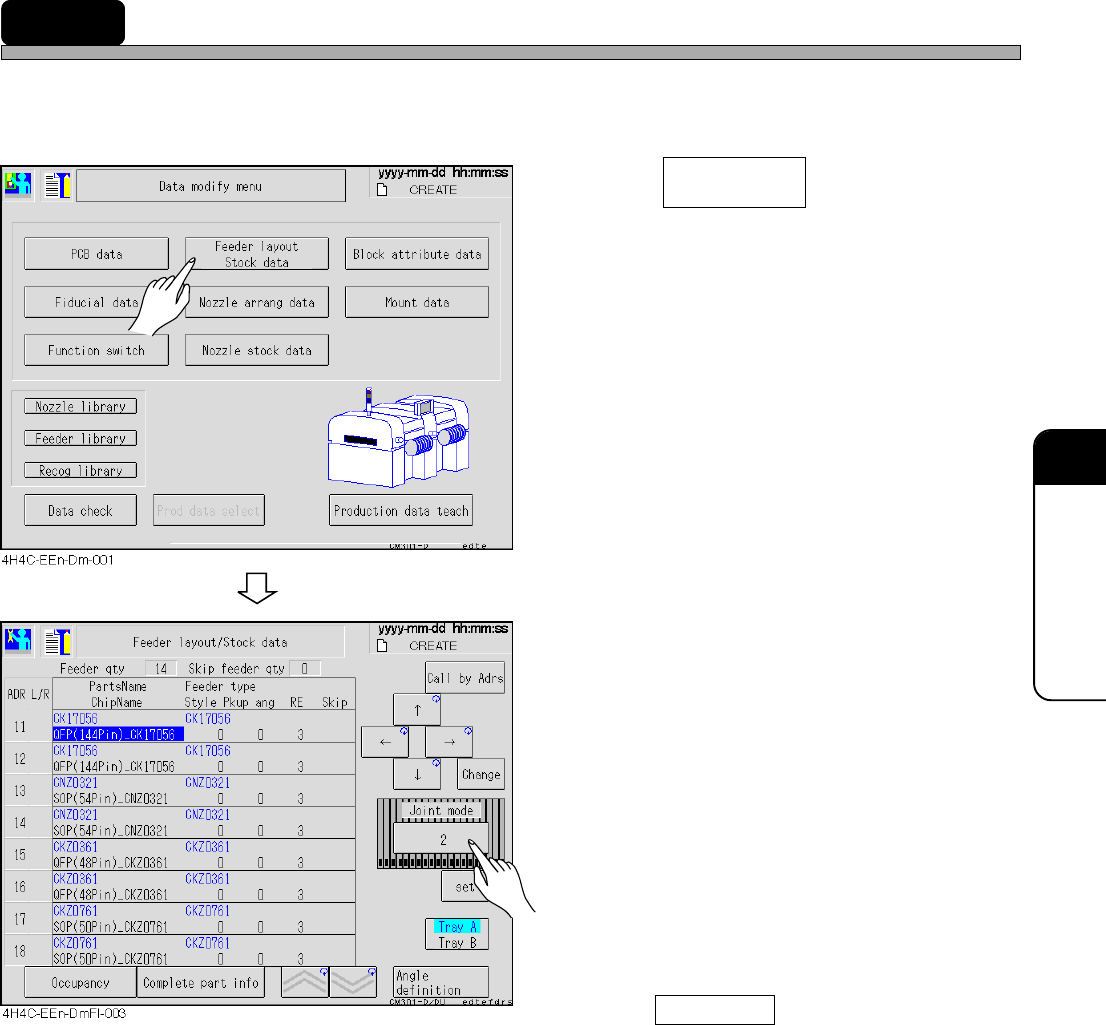
7-4 Feeder Layout / Stock Data
The feeder layout and the stock data are indicated together, and the feeder state arranged on the
feeder table is checked. The chip data to be used is also checked and corrected.
1. Press .
• The feeder layout and stock data screen
appears.
2. Select the feeder table to be checked.
3. Correct data, if necessary.
• Only style, pickup angle and skip setting can
be corrected.
• Press Call by Adrs and enter the address
number to move the cursor to the set feeder
address.
• Style.................................0 → 90→ 180 → -90 → 0 degrees are changed in turn by
every pressing.
• Pickup angle ....................It changes per 45 degrees by every pressing.
• Skip..................................No display and USKP are changed in turn by every pressing.
∗ When the feeder layout screen is displayed from the automatic
operation stop screen, the skip cannot be changed.
Feeder layout
Stock data
Page 7-8
Feeder Layout / Stock Data
7-4-1 Occupancy
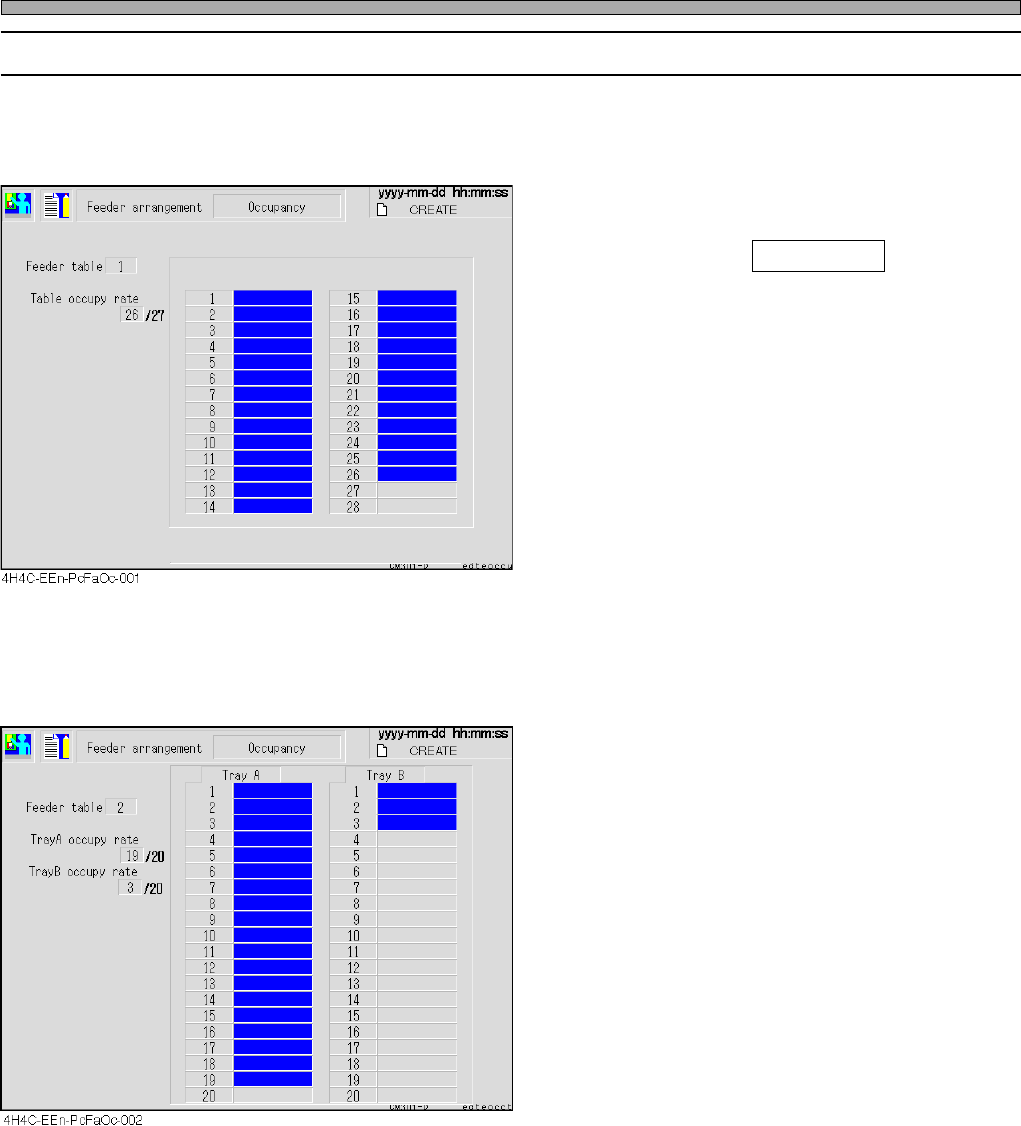
You can check the occupancy on the feeder table.
For feeder table 1 (on the tape feeder side)
1. After selecting the desired table on
the feeder layout and stock data
screen, press Occupancy .
• The rate of the occupied feeder table is dis-
played.
• The occupied feeder table including the one
which occupies some pitch in a feeder is
displayed in blue. If data are set not to set the
feeders, the indication becomes red.
For the feeder table 2 (on the tray feeder side)
4H4C-E-OMA07-A01-01