AltaPail II Bulk Melters Product Manual.pdf - 第124页
Advanced Software M elter Configuration 7 -38 Part 1121836_03 E 1 1/2014 Nordson Corporation Administration Done Home System Reset Display/Save D iagnostics Recipes Lockout Comm unication Reset P assword D isplay System …
Advanced Software Melter Configuration
7-37
Part 1121836_03
E 11/2014 Nordson Corporation
Managing Recipes
Use recipes to save production settings, such as zones and pump settings,
as well as other melter settings including scheduled events, and security
settings, to a file that you can use, modify, delete and share or copy with
other AltaPail II melters.
NOTE:
S
Recipes are stored in the \Recipes folder located on the Internal SD
Card. Refer to Figure 7-1 to locate the Internal SD card.
S
Refer to table 7-1 for more information about what is saved to a
recipe.
S
The melter retains the settings of the previously loaded recipe, even if
you delete or decide not to make use of a recipe.
Accessing the Recipes Screen
You can access the Recipes screen by doing one of the following:
S
From the Operator Display, touch Recipes.
-
Refer to Figure 7-3.
S
From the Master Controls | System | Administration, then touch
Recipes.
-
Refer to Figure 7-4.
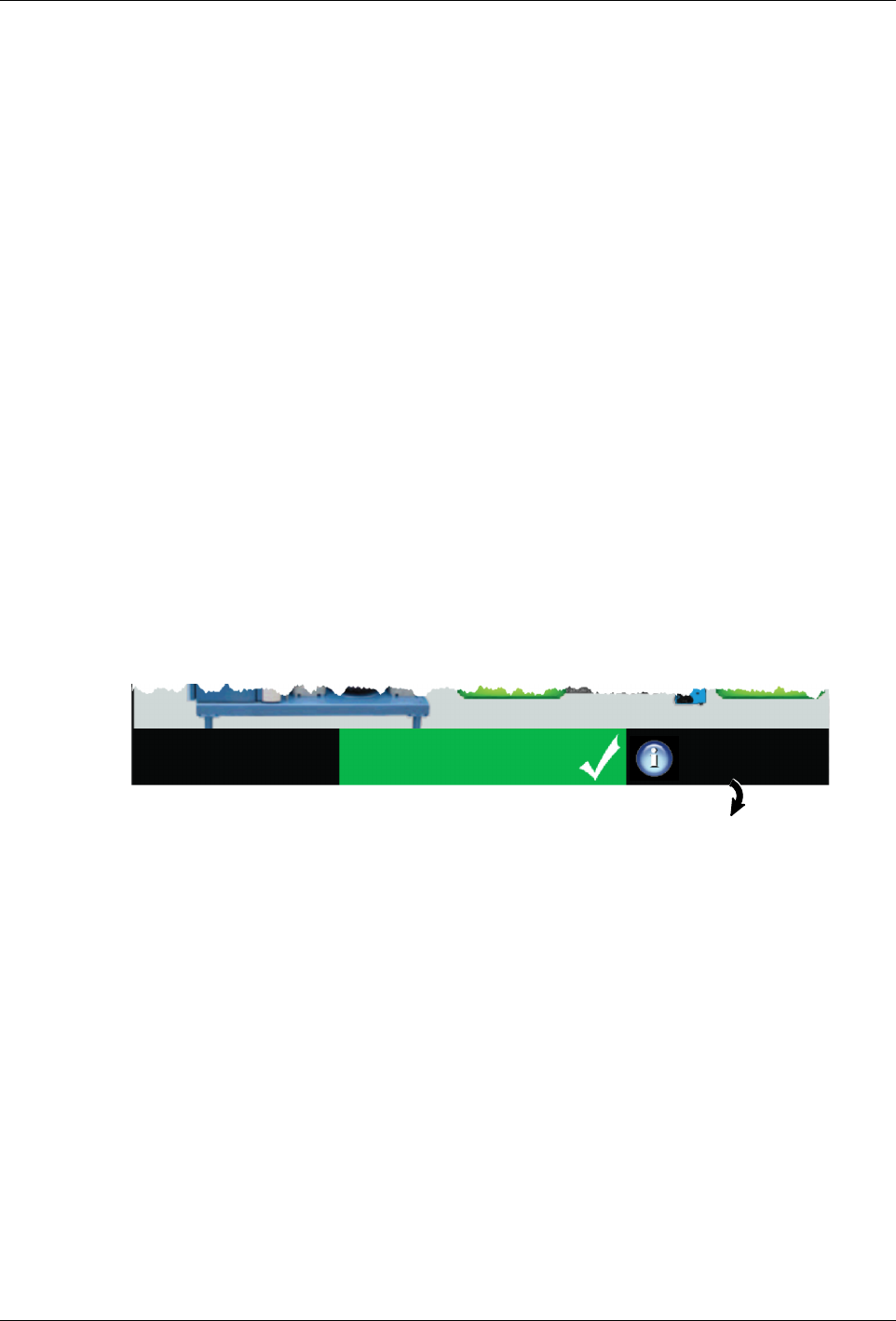
Recipes:
Nothing Loaded
Touch here to create, load or modify and save recipes.
Figure 7-3 Accessing Recipes from the Operator Display
Advanced Software Melter Configuration
7-38
Part 1121836_03
E 11/2014 Nordson Corporation
Administration
Done
Home
System Reset
Display/Save Diagnostics
Recipes
Lockout Communication
Reset Password Display System Data
Off
Next
Cancel
Recipes
Load or Delete
a Recipe
Home
Do not use a Recipe
Save Recipe
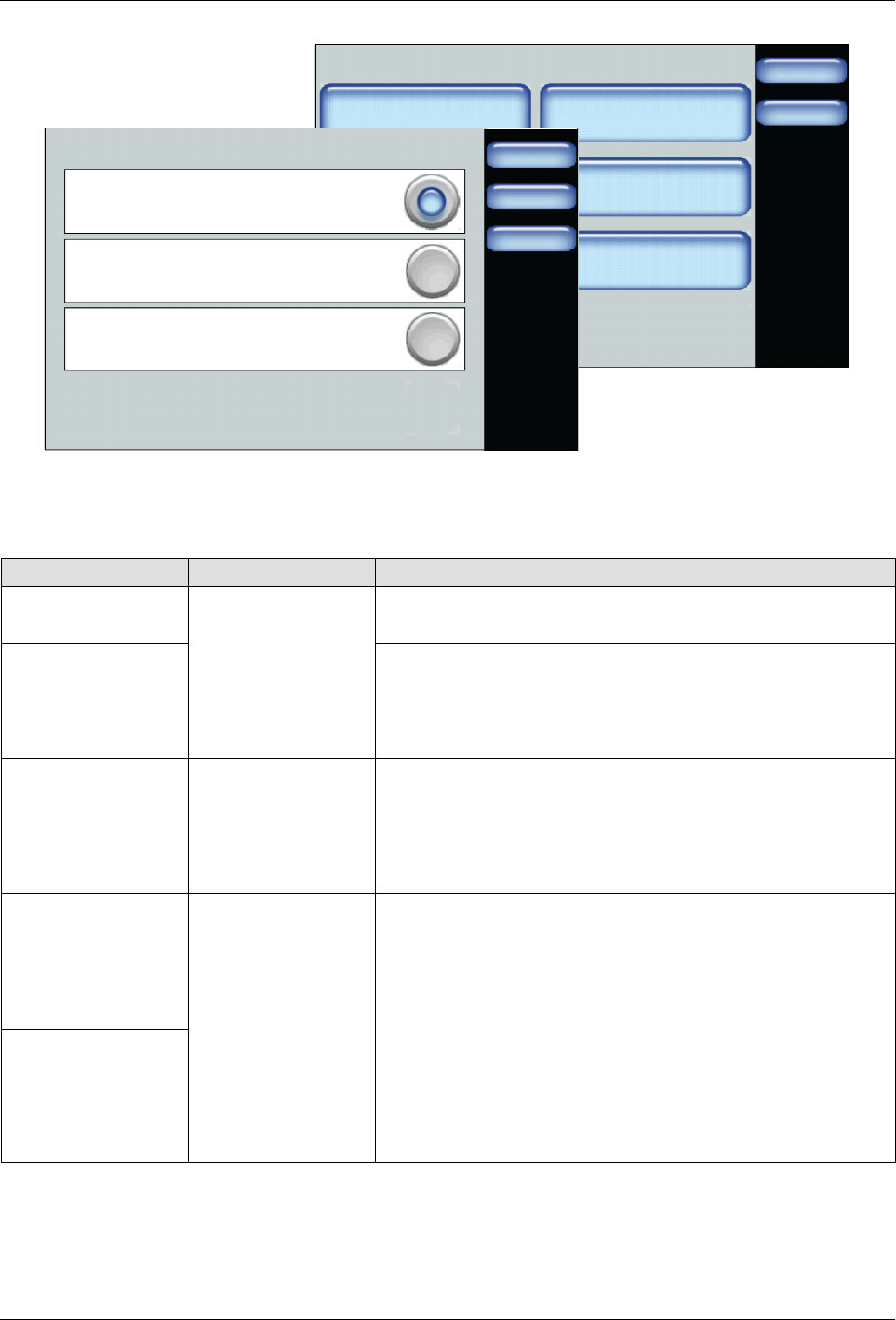
Figure 7-4 Accessing Recipes from the Master Controls | Administration screen
1. Access the Recipes screen.
2. Decide what you want to do and touch Next to continue.
Task Touch Description
Load a recipe
Load or Delete a
Recipe
Select an existing recipe you want use.
Touch Load to continue.
Delete a recipe Select an existing recipe you no longer want to use.
Touch Delete to continue.
NOTE: The melter retains the settings of the previously
loaded recipe.
Unload and/or not
make use of any
recipe
Do not use a
Recipe
Unloads the currently loaded recipe.
Select this option when troubleshooting or performing
maintenance on the melter.
NOTE: The melter retains the settings of the previously
loaded recipe.
Create a new
recipe
Save Recipe
Do
the
following:
1. Configure and test melter settings until it meets your
manufacturing requirements.
2. Access the Recipes screen, touch Save Recipe and
enter an easily identifiable recipe name.
NOTES:
S
To update the settings of the recipe, enter the exact
same recipe name.
S
The system unloads the currently loaded recipe, then
saves
the
new
settings
and
automatically
loads
it.
Modify an existing
recipe

Advanced Software Melter Configuration
7-39
Part 1121836_03
E 11/2014 Nordson Corporation
Distributing Recipes with other AltaPail II Melters
Before distributing or sharing recipes with other AltaPail II melters, make sure
of the following:
S
You have a computer with an SD Card device with Read/Write
capabilities.
S
The other AltaPail II melters are running the same firmware version.
1. Switch the melter off, and disconnect the electrical power to the melter at
the local power source. Open the door to access the CPU board.
2. Remove the Internal SD card and place it into your SD Read/Write device
that is connected to your computer. Refer to Figure 7-1 to locate the
Internal SD card.
3. Select and copy the recipe file or files into your computers memory.
S
Navigate to the \Recipes directory and copy the recipe file or files you
want.
S
Remove the SD card.
4. Paste the recipe file or files to another Internal SD card.
S
Insert the Internal SD card from another AltaPail II melter.
S
Navigate to the \Recipes directory and paste the recipe file or files. If
the Recipes folder does exist, you must first create it before pasting
files into it. Make sure to spell the name with a capital R, the rest of
the letters in lower-case.
S
Repeat this step for each AltaPail II melter.
5. When done, replace the Internal SD card back to the melter, close the
access door, reconnect the power and switch the melter On.
6. Access the Recipe screen to Load the recipe you want.