AltaPail II Bulk Melters Product Manual.pdf - 第130页
Advanced Software M elter Configuration 7 -44 Part 1121836_03 E 1 1/2014 Nordson Corporation Using the diagn ostic.nor File If you are unable to resolve the m elter issue yourself, i t is recommen ded that you contact, t…

Advanced Software Melter Configuration
7-43
Part 1121836_03
E 11/2014 Nordson Corporation
6. Refer to Figure 7-1 to locate and remove the Customer SD card from the
LCD module, then place it into the SD Card device connected to your
computer. By default, the following files are created:
File Name Description
EventLog.csv Provides shop technicians a quick and easy way to
troubleshoot melter issues by viewing recent
Parameter/Set Point changes, as well as Faults and
Alerts events.
NOTE: You can view the file in most any
spreadsheet program.
Diagnostic.nor Provides your Nordson service representative the
ability to view the EventLog data, along with
additional embedded melter software and hardware
data to help resolve melter issues.
NOTE: You will not be able to view this file. Contact
and email this file to your Nordson service
representative.
Using the EventLog.csv File
All events, regardless of which filter you selected, is saved the EventLog.csv
file located on the Customer SD Card.
1. Refer to Figure 7-1 to locate and remove the Customer SD card, and
place it into your SD Card device connected to your computer.
2. Access the SD Card and locate the EventLog.csv file. You can use most
any spreadsheet program to view this file.
3. When done, replace the Customer SD card back to the melter. Close the
access door, connect the electrical power to the melter at the local power
source, then switch the melter On.
NOTE: The maximum file size is limited to 500 kB or approximately 5,600
events.
Additional Event EventLog.csv Information
When the EventLog.csv initially exceeds its 500 kB file size limit, the
following happens:
S
The EventLog02.csv file is automatically created, and now it saves
the new event log data.
S
The EventLog.csv file stores the old event log data.
When the EventLog02.csv file exceeds its 500 kB file size limit, the following
happens:
S
The EventLog.csv file is automatically cleared of it old event log data,
and now it saves the new event log data.
S
The EventLog02.csv file stores the old event log data.
S
The pattern repeats itself, where the two csv files swap between
saving new event log data and storing old event log data.

Advanced Software Melter Configuration
7-44
Part 1121836_03
E 11/2014 Nordson Corporation
Using the diagnostic.nor File
If you are unable to resolve the melter issue yourself, it is recommended that
you contact, then send the diagnostic.nor file to your Nordson service
representative. Before doing so, make sure of the following:
S
You have a computer with an SD Card device with Read/Write
capabilities.
S
The computer has Internet access.
1. Refer to Figure 7-1 to locate and remove the Customer SD card, and
place it into your SD Card device that is connected to your computer.
2. Create an email, locate and attache the diagnostic.nor file located on the
SD Card and send it to your Nordson service representative.
3. When done, replace the Customer SD card back to the melter. Close the
access door, connect the electrical power to the melter at the local power
source, then switch the melter On.
NOTES:
S
You will not be able to open or view the diagnostic.nor file, as it is in a
Nordson propriety file format.
S
You only need to send the diagnostic.nor, file, as it includes the
EventLog data in addition to the other embedded melter software and
hardware data.
Advanced Software Melter Configuration
7-45
Part 1121836_03
E 11/2014 Nordson Corporation
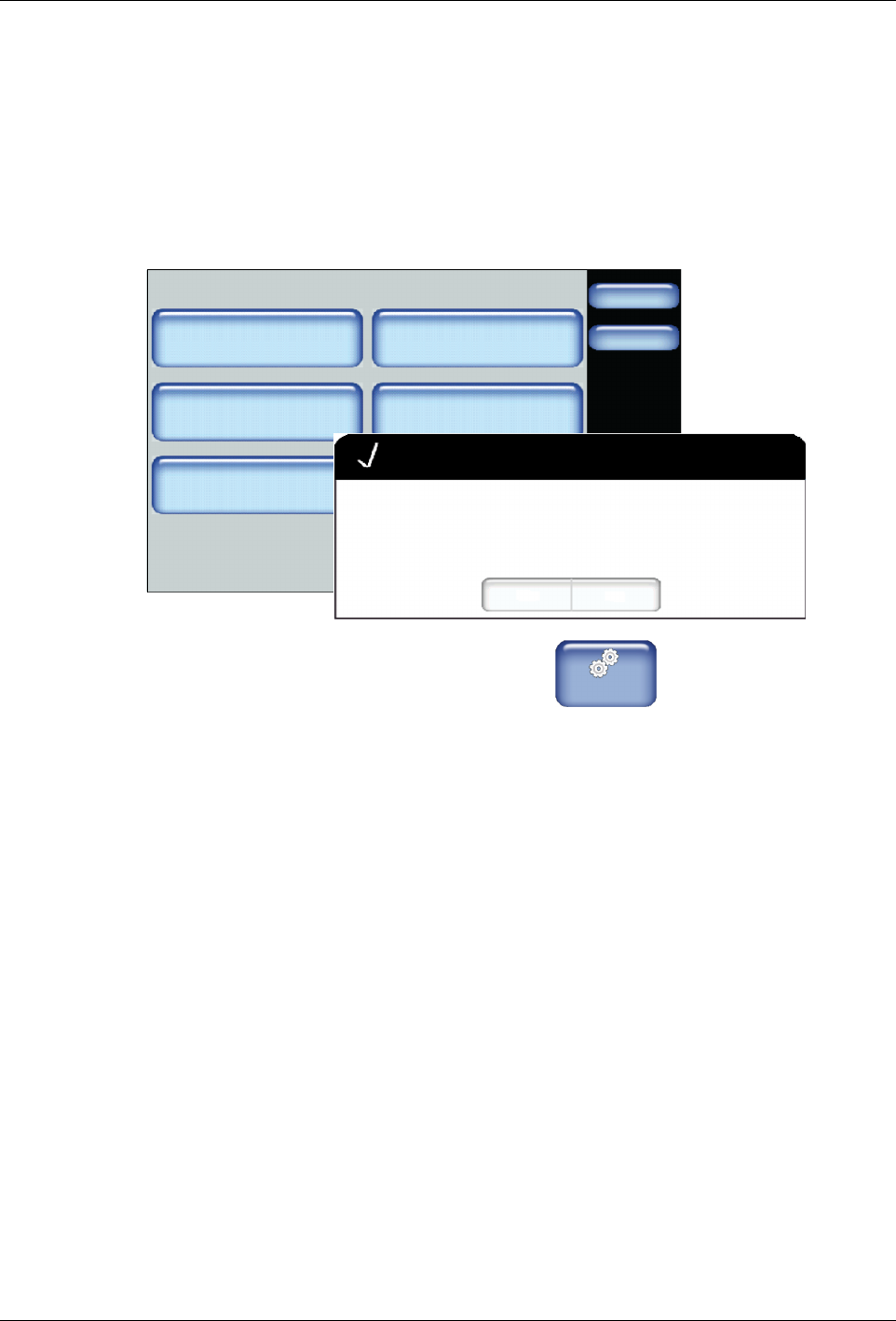
Resetting to System Defaults
Use system reset to revert all user definable software settings back to factory
defaults.
NOTE:
S
Recipes are stored on the Internal SD card, and are therefore NOT
deleted or changed.
Administration
Done
Home
System Reset
Display/Save Diagnostics
Recipes
Lockout Communication
Reset Password Display System Data
Off
Confirm
Yes No
Are you sure you want to revert back to factory settings?
1. From the Home Display touch
Master
Controls
2. Touch System, then Administration.
3. Touch System Reset. A pop-up message appears.
4. Touch Yes to revert all user definable settings back to factory defaults.
5. Touch Done.