AltaPail II Bulk Melters Product Manual.pdf - 第126页
Advanced Software M elter Configuration 7 -40 Part 1121836_03 E 1 1/2014 Nordson Corporation What's Being Saved in a Recipe The following highl ights what a reci pe is saving to a file. Table 7-1 Recipe Details Gene…

Advanced Software Melter Configuration
7-39
Part 1121836_03
E 11/2014 Nordson Corporation
Distributing Recipes with other AltaPail II Melters
Before distributing or sharing recipes with other AltaPail II melters, make sure
of the following:
S
You have a computer with an SD Card device with Read/Write
capabilities.
S
The other AltaPail II melters are running the same firmware version.
1. Switch the melter off, and disconnect the electrical power to the melter at
the local power source. Open the door to access the CPU board.
2. Remove the Internal SD card and place it into your SD Read/Write device
that is connected to your computer. Refer to Figure 7-1 to locate the
Internal SD card.
3. Select and copy the recipe file or files into your computers memory.
S
Navigate to the \Recipes directory and copy the recipe file or files you
want.
S
Remove the SD card.
4. Paste the recipe file or files to another Internal SD card.
S
Insert the Internal SD card from another AltaPail II melter.
S
Navigate to the \Recipes directory and paste the recipe file or files. If
the Recipes folder does exist, you must first create it before pasting
files into it. Make sure to spell the name with a capital R, the rest of
the letters in lower-case.
S
Repeat this step for each AltaPail II melter.
5. When done, replace the Internal SD card back to the melter, close the
access door, reconnect the power and switch the melter On.
6. Access the Recipe screen to Load the recipe you want.
Advanced Software Melter Configuration
7-40
Part 1121836_03
E 11/2014 Nordson Corporation
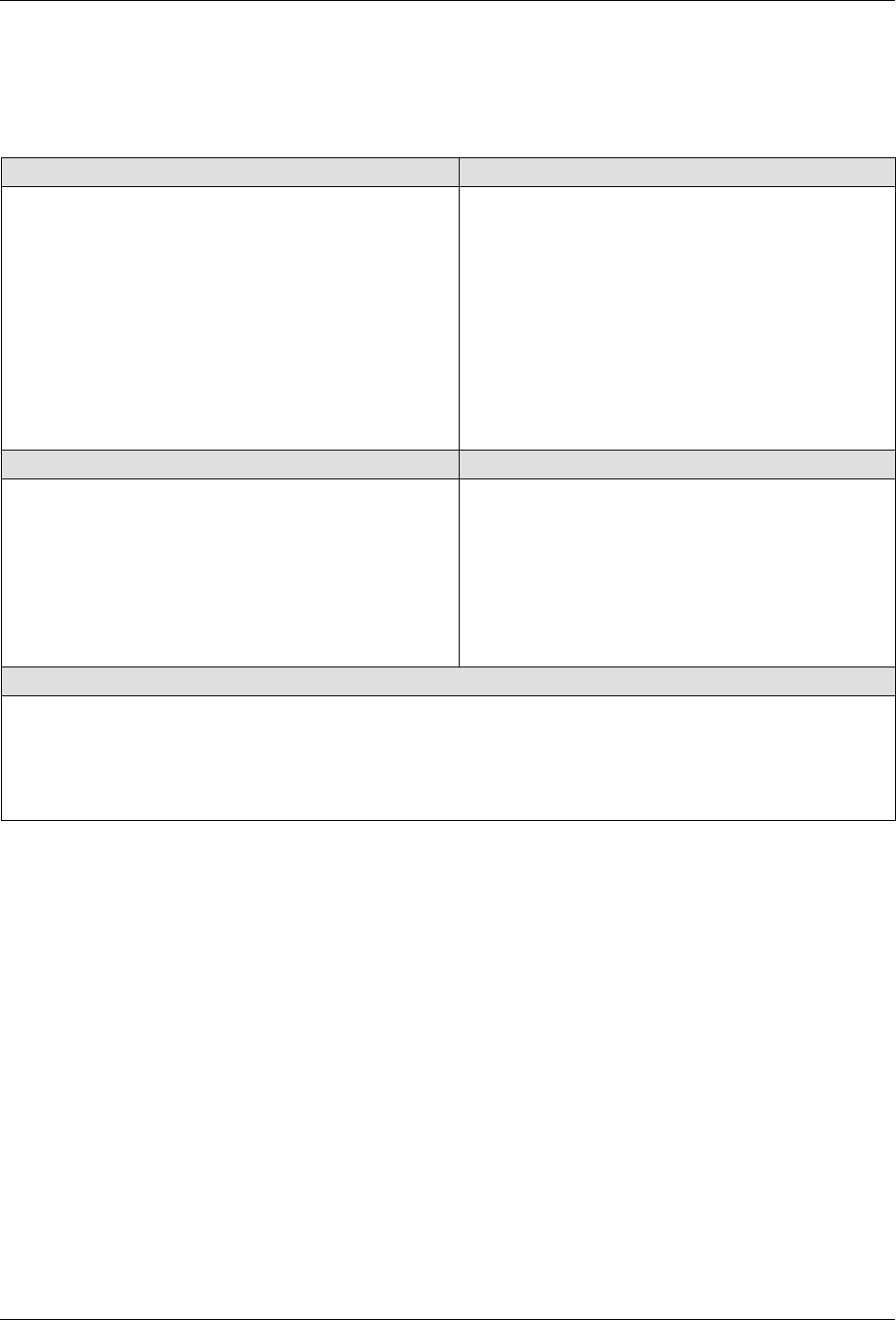
What's Being Saved in a Recipe
The following highlights what a recipe is saving to a file.
Table 7-1
Recipe Details
General Information Administration Information
S
Software Version
S
Language
S
Date, Time, and Temp unit format
S
Under and Over Temperature threshold values
S
Configuration settings for standard and expanded
Inputs and Outputs
S
Service Alerts (enabled or disabled)
S
Service Interval value
S
RTD Type value
S
Scheduler (enabled or disabled) Settings and
events for each day of the week
S
Selected password level
S
Numeric password code for each password
level
S
Password Timeout value
Temperature Information Zone Information
S
Standby Temperature
S
Standby (enabled or disabled)
S
Auto Exit Standby (enabled or disabled)
S
Auto Exit Standby Time value
S
Auto Heaters Off Time value
S
Auto Standby Time value
S
Zone (enabled or disabled)
S
Default and user-defined names
S
Set Point values
S
PID values
Pump Information
S
Pump (enabled or disabled)
S
Auto Pump On (enabled or disabled)
S
Remote Pump (enabled or disabled)
S
Specific pump operation mode settings
Advanced Software Melter Configuration
7-41
Part 1121836_03
E 11/2014 Nordson Corporation
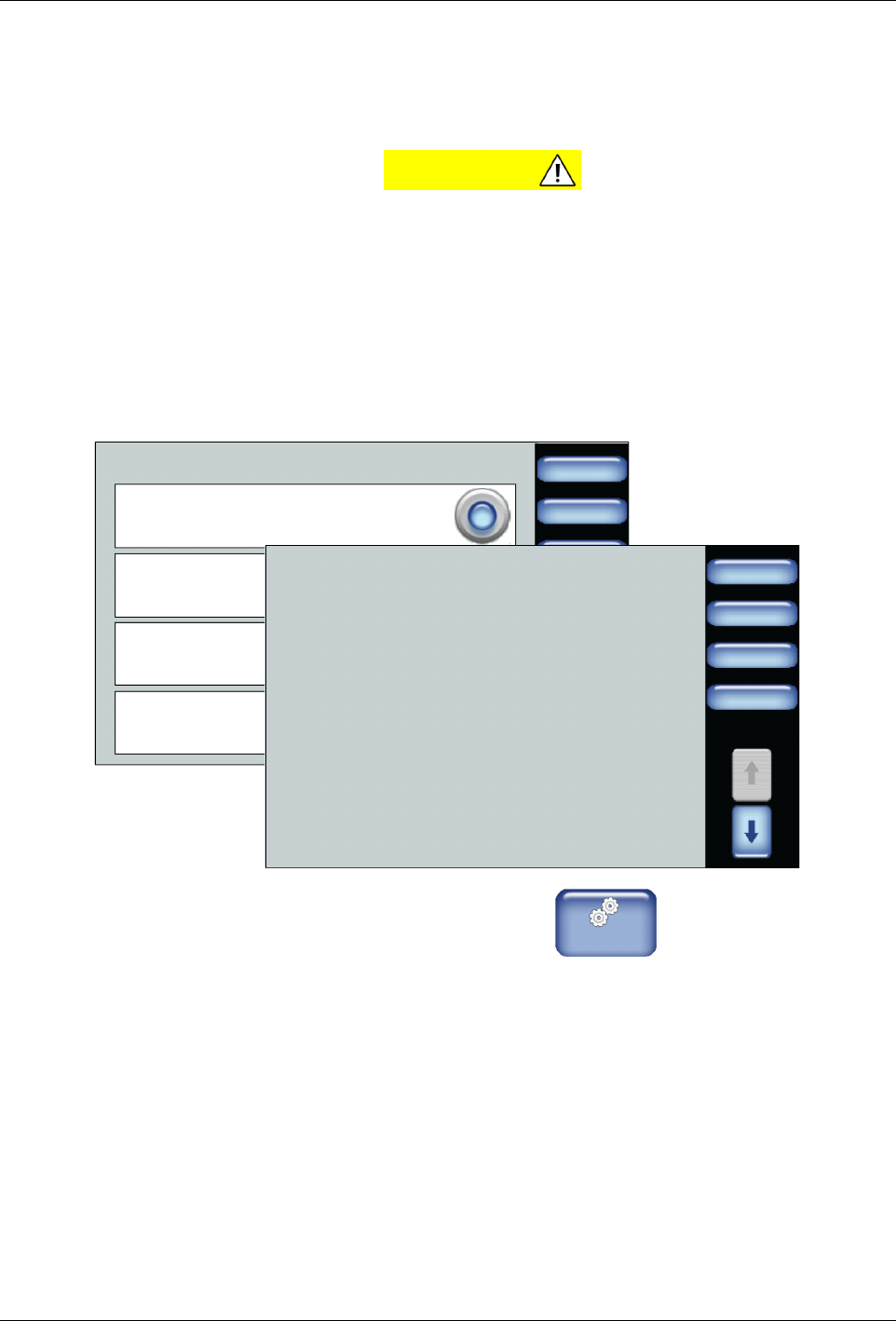
Viewing the Event Log
Use the event log to help troubleshoot issues with the melter.
NOTE: You can also view the vent log by touching the middle melter status
middle button located at the bottom of the Home
screen.
You can do the following:
S
Filter specific events or review all events for viewing purposes only
within the Display/Save Diagnostics screen.
S
View up to 200 of the most recent events.
S
Touch Save File to write ALL events, regardless of which filter you
selected to the Customer SD card. Refer to Figure 7-1.
Next
Cancel
Display/Save Diagnostics
Complete Event Log
Home
Faults Only
Warnings Only
Parameters / Set Point
Changes
Back
Done
Display/Save Diagnostics
Save File
Home
05/04/12
Source: System
Zone/Parameter: 0
11:52:20 Event Ready enter
0
Status:OK
Zone/Sub-code:
05/04/12
Source: System
Zone/Parameter: 0
11:52:50 Event Ready enter
0
Status:OK
Zone/Sub-code:
05/04/12
Source: HMI
Zone/Parameter: 17
11:40:03 Event Zone control off
0
Status:OK
Zone/Sub-code:
05/04/12
Source: System
Zone/Parameter: 0
11:32:20 Event Ready enter
0
Status:OK
Zone/Sub-code:
1. From the Home Display touch
Master
Controls
2. Touch System, then Administration.
3. Touch Display/Save Diagnostics and select which event log option you
want to filter for viewing purposes only.
4. Touch Next to continue. The events are displayed in the Display/Save
Diagnostics screen.