1.011.1_VPC使用手册.pdf - 第111页
110/144 After the program is start ed, the illustrated main dialog, which is divided into three parts, is displayed 1. The global statistics about the entire running time ar e in the upper area. Here, in addition to the …
109/144
8. VPC Utilities
8.1 VpcMerger
Like the "spc_merger" program of the previous SPC files, the program
VpcMerger makes it possible to accumulate individual VPC files to a single
VPM file per machine per day. This process allows the following advantages:
• clearly improved use of disc space, because with single, very small files on
NTFS drives, at least 4 KB per file is always allocated; on FAT drives the
waste of space is to an extent even larger
• distinctly quicker evaluation
• improved clarity in the daily directories.
The program can be started as a normal process, for example from the
Autostart file folder from Windows; also, it can be installed as a service, to
function independently from any user registration.
8.1.1 Setup and first start
The VpcMerger should be called up in the work directory
“C:\VISCOM\PROJECT\VPC\DATA“; this can be done by setting a
corresponding link. The configurations file “VpcMerger.ini“ is stored in this
directory; the site for the data to be processed can still be reconfigured later.

110/144
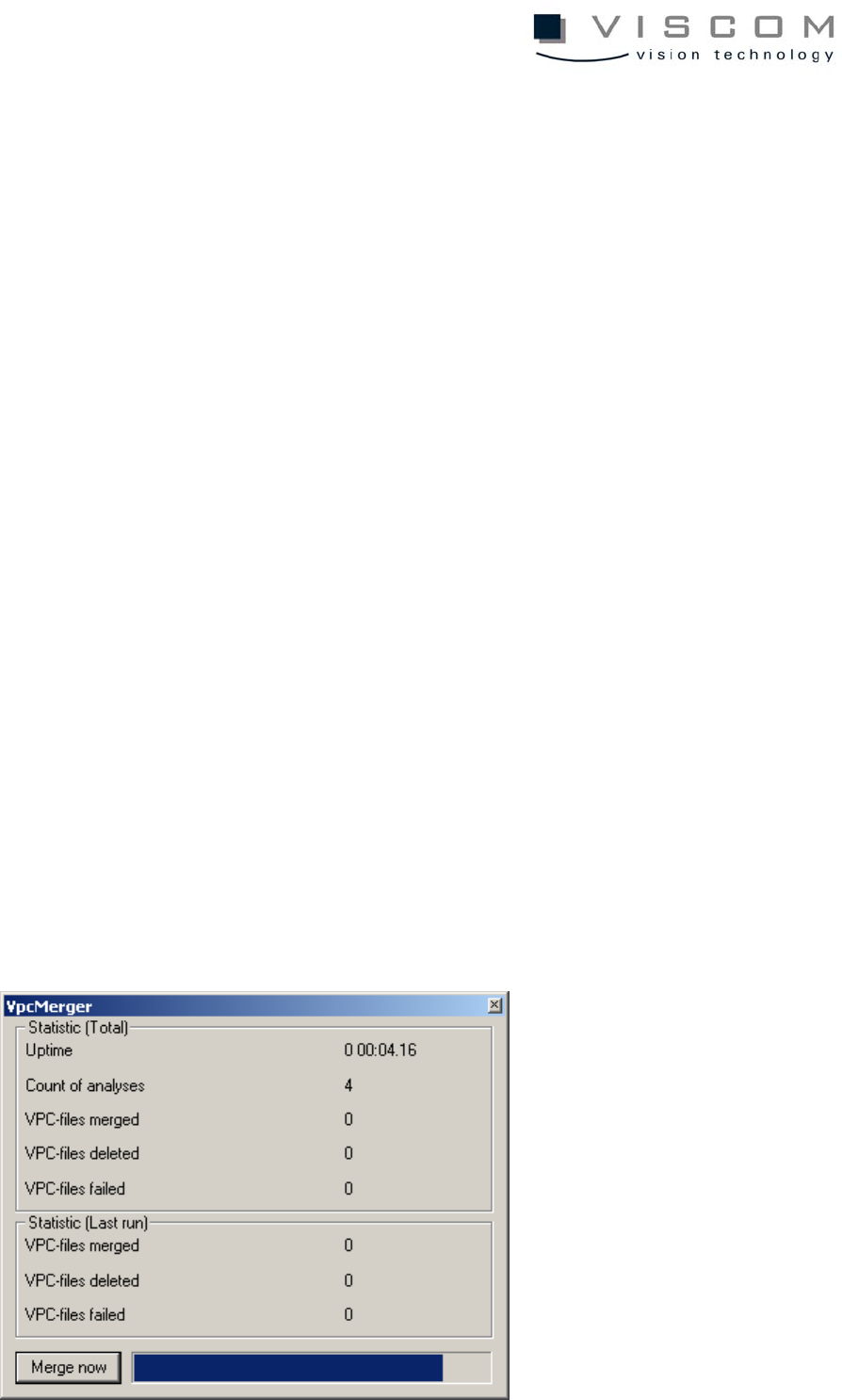
After the program is started, the illustrated main dialog, which is divided into
three parts, is displayed
1. The global statistics about the entire running time are in the upper area. Here,
in addition to the complete run time and the number of analyses done, the
number of merged, deleted and failed VPC files are read out.
2. In the middle area, the number of merged, deleted and aborted VPC files
referring to the current and/or last analysis is displayed.
3. In the lower area, an immediate analysis can be started with the button "Merge
now"; also, the progress column in the right area shows the time remaining
until the next automatic analysis.
111/144
8.2 VpcExplorer
The VpcExplorer allows the consideration of VPC and VPM files.
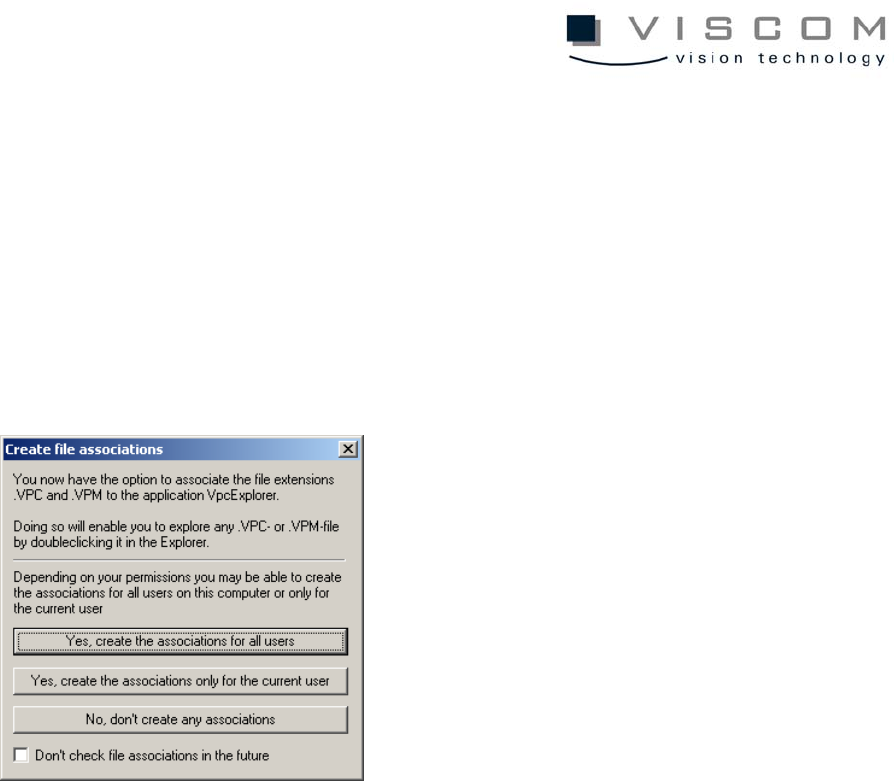
When the program is first started, a dialog to facilitate the setup of links
between the file endings VPC/VPM and the VpcExplorer is displayed, as shown
below.
Then the main view of the VpcExplorer, divided into five areas, is displayed.