1.011.1_VPC使用手册.pdf - 第40页
39/144 Now, with a click on "Data evaluation," under consideration of the filter settings, all data that corresponds to the precondi tions is displayed in the diagram. During evaluation the message "Data i…
38/144
1 evaluation of specific or all defect features
2 evaluation shown when a bar is clicked on with the mouse.
3 additional options for evaluation:
- scale Y-axis automatically,
- evaluate double track data separately,
- statistics in single panels
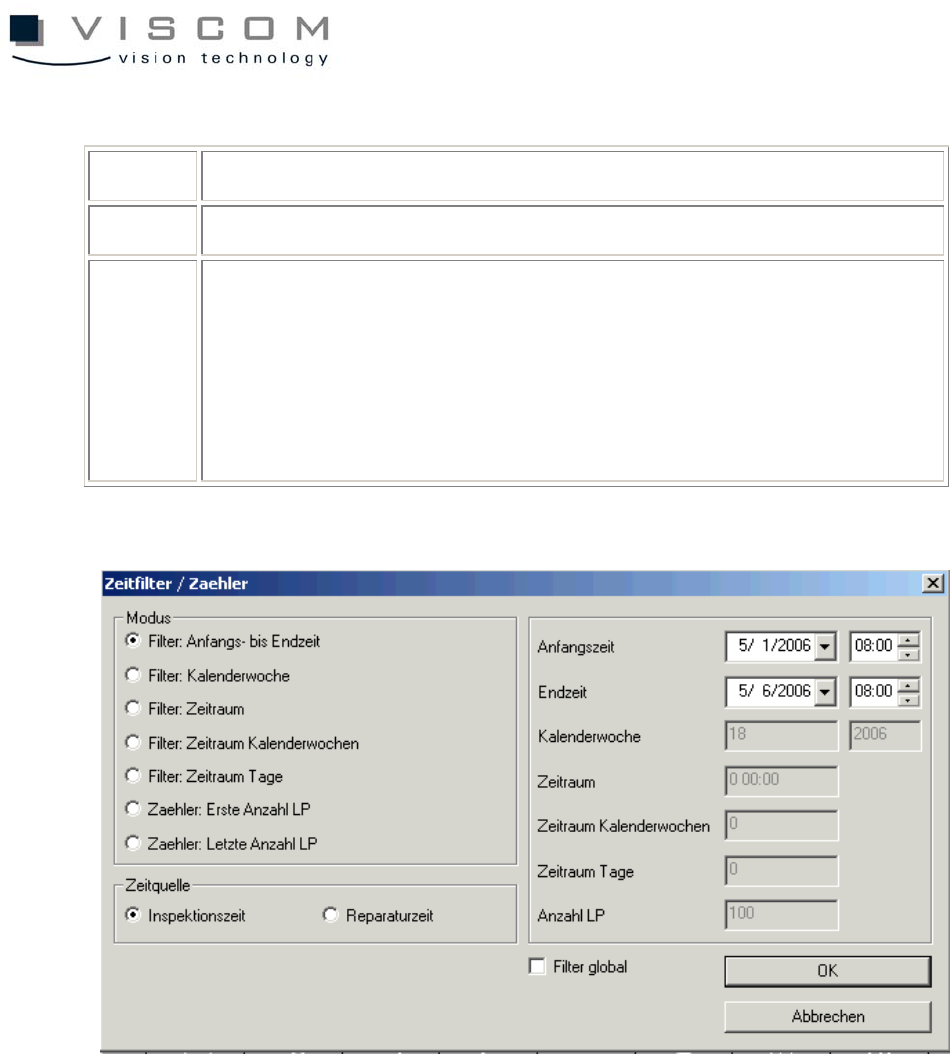
Setting the time filter for the correct evaluation
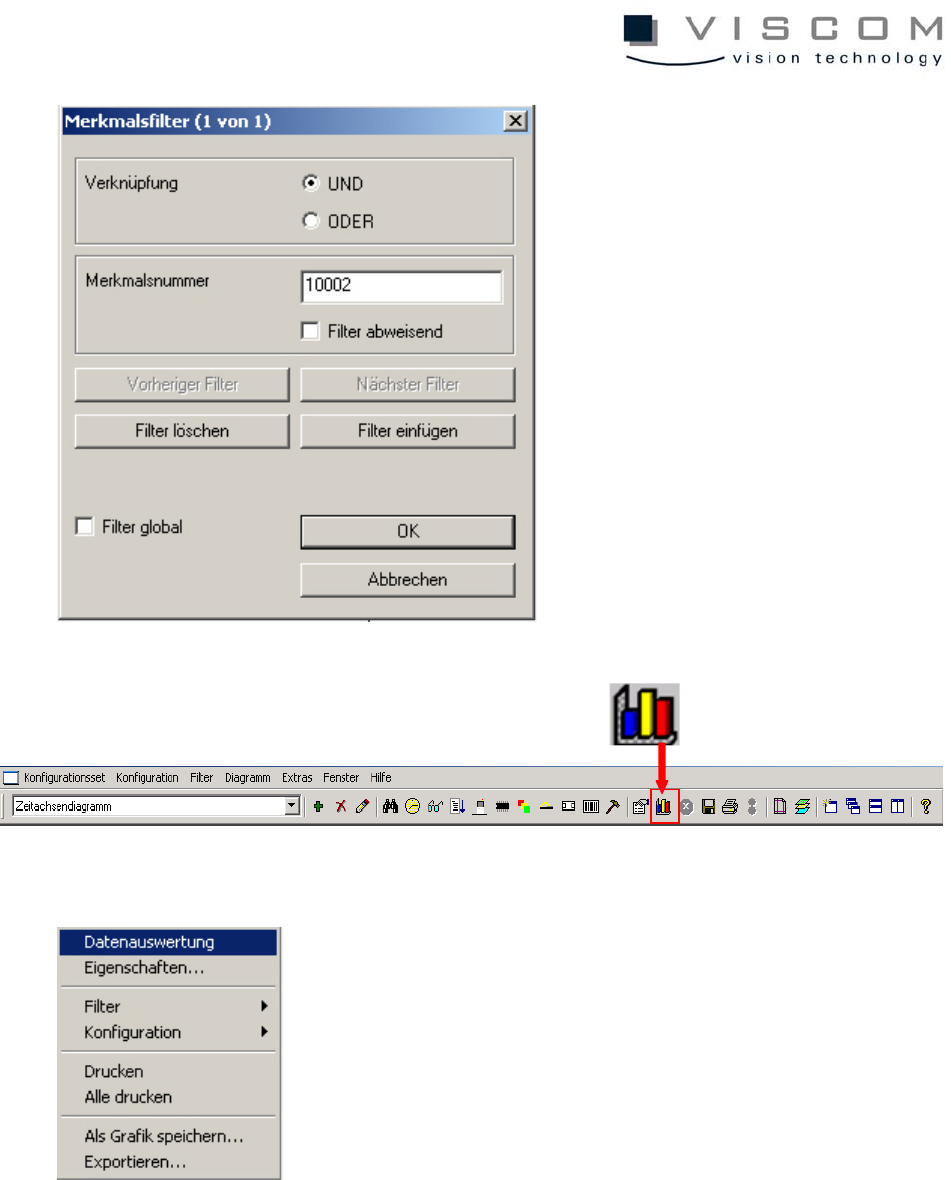
Setting the features filter (10002-> only pseudo defects are displayed)
39/144
Now, with a click on "Data evaluation," under consideration of the filter settings,
all data that corresponds to the preconditions is displayed in the diagram.
During evaluation the message "Data is evaluated..." appears at the bottom left
of the image.
40/144
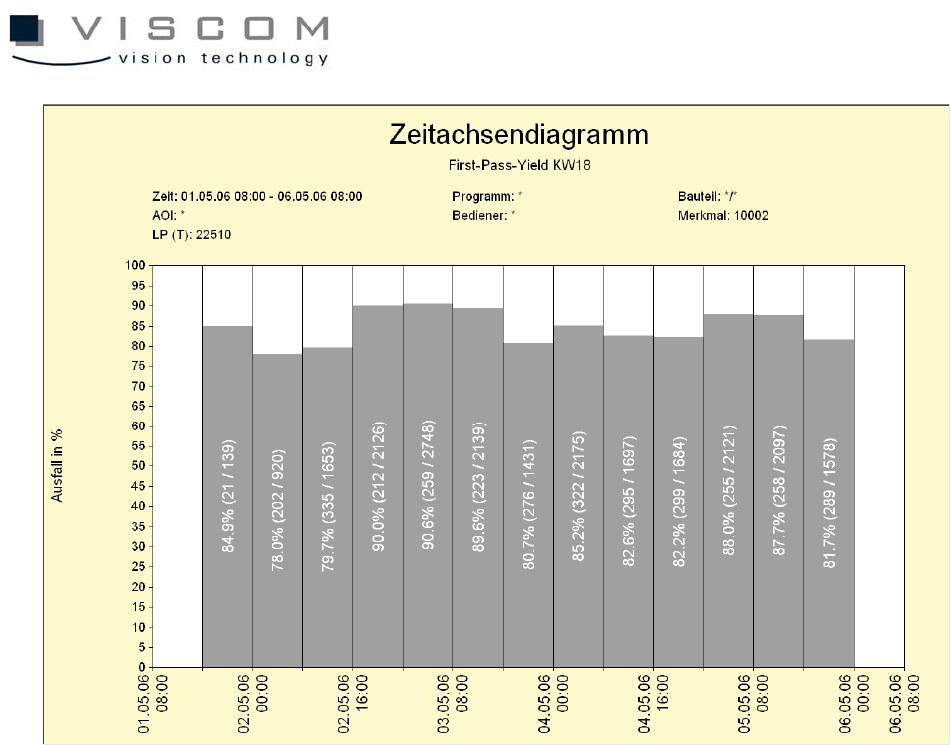
The display shows 13 bars with the same width, each of which represents eight
hours.
A percentage number which displays the percentage of good PCBs (First Pass
Yield) is seen in each bar. The numbers in the brackets give the ratio between
the defect rate and the entire run within a time period.
But because each bar contains all the inspection plans that are run during this
period on "X" machines, it might be important for the programmer to know which
inspection plan has the least number of good boards, so it can be better
optimized.
A click with the left mouse button on the second bar brings up the following
image.
Every inspection plan in the header in the particular time period is inspected in
this scroll list. The list is constructed exactly like the bar labeling.