1.011.1_VPC使用手册.pdf - 第113页
112/144 1. The directory view on the left side allo ws directories to be chosen. By using the context menu or the m enu "Browser", individual root knots can be added. 2. The barcode view is the uppermost area o…
111/144
8.2 VpcExplorer
The VpcExplorer allows the consideration of VPC and VPM files.
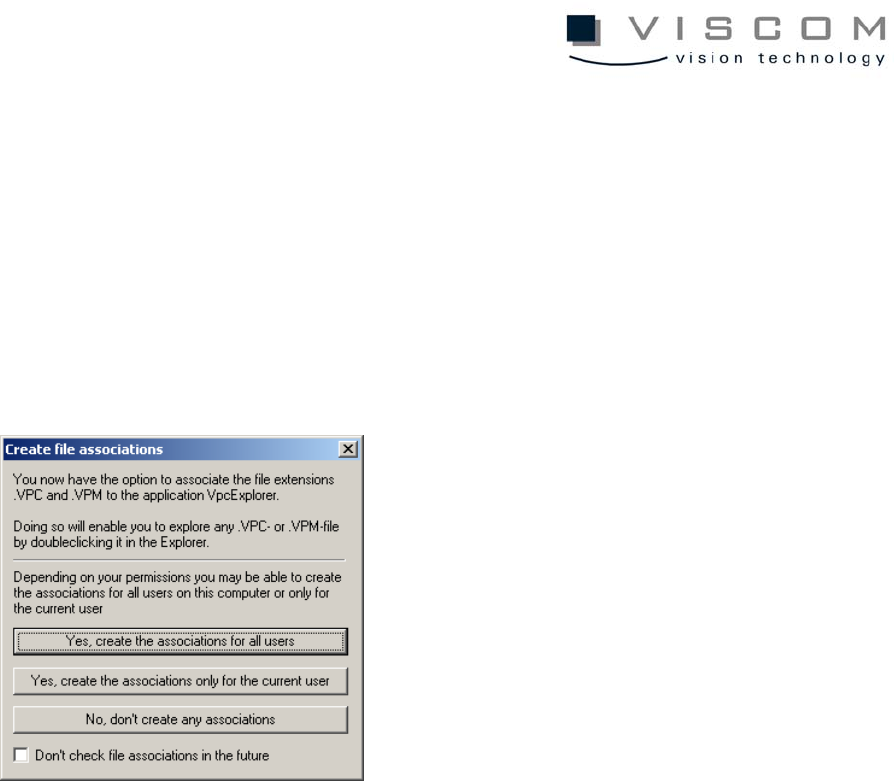
When the program is first started, a dialog to facilitate the setup of links
between the file endings VPC/VPM and the VpcExplorer is displayed, as shown
below.
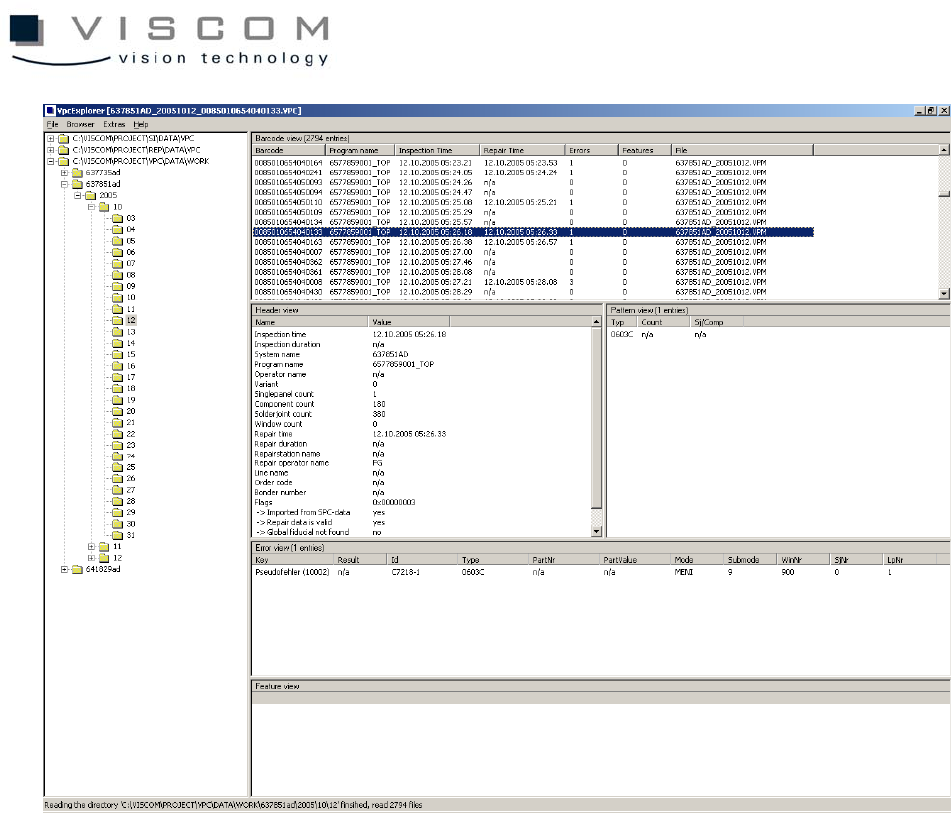
Then the main view of the VpcExplorer, divided into five areas, is displayed.
112/144
1. The directory view on the left side allows directories to be chosen. By using
the context menu or the menu "Browser", individual root knots can be added.
2. The barcode view is the uppermost area on the right side. Here, the
inspections found in all the directories selected on the left are listed out,
regardless if they are present as VPC or VPM files. Clicking on the column
heading starts a sorting which shows the following information for every
inspection:
• barcode
• inspection plan
• inspection time
• repair time
• number of defect entries
• number of feature entries
• names of the VPC or VPM files that contain barcodes

113/144
3. The header view shows all global information for the selected inspection.
4. The inspection pattern view shows all the inspection patterns available in the
inspection plan, their number, and the number of solder joints. For imported
SPC files, only the inspection pattern names can be shown.
5. The defect view shows all the defects of the selected inspection. The following
fields are shown in detail:
• defect key
• results code
• Id
• inspection pattern
• material number
• component value
• mode und submode
• window and solder joint number
• PCB number
6. The features view shows all the feature values of the selected inspection. All
fields below the fifth are displayed, so defect keys and results codes are
replaced by feature keys and feature values.