1.011.1_VPC使用手册.pdf - 第87页
86/144 1 activates time monitoring of the autom atic data evaluation; the status of this option is NOT saved in the configuration file and is always deactivated after a new start of the VPC software 2 gives the desired e…
85/144
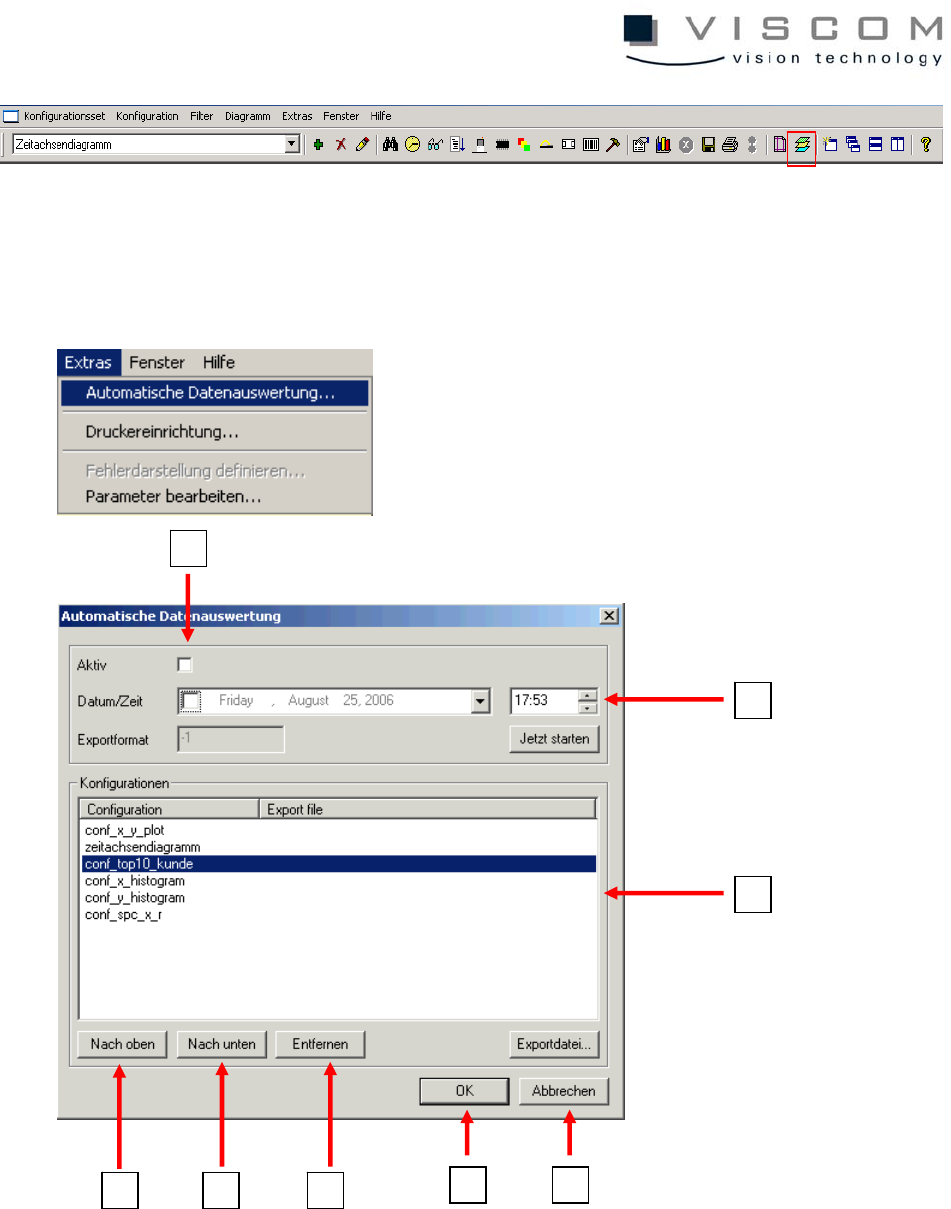
The menu point "Extras - Automatic data evaluation" displays the configuration
dialog illustrated here, which offers the following options.
1
2
3
4 5 6
8 7

86/144
1 activates time monitoring of the automatic data evaluation; the status of
this option is NOT saved in the configuration file and is always
deactivated after a new start of the VPC software
2 gives the desired evaluation time in the format "date/hour/minute"
3 the list shows all configurations for the automatic data evaluation
currently chosen
4 this button modifies the order of the entries; here: upwards
5 this button modifies the order of the entries; here: downwards
6 entries can be deleted from the list
7 closes the window and deletes all set checkmarks
8 confirms the automatic data evaluation
If the automatic data evaluation is active, the computer time is compared to the
evaluation time once every minute. If the two times agree, a new configuration
set with a diagram is created. All chosen configurations are loaded into this
diagram sequentially and the evaluation is carried out.
A folder in the format YYYYMMDD_HHMM is created in the directory
DATA\BATCH for every automatic evaluation, where the graphics of the
diagrams are stored in the format "diagramname.bmp". The diagram graphics
are saved in this folder in the format "diagramname.bmp".
It could also make sense to save not only the diagram images but also to have
the results as a text file to allow subsequent processing.
5.1.1 Data export with diagram
Here, there are several possibilities for data export.
The simplest possibility is to click with the left mouse button on a chosen
column (for example, the time axis diagram type 4).
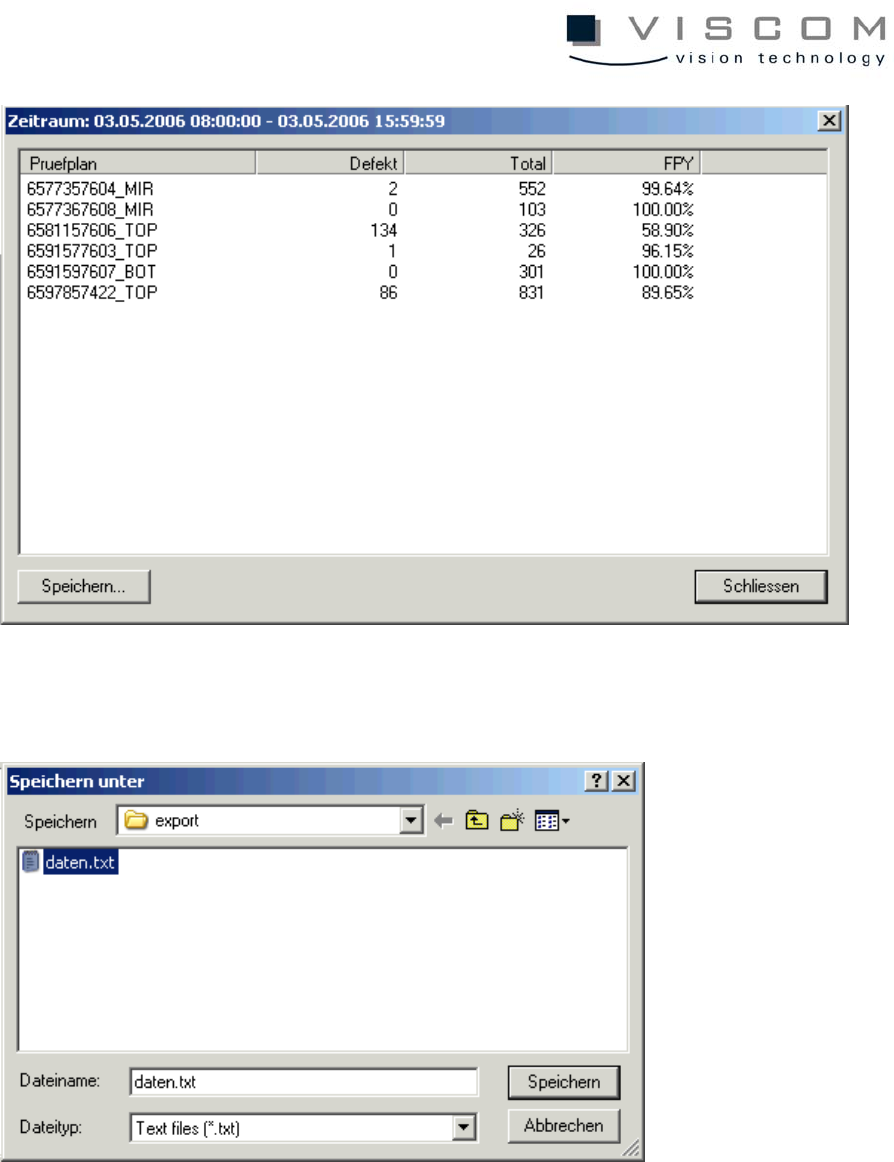
The following window is opened:
87/144
This list can be written in a .txt file by using the button "save". In this example,
the .txt file has the name "Data" and is saved in the directory "Export".