00197042-04_SM_X-Serie-S_Customer_EN.pdf - 第203页
6 Gantries 6.9 eSW Download (SW 70x) Service Manual SIPLACE X-Serie S 06/2019 203 Fig.259: Select subsystem ► Select the subsystem for the eSW download. ► Click on the Continue button. Fig.260: Update machine menu 1. S…
6 Gantries
6.9 eSW Download (SW 70x)
202 Service Manual SIPLACE X-Serie S 06/2019
6.9 eSW Download (SW 70x)
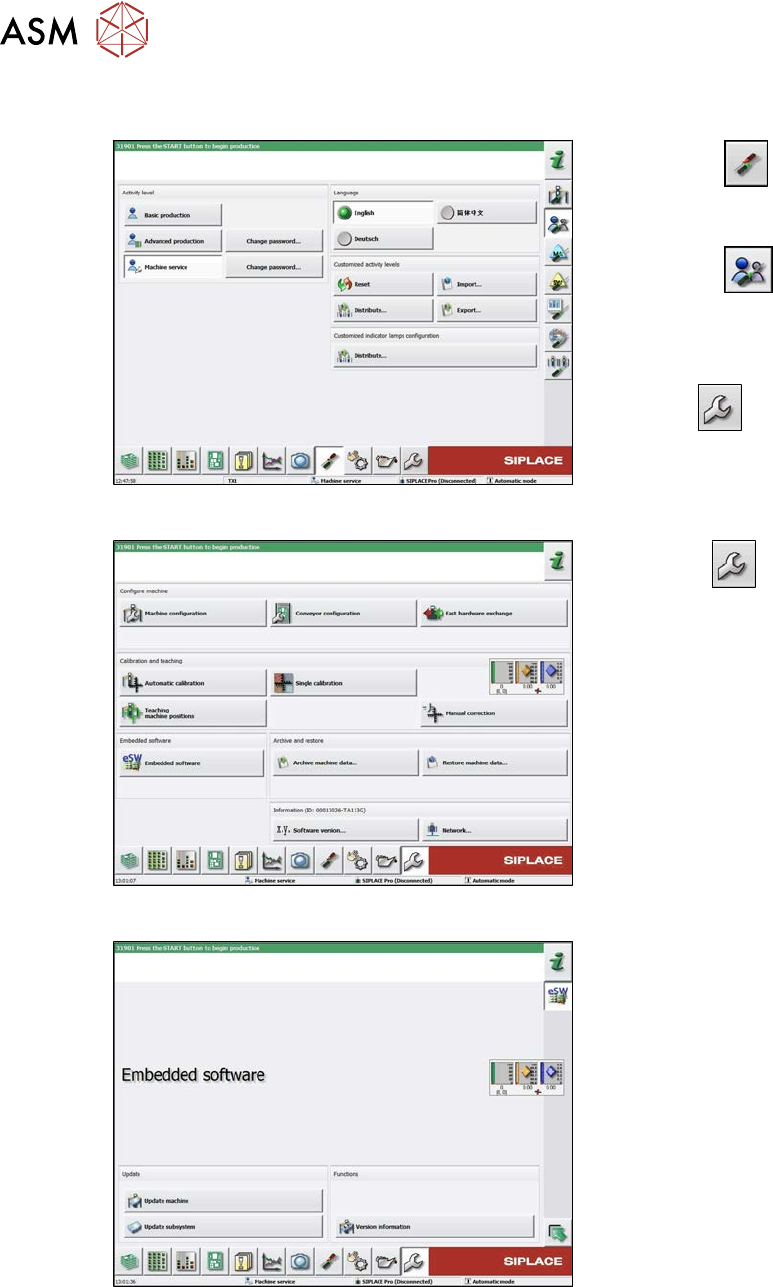
Fig.256: Select operator level
► Select the
button, to open the
Configure, update and calibrate the
machine menu.
► Select the
button to open the
Check and set user settings menu.
► Switch over to the operator level Ma-
chine service.
ð The
button will be shown.
Fig.257: Service menu
► Click the
button to enter the Ser-
vice menu.
► Click on the Embedded software but-
ton.
Fig.258: Embedded software menu
Select the required function:
► Click on Update machine… to check
the entire machine and to perform an
eSW download for multiple subsystems
(see next picture).
► Click on Update subsystem… to se-
lect one subsystem, check and to per-
form an eSW download.
► Click on the button Version informa-
tion…, to view all versions of the sub-
systems, BIOS, application 1/2/3/5.
6 Gantries
6.9 eSW Download (SW 70x)
Service Manual SIPLACE X-Serie S 06/2019 203
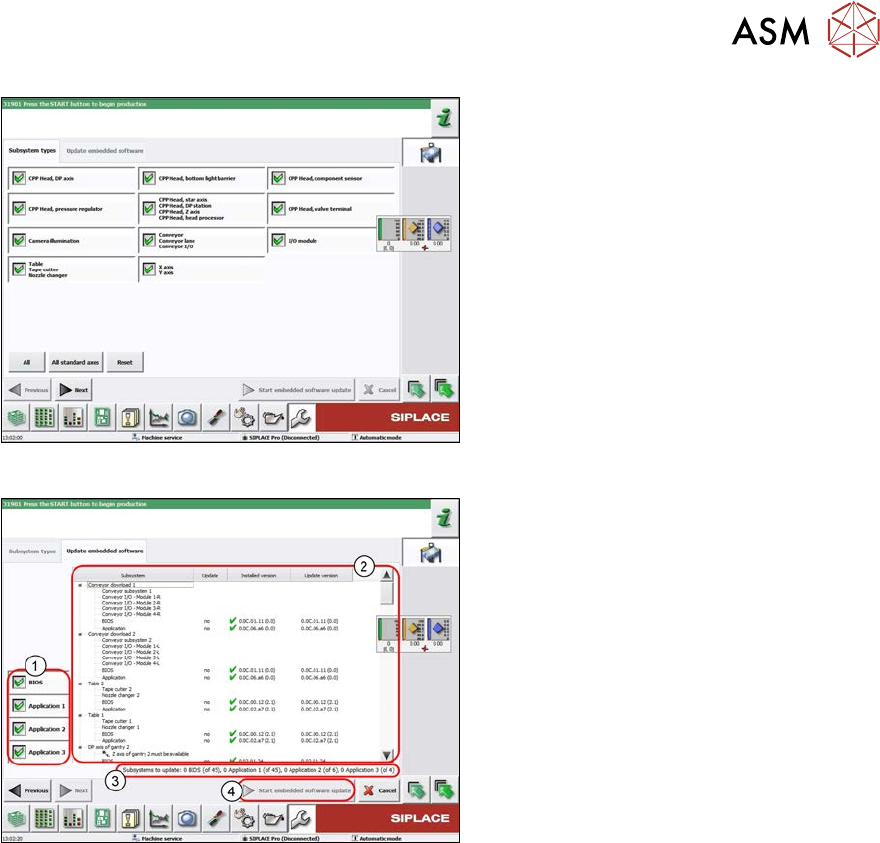
Fig.259: Select subsystem
► Select the subsystem for the eSW
download.
► Click on the Continue button.
Fig.260: Update machine menu
1. Selection buttons:
BIOS
Application 1
Application 2
Application 3
2. Shows the status of the individual sub-
systems
3. Update information
This shows you the number of subsys-
tems which still need to be down-
loaded.
4. Starts the download

6 Gantries
6.9 eSW Download (SW 70x)
204 Service Manual SIPLACE X-Serie S 06/2019