00197042-04_SM_X-Serie-S_Customer_EN.pdf - 第273页
7 Conveyor 7.8 Laser light barriers, fiber optic cable and PCB sensors Service Manual SIPLACE X-Serie S 06/2019 273 7.8.4 Correcting the Laser Light Barrier Setting DANGER Laser class 2 The laser light barrier transmitte…
7 Conveyor
7.8 Laser light barriers, fiber optic cable and PCB sensors
272 Service Manual SIPLACE X-Serie S 06/2019
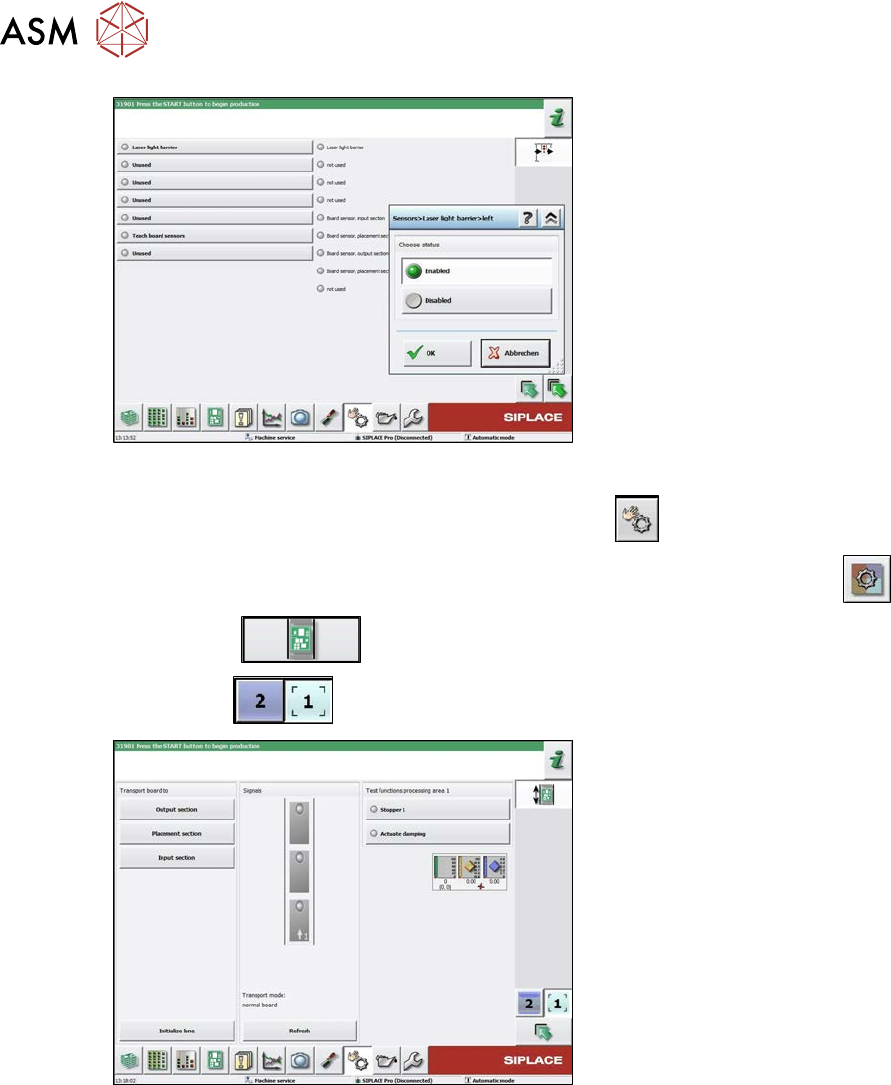
Fig.346: Sensors
► Enable the Laser light barrier button.
► Click on the button Check sensors and functions
.
► Click on the button Check sensors and functions of specific components
.
► Click the
button.
► Use the
button to select the required conveyor track.
Fig.347: Checking function of the laser light
► Check the function of the laser light
barrier. To do this, move a board
through the conveyor.
► Correct the laser light barrier setting, if
necessary (see below).
7 Conveyor
7.8 Laser light barriers, fiber optic cable and PCB sensors
Service Manual SIPLACE X-Serie S 06/2019 273
7.8.4 Correcting the Laser Light Barrier Setting
DANGER
Laser class 2
The laser light barrier transmitter emits class 2 laser beams. You therefore do not require
additional protective measures!
► However, you should never look into the laser beam!
► Adjust the laser beam only from the rear side of the laser!
Parts, equipment and tools
●
Recommendation for new version of receiver (silver receiver surface):
semi-transparent paper or plastic (for better recognition of laser beam)
Overview
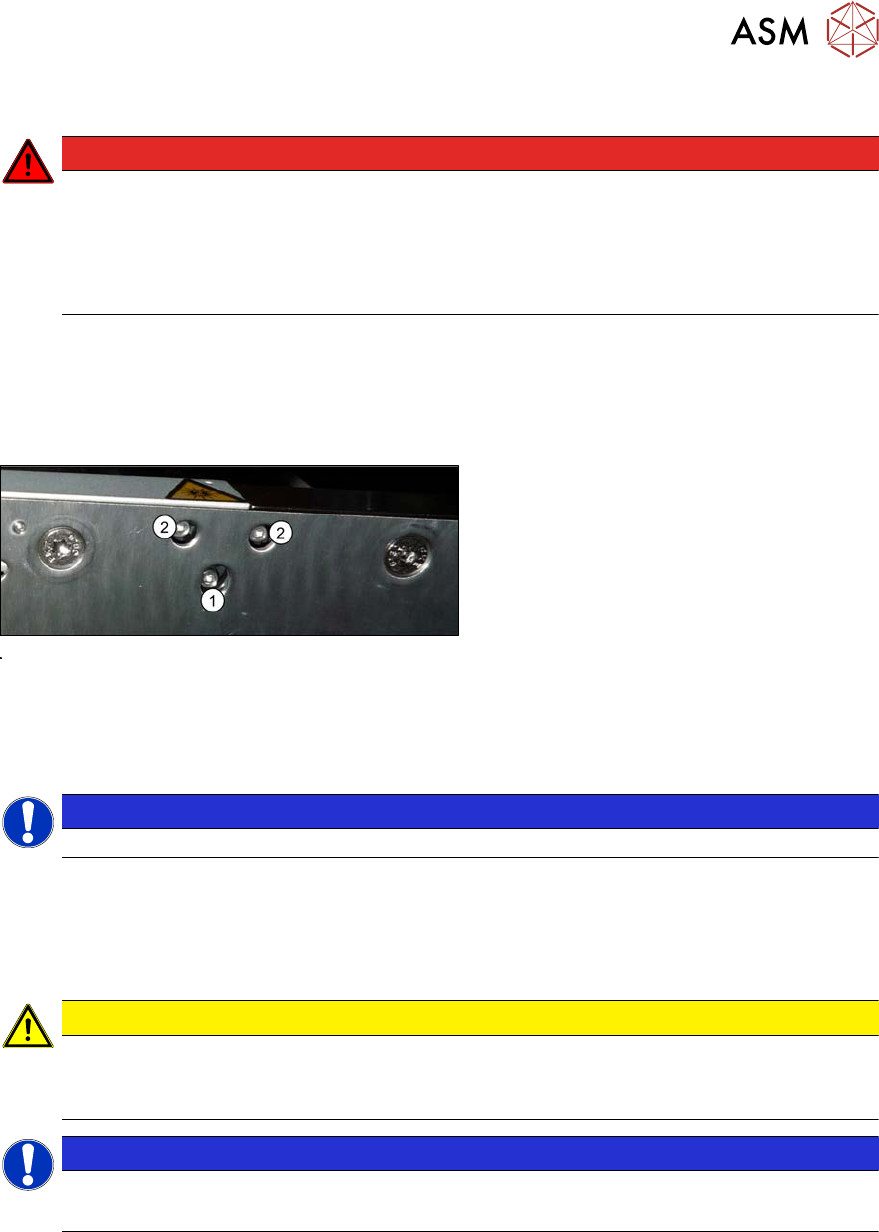
Fig.348: Laser light barrier
1. Fastening screw
2. Setting screws
Procedure
► Set the maximum conveyor width.
NOTICE
Deviation of the laser beam has the greatest effect at maximum conveyor width.
► Select "Enable safety mode".
► Activate the relevant laser diode using the input/output functions in the station software.
► Use the top two screws to set the laser beam so that it is correctly aligned with the laser recei-
ver.
CAUTION
Screws on the laser transmitter
► Hand-tighten the lower screw. The top two screws are used to set the laser beam.
These may not be fully tightened, otherwise the laser transmitter could be damaged.
NOTICE
Semi-transparent paper or plastic
► Use semi-transparent paper or plastic to make the laser beam visible on the receiver.
► Now position the conveyor to minimum width and check the setting,
► Check the PCB reference corner and reteach, if necessary.
7 Conveyor
7.8 Laser light barriers, fiber optic cable and PCB sensors
274 Service Manual SIPLACE X-Serie S 06/2019
7.8.5 Replacing the fiber optic cable
NOTICE
Repairing the Fiber Optic Cable
Depending on the machine and the installation position, the complete replacement of the
fiber optic cable may take approx. 2 to 2.5 hours. To avoid downtimes, it is possible to per-
form a short-term repair using the repair hose. Observe the instructions in section 7.8.6
"Repairing the fiber optic cables" [}278].
Parts, equipment and tools
●
Fiber optic cable LL3-TV05 3 m [03092408-xx]
(two fiber optic cables per pack incl. cutter tool)
NOTICE
Transmitter/receiver:
Both fiber optic cables are technically identical and be used either as transmitters or receiv-
ers.
Overview
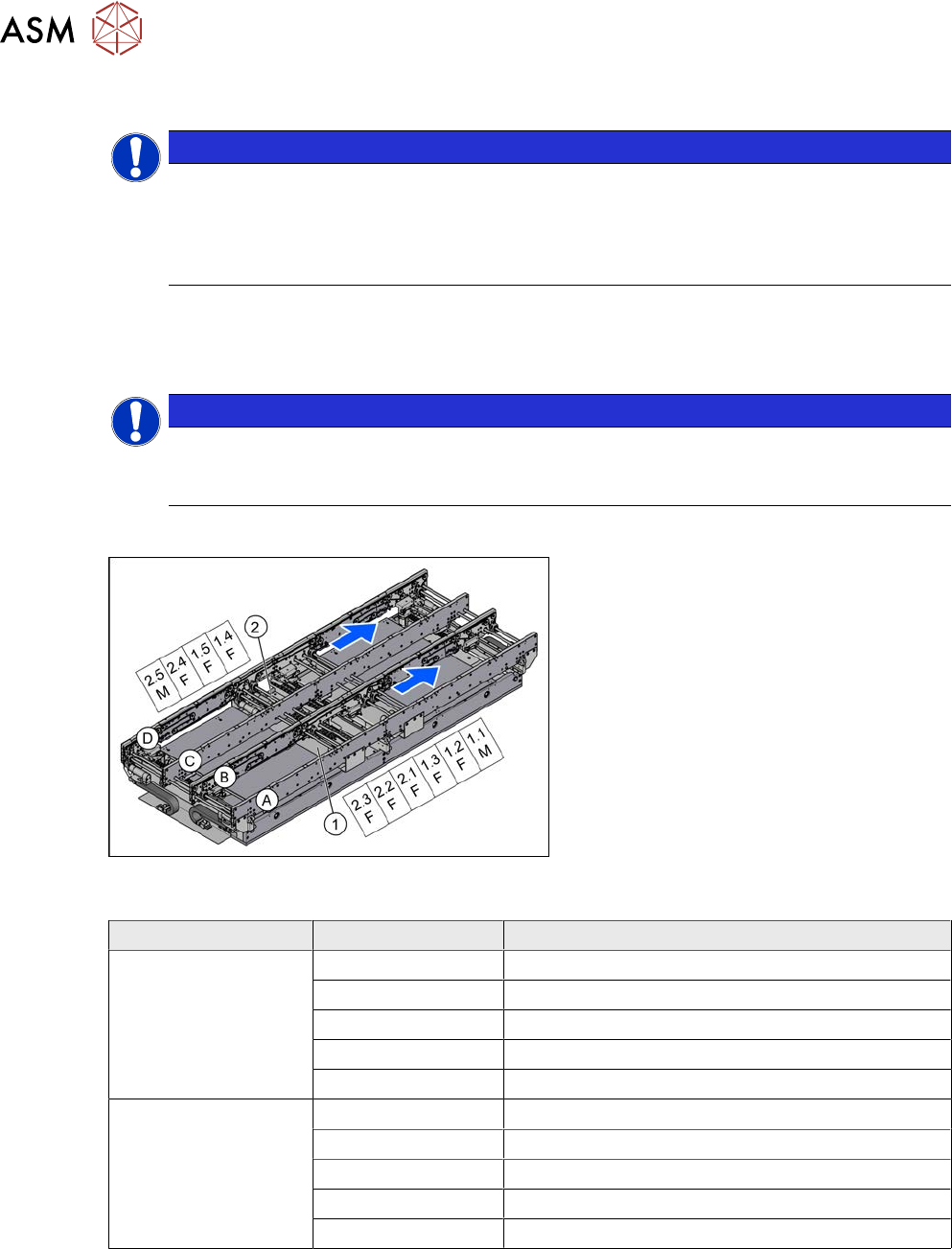
Fig.349: Overview of fiber optic cable sensor
The fiber optic cable sensors are located at
locations 1 and 4, under the covers of the
conveyor control(1) and(2).
The sensors for the input conveyor, place-
ment area 1 and intermediate conveyor can
be found at (1).
The sensors for placement area 2 and the
output conveyor can be found at (2).
The fiber optic cable sensors are separated
into master (M) and slave (F).
The receiver is always at the top of the
sensors and the transmitter at the bottom.
The transmitters are located on sides B and
D.
The receivers are located on sides A and C.
Conveyor lane Designation Location
Lane 1 1.1 Input belt
1.2 Placement area 1
1.3 Intermediate belt
1.4 Placement area 2
1.5 Output belt
Lane 2 2.1 Input belt
2.2 Placement area 1
2.3 Intermediate belt
2.4 Placement area 2
2.5 Output belt