00197042-04_SM_X-Serie-S_Customer_EN.pdf - 第244页
7 Conveyor 7.5 Width Adjustment, Clamps and Cylinder Unit 244 Service Manual SIPLACE X-Serie S 06/2019 Troubleshooting NOTICE Conveyor side was not correctly recognized ► Set the distance between the sensor flag and the …
7 Conveyor
7.5 Width Adjustment, Clamps and Cylinder Unit
Service Manual SIPLACE X-Serie S 06/2019 243
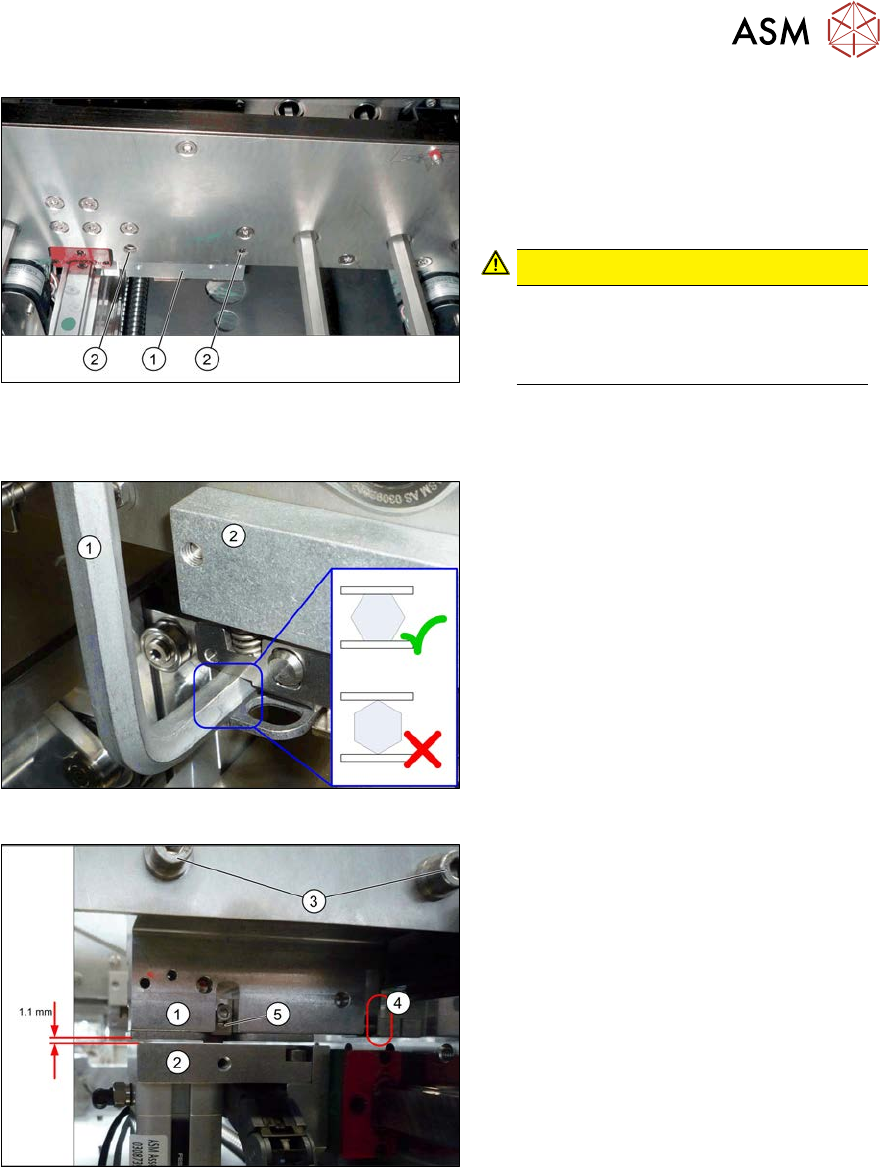
Fig.309: Removing the clamp
► Remove the two screws (2) fastening
the clamp(1). These are on the side of
the conveyor side which faces away
from the clamp.
Make sure that you do not loosen or
remove any other screws !
CAUTION!
The screws fastening the clamps may
only be loosened if the clamps have
already been fixed in place with a spe-
cial screw!
.
Installation
Fig.310: Preparing the clamp
► Clamp an 8 mm Allen key(1) into the
clamp(2). Make sure you align it cor-
rectly.
This achieves a straight installation position.
Fig.311: Fitting the clamp
► Move the adjustment unit(2) by care-
fully pulling on the width adjustment
belt under the installation location of
the clamp(1).
► Loosely fasten the clamp into place
with two screws(3) (Allen key5).
► Let the clamps lie flush at the side(4),
set a gap of 1.1mm between the
clamps and the adjustment unit and
then tighten the two fastening screws
with a torque of 8 Nm.
► Set the sensor switch(5) so that it has
a distance of 0.3mm to the adjustment
unit.
► Follow the removal instructions in reverse order for further installation. Also observe the fol-
lowing instructions:
– Check the input/output functions in the software to make sure that the adjustment units
with all sensors are recognized for all conveyor sides.
– Perform calibration of the fixed conveyor sides on the left and right. If you do not, not all
conveyor sides will be calibrated (see7.10.3 "Calibrating the Conveyor Rails" [}301]).
This calibration is needed to ensure that the conveyor sides are positioned correctly.
7 Conveyor
7.5 Width Adjustment, Clamps and Cylinder Unit
244 Service Manual SIPLACE X-Serie S 06/2019
Troubleshooting
NOTICE
Conveyor side was not correctly recognized
► Set the distance between the sensor flag and the adjustment unit so that it is smaller:
0.25 to 0.20mm.
NOTICE
Insufficient clamping power
If the conveyor side clamps are no longer clamping enough, this could be because the con-
veyor side has been moved without the brakes (clamps) being released. In this case, pro-
ceed as follows:
► Remove the clamping unit and check its friction surface. If this is no longer rough,
clean the surface with "universal sanding cleaner". Carefully remove any aluminum
shavings on the friction surface.
► Readjust the clamps as described above and then tighten the screws with 8 Nm.
► If you are unable to set the parallelism of the conveyor sides with the width adjust-
ment, inform your SIPLACE service team.
7.5.12 Replacing the contact plate of the clamping unit
Parts, equipment and tools
●
Contact plate clamp unit SXa [03092536-xx]
●
Eraser, if needed
Overview
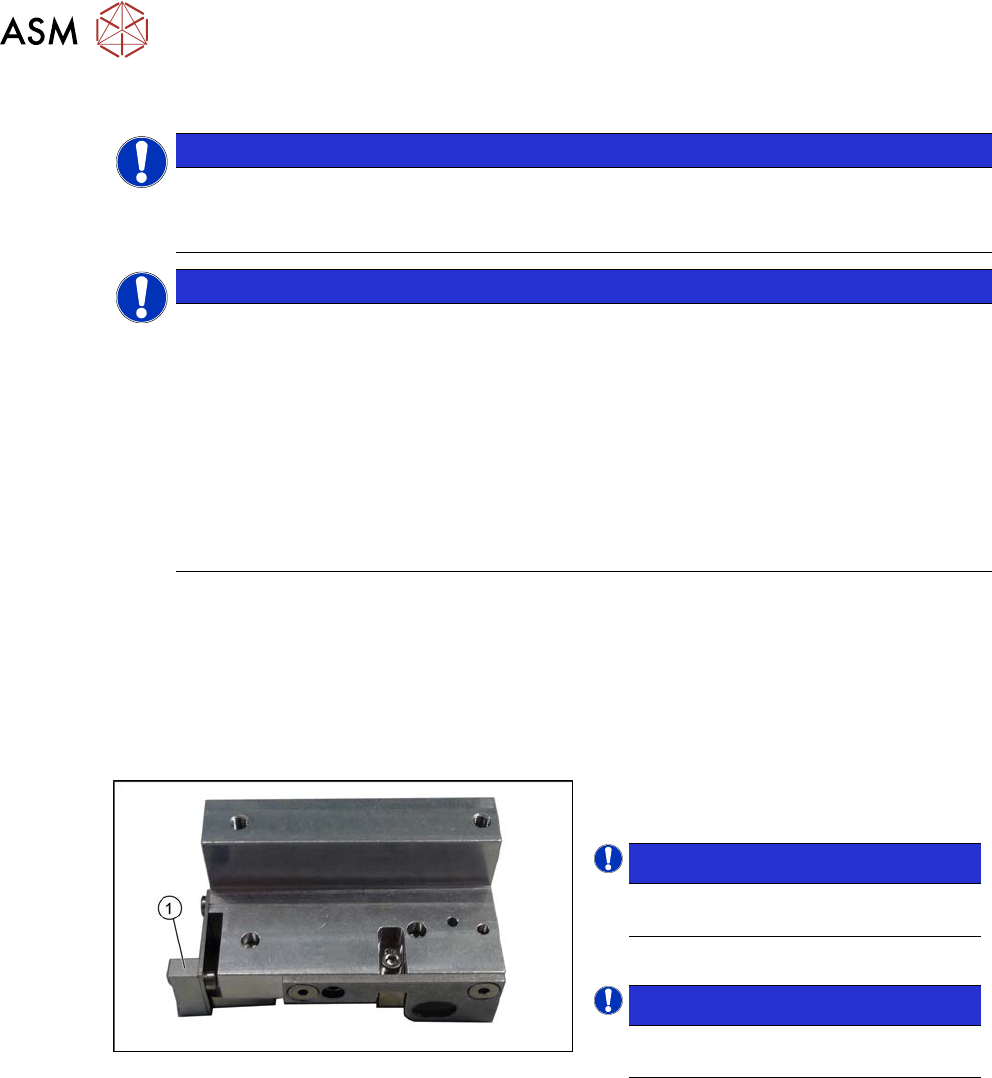
Fig.312: Contact plate
1. Contact plate
NOTICE!
The contact plate is the same through-
out all versions of the clamping unit.
.
NOTICE!
The contact plate can be cleaned us-
ing an eraser.
.
Removal/installation
► Remove the clamping unit. Read the relevant section for this:
7.5.10 "Replacing the Clamping Unit (Version 1) (DC Only)" [}238]
7.5.11 "Replacing the Clamping Unit (Version 2) (DC Only)" [}242]
► Remove the screw fastening the contact plate and then remove the contact plate.
Installation
► Follow the removal instructions in reverse order for installation.
7 Conveyor
7.5 Width Adjustment, Clamps and Cylinder Unit
Service Manual SIPLACE X-Serie S 06/2019 245
7.5.13 Calibrating the adjustment unit
NOTICE
This chapter is valid for machines with dual conveyor (DC) only.
After completing all work to the width adjustment (adjustment unit, motor or belt of width adjust-
ment), you need to configure the adjustment unit before you configure the conveyor rails.
Procedure
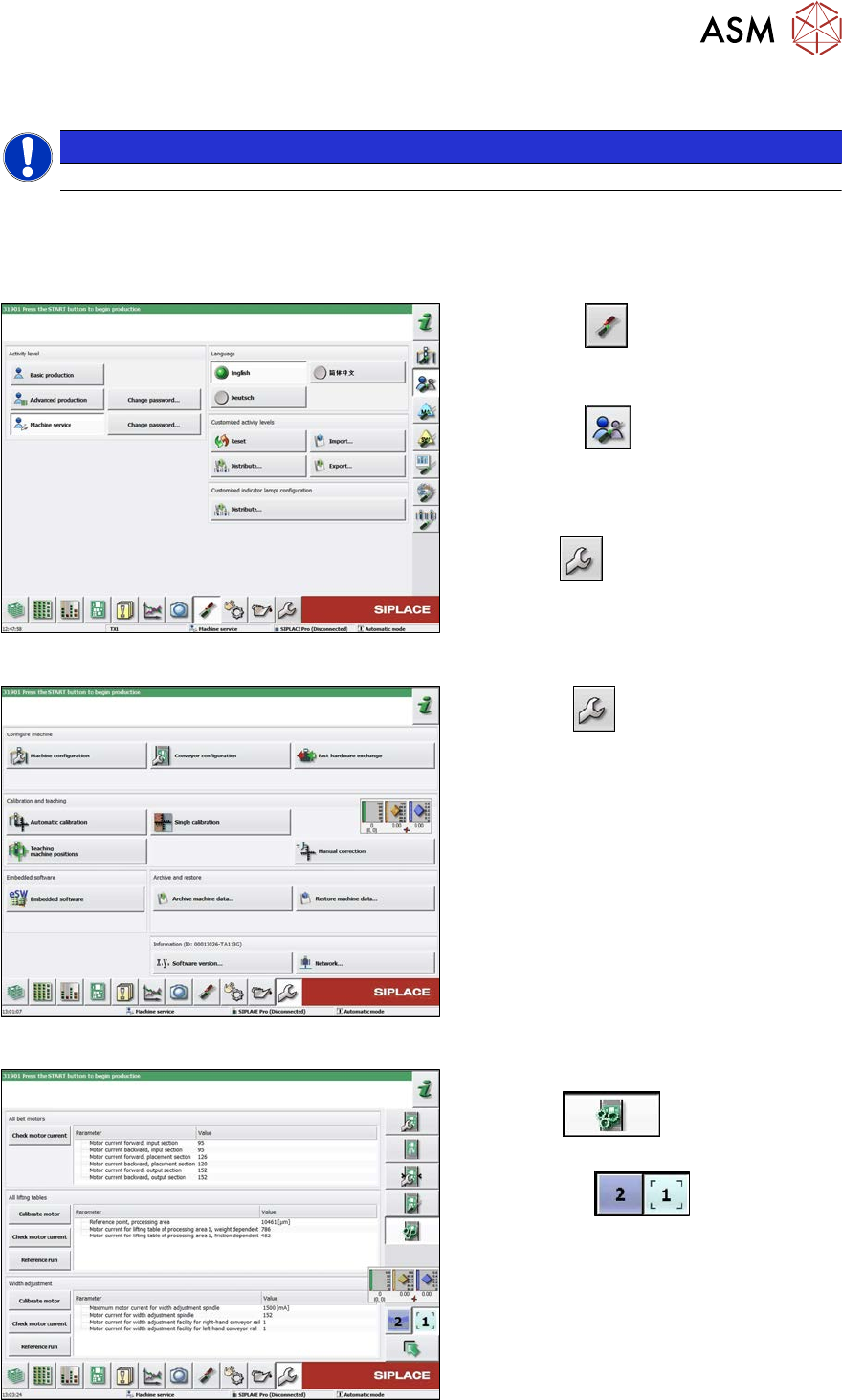
Fig.313: Select operator level
► Select the
button, to open the
Configure, update and calibrate the
machine menu.
► Select the
button to open the
Check and set user settings menu.
► Switch over to the operator level Ma-
chine service.
ð The
button will be shown.
Fig.314: Service menu
► Click the
button to open the Ser-
vice menu.
► Click on the Conveyor Configuration-
button.
Fig.315: Conveyor menu
► Click on the Initiate conveyor para-
meters
button.
► Select the required conveyor track with
the buttons
.
► Go to the section Width adjustment
and select the button Calibrate motor.