CYCLONE-User-Manual.pdf - 第124页
User Manual For Cyclone LC Programmers 124 12.2.1.1 Reset Instructs the program to start editing a NEW (as yet un-named) serial number file. It will throw away the information for any serial number currently being edited…
User Manual For Cyclone LC Programmers 123
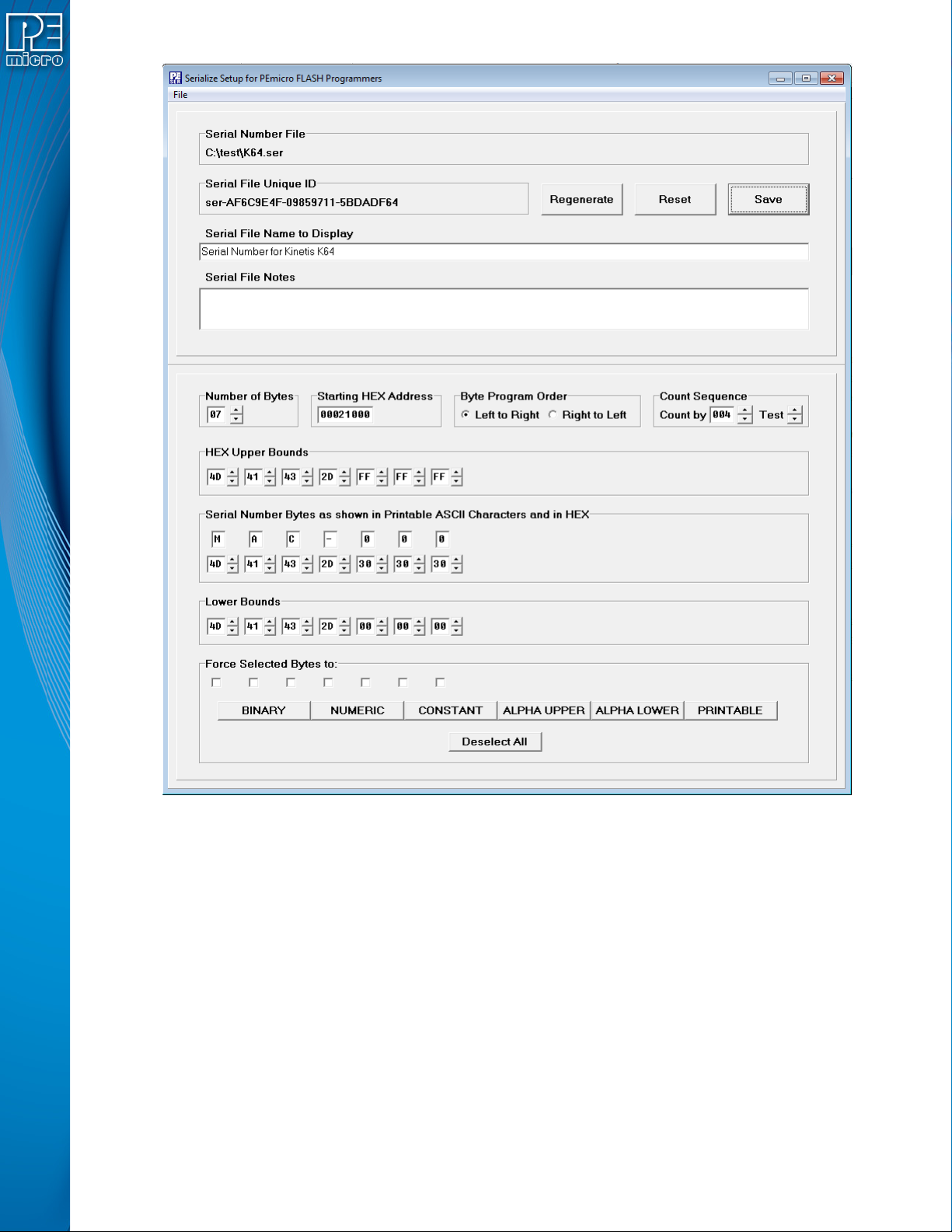
Figure 12-1: Serialize Main Screen
12.2.1 Startup And File Options
On startup, the Serialize program will automatically open the last file saved. If no file has been
saved, it will default to blank.
• Reset Button - Lets you reset to a screen with only a single serial number byte defaulted to
binary (00), Hex Address 00000000.
• Regenerate Button - Preserves serial number bytes and bounds but assigns a new Serial
Number Unique ID
• Save Button, File→Save - Brings up a dialog to which is set to save to the current serial
file configuration.
• File→Save As - Brings up a dialog to select any file
• File→Load - Brings up a dialog to select a previously saved file

User Manual For Cyclone LC Programmers 124
12.2.1.1 Reset
Instructs the program to start editing a NEW (as yet un-named) serial number file. It will throw
away the information for any serial number currently being edited unless that information has been
saved (Save Button). The new serial number is initialized with one (1) byte of binary.
12.2.1.2 Save
Pops up a Save dialog with the current serial number being edited into the file name and path as
shown in the Serial Number File window. If a file name has not been provided, a dialog will pop up
to allow the user select a file name. Save will save any setup information in the file Serialize.ini.
This file will initialize the setup information the next time the program is started.
12.2.2 Serial Number File
Displays the path and filename of the open Serial File, if saved.
12.2.3 Serial File Unique ID
Displays the unique ID associated with the Serial File. A unique ID is generated anytime a Serial
File is created or modified. Multiple programming images are able to share the same serial
numbers by referencing the same ID number (see Section 13.6 - Shared Serial Numbers). The
user can click the “Regenerate” button to assign a new unique ID to the current Serial File.
12.2.4 Serial File Name To Display
The name that will appear in the JSON viewer, Cyclone menu, and in the Name field of the
Cyclone Control GUI. A descriptive name can help to easily differentiate Serial Files.
12.2.5 Serial File Notes
Allows the user to save notes regarding the Serial File. These will appear in the JSON viewer
when viewing the properties of the Serial File, see Section 13.3 - Serial File Properties.
12.2.6 Number of Bytes in Serial Number
The up and down arrows allow the user to add or delete bytes for the serial number, the maximum
in hexadecimal = 0x10 (16 base ten), the minimum = 1.
• Up Arrow Click - Adds new bytes to the Serial Number. Each byte added appears as a
new column in the serial number representation. Added bytes are input as Binary Bytes,
i.e. the upper bound is FF and the lower bound is 00.
• Down Arrow Click - Deletes bytes from the right end of the Serial Number. Any previously
entered byte properties are lost.
12.2.7 Starting HEX Address
Assigns the starting address (in hexadecimal) of the device memory where the serial number will
be programmed.
12.2.8 Count Sequence
This window lets you test the serial number by counting up or down through the sequencing of the
serial number. The serial number will roll over the upper bounds of the highest serial number back
to the lower bounds of the serial number, and vice versa.
• Up Arrow Click - Counts the serial number up.
• Down Arrow Click - Counts the serial number down.
12.2.9 Serial Number Bytes as Hex
There is one display column for each byte in the serial number shown as printable ASCII
characters. Non-printable ASCII characters are indicated by a blank gray box.
• Up Arrow Click - Counts the serial number up.

User Manual For Cyclone LC Programmers 125
• Down Arrow Click - Counts the serial number down.
• Click into the edit Box to enter any number within range. Values entered will be limited by the
upper and lower bounds.
12.2.10 Hex Upper Bounds
There is one display column for each upper bound of the byte in the serial number in hex.
• Up Arrow Click - Increases the upper bound by one with a maximum of FF Hex.
• Down Arrow Click - Decreases the upper bound by one with a minimum of the current
serial number byte value.
• Click into the edit Box to enter any number within range (from the Serial number value up
to a maximum of Hex FF).
12.2.11 Hex Lower Bounds
There is one display column for each byte of the lower bound of the serial number in hex.
• Up Arrow Click - Increases the lower bound by one with a maximum of the current serial
number byte value.
• Down Arrow Click - Decreases the lower bound by one with a minimum of 00 Hex.
• Click into the edit Box to enter any number within range (from the Serial number value to a
minimum of 00 Hex).
12.2.12 Binary, Numeric, Constant, Alpha Upper, Alpha Lower, and Printable
Checkboxes at the bottom will select properties to set for each serial number byte. Selections will
be highlighted in yellow. The buttons below may be used to set the boundary type for the selected
serial byte(s).
12.2.13 Byte Program Order
The user can choose whether the serial number increments from left to right, or from right to left, in
the Byte Program Order section.
12.3 Serial File Properties
Serial File properties are easy to access, as the generated serial file is stored in JSON format. This
makes it simple for the user to save and parse the information.
Note: Serial Files in JSON format are compatible with Cyclone LC firmware version 10.13 and later.
Users that wish to retrieve the original text serial number format can parse out the JSON file:
object->pesettings-> serial_number_definition -> legacyv1encoding
12.3.1 Serial File Example
An example file is provided, Example.ser, located in the Image Creation folder of your installation
directory. Below is a screen snapshot of the saved serial file as seen from a JSON viewer.