CYCLONE-User-Manual.pdf - 第137页
User Manual For Cyclone LC Programmers 137 When the activation process is complete, your license is stored in the Cyclone and ready for use. Figure 13-5: License Installed
User Manual For Cyclone LC Programmers 136
6. Once you add your Installation code, the License Activation window will now tell you the
several ways you can activate the license.
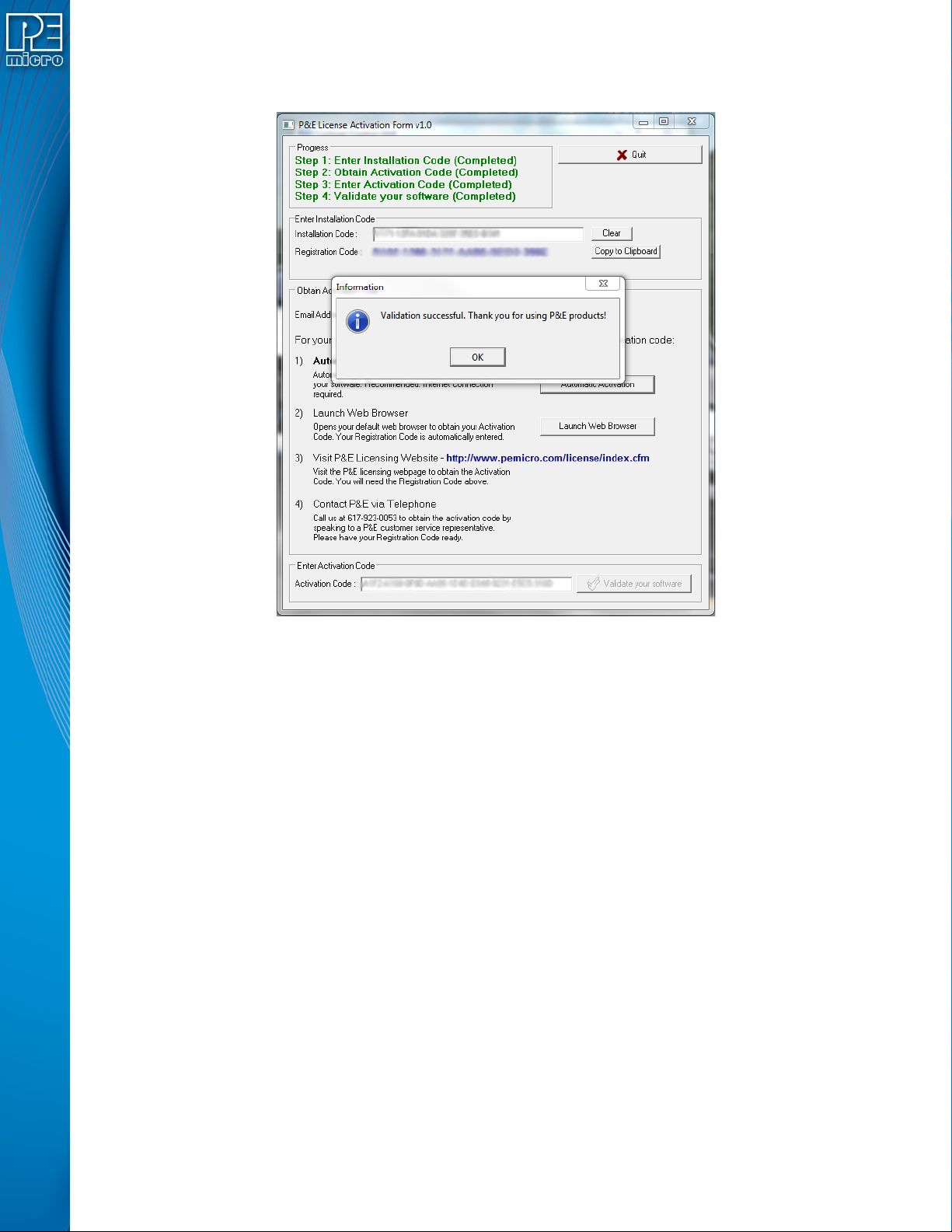
Figure 13-4: Activate License
User Manual For Cyclone LC Programmers 137
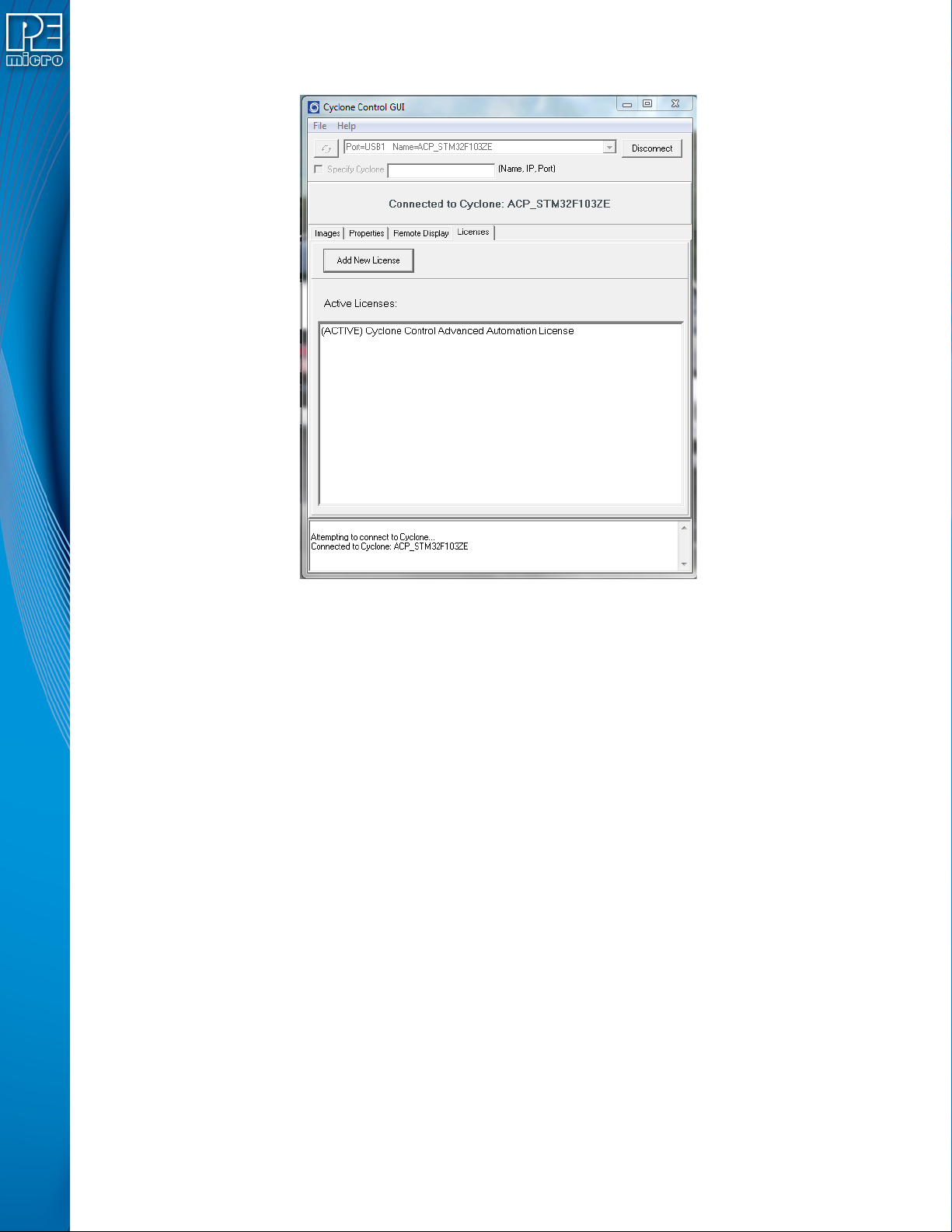
When the activation process is complete, your license is stored in the Cyclone and ready for use.
Figure 13-5: License Installed

User Manual For Cyclone LC Programmers 138
14 TROUBLESHOOTING
This section answers some common questions that should help the user with various aspects of
Cyclone LC operation.
14.1 My Cyclone Is Non-Responsive, Is There A Way To Re-Activate It?
It is possible that the issue is outdated firmware. In this case, you may wish to use bootloader
mode to update the Cyclone firmware and then try to re-start the Cyclone.
14.1.1 What Is Bootloader Mode?
Bootloader Mode is a special running mode of the Cyclone Universal and Cyclone Universal FX in
which only limited functionality of the Cyclone is allowed. In this mode, the Cyclone will allow
communication to a PC via USB, Ethernet or serial ports. In Bootloader Mode the user can update
the Cyclone firmware via the cyclone utilities.
The Bootloader screen will display the version of the bootloader, the version of the internal and
external application, the name of the Cyclone and it's IP address.
14.1.2 When Is Bootloader Mode Used?
If the Cyclone ever becomes unresponsive, communication to the PC is not possible via USB,
Ethernet, or Serial ports and if the cyclone fails to power on.
14.1.3 How Is Bootloader Mode Entered?
You can force the Cyclone into bootloader mode with the following sequence, with the Cyclone
powered:
- Press the Reset button
- Press the Start button
- Release the Reset button
- Tap the Cyclone LCD screen 3 times
- Release the Start button
14.2 I Received A “SAP Image Needs To Be Updated” Error Using A Next-Gen Cyclone, How
Do I Update?
The current PEmicro software that is available for all our Cyclones generates SAP images that are
compatible with our newest generation of Cyclones.
However, customers who have generated SAP images using older versions of our Cyclone
software with Cyclones such as the Cyclone PRO and Cyclone MAX, etc., will find that these SAP
images will not work on the newer Cyclone LC and Cyclone FX programmers. Simply recreating
these images for current generation Cyclones could potentially introduce errors and lose
information about commands, settings, and configurations.
Therefore, we created the “SAP_Convert_Console.exe” which can be used to convert older
generation SAP images into current generation SAP images. Once converted, an image will work
not only on Cyclone LC and Cyclone FX programmers, but it will also remain compatible with the
Cyclone for which it was originally created.
14.2.1 How Do I Use SAP_Convert_Console.exe?
SAP_Convert_Console.exe is a Windows command line utility and the software must be run
through the Windows Command Prompt. The utility can be found in the same folder as the
Cyclone’s software install path.
The command line parameter syntax:
>SAP_Convert_Console [old_SAP_path] [new_SAP_path]